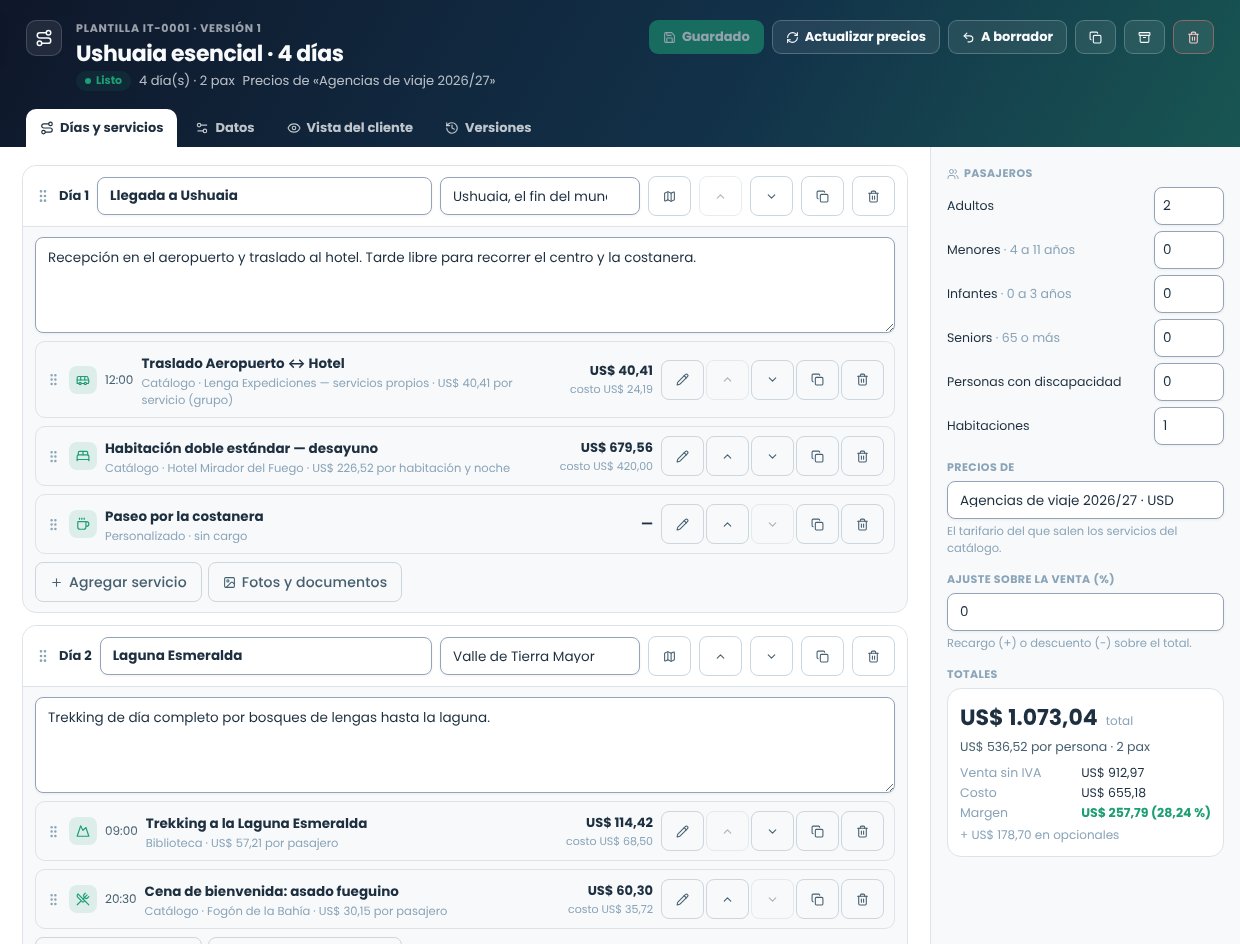
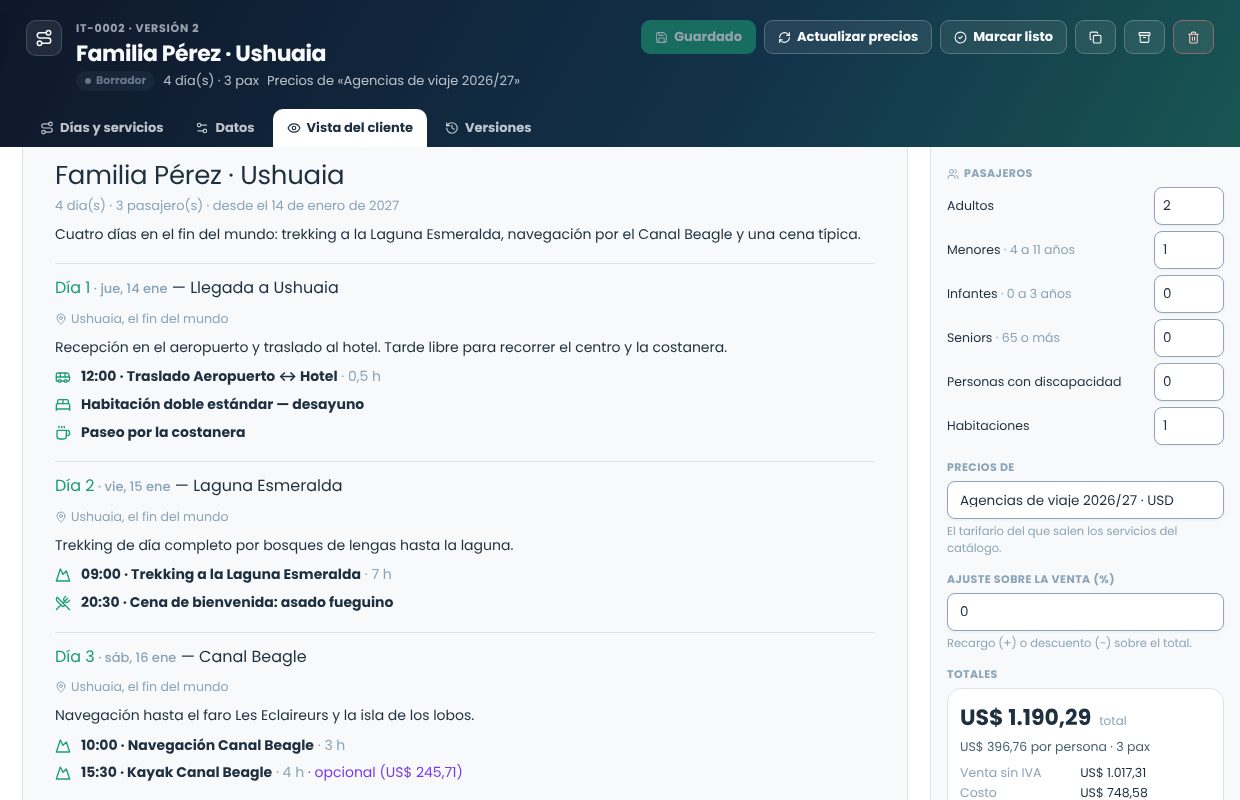
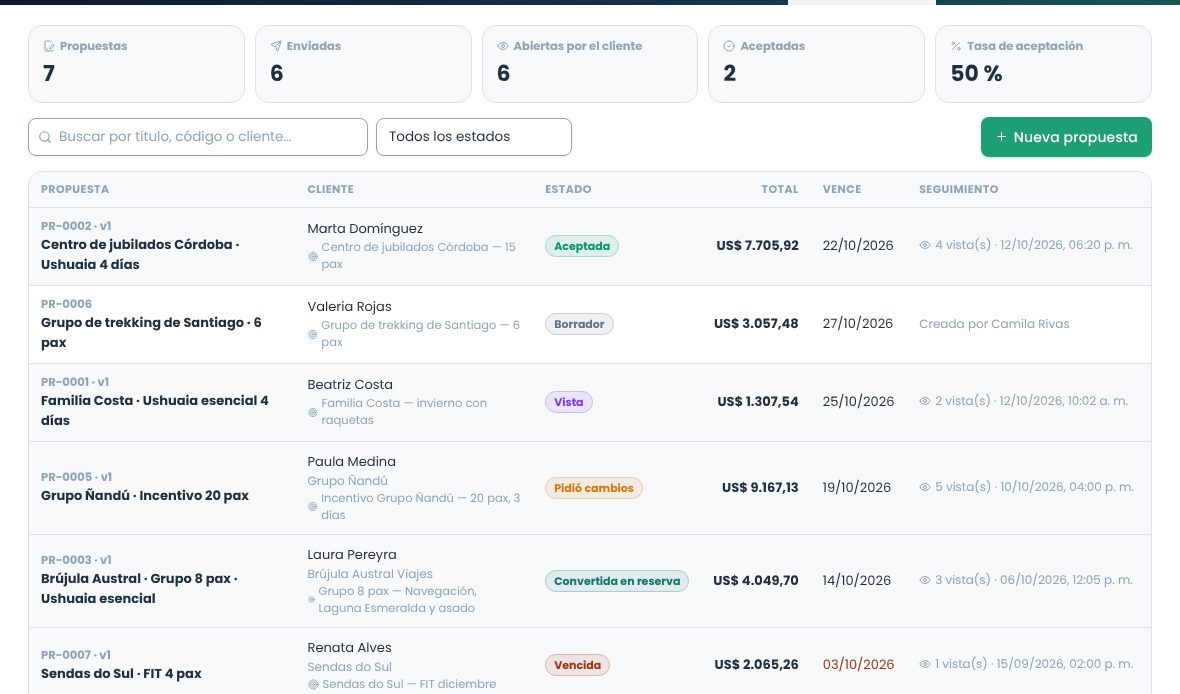
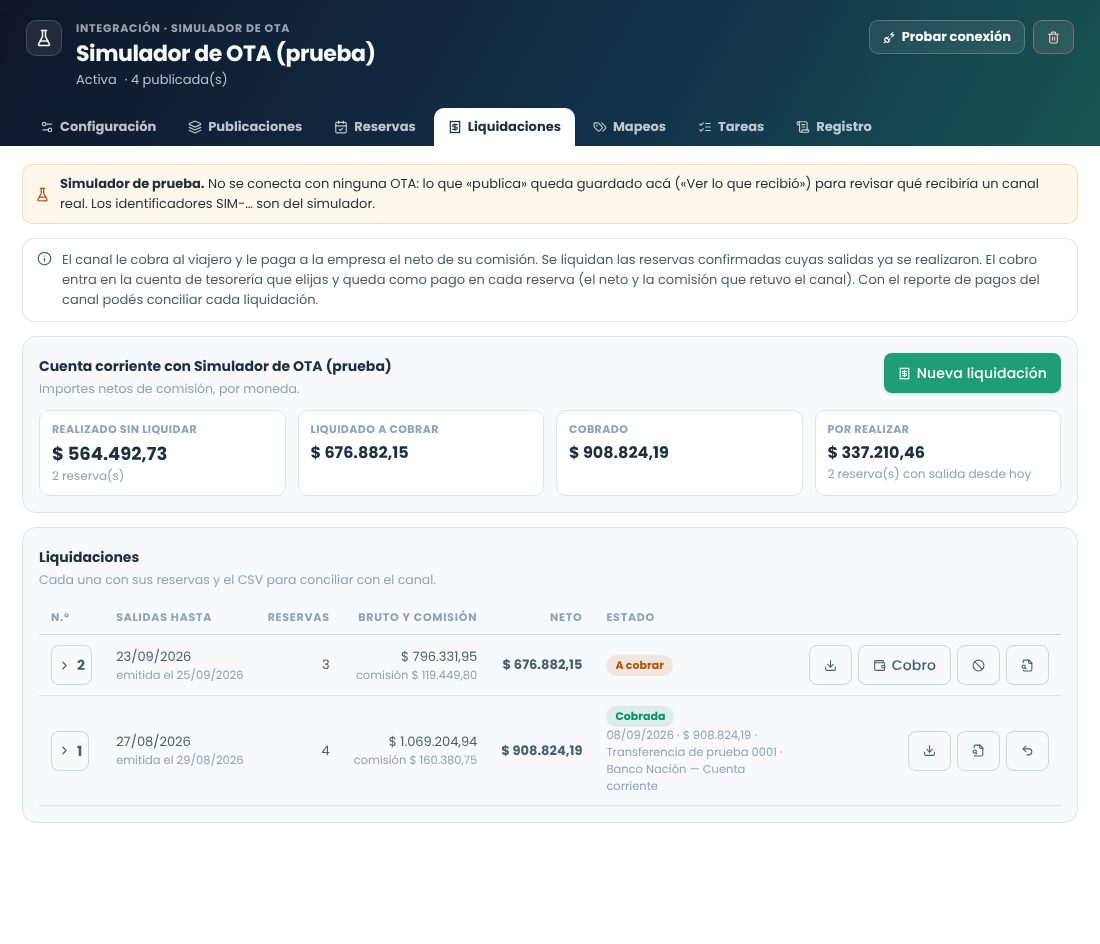
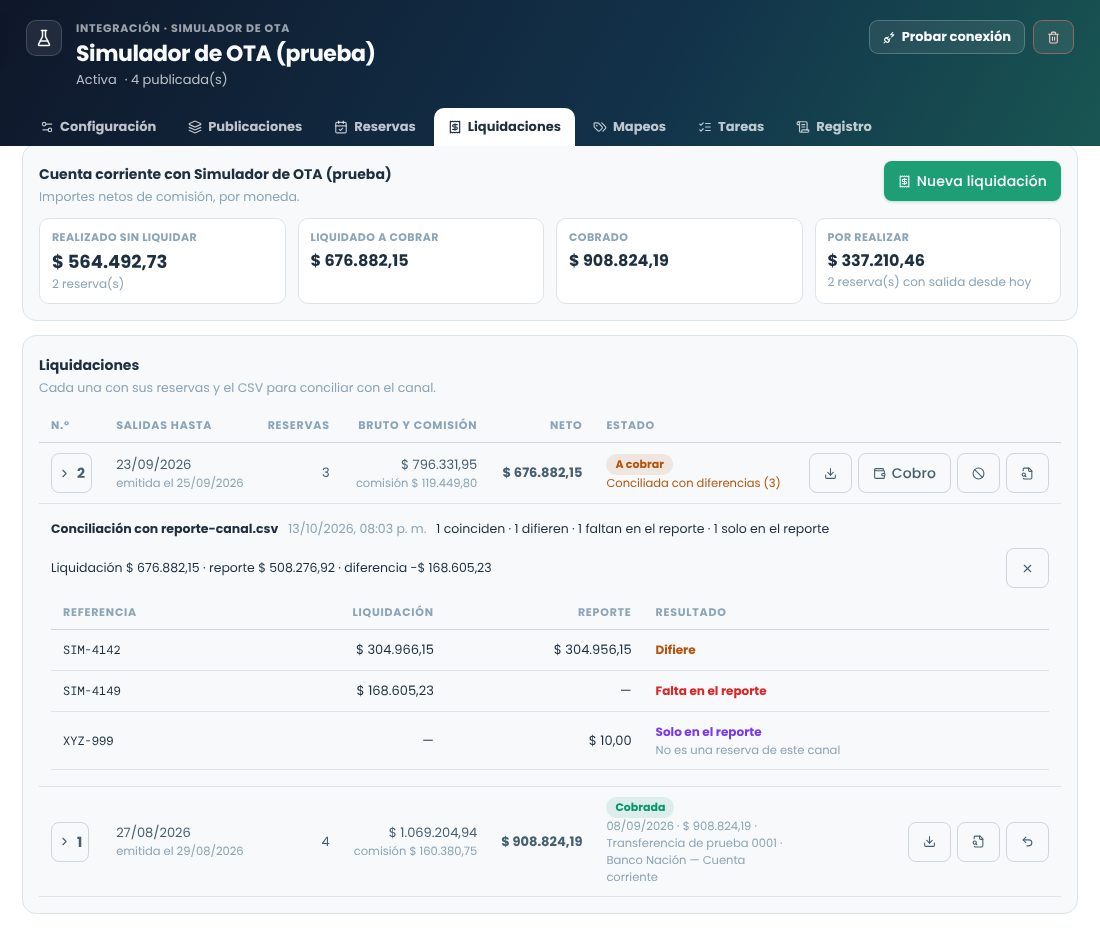
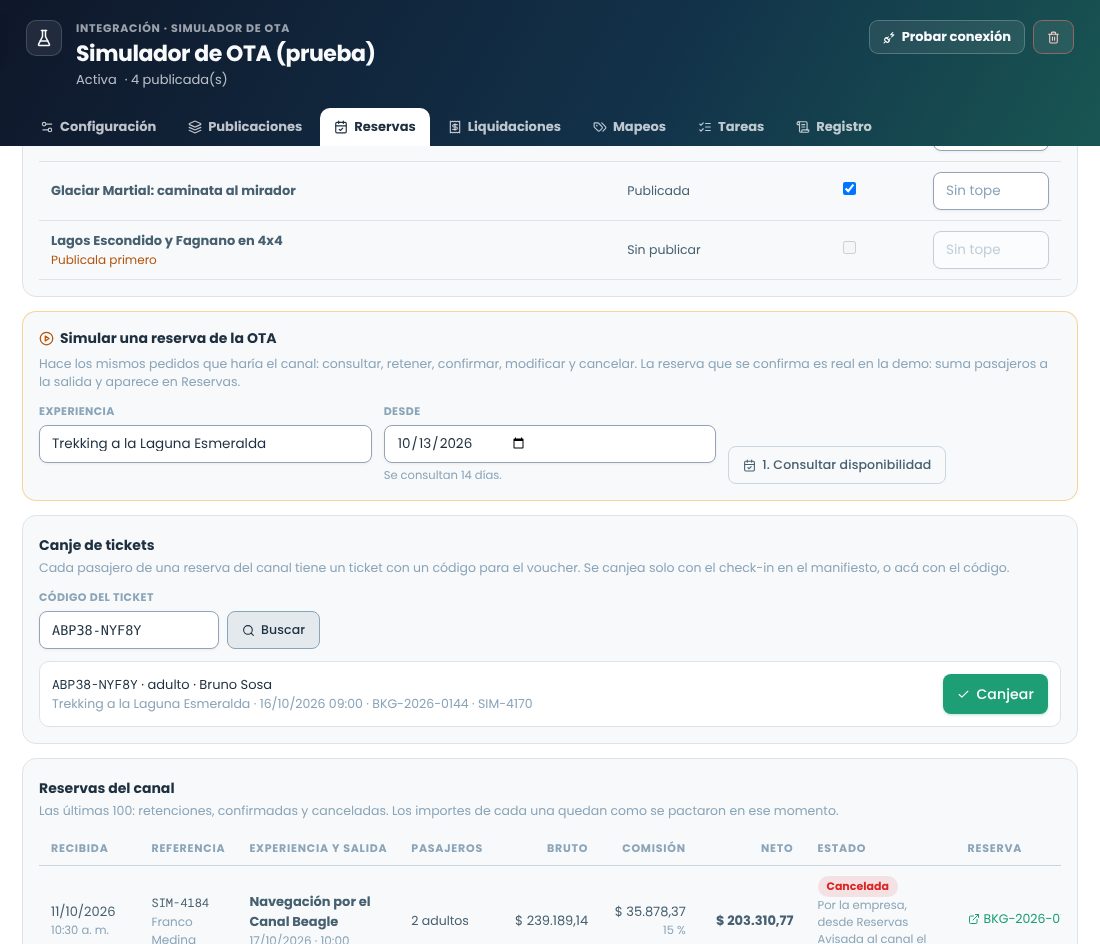
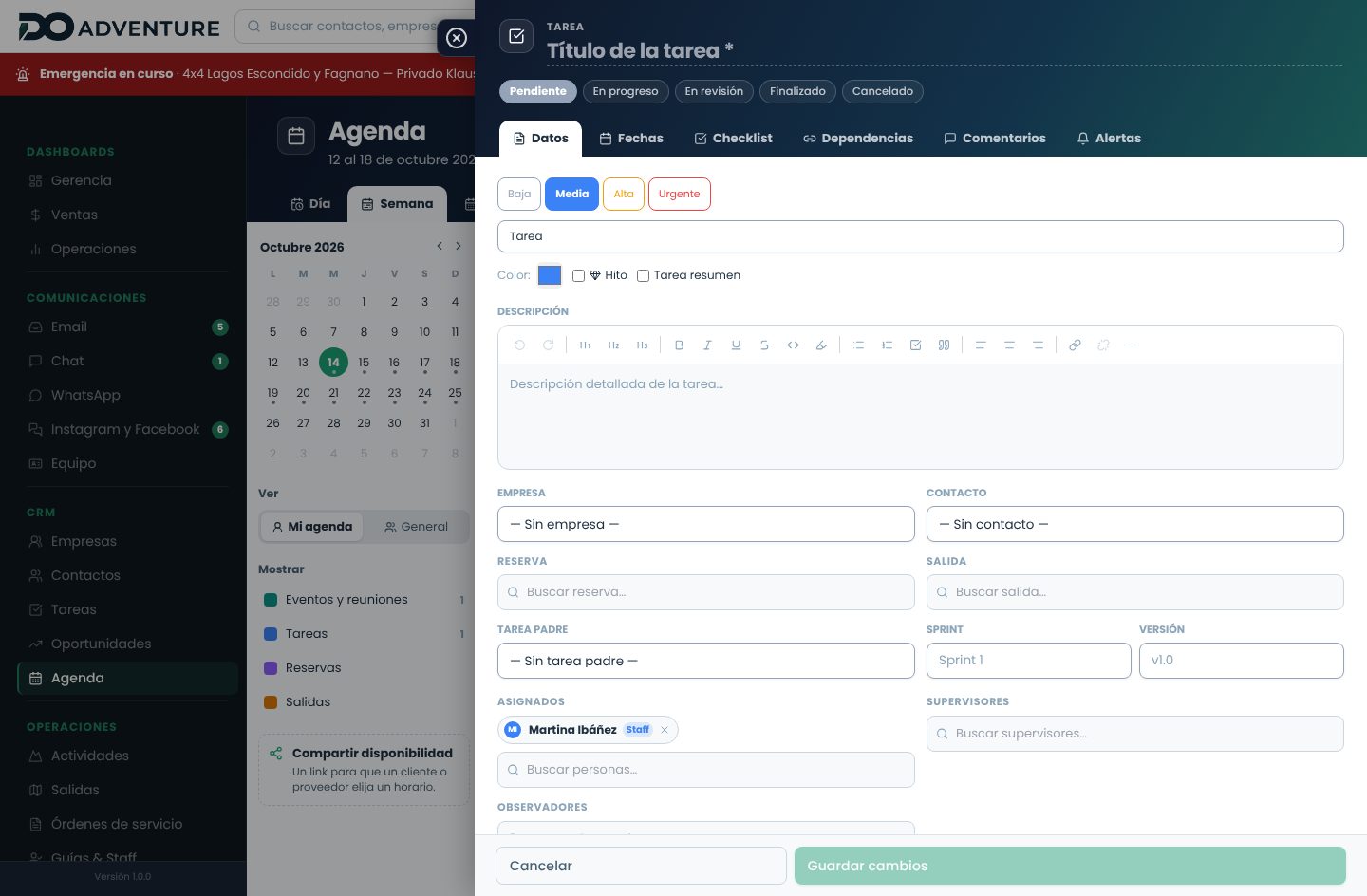
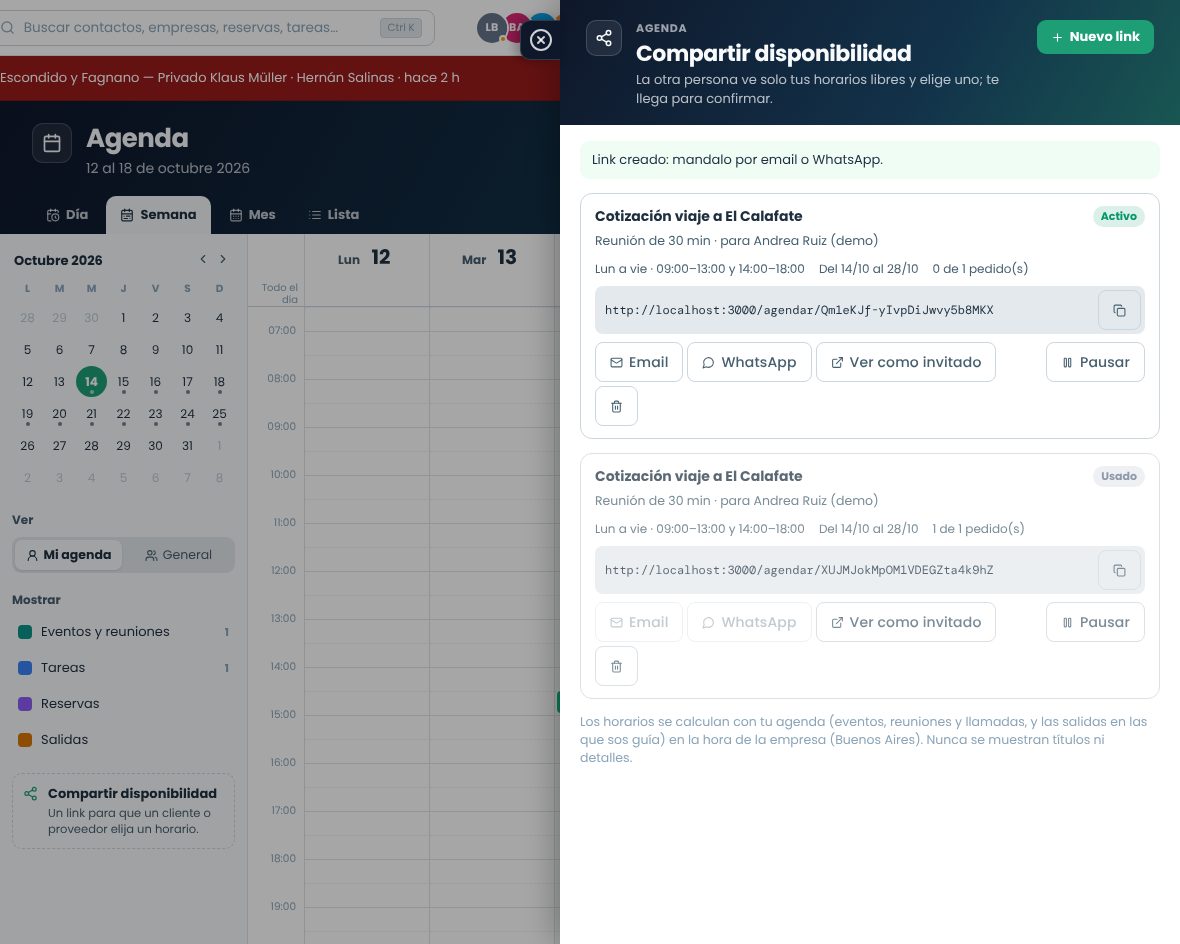
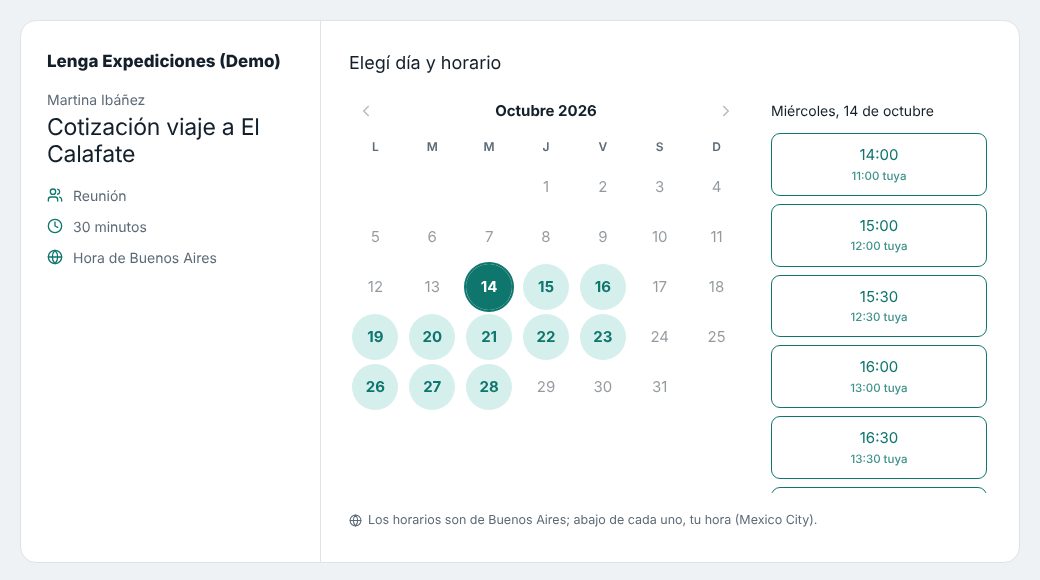
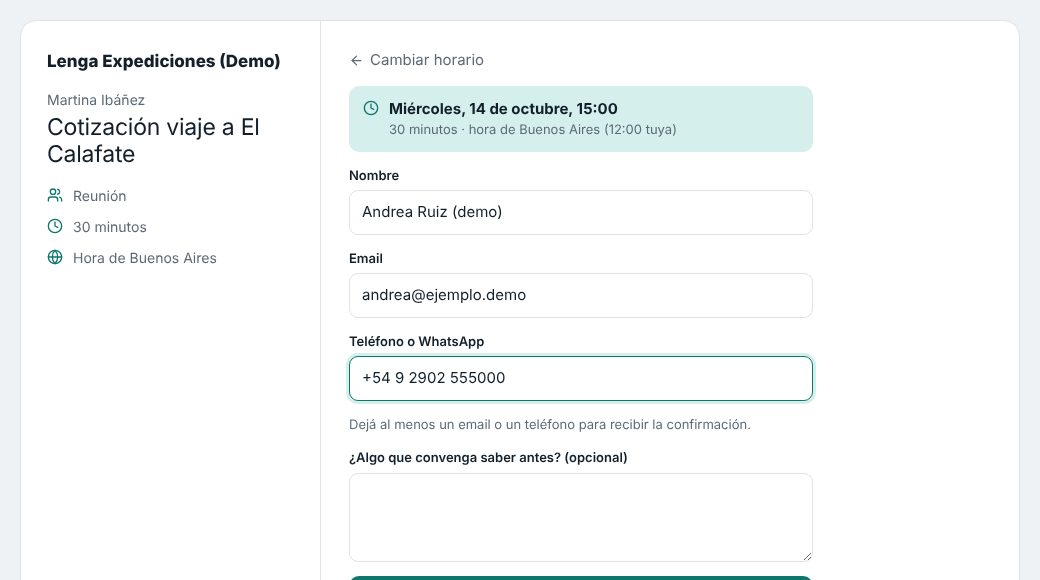
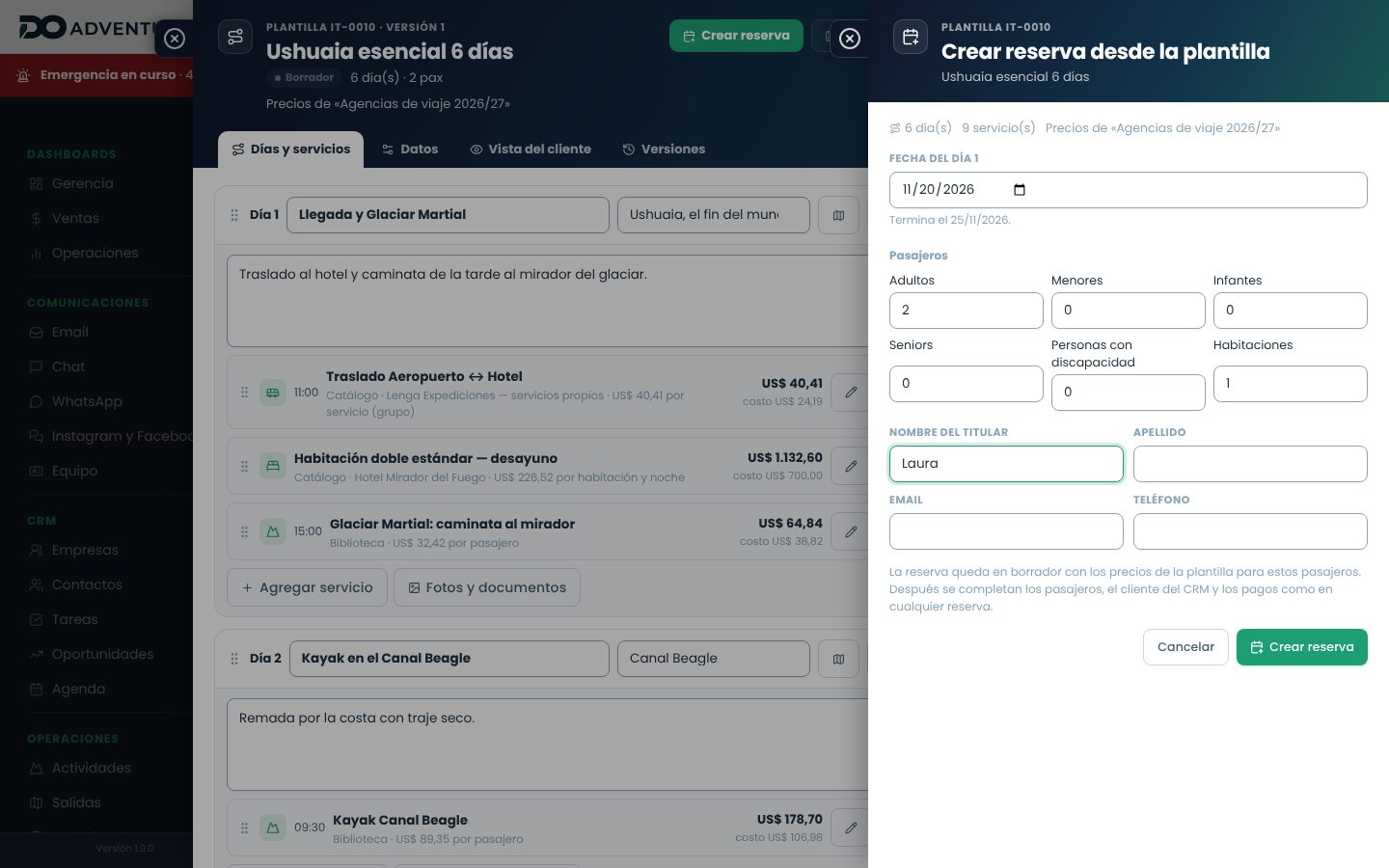
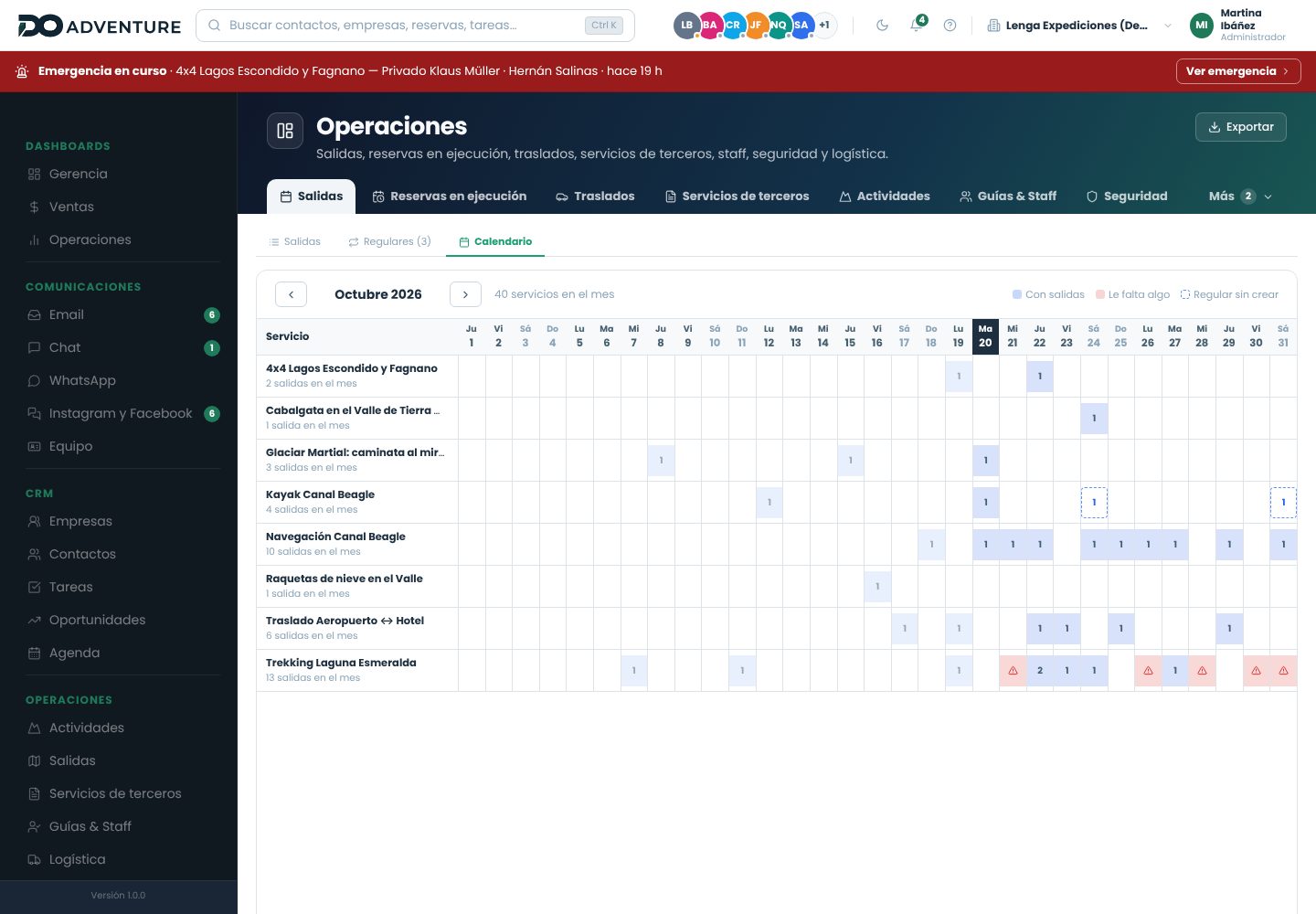
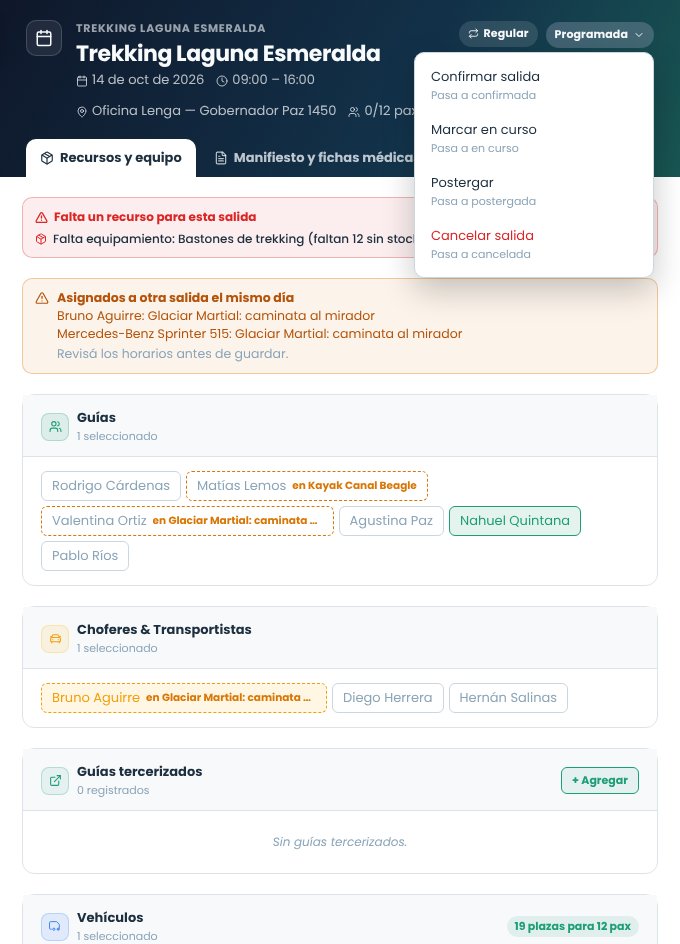
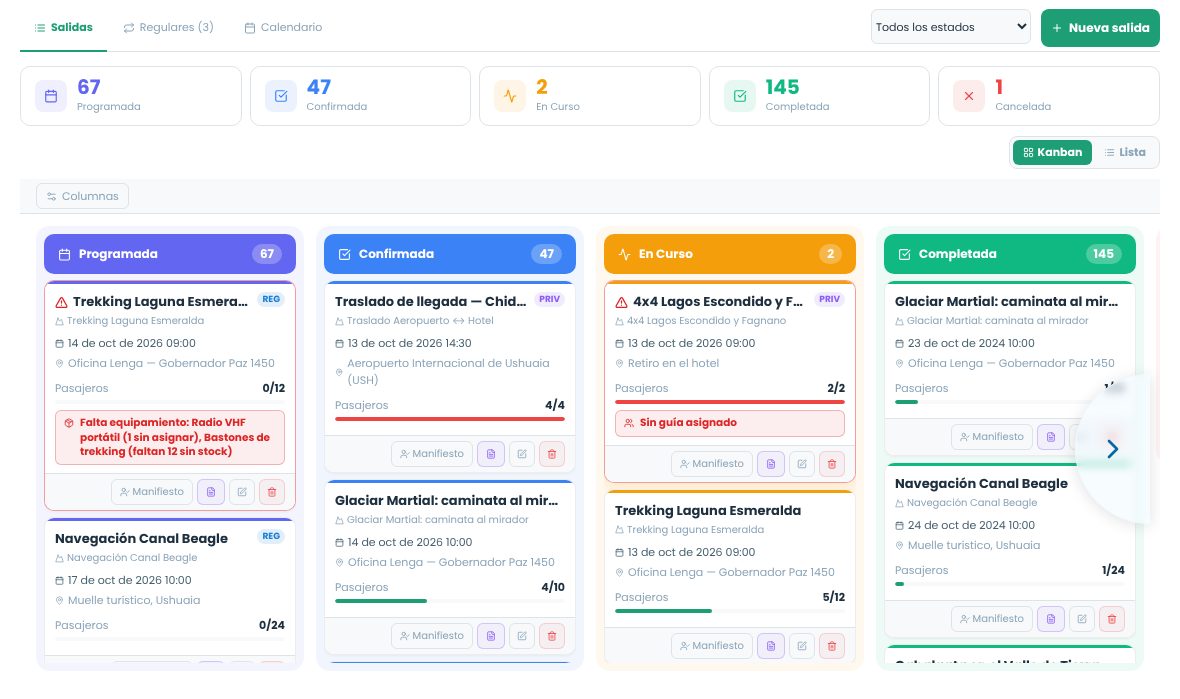
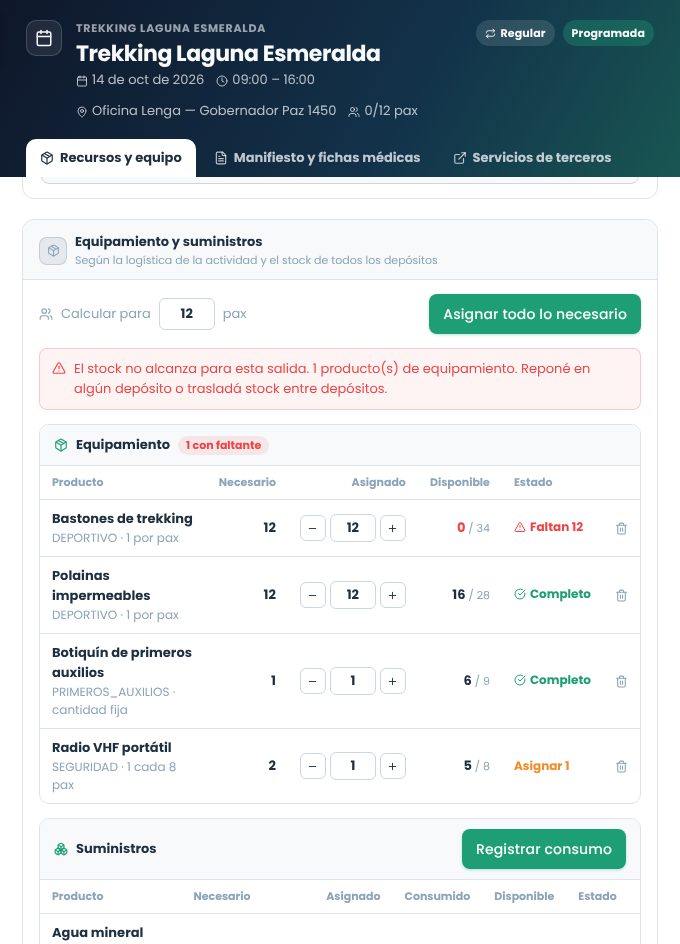
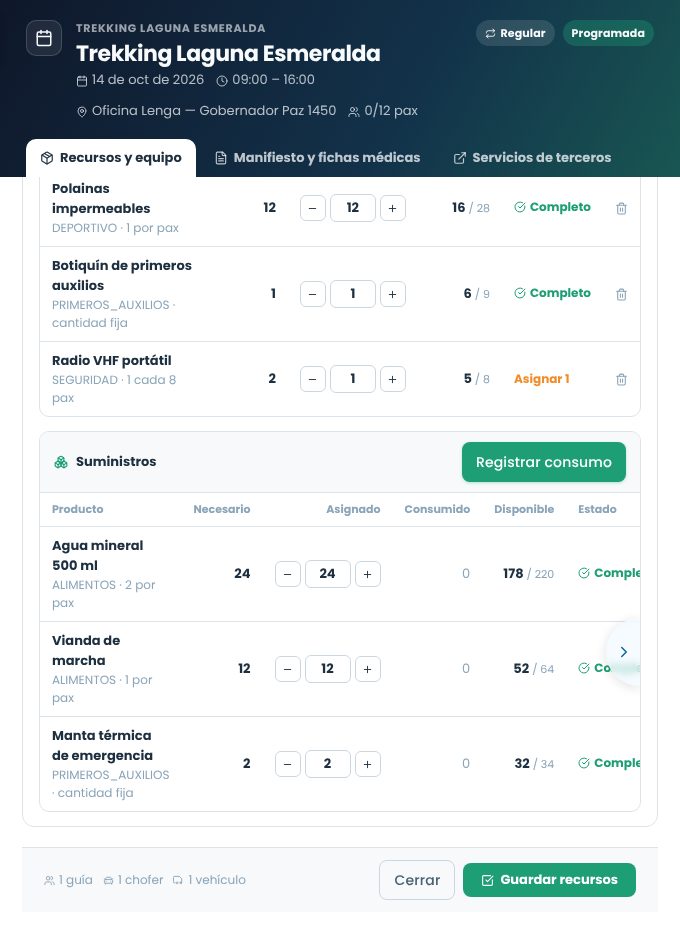
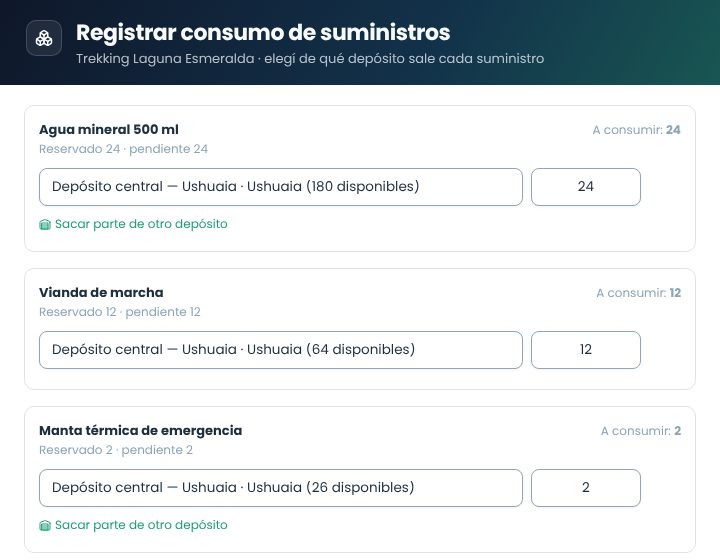
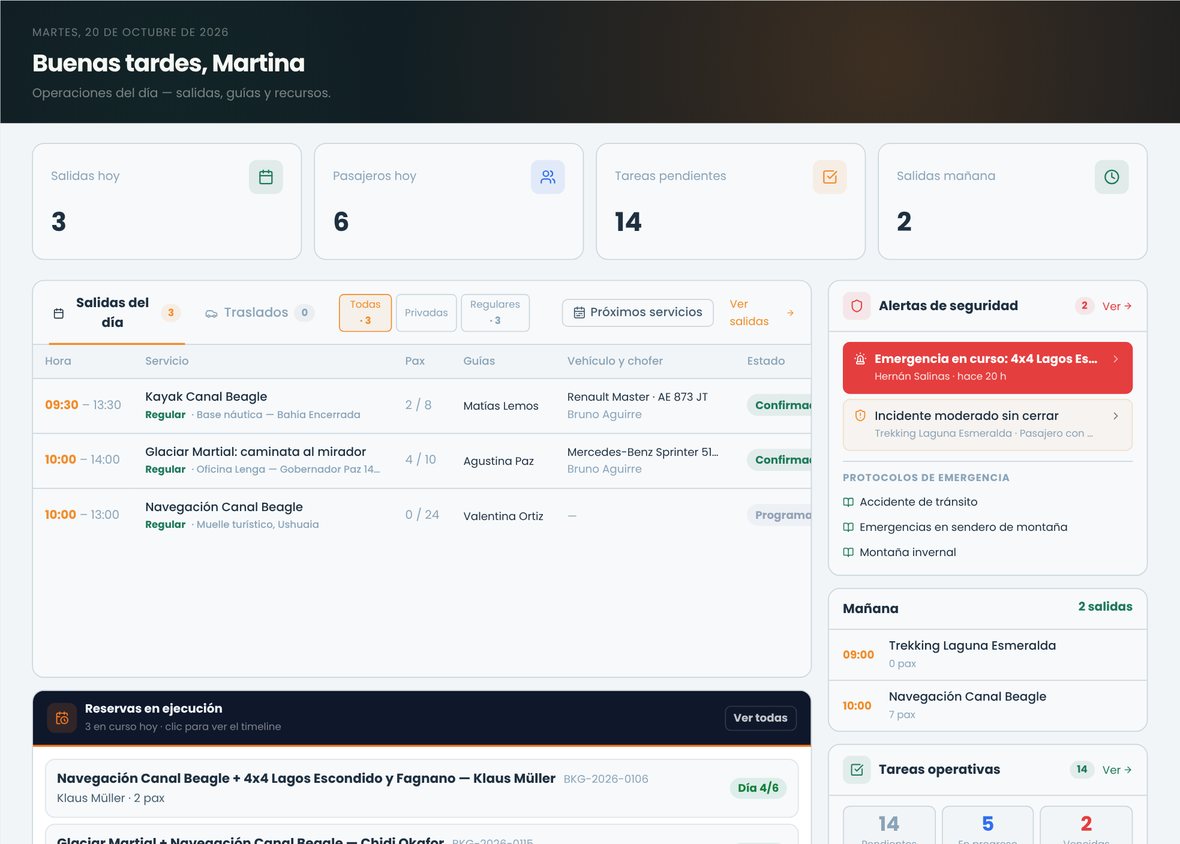
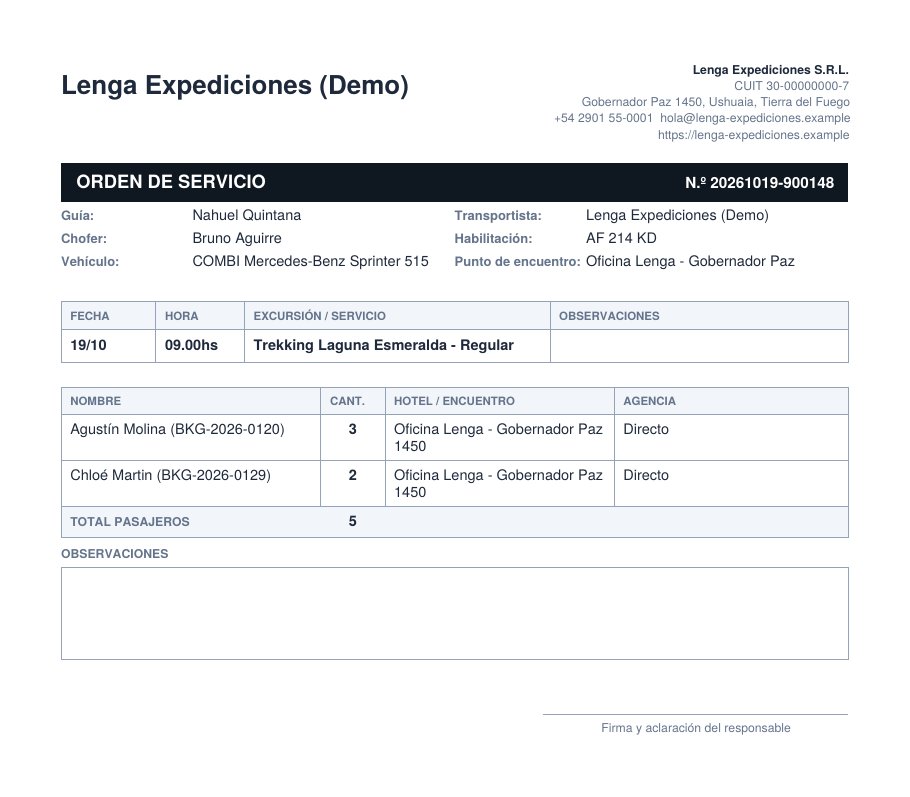
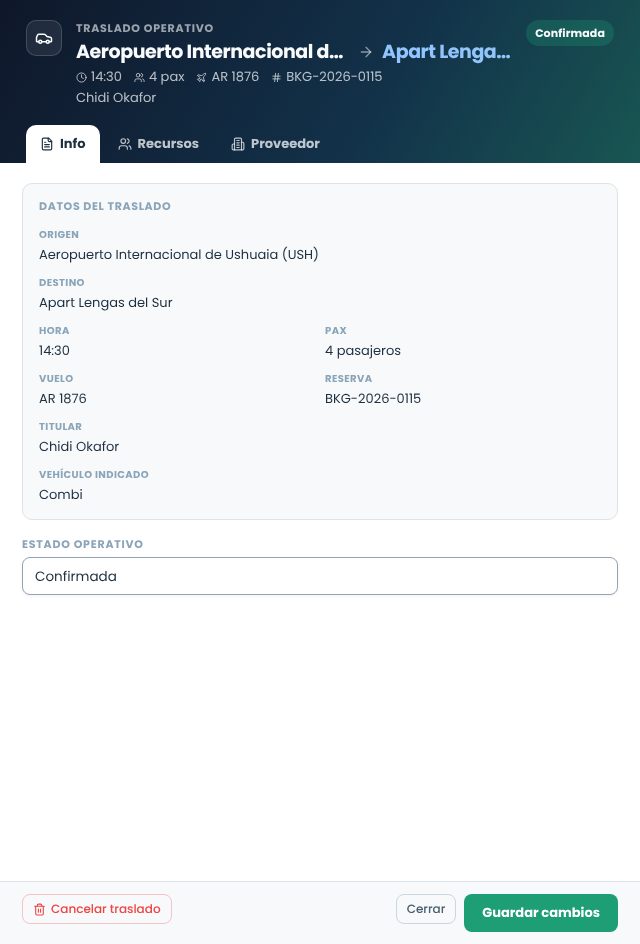
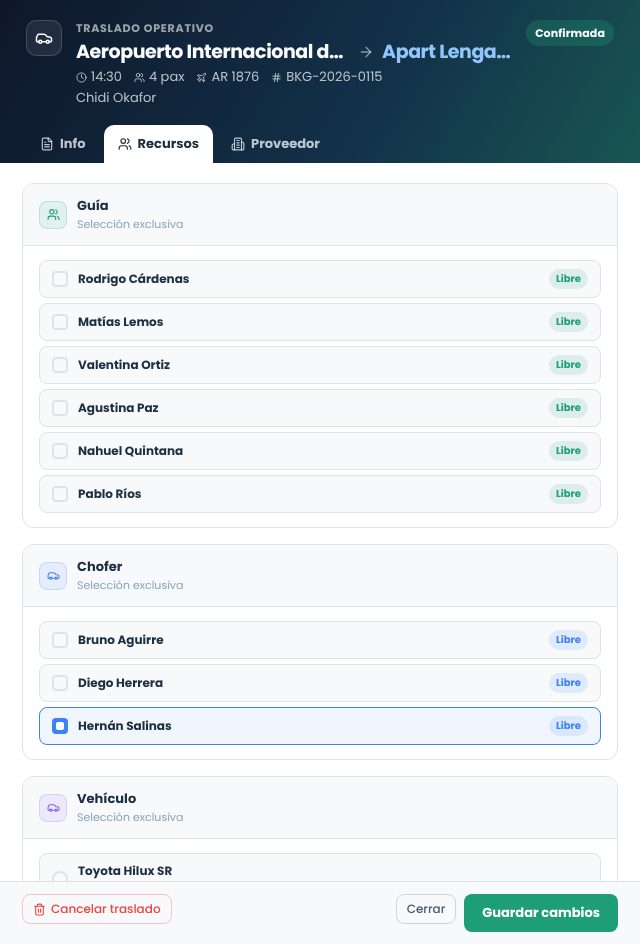
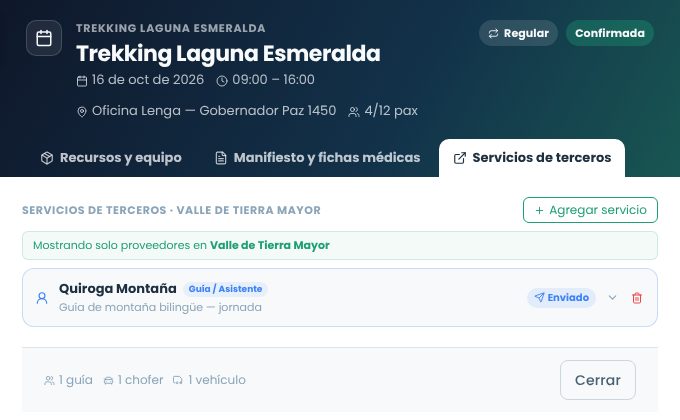
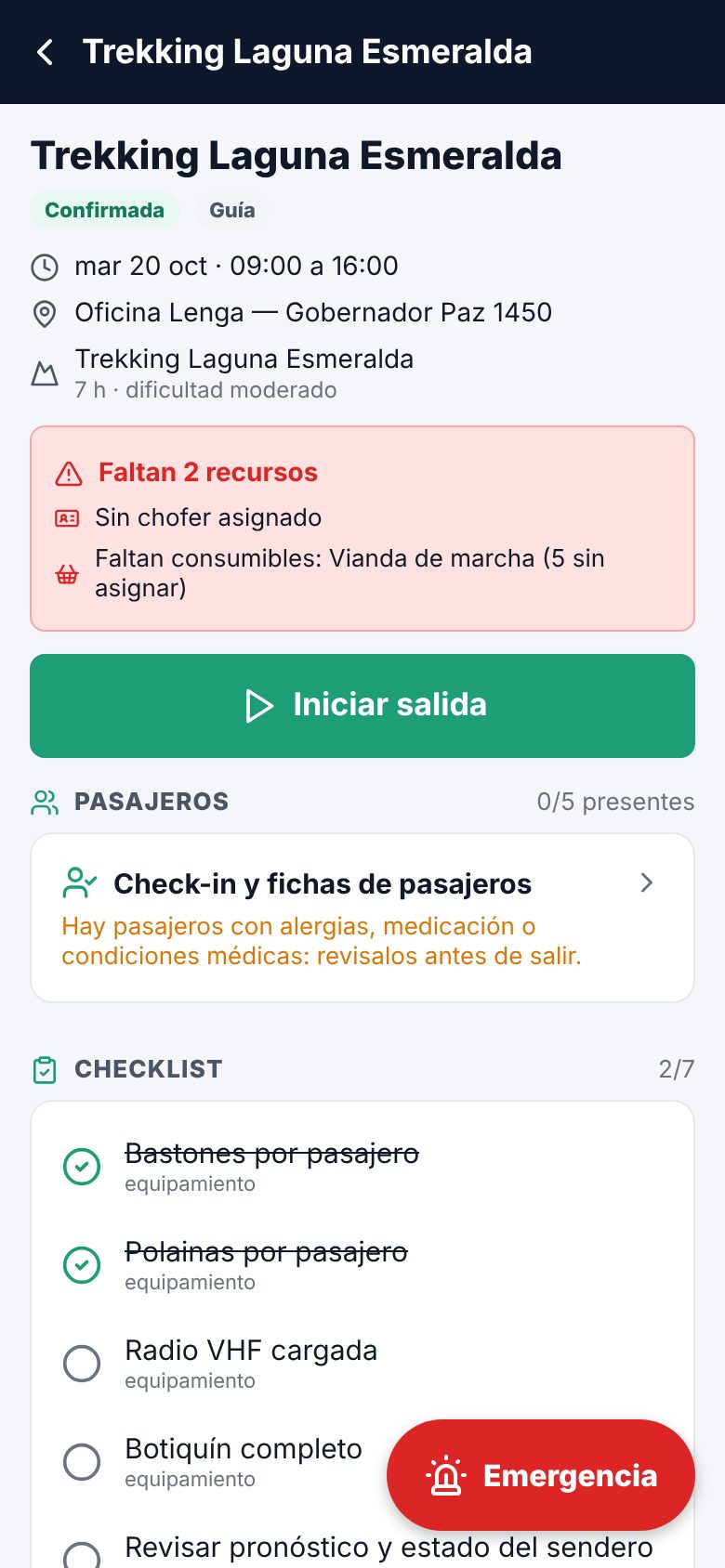
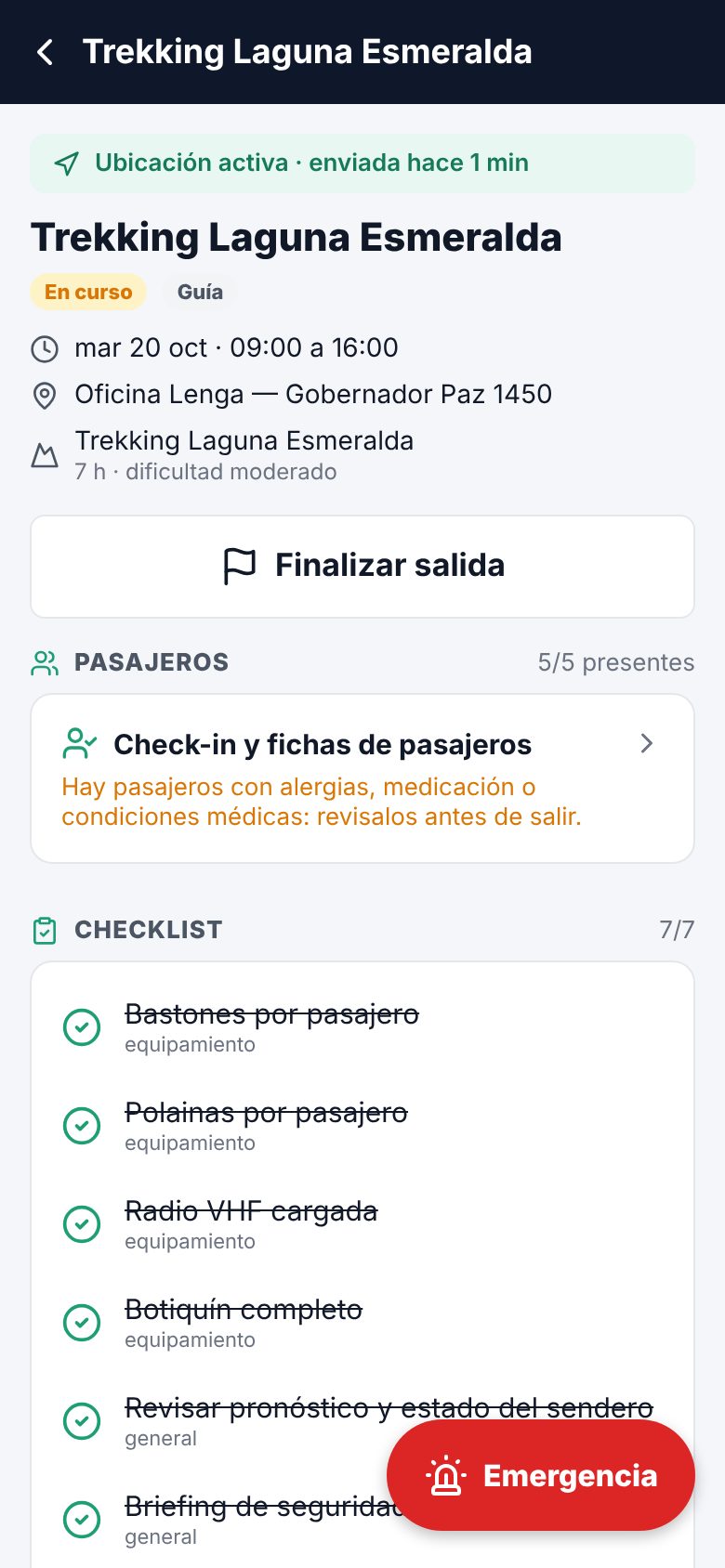
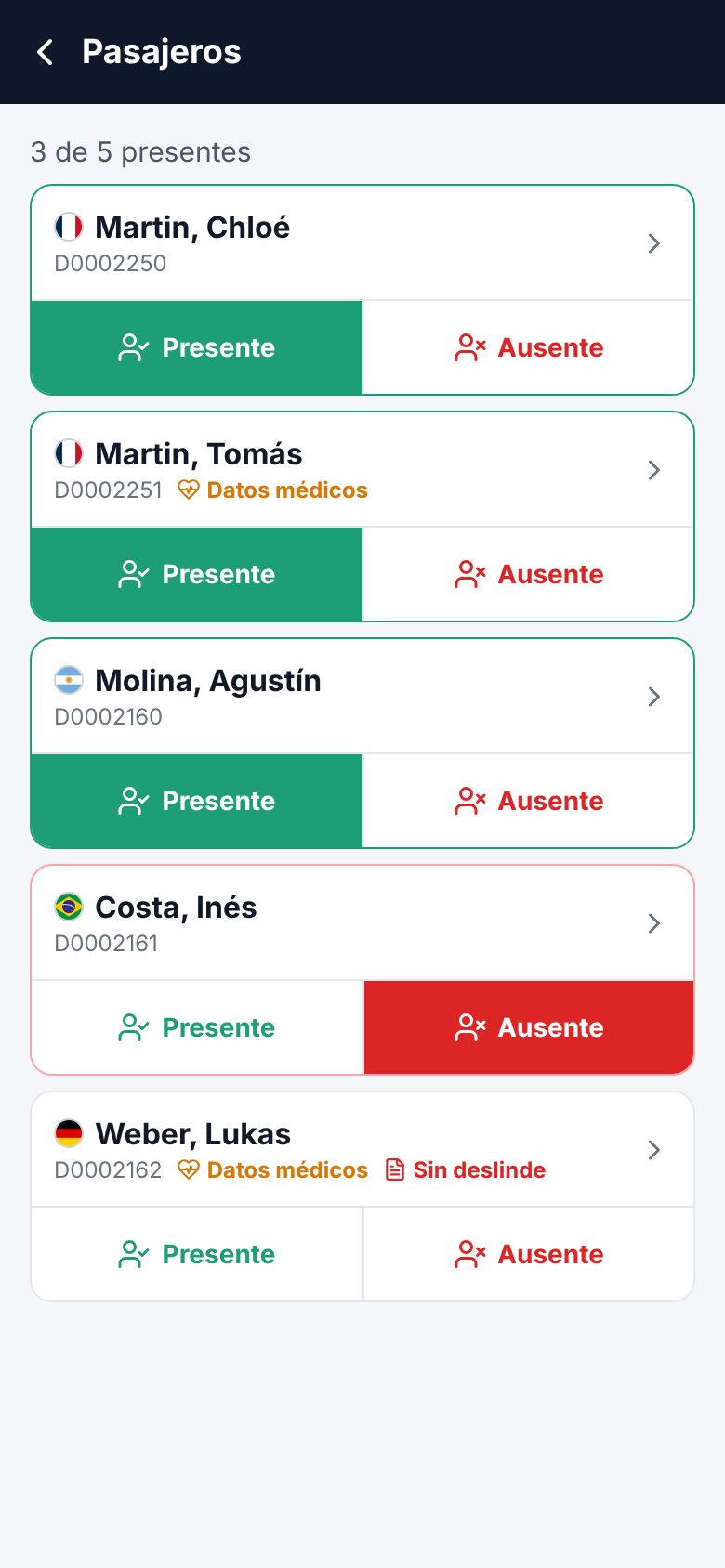
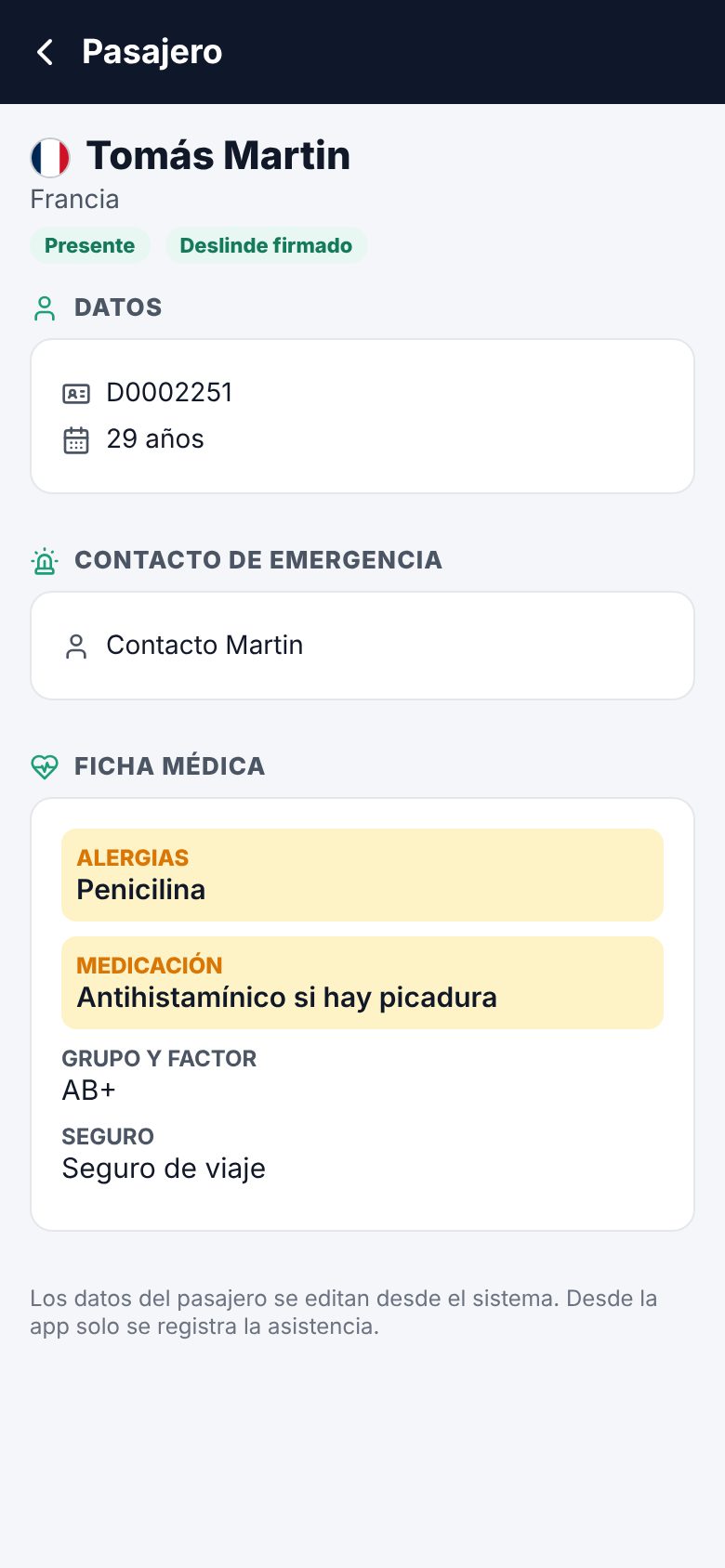
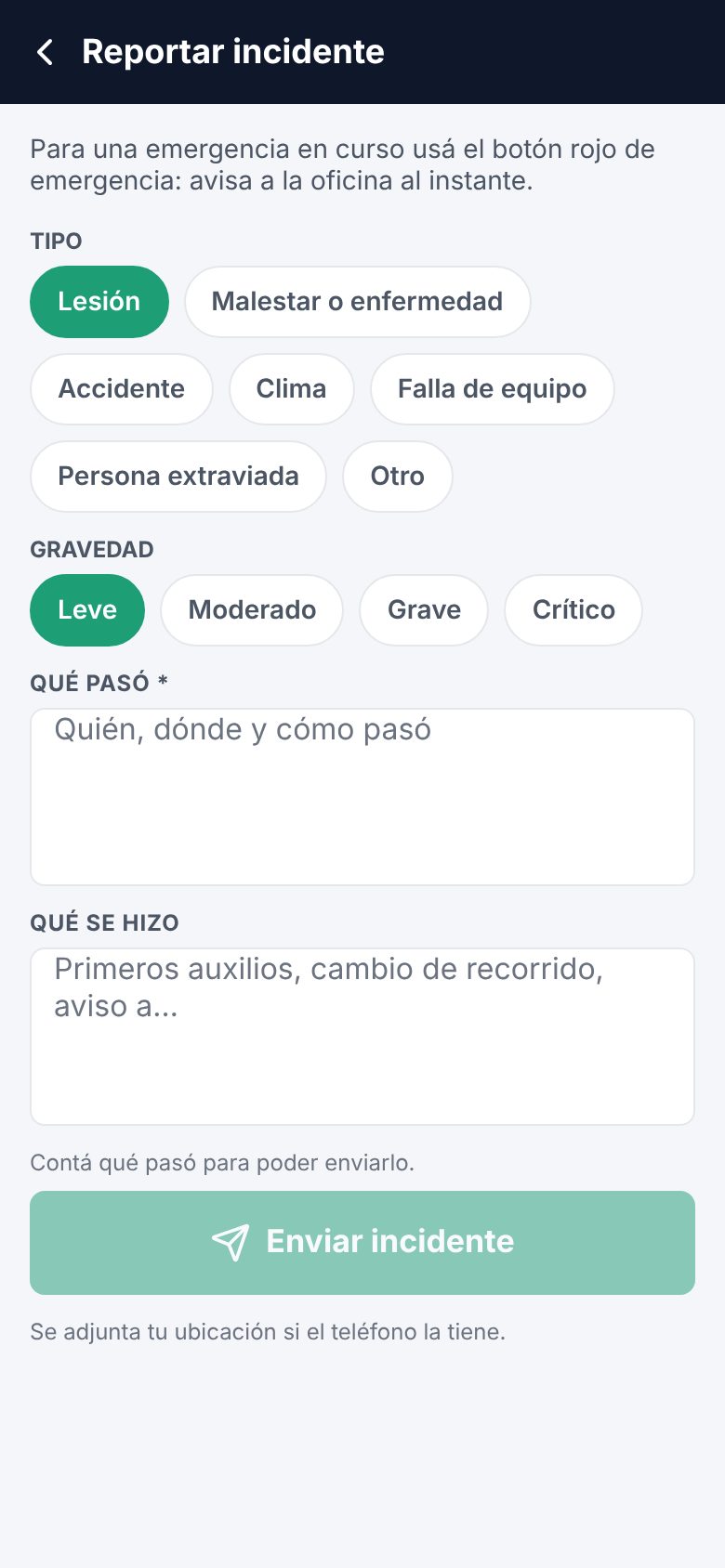
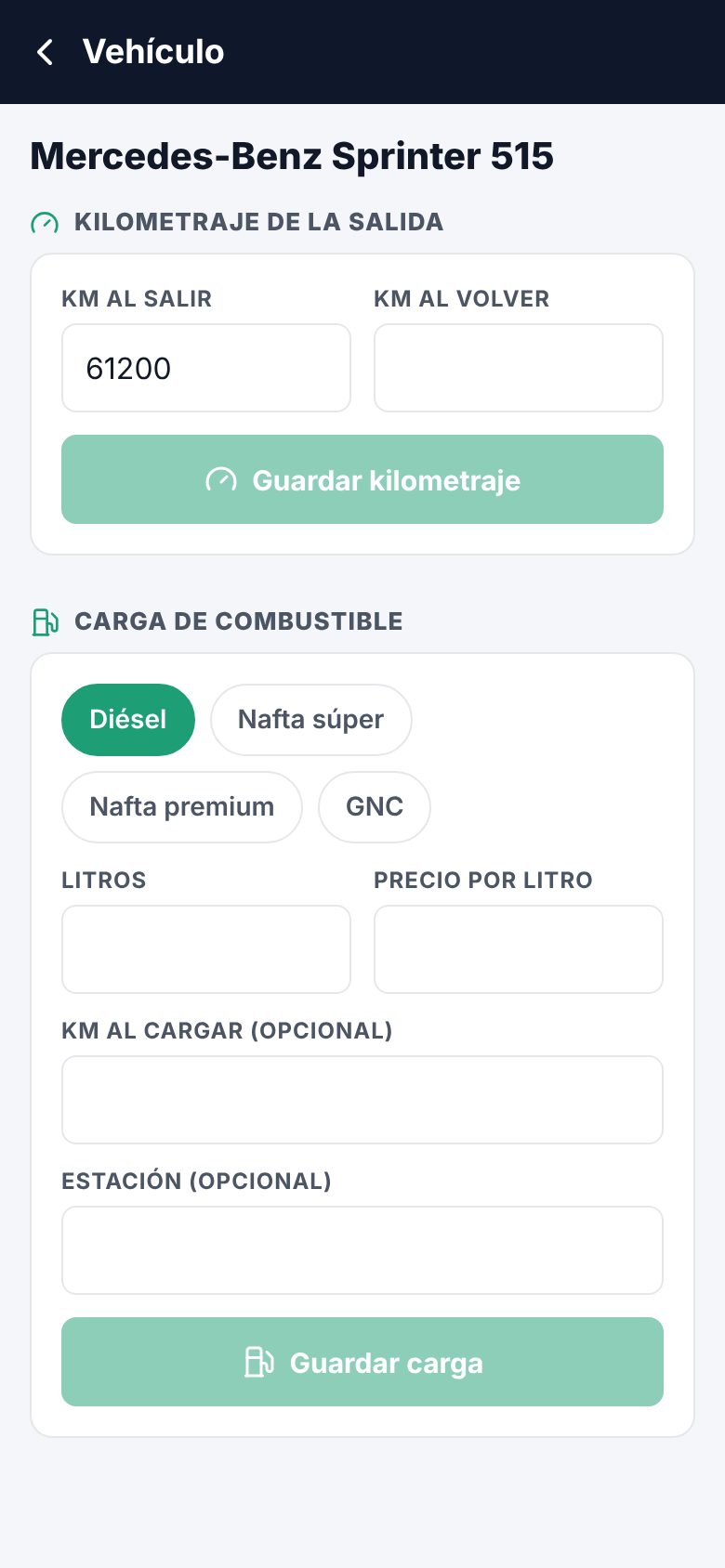
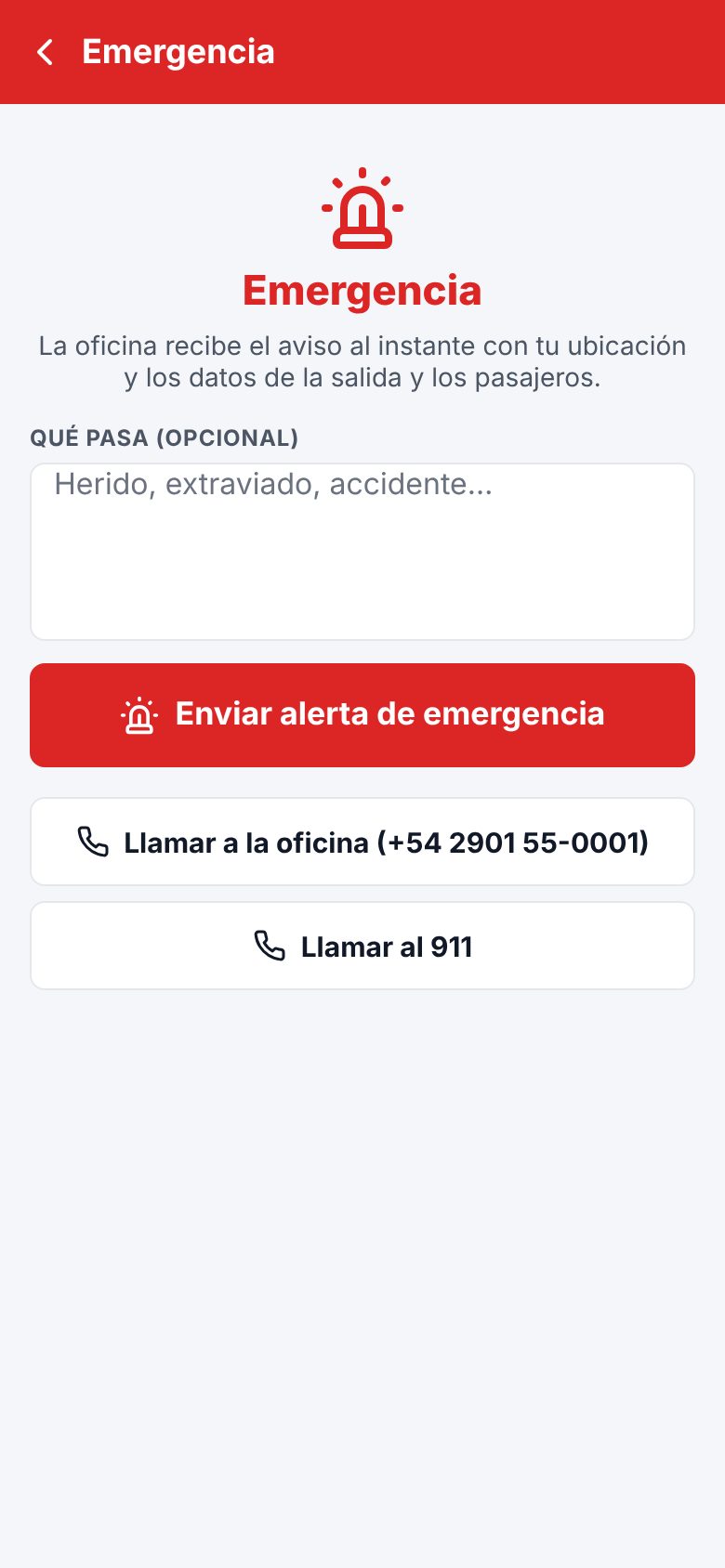
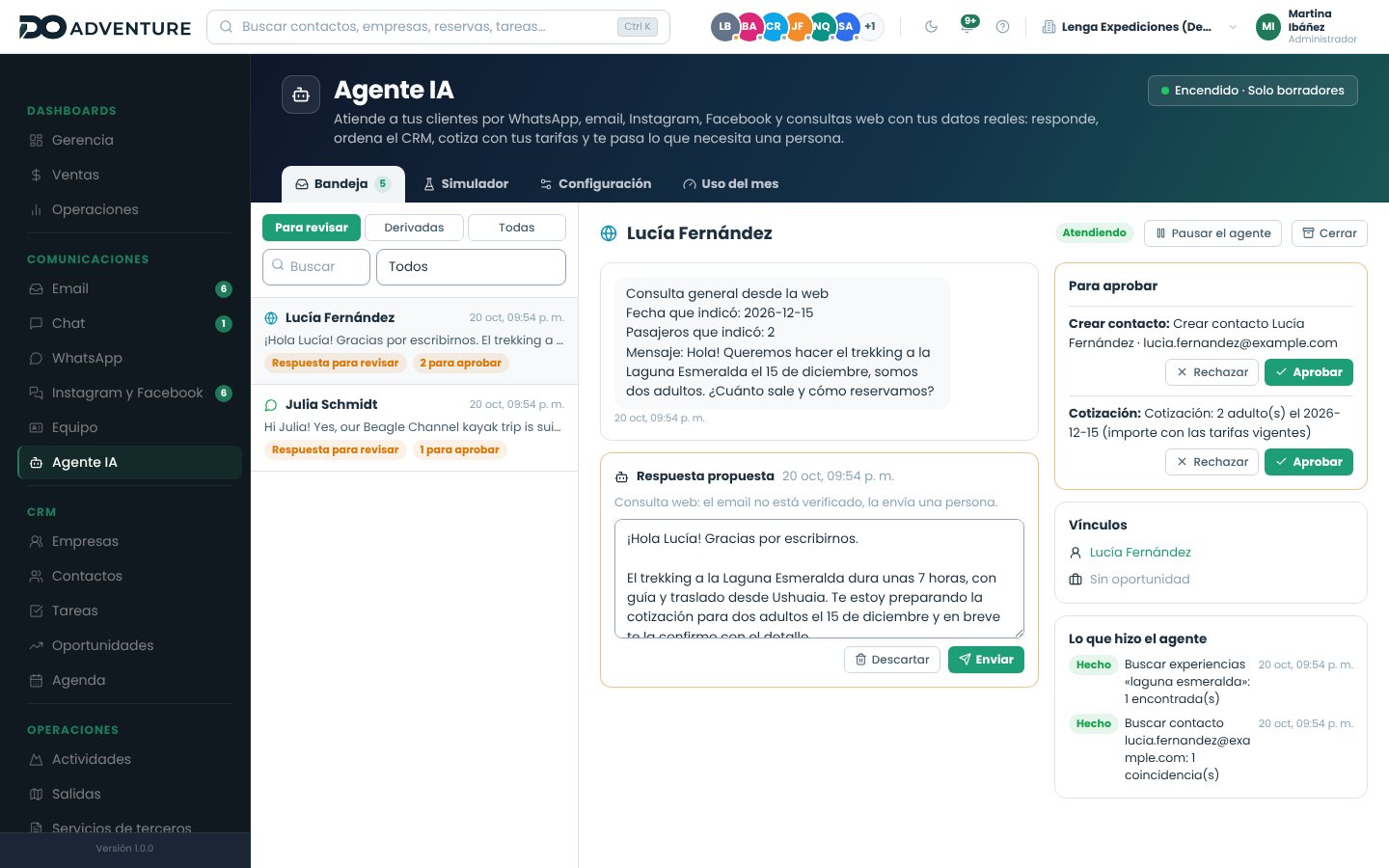
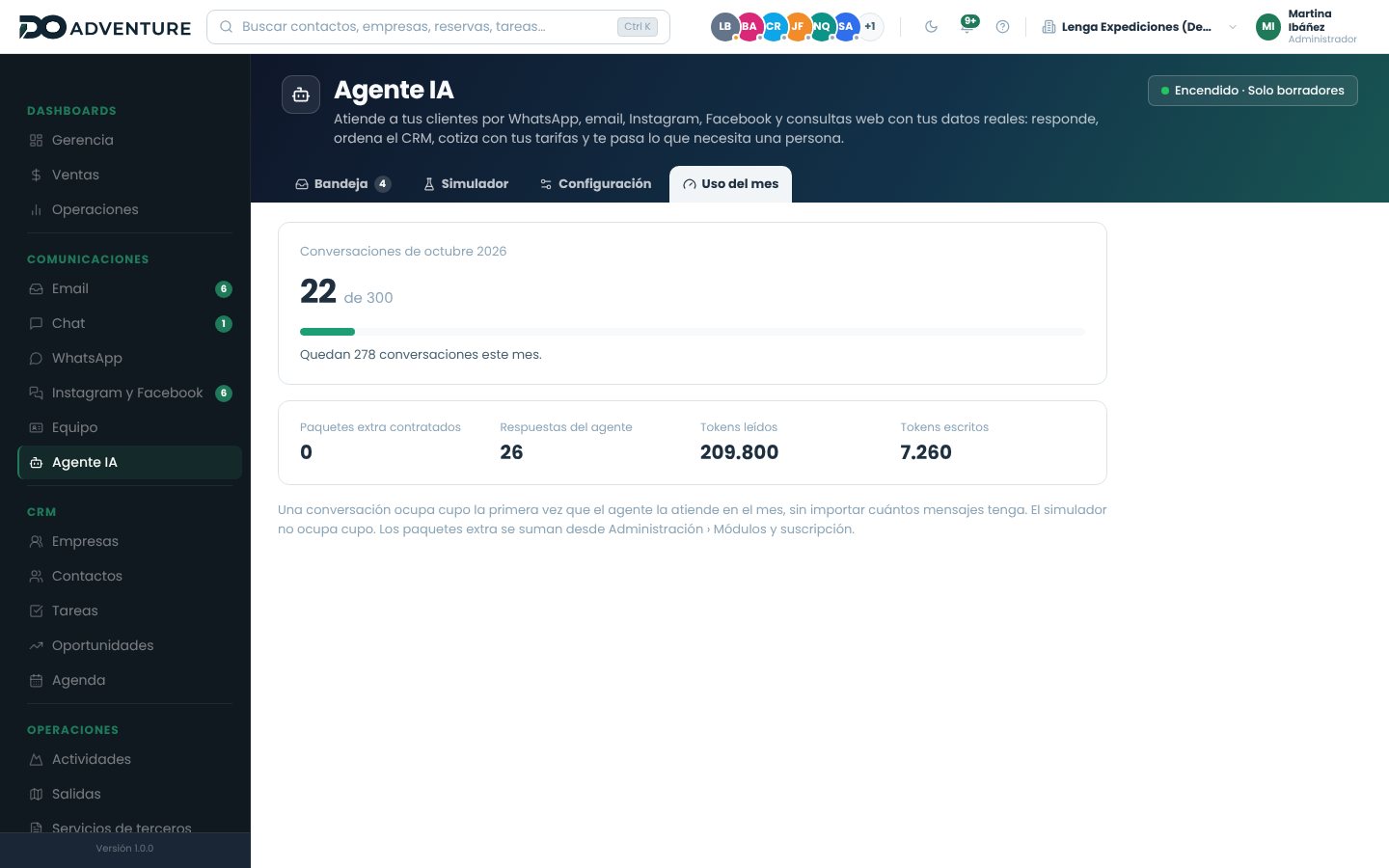
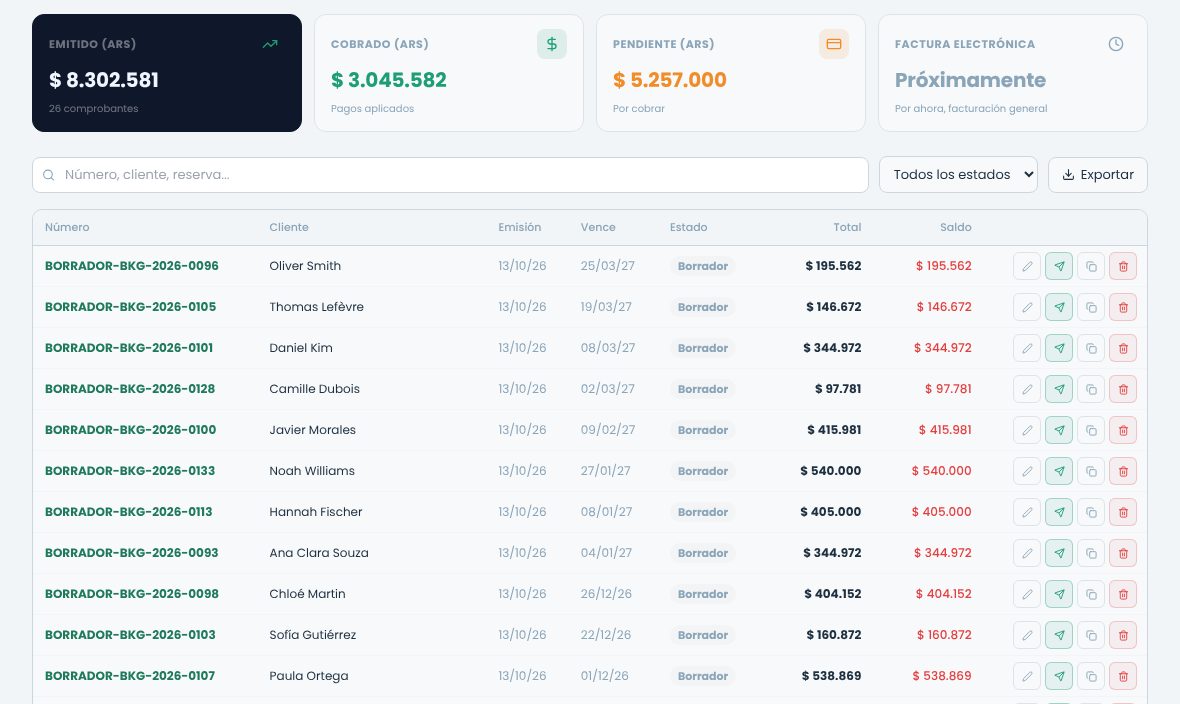
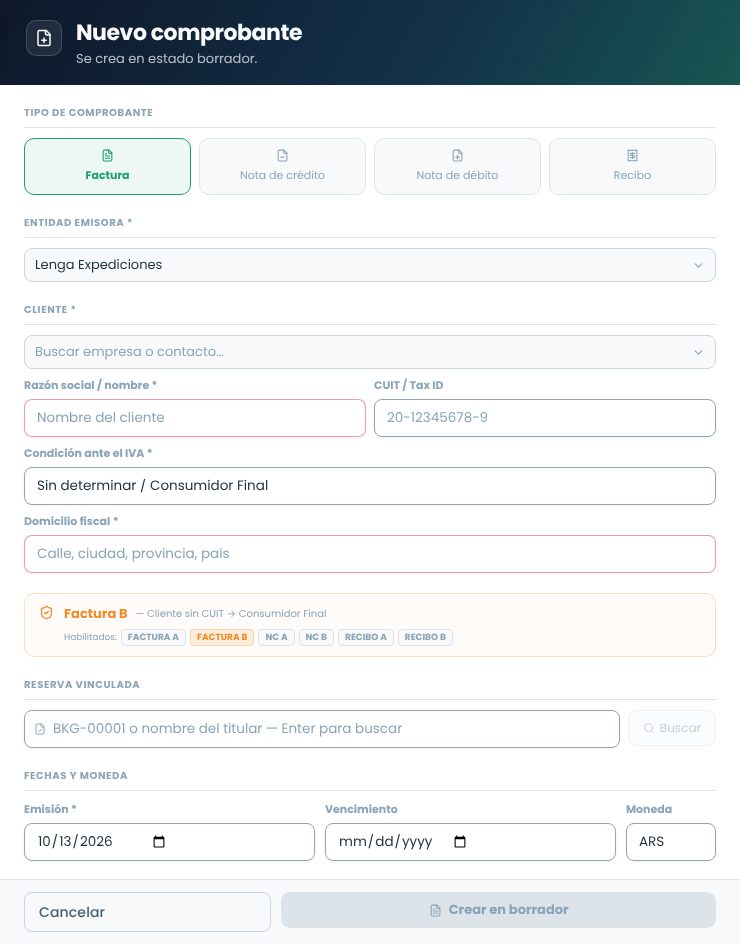
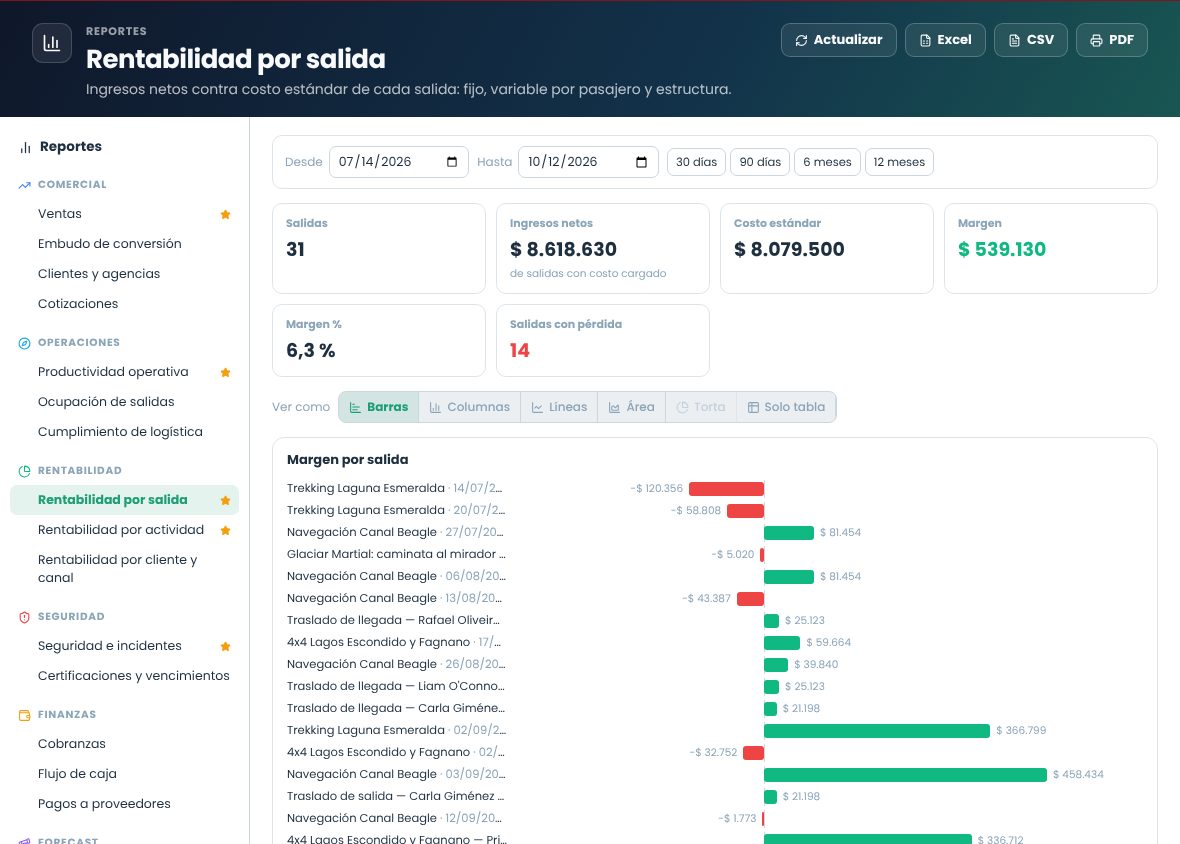
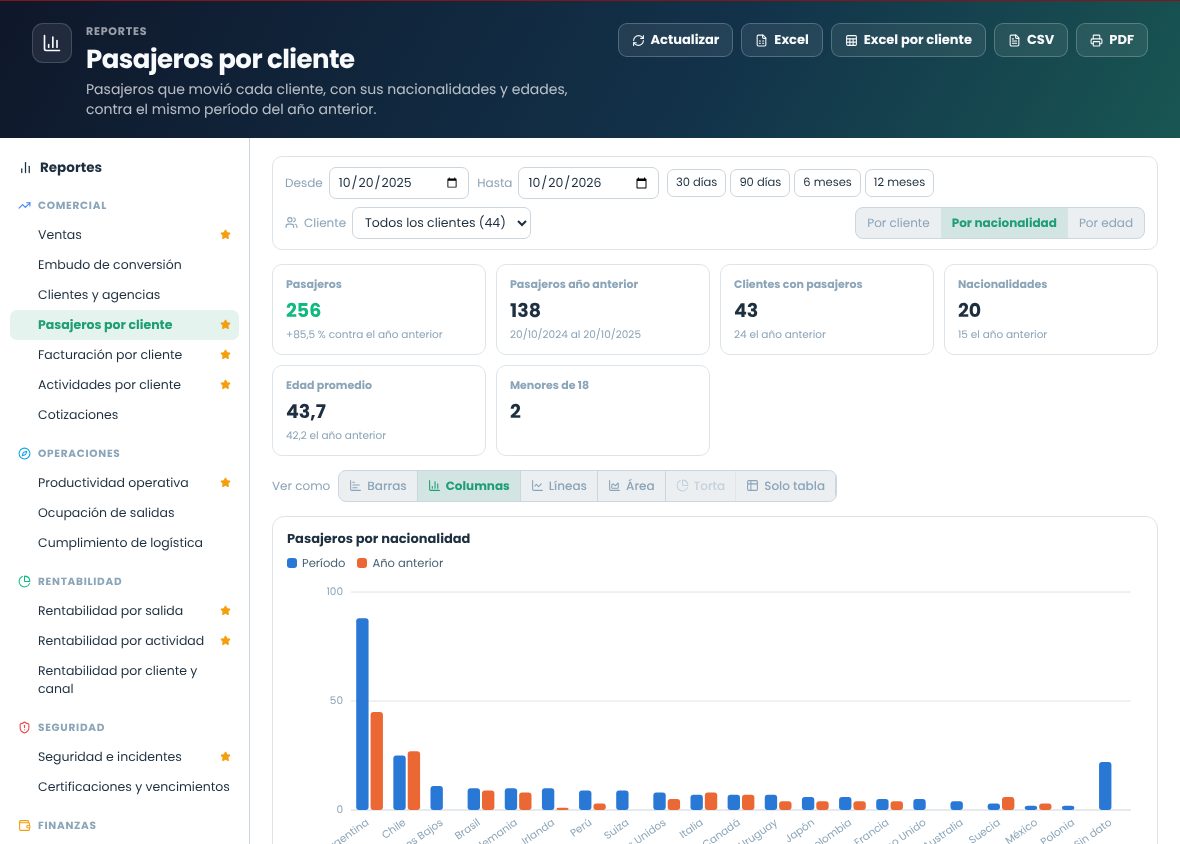
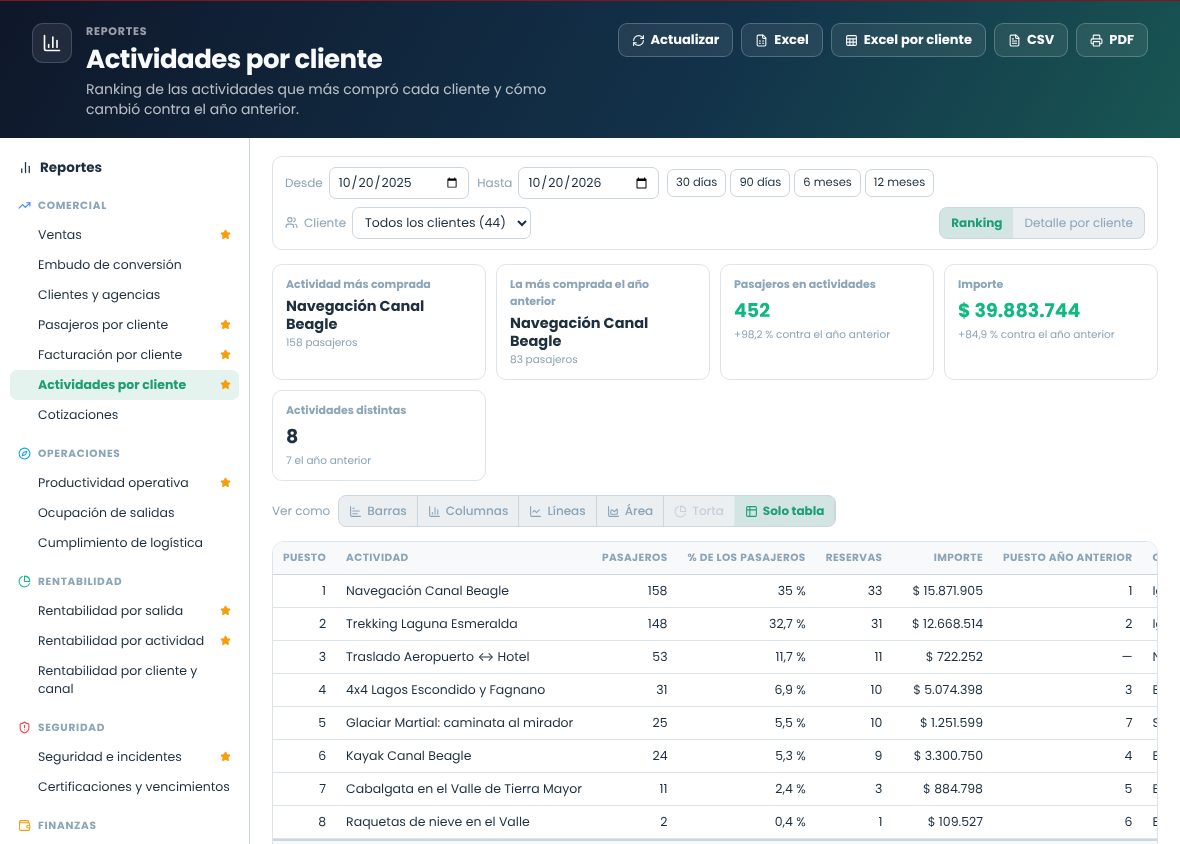
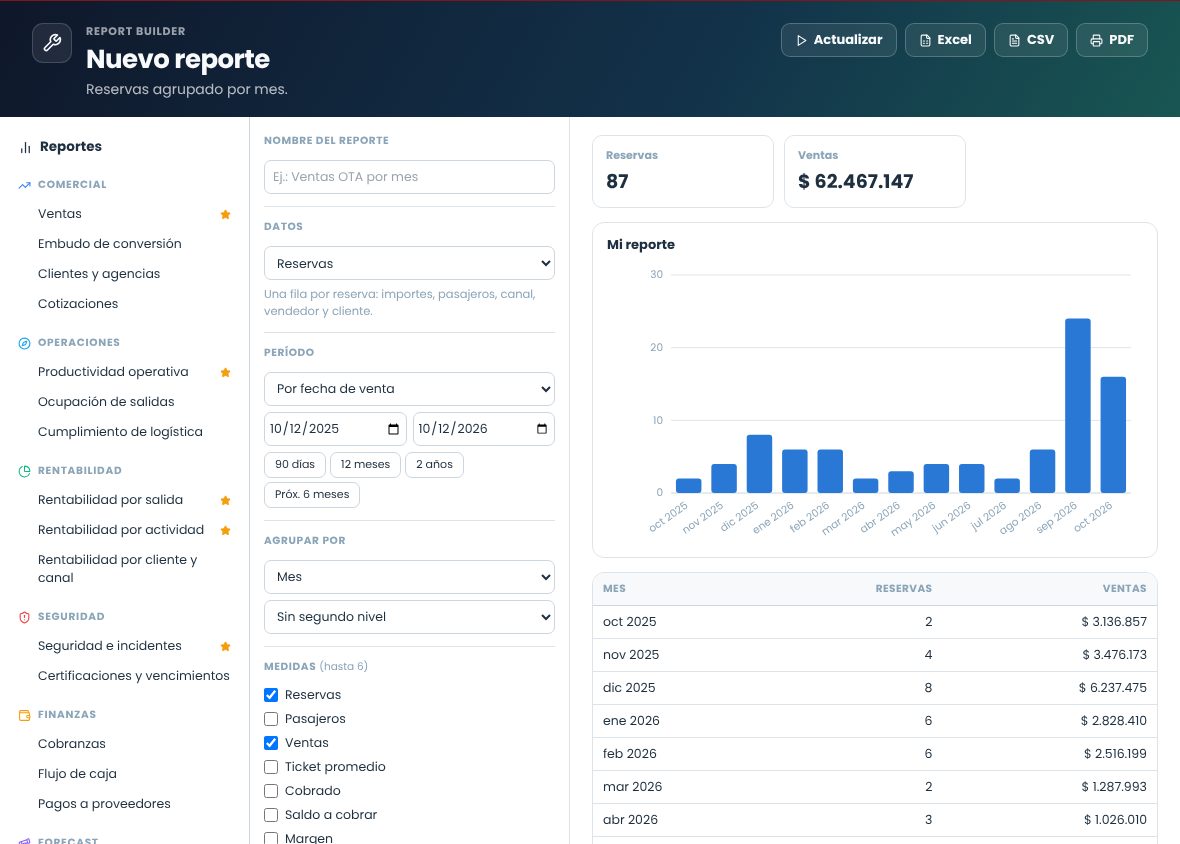
The whole system follows the real lifecycle of a service: you design it, cost it, price it, sell it, operate it and collect payment for it. Each step feeds the next, so it's best to set things up in this order.
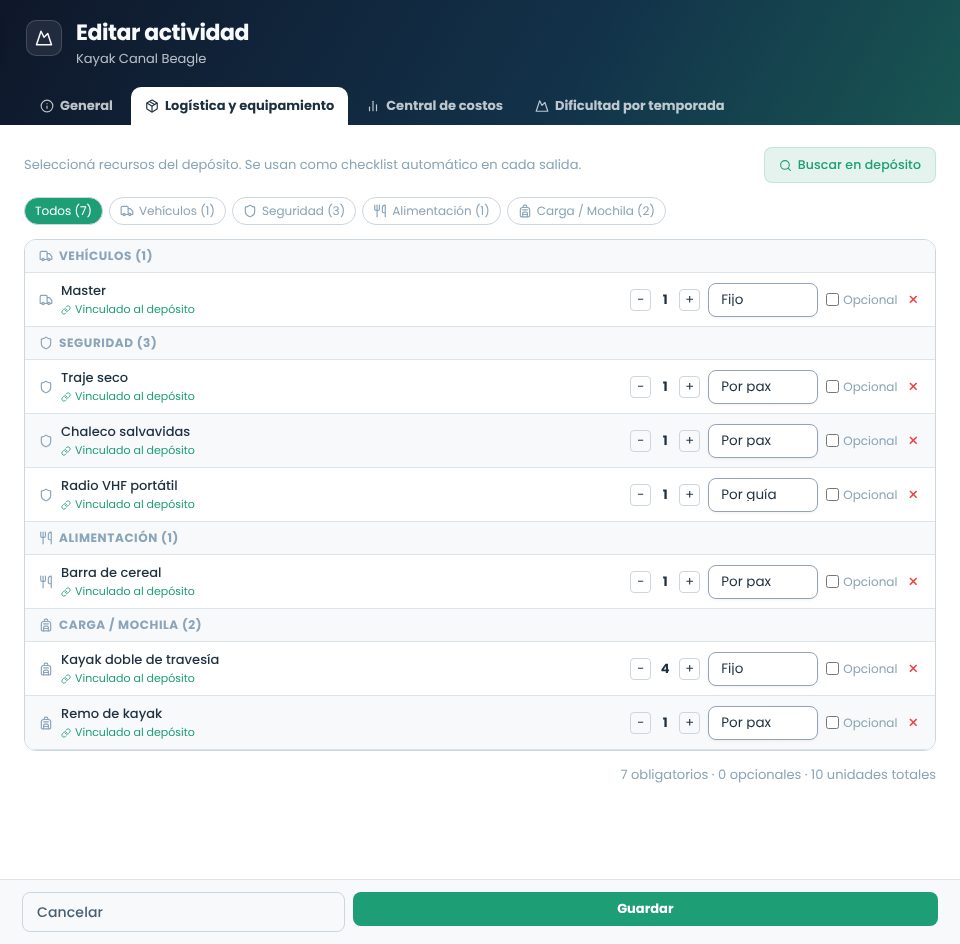
Cost and price live in different places. The cost center stores only what it costs you to operate (guide, transport, entrance fees, equipment). Margin, financial expenses and commissions are added in the rate sheet. If you mix the two, the profitability you see is no longer real.
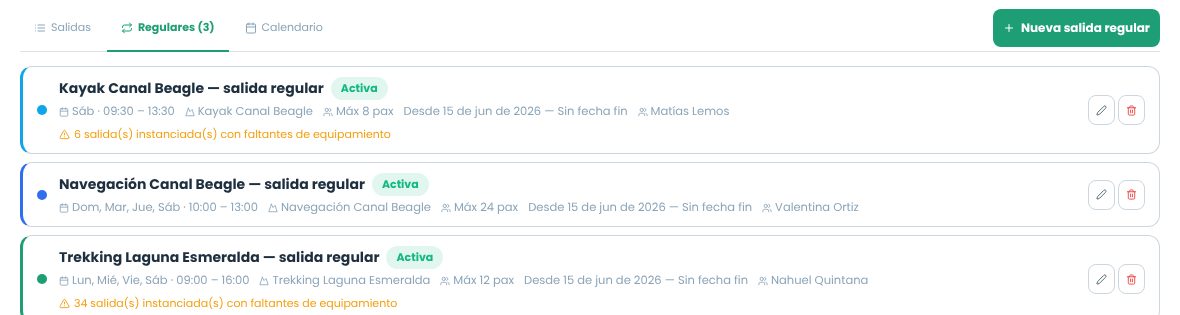
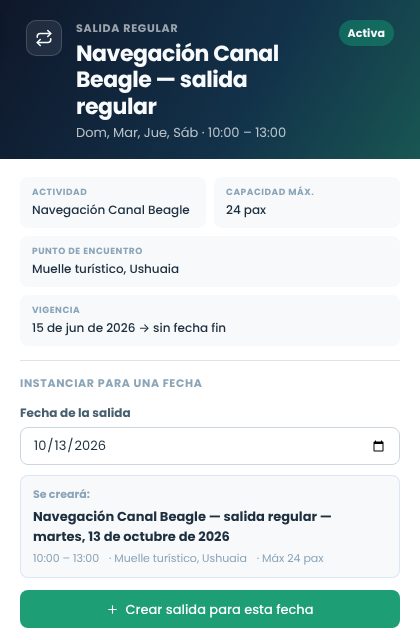
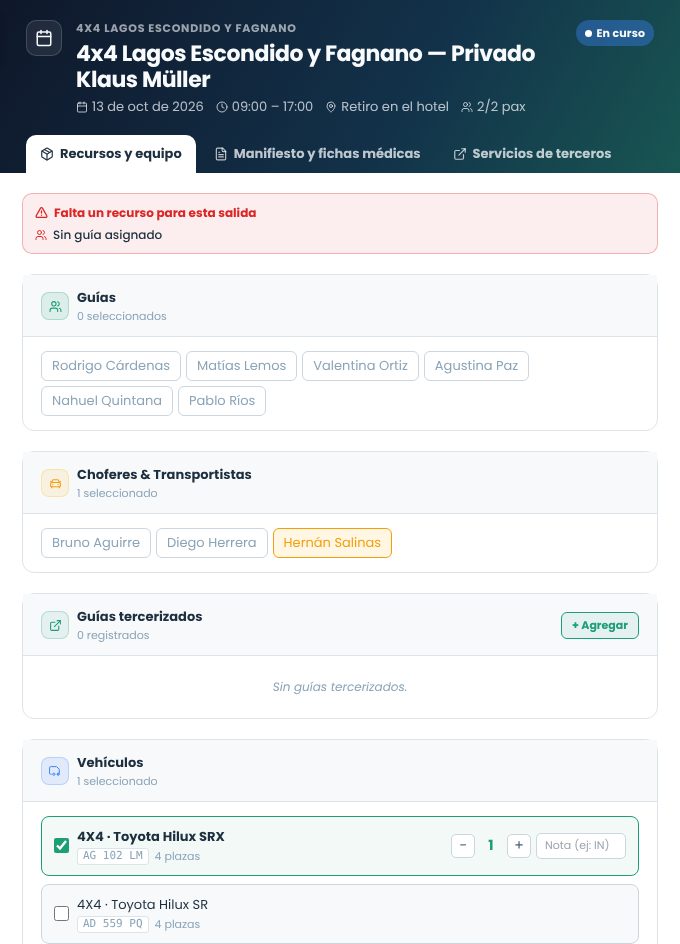
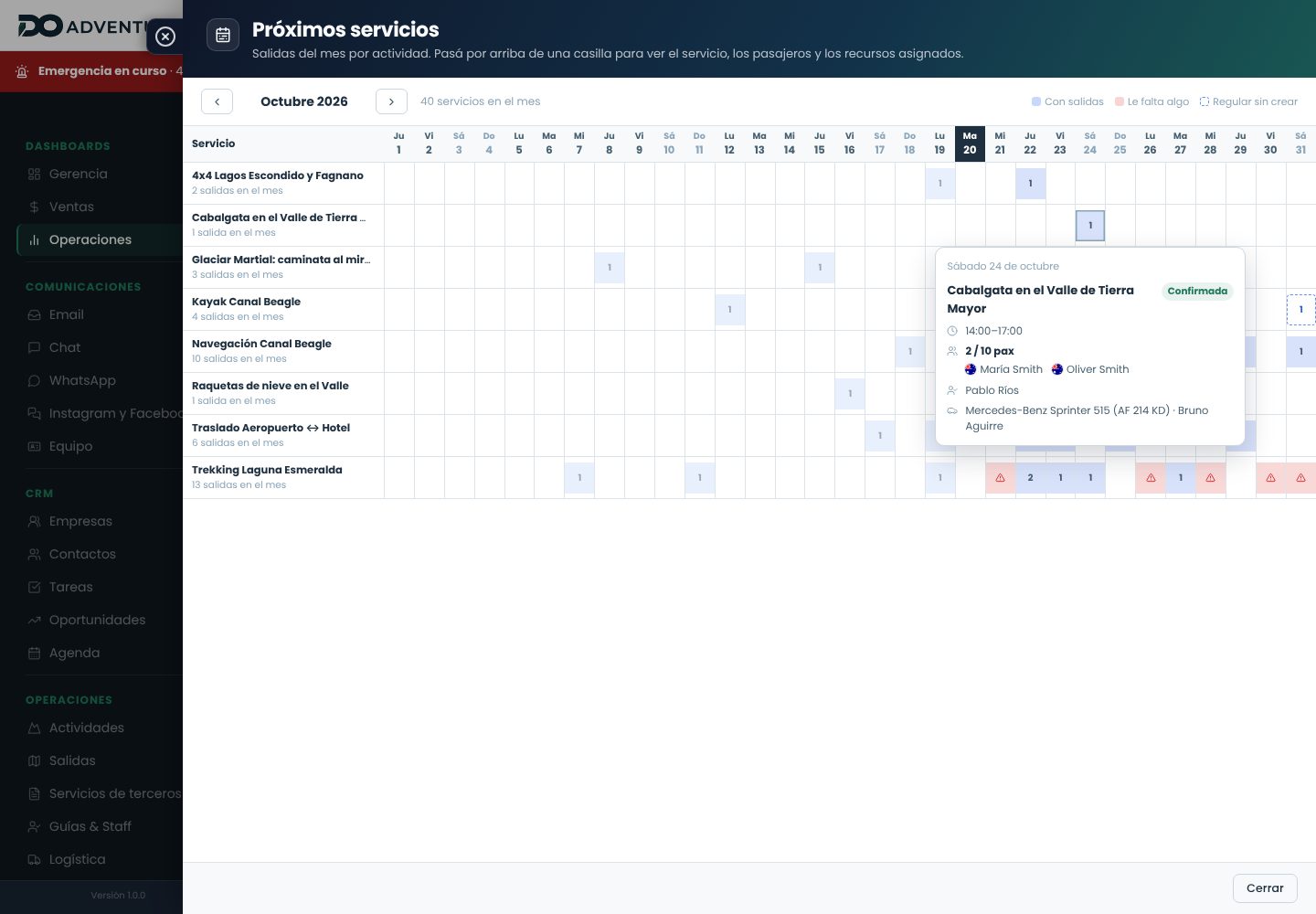
An activity is not a departure. The activity is the product (for example, "Kayaking on the channel"). The departure is a specific occurrence with a date, time, capacity and assigned team. Regular departures work as templates: each date is created separately and can be adjusted without affecting the others.
Everything stays linked. An email can be linked to a contact, an opportunity, a task or a booking. That way, when you open any of them, you see the full conversation without searching for it in the inbox.
Step-by-step lessons
Each lesson takes you from start to finish through a specific task: the goal, what you need before you start, the steps, what each field means and what to do if something goes wrong. They're inside each module's guide; here you have them all together.
Getting set up
The recommended order to get a new account ready to sell and operate. Each step uses data from the previous one, so it's best not to skip any.
Free trialNew accounts start with a 15-day trial with all modules enabled. No card is required until the trial ends.
Setup order
Company details and legal entityLegal name, tax ID, country and main currency. The country determines which taxes and which documents are offered later. See how
Users and rolesInvite your team and assign the right role to each person before they start entering data. See roles
Taxes and cost rulesReview the VAT (IVA) rates by service type and set the default margin and overhead expenses. See how
Team and vehiclesAdd guides, assistants, coordinators and drivers, and your fleet with its capacity. See how
SuppliersTransport companies, hotels, restaurants and other external services, linked to their CRM record. See how
Activities and cost centerYour service catalog and what each one costs to operate. See how
Rate sheetsSelling prices by channel (direct, agencies, wholesalers) and season. See how
Email accountTo send confirmations and keep each customer's history. See how
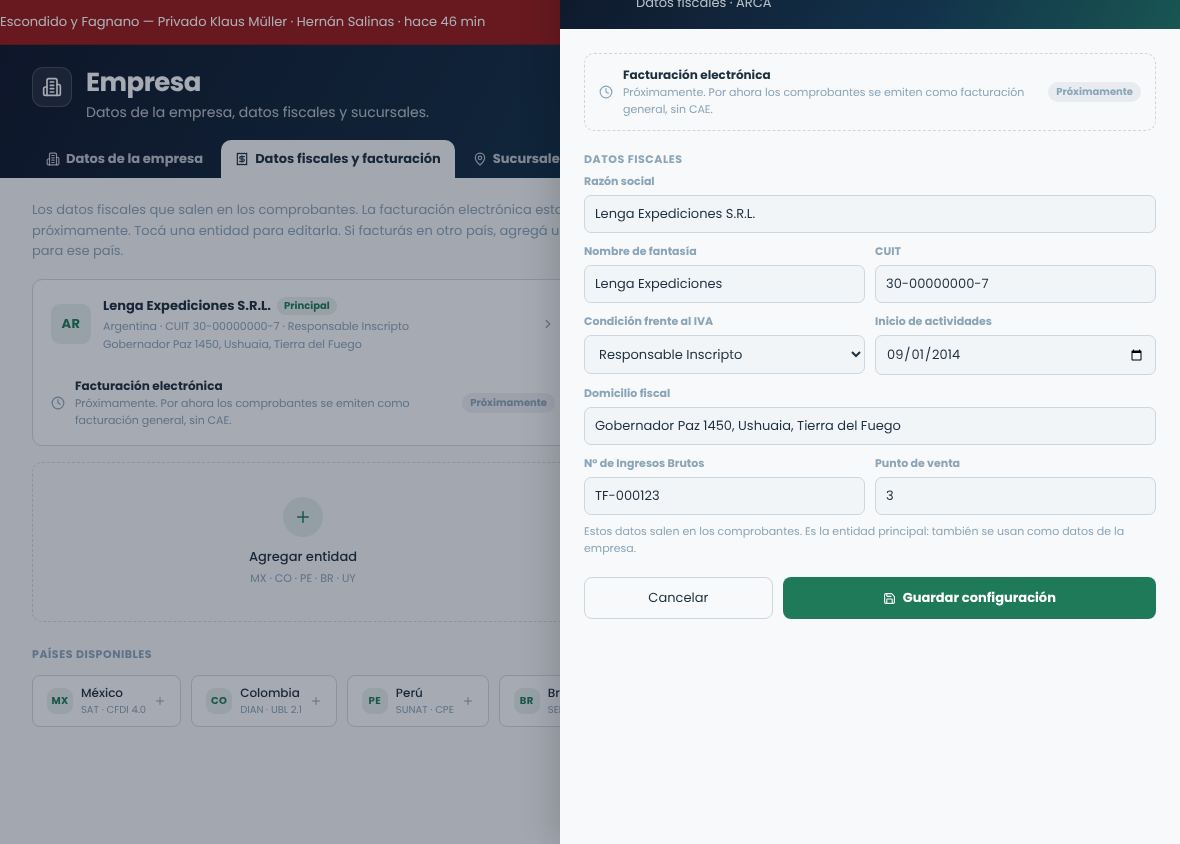
Tax dataEnter the legal name, CUIT, VAT status and point of sale: they appear on your invoices. Electronic invoicing will be available soon. See how
Coming from another system or from spreadsheets?Contacts, companies, suppliers, products, guides, vehicles and historical bookings can be loaded all at once from Excel. See how to import
Need your data in Excel?Any list can be downloaded with the columns and filters you choose, and there's also a full copy of the company. See how to export
TipFirst set up two or three complete activities (with costs and rate) and run a test booking end to end. You'll spot missing settings much sooner than if you load the whole catalog at once.
Signing in and getting around
How to sign in, how the menu is organized and how to work with the side panels used throughout the system.
Signing in
You sign in with your email and password from the sign-in screen. If you check Remember me, the session stays open in that browser. If you forgot your password, use Forgot your password? and follow the link sent to your email.
Accounts are created by your company's administrator. If you don't have a user, ask whoever manages DO Adventure in your organization.
The sidebar menu
The menu on the left groups the modules by work area:
Section
What you'll find
Start
Management, sales and operations dashboards.
Communication
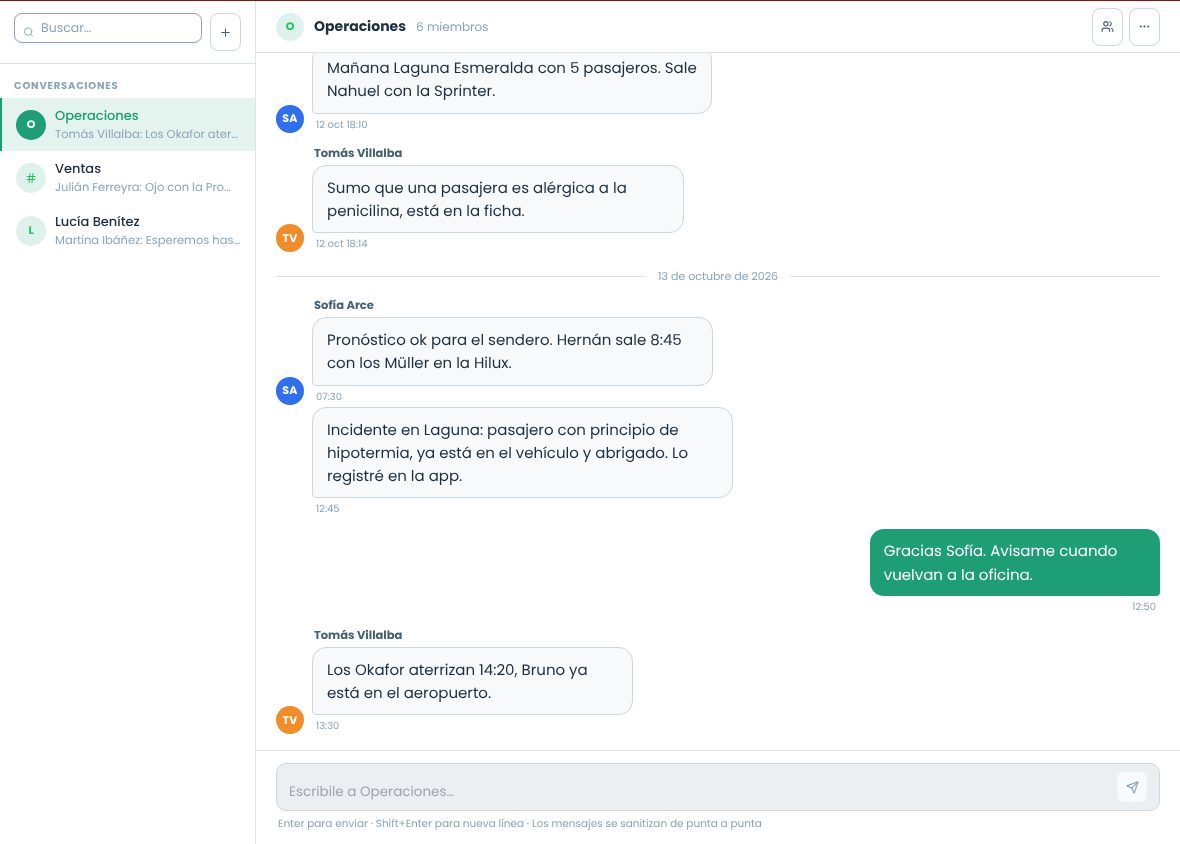
Email, chats, WhatsApp, Instagram and Facebook, with unread counters, the team directory and the AI Agent (if the account has the module).
Sales
CRM (companies, contacts, opportunities, tasks) and bookings.
Operations
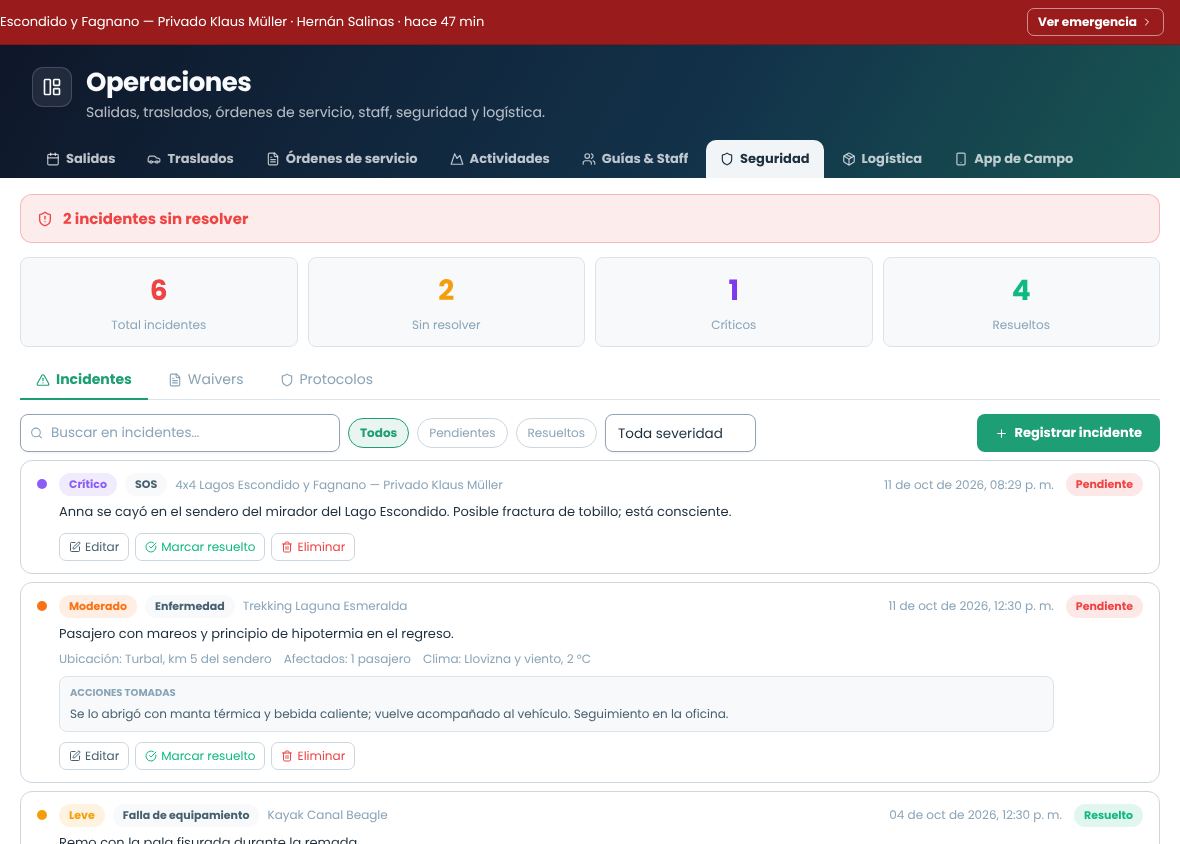
Activities, departures, calendar, team, logistics and safety.
Quality
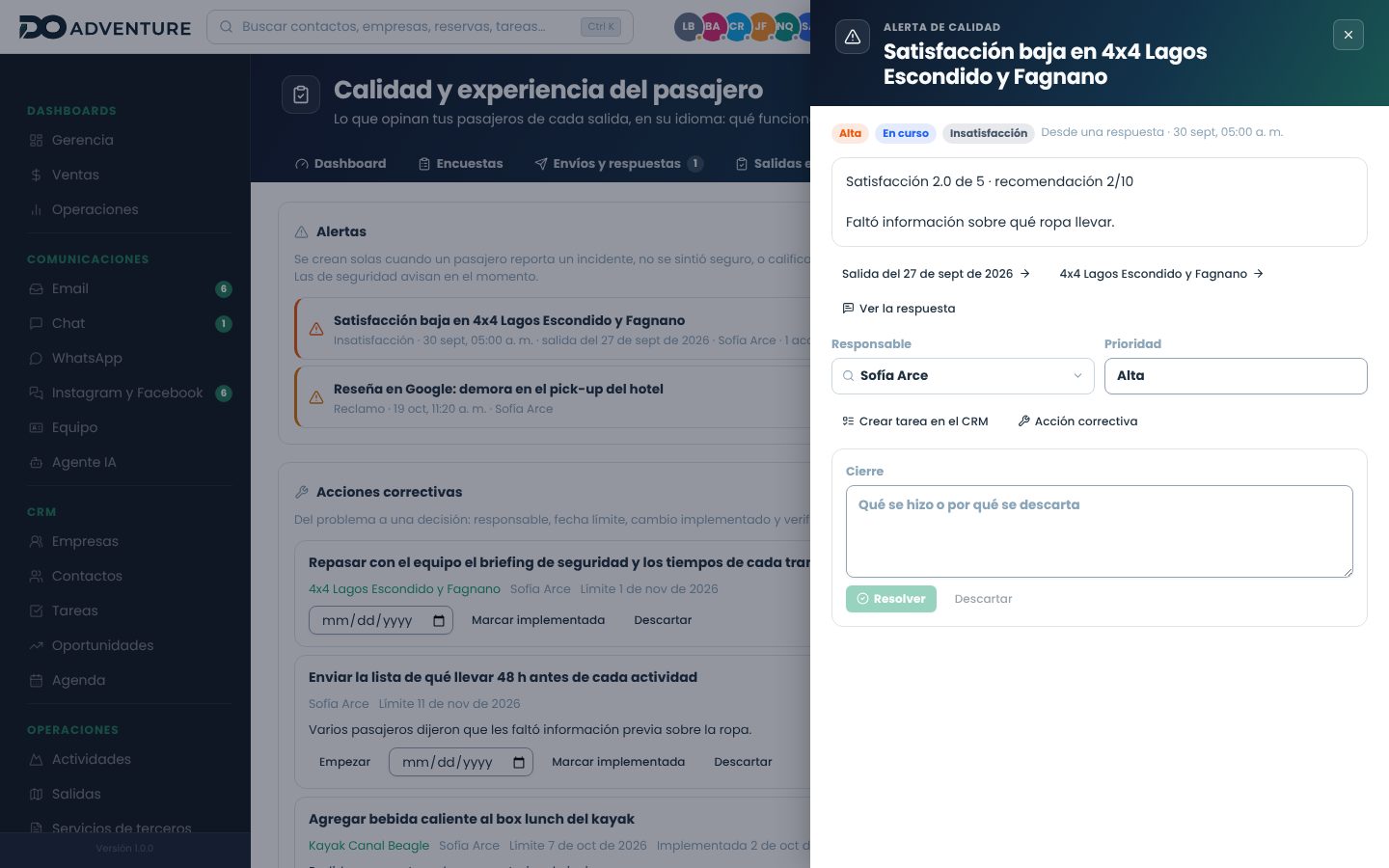
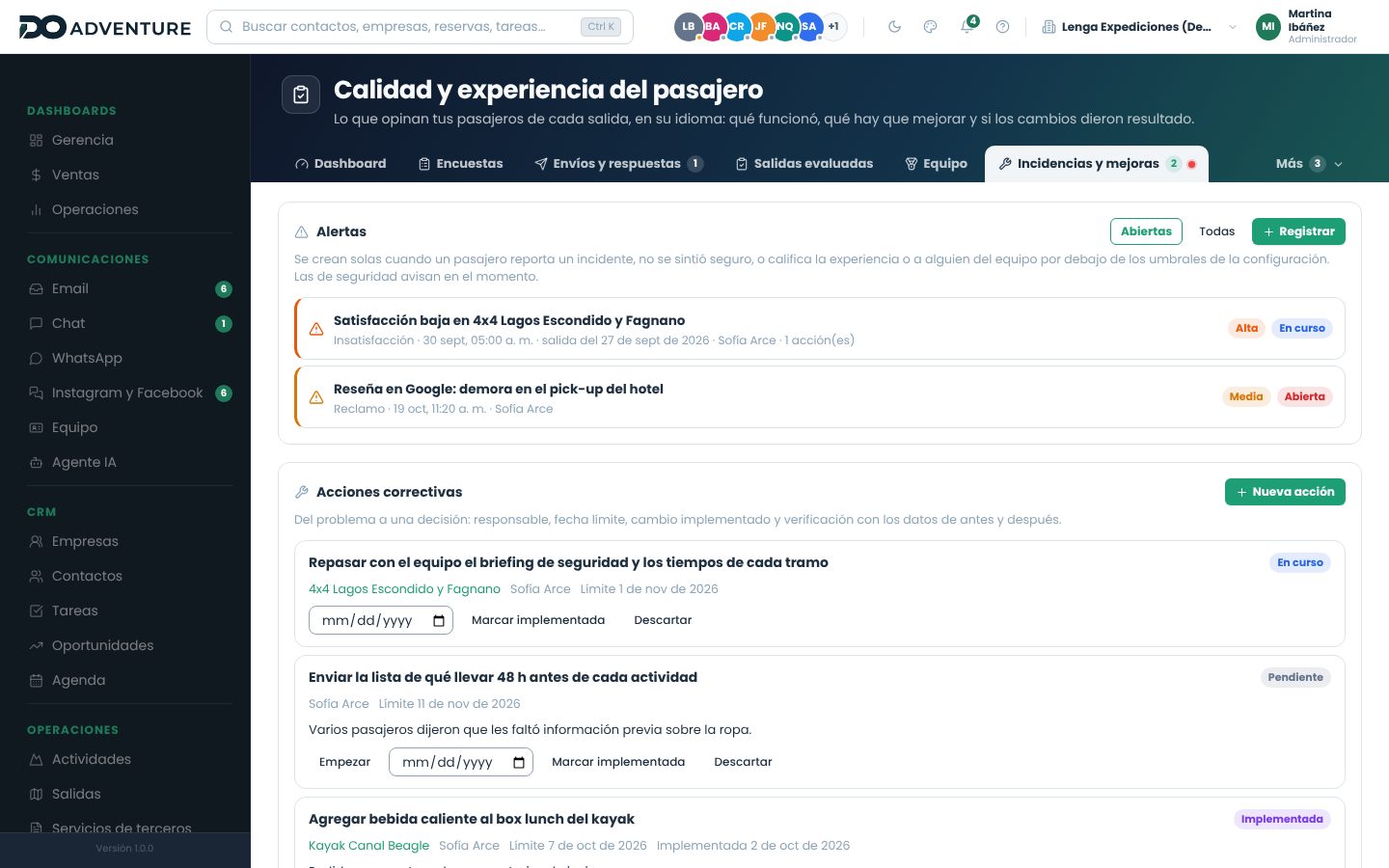
Passenger surveys in their own language, rated departures, history by activity, team evaluation, alerts and corrective actions (if the account has the module).
Products and pricing
Rate sheets, suppliers and cost center.
Content
Sales sheets for experiences and destinations, itinerary templates, sales proposals, web channels, webhooks, translations, media and the API for your website (if the account has the module).
Finance
Treasury, accounts receivable, accounts payable and invoicing.
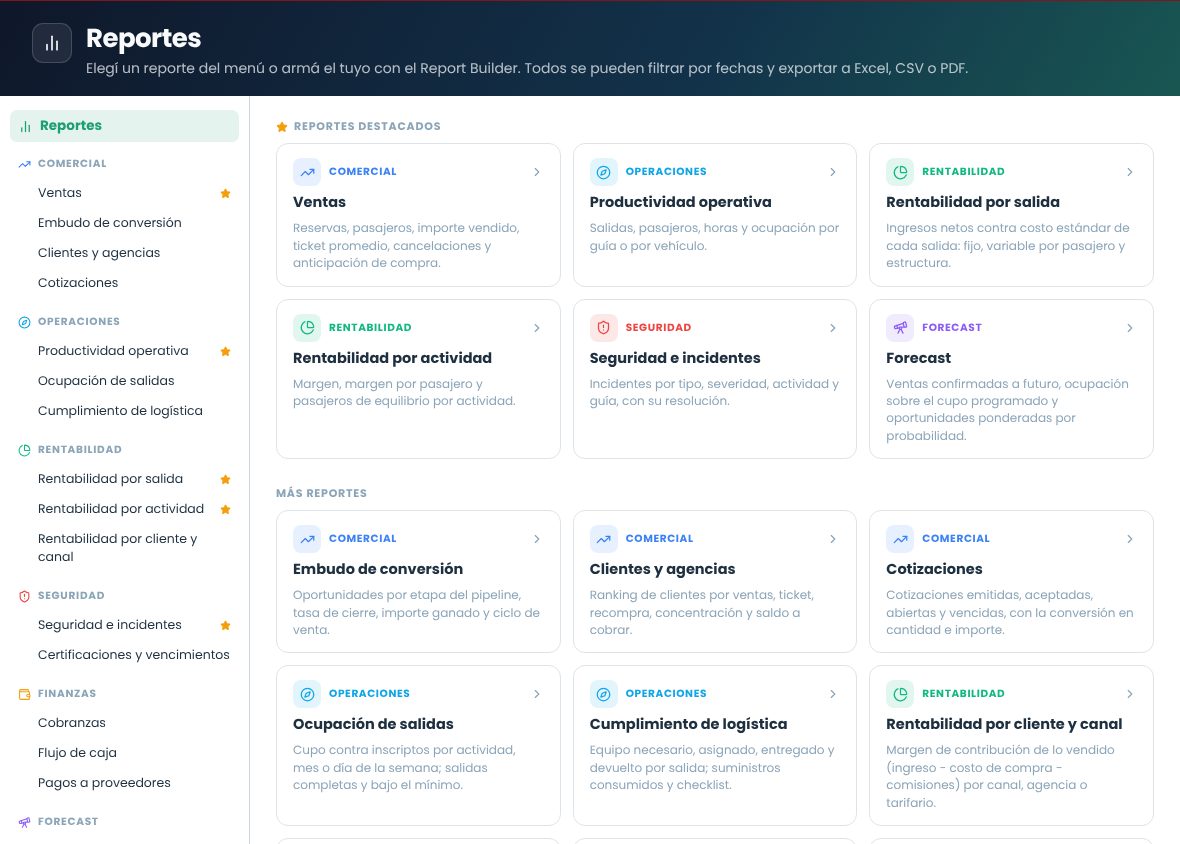
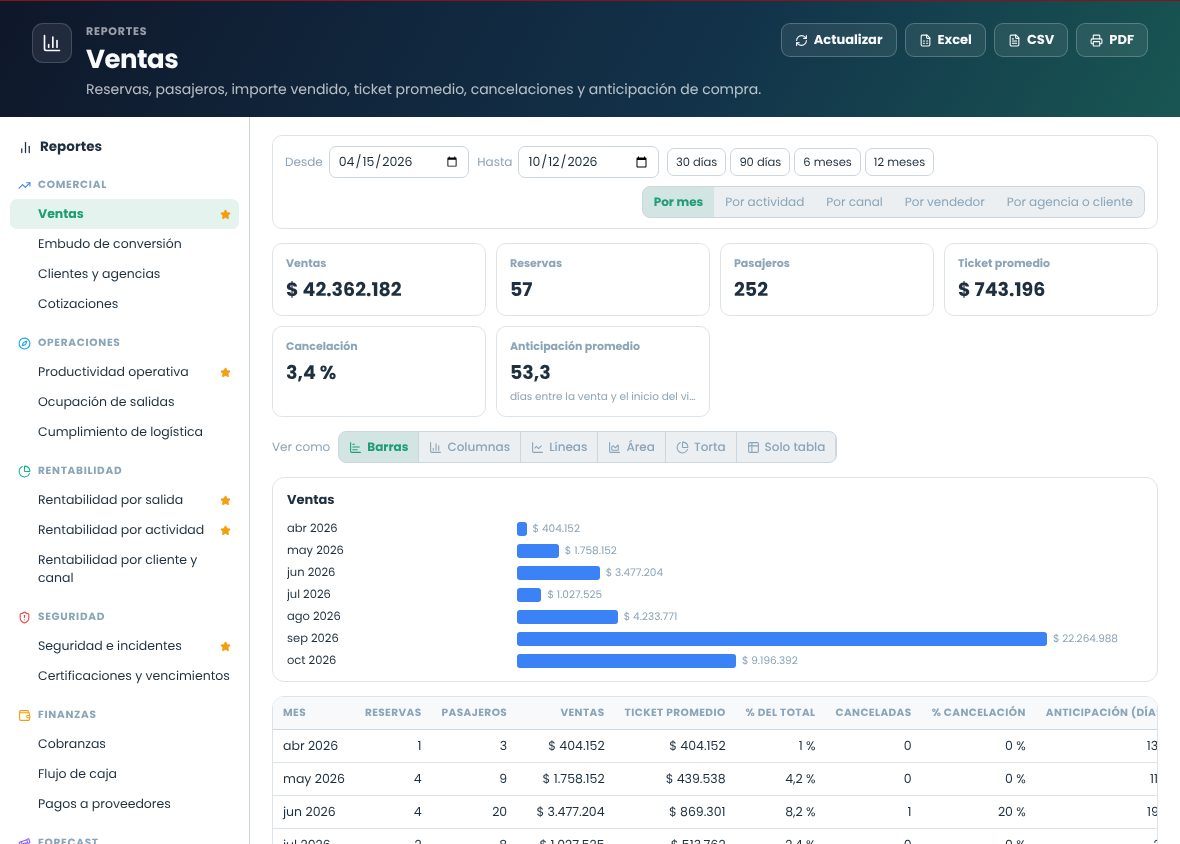
Reports
Sales, profitability, productivity, safety and forecast, exportable to Excel, CSV or PDF.
Company and system settings (tax data, users, roles, modules, branches, parameters) aren't in the sidebar menu: they're in the company menu, at the top right.
The top bar
Element
What it's for
Search
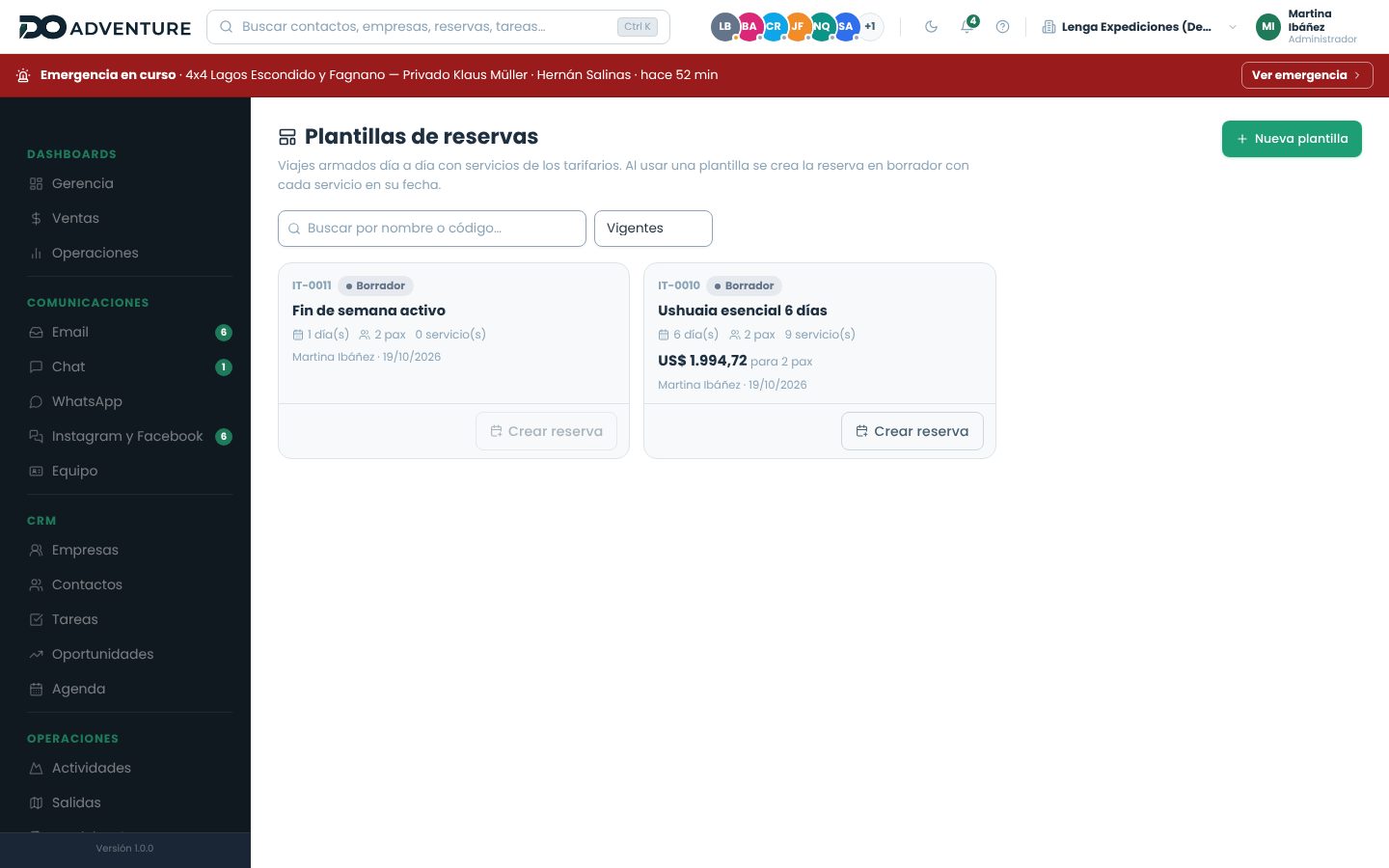
On the left, next to the logo. Finds contacts, companies, bookings, opportunities and tasks from any screen. Choosing a result opens its record directly. Shortcut: Ctrl K or ⌘ K.
Team
The circles with your teammates' photos (or initials), with those online first. The colored dot is their status: green online, orange away, gray offline. Clicking a circle opens that person's profile; the last circle takes you to the team directory.
Date
Today's date. On narrow screens it's hidden to make room for the search box.
Moon / sun
Switches between light mode and dark mode. Your choice is saved in that browser.
Bell
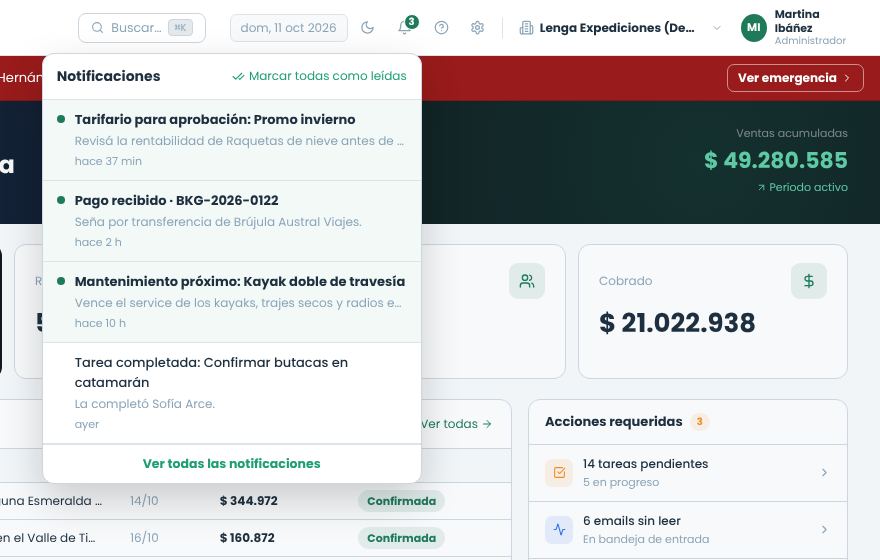
Your notifications: rate sheets to approve, payments received, completed tasks, maintenance. The number shows how many you haven't read.
Question mark
Opens this help center.
Company name
The company menu, with the settings for active modules and the system.
Your name
My profile, Team, Preferences (password, language and signatures) and Sign out.
Search on the left and the team in circles: one click opens that person's profile.
Notifications
Click the bell to see the latest ones. Unread ones are highlighted; opening one takes you to the right place (the rate sheet, the booking, the task) and marks it as read. Mark all as read clears the counter.
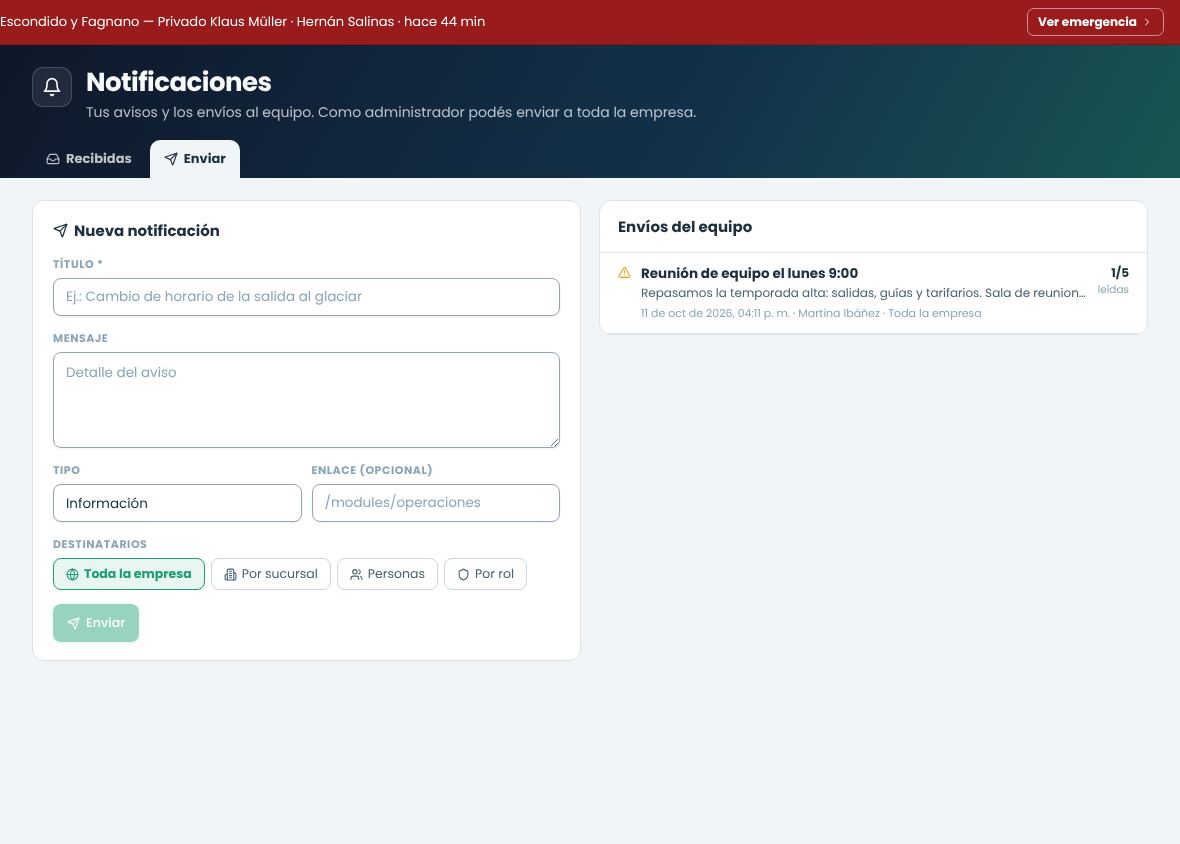
View all notifications, at the bottom of the bell menu, opens the notifications console: the full list with an unread filter and, for those allowed, the Send tab.
Who can send notifications
Role
Can send to
Administrator
The whole company, by branch, by role or to selected people.
Manager, or a role with the "Send notifications to the team" permission
Only people in their branches.
User
Doesn't send: only receives.
Each notification has a title, a message, a type (information, notice or urgent) and, optionally, a link to a screen in the app. In the list of sent notifications you can see how many people read each one.
Send notifications to the team and see how many people read them.The bell shows how many notifications you haven't read. Each one takes you to the corresponding screen.
The company menu
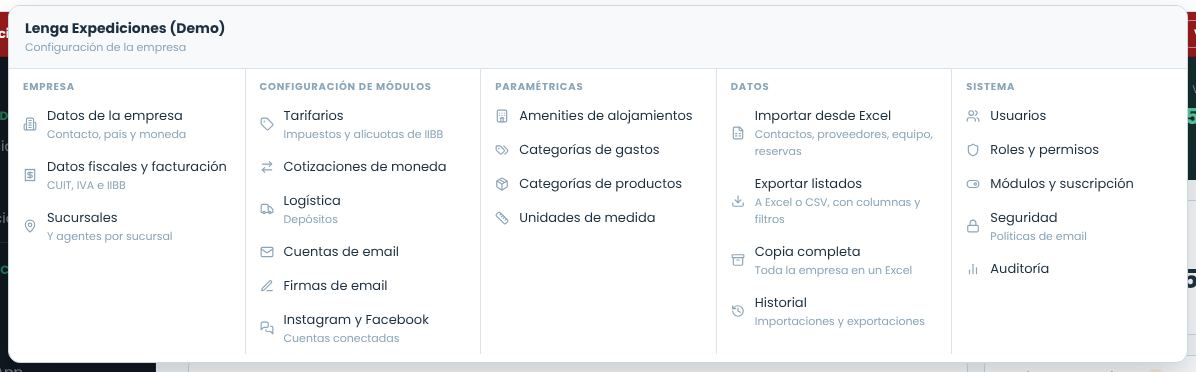
Clicking the company name opens the menu with all the settings, in five columns:
Company: company details (contact, country and currency), tax data and branches with their agents. Each piece of data is entered in only one place.
Module settings: only the modules you have active appear. For example, rate sheets (taxes and IIBB), exchange rates, logistics and email accounts.
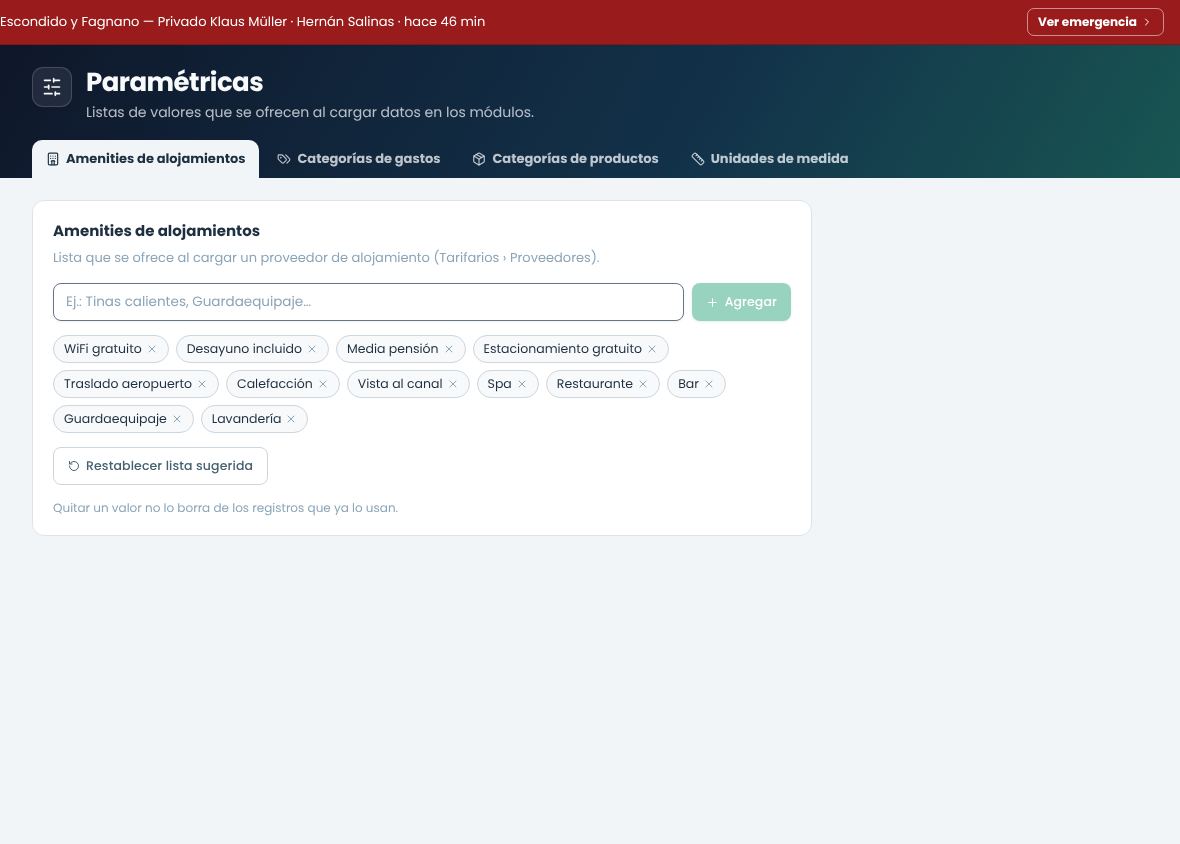
Parameters: the lists of values offered when entering data: lodging amenities, expense categories, product categories and units of measure.
System: users, roles and permissions, modules and subscription, security, audit log and Delete data (by module or the whole account). Only administrators see it. Email templates are under Module settings.
Company menu. Managers see the module settings; administrators also see the System section.
Light and dark mode
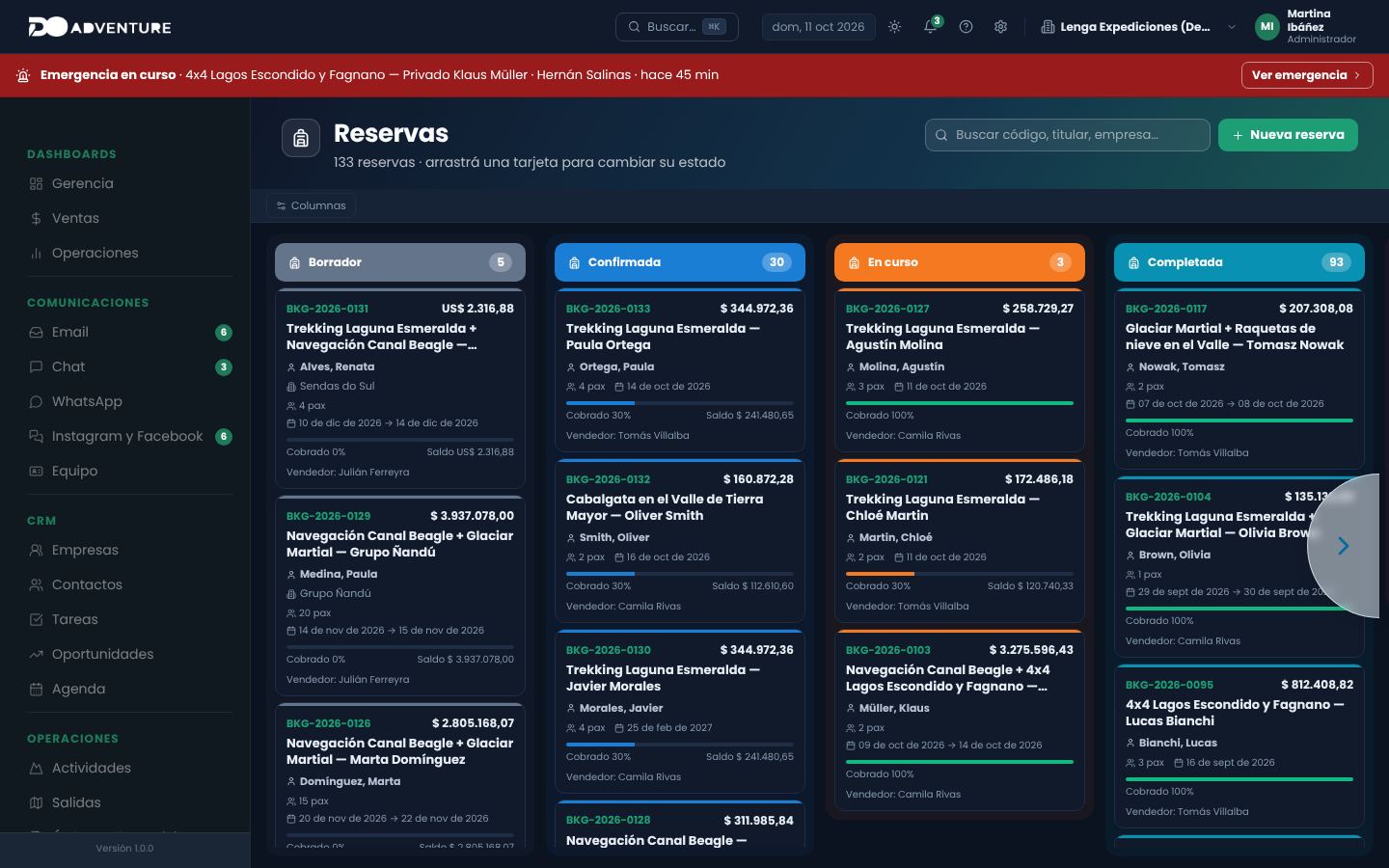
The system starts in light mode. The moon button in the top bar (or the one at the bottom of the sidebar menu) switches to dark mode, which applies to every screen. To switch back, use the sun button.
Dark mode: the same dashboards and panels with colors designed for low light.
Interface language
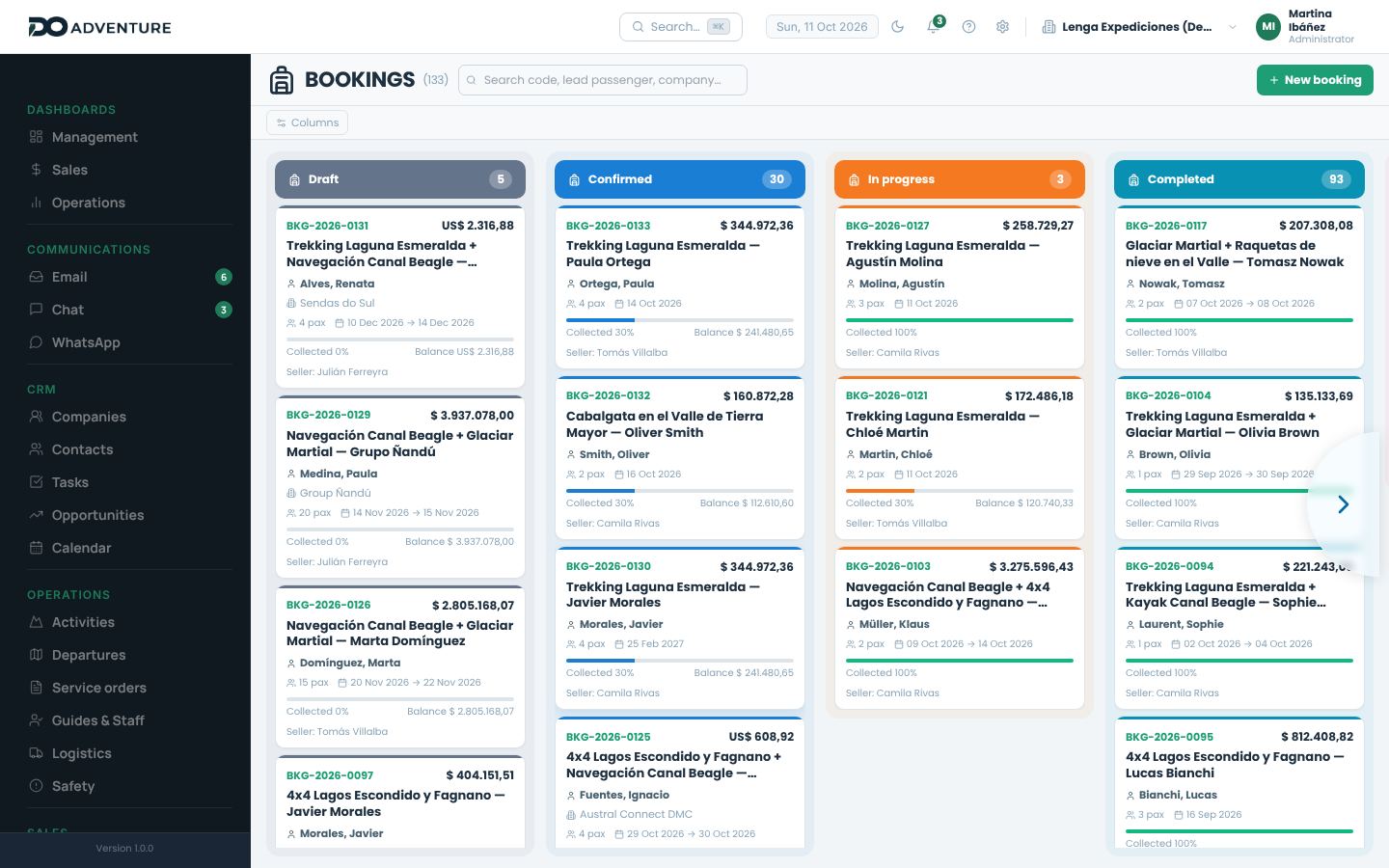
Each user chooses the language they see the system in: Spanish, English or Portuguese. You change it in My profile › Preferences › Language and region and it applies immediately, on any device where you sign in. Anyone who signs up from the English or Portuguese website starts in that language.
The system texts are translated: menus, buttons, titles, statuses, notices and error messages. Dates use the month and day names of the chosen language.
The data you enter (activity names, customers, notes, descriptions) stays as you wrote it.
Documents sent to customers and suppliers (invoices, service orders, emails) and this Help center remain in Spanish.
The language is chosen in My profile › Preferences and applies only to your user.The bookings dashboard in English. Activity and customer names don't change.
Header and tabs
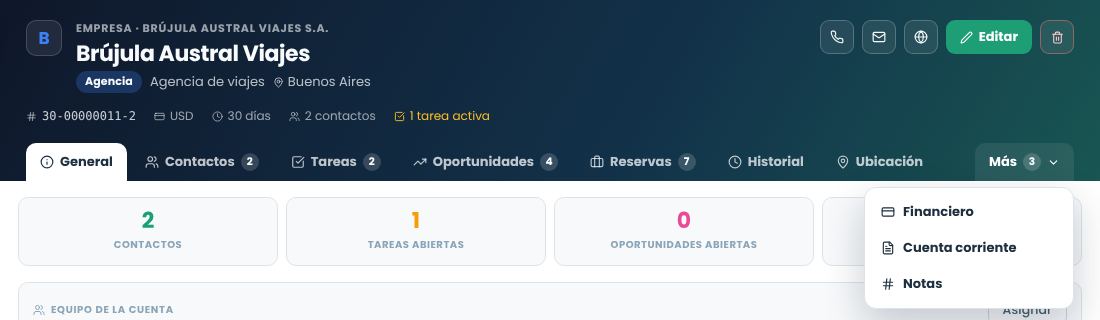
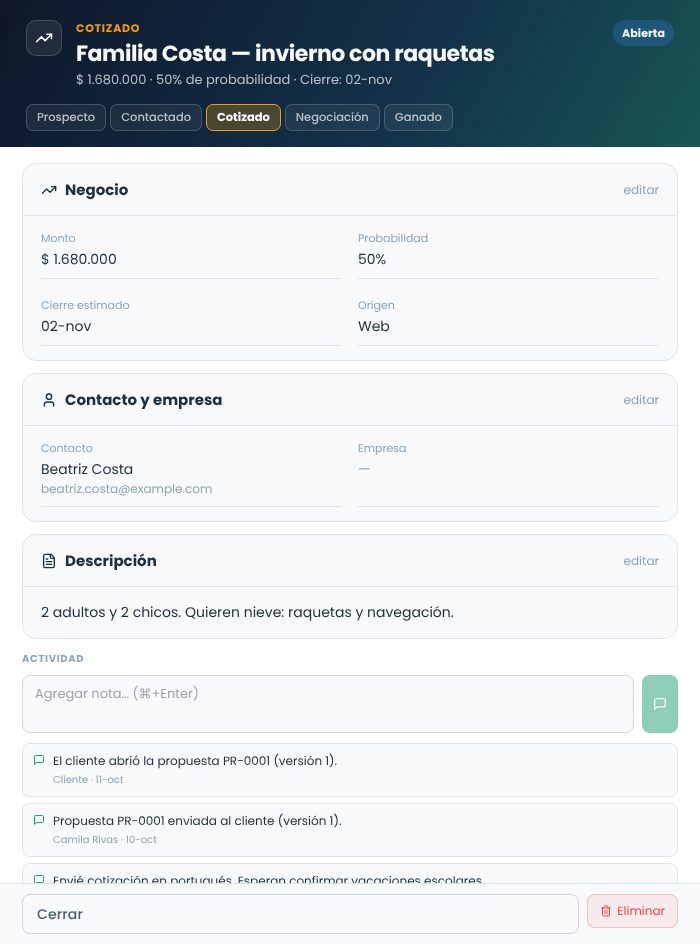
Every screen and every panel has the same dark header: at the top, the record type, the title and a subtitle with the key details; on the right, the actions (edit, export, create). Below are the tabs: the open one looks light and joined to the content. The number next to a tab is how many records it has, and a red dot warns that something is overdue or pending.
When the tabs don't fit the width, the extra ones move to the More button, which shows how many there are; the tab you're viewing always stays visible.
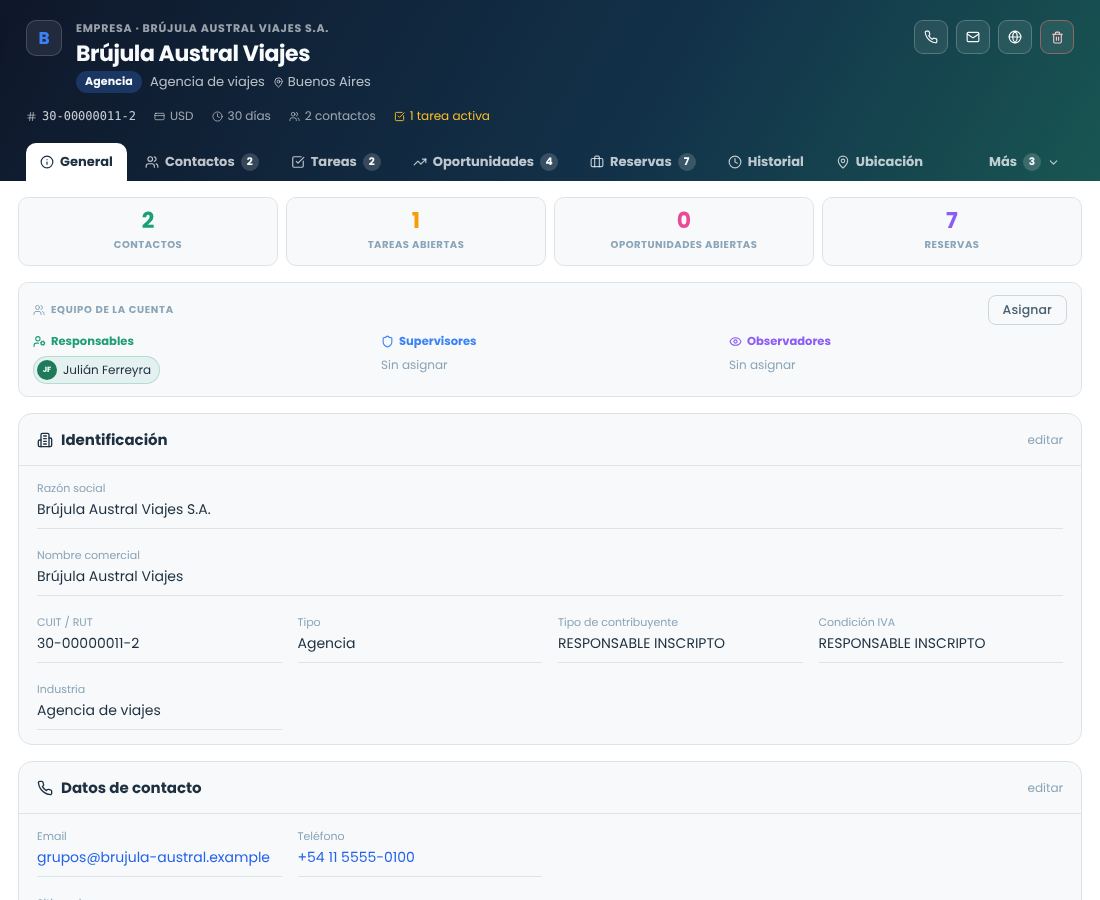
A company record: key details in the header, tabs with counts and the More menu with the ones that don't fit.
Side panels
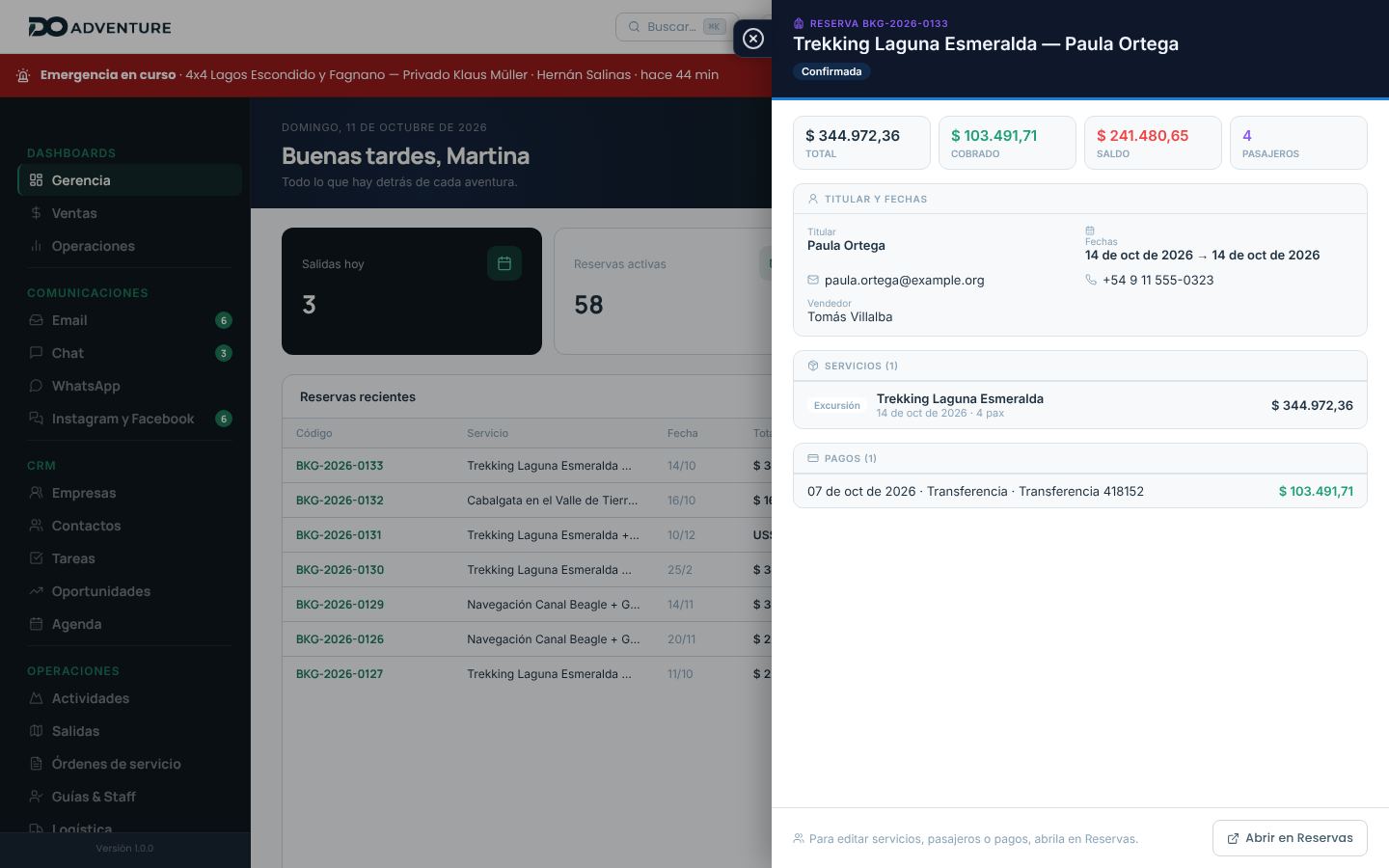
Almost everything is edited in panels that open from the right, without leaving the screen you're on. You close them with the Close button on the side tab or by clicking outside the panel. Changes are saved with the save button at the bottom of the panel; if you close without saving, they're discarded.
Kanban boards
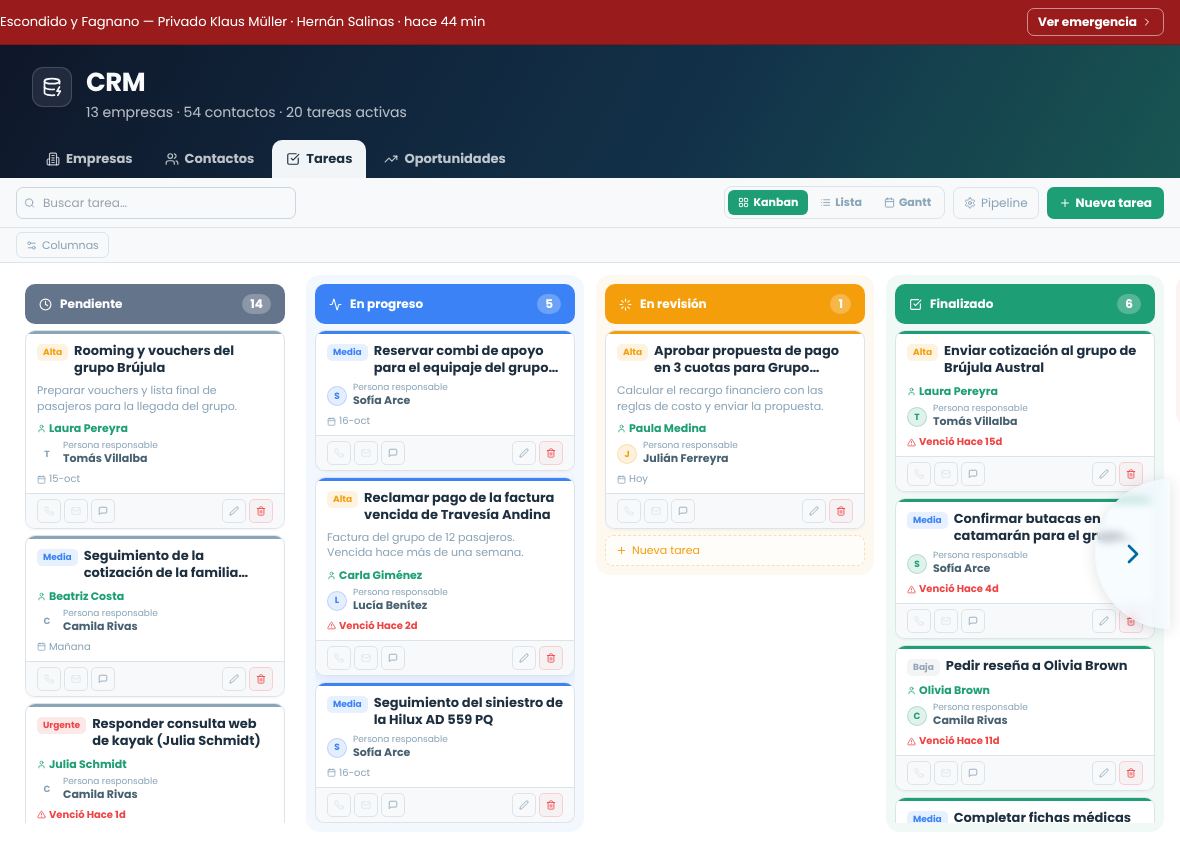
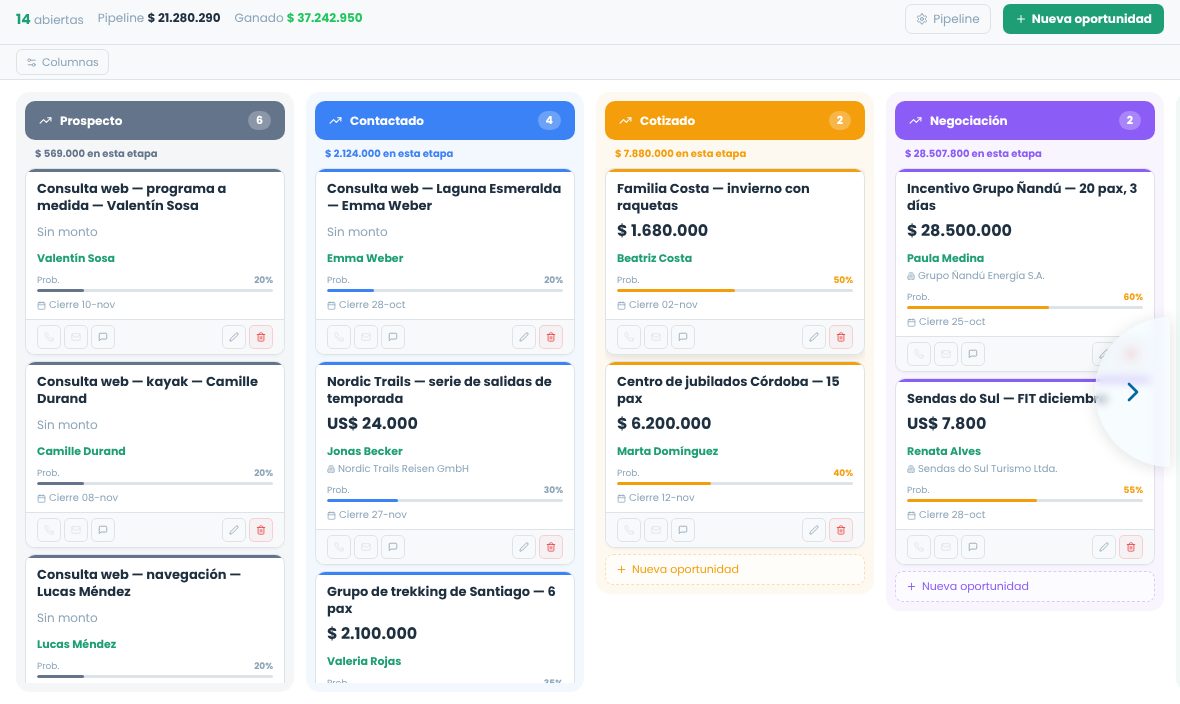
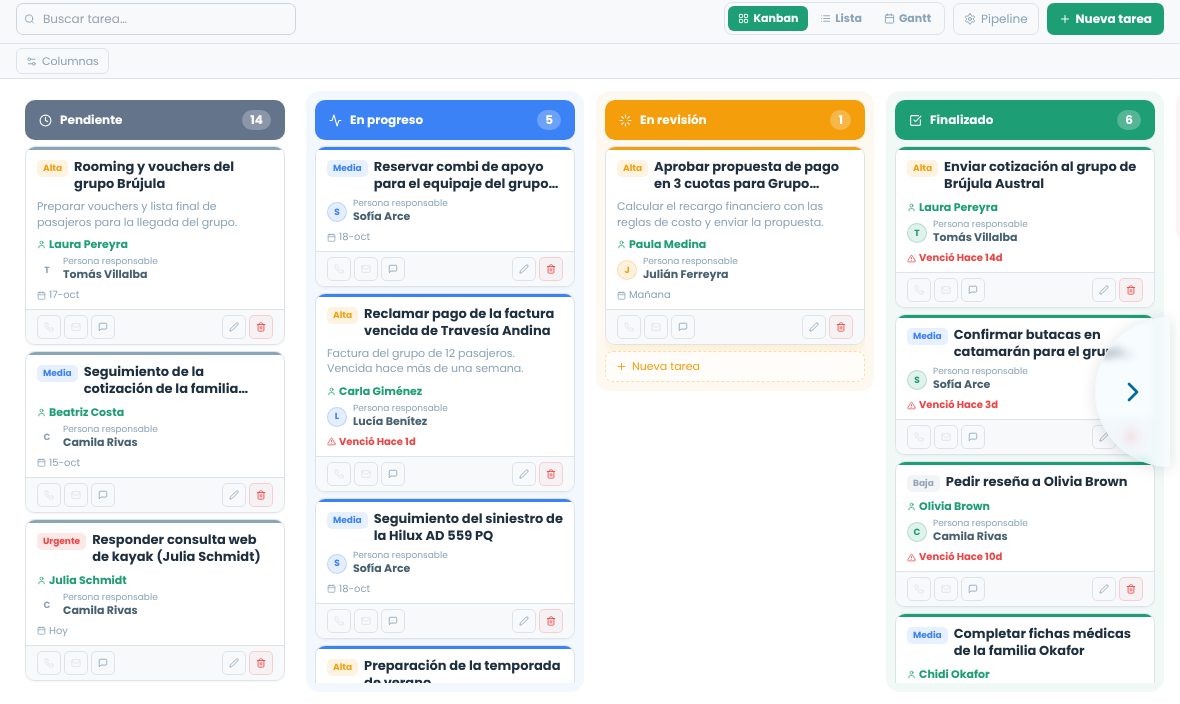
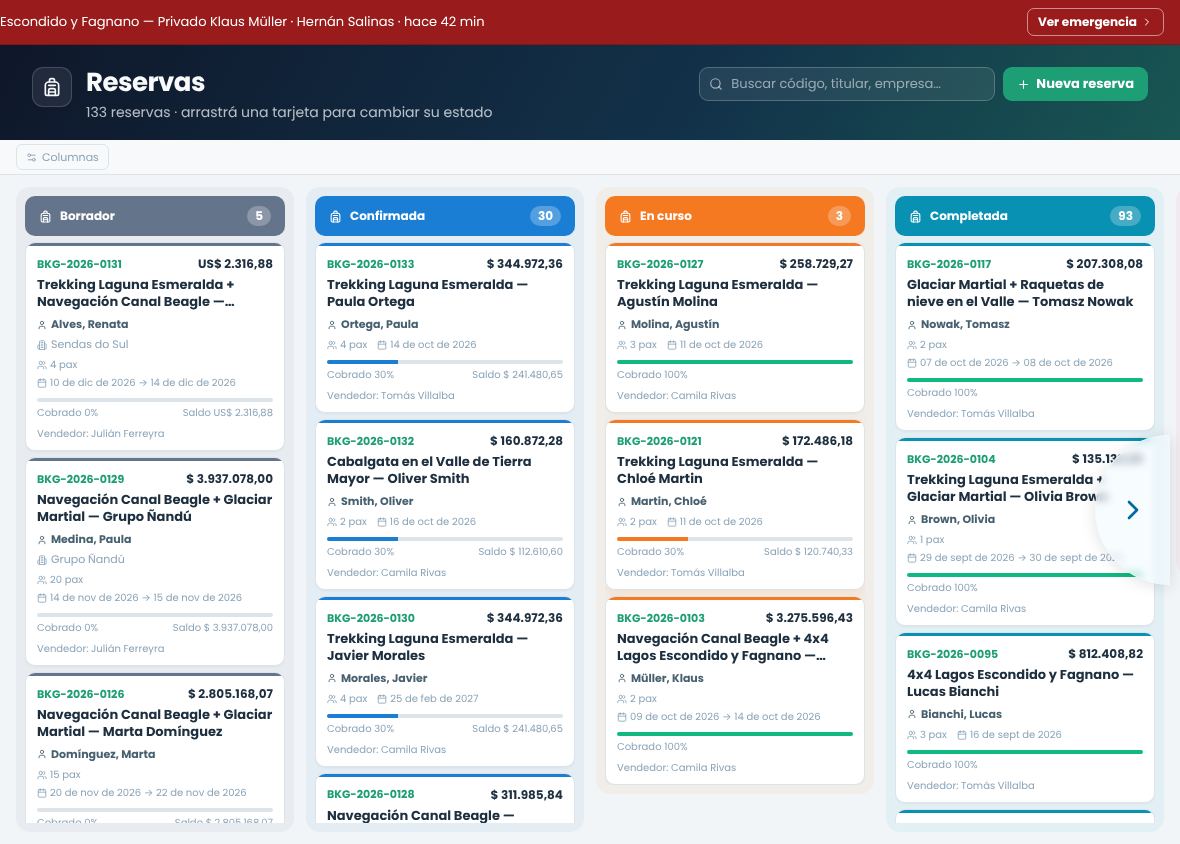
Opportunities, tasks, departures and bookings are shown in fixed-width columns by status: four fit on screen and you scroll to see the rest. To change a card's status, drag it to another column. Each column scrolls on its own: if a column has many cards, scroll down inside it without losing sight of the others. If there are more columns than fit on screen:
Use the semicircular buttons on the edges to scroll left or right.
Hide the columns you don't use from the column visibility bar. What you hide is remembered in that browser.
Switch to list view when you need to sort or review many records at once.
Tasks board: each column scrolls separately and the cards keep their size.
Importing data from Excel
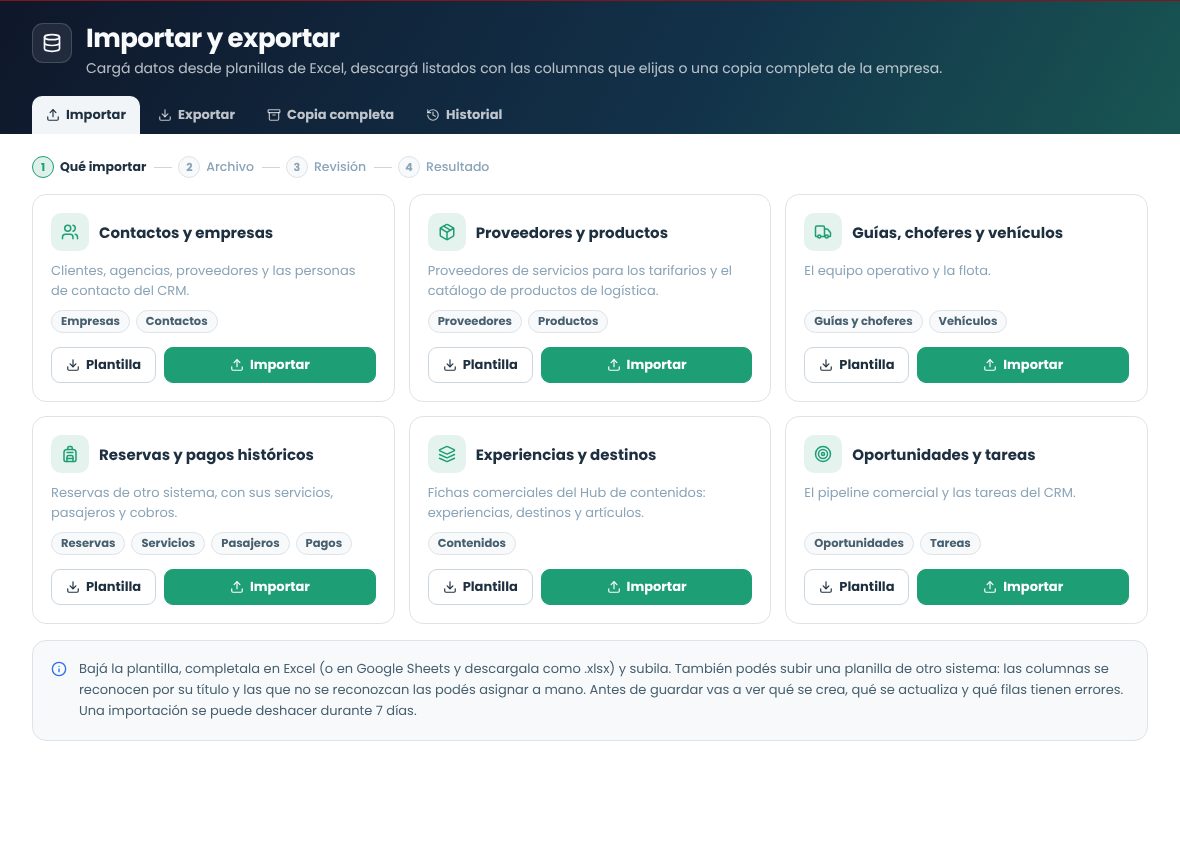
Load all at once the information you have in spreadsheets or in another system. Before saving, you see what will be created, what will be updated and which rows have errors, and an import can be undone for 7 days.
What you can import
Go to the company menu (top right) › Import from Excel, or use the Import button in CRM, Bookings, Operations and Rate sheets.
Import
Sheets
How an existing record is detected
Contacts and companies
Companies, Contacts
Company: the CUIT or, if it has none, the legal name. Contact: the email.
Suppliers and products
Suppliers, Products
Supplier: the name. Product: the internal code or the name with the brand and model.
Guides, drivers and vehicles
Guides and drivers, Vehicles
Person: the email or the first and last name. Vehicle: the license plate.
Historical bookings and payments
Bookings, Services, Passengers, Payments
The booking code.
Experiences and destinations
Content (experiences, destinations and articles)
The slug or, if it has none, the type and the internal title.
Opportunities and tasks
Opportunities, Tasks
Opportunity: the title with the contact and the company. Task: the code or, if it has none, the title and the due date.
Each import has its own Excel template.
Step by step
Download the templateIt includes an instructions sheet explaining each column, one sheet per data type and drop-down lists for fields with fixed values. The green columns are required.
Fill it inOne row per record. You can fill in only the sheets you need and delete the columns you don't use. Google Sheets works too: download the file as .xlsx.
Upload itDrag the file or choose it. Accepted formats are .xlsx, .xls, .ods and .csv, up to 8 MB and 5,000 rows per sheet. Choose what to do with records that already exist: skip them or update them.
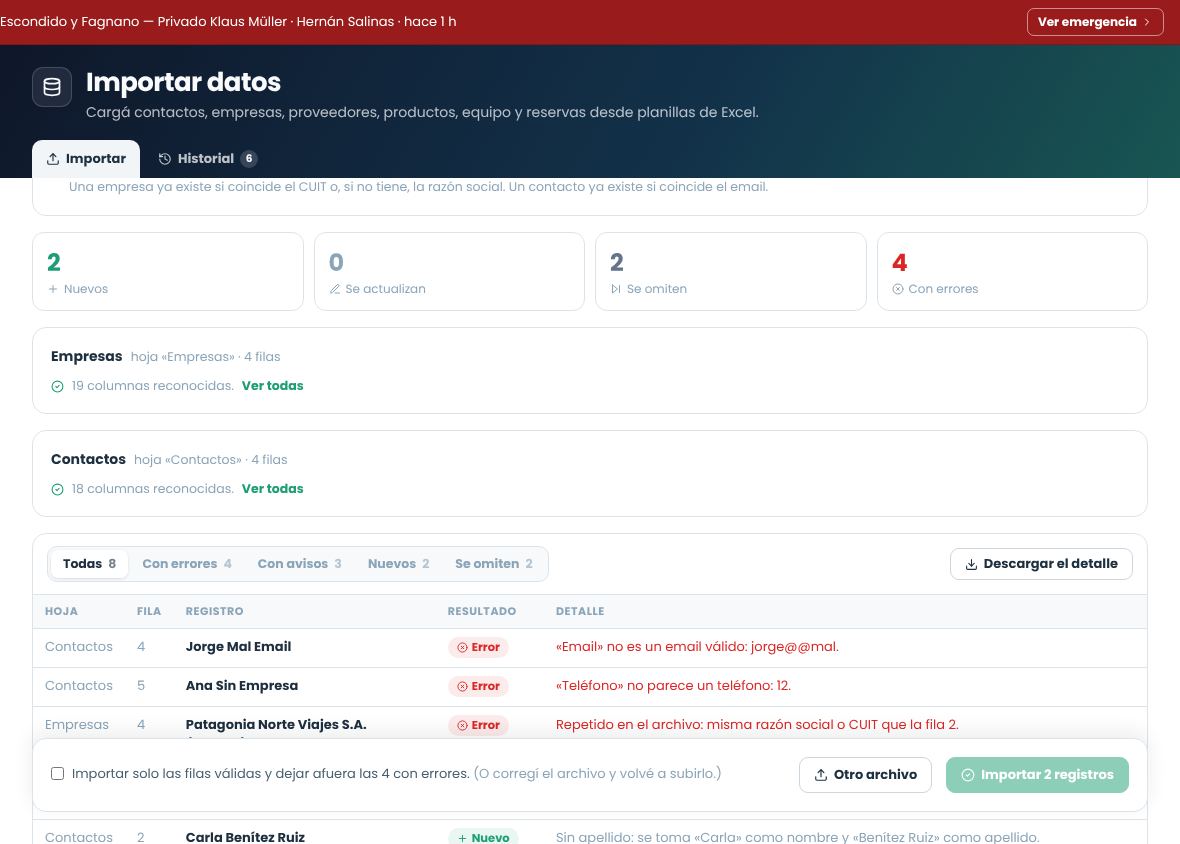
ReviewYou see how many records are new, how many will be updated, how many will be skipped and how many have errors, with the details of each row. Nothing has been saved yet.
ImportIf there are errors, fix the file and upload it again, or check Import only the valid rows. Everything is saved together: if anything fails, nothing is saved.
The review: what happens to each row before saving.
Spreadsheets from another system
You don't have to use the template. Columns are recognized by their header, including the usual names from other systems (for example "E-mail", "Celular", "Razón social", "Dominio" or "Localizador"). Columns that aren't recognized appear in the review: assign them the right field and tap Analyze again. Columns you leave as Ignore aren't imported.
A single-sheet file (or a CSV) is used for the sheet whose columns match. In multi-sheet files, each sheet must be named as in the template (Empresas, Contactos, Reservas, Pagos…).
Formats
Dates: dd/mm/yyyy, or Excel's date format.
Amounts: no currency symbol; both "1250,50" and "1.250,50" are valid.
Lists (type, status, role, payment method…): a value from the template's list. Common synonyms are also accepted, for example "Booking" as an OTA channel or "van" as a minibus.
Tags and languages: separated by commas.
If a contact or team member has their full name in the First name column and no last name, the first word is taken as the first name and the rest as the last name.
Historical bookings
Services, passengers and payments are linked to their booking by its code. If a booking has no total, it's calculated as the sum of its services; the balance is the total minus the payments. Payments must be in the booking's currency.
This loads history onlyNo invoices, treasury transactions, departures or emails to passengers are generated. Bookings that already exist (same code) aren't modified.
Experiences, destinations, opportunities and tasks
Content: created as drafts, ready to complete and review in Content. The description is converted into paragraphs and the category is looked up by name or slug. A destination included in the same file is created first, so the experiences below can use it. If the content already exists and you choose to update it, it's only updated while it's in draft or in review (you need permission to edit content); approved and published items are skipped.
Opportunities: the stage is looked up by name in your pipeline (if it isn't found, it goes into the first one). The contact is linked by email, the company by CUIT or legal name and the owner by the user's email or name.
Tasks: if they have no code, a new one is assigned (TASK-…). The contact, company and owner are linked the same way as in opportunities.
History and undo
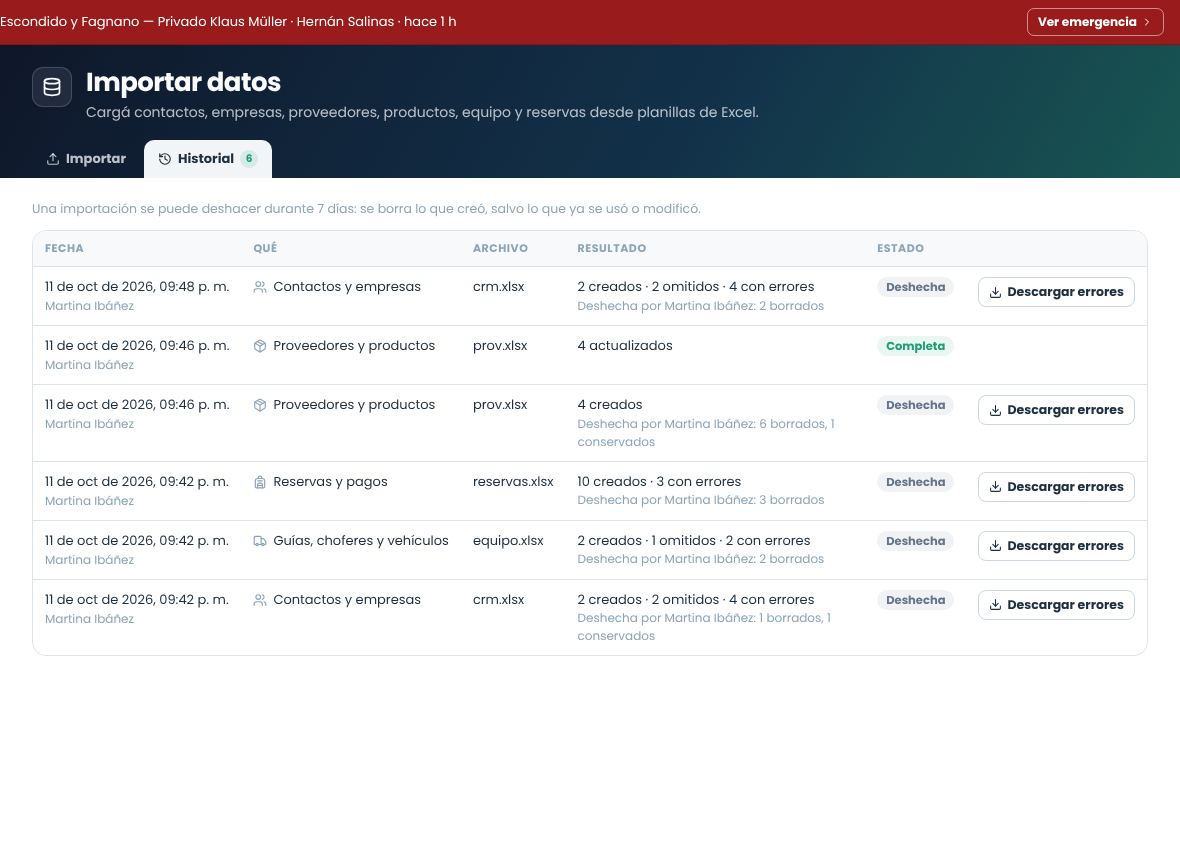
The History tab lists each import with what it created, updated and skipped, and the rows with errors, which you can download in Excel. For 7 days, Undo deletes what the import created, except anything someone has already used or modified (for example, a contact that already has a booking). Updates aren't reverted.
Import history.
Who can import
You need the Import data from Excel permission (Import and export group, in Roles and permissions) and also the create permission for each module: for example, create contacts to import contacts. Administrators have all of them.
Exporting lists and full copy
Download any list to Excel or CSV with the columns and filters you choose, or all of the company's information in a single Excel file.
Exporting a list
Go to the company menu › Export lists, or use the Export button in CRM, Bookings, Operations, Rate sheets, Invoicing and Treasury, which opens that screen's list.
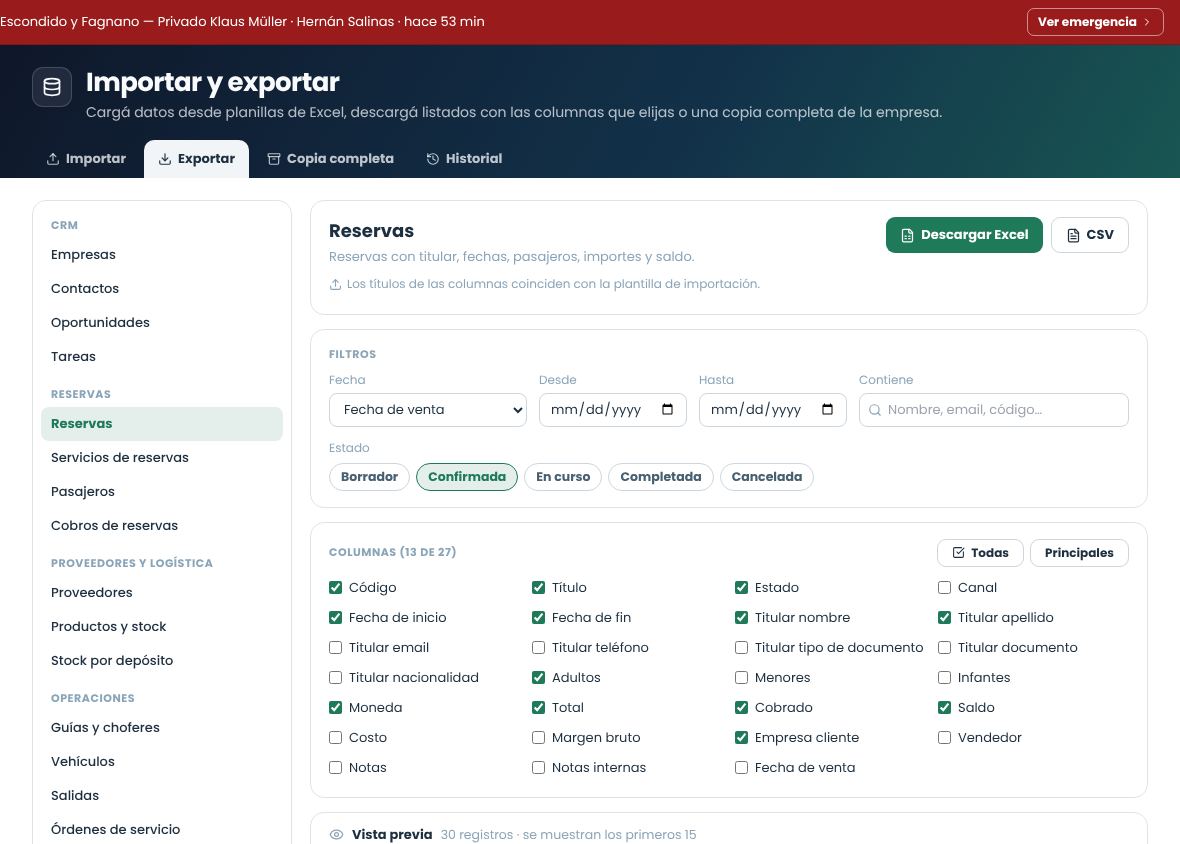
Choose the listOn the left they're grouped by module: companies, contacts, opportunities, tasks, bookings with their services, passengers and collections, rates, suppliers, products and stock, guides, vehicles, departures, service orders, incidents, activities, content and translations, proposals, web inquiries, channel bookings, settlements and tickets, invoices, treasury transactions and accounts, accounts payable, online payments with their refunds and payment links, and users.
FilterBy date range (for example, sale date or trip start date), by status and by text. With no filters, everything is exported.
Choose the columnsThe main ones come checked. All checks all of them and Main goes back to the usual ones. The file follows the order of the list.
Review and downloadThe preview shows how many records are included and the first 15 rows. Then tap Download Excel or CSV.
Export: list, filters, columns and preview.
The Excel file includes an Information sheet with the company, the download date and the filters used.
The CSV uses semicolons and a decimal comma, the way Excel opens it in Spanish.
Companies, contacts, suppliers, products, guides, vehicles, content and bookings use the same column headers as the import templates. For the first seven, you can export, make corrections in Excel and import again choosing Update it with the filled-in data from the file (content only while it's in draft or in review); bookings that already exist aren't modified on import.
Content is exported as plain text (no HTML); proposals include the total sale amount and the number of passengers.
Each file holds up to 100,000 rows. If a list has more, filter it by date.
Full company copy
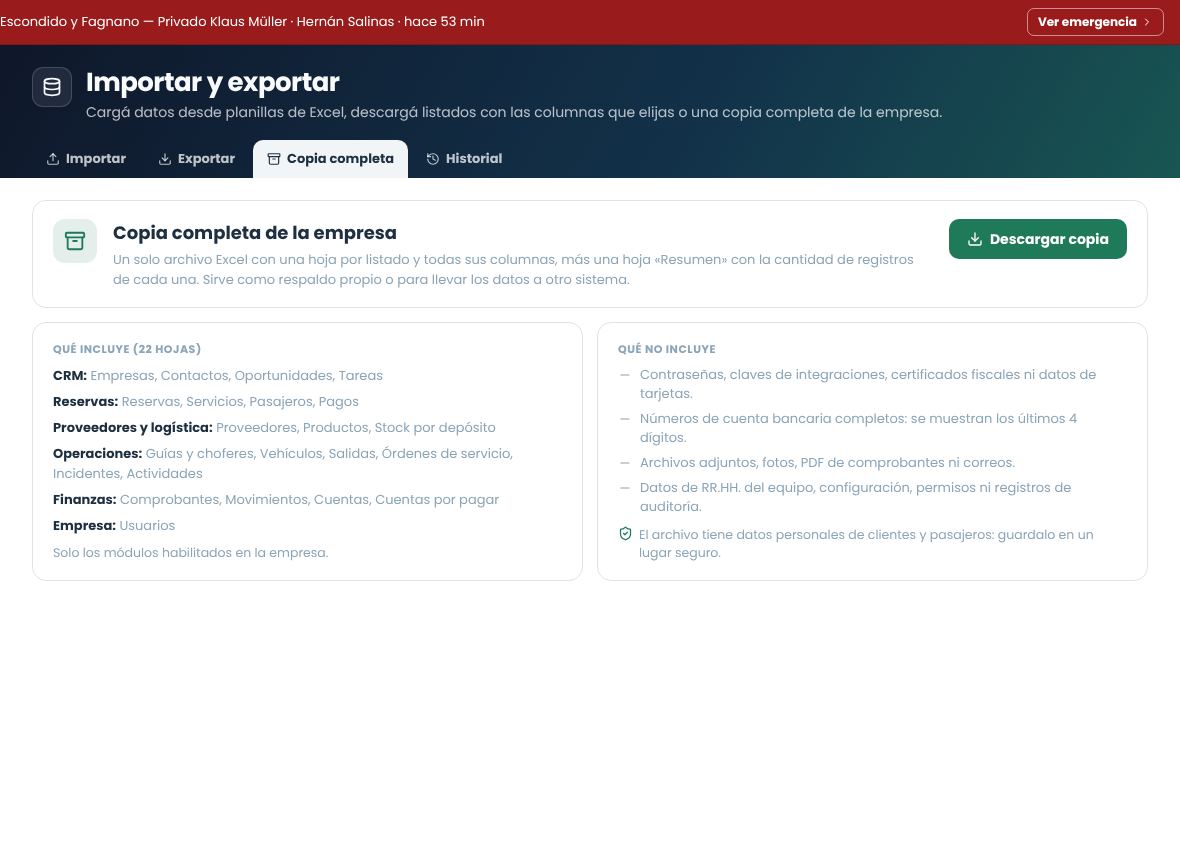
In the Full copy tab you download a single Excel file with one sheet per list and all its columns, plus a Summary sheet with the number of records in each. It includes only the enabled modules. It works as your own backup or to move your data to another system.
Not includedPasswords, integration keys, tax certificates or card data; bank account numbers show only the last 4 digits. Also not included: attachments, photos, invoice PDFs, emails, team HR data, settings or the audit log. The file contains personal data of customers and passengers: keep it somewhere safe.
Full copy: what's included and what isn't.
Who can export
Exporting lists requires the Export lists to Excel permission, which administrators and managers have, plus the permission to view each list: someone who can't see invoicing can't export invoices, and booking prices and costs only appear for those who can see them. The full copy requires Download the full company copy, which by default only administrators have. Both are in the Import and export group of Roles and permissions.
Each download is recorded in the History tab, with who made it, how many records it had and which filters were used.
Roles and permissions
Each user has a role that defines what they can see, what they can change and what they can approve. There are four roles.
The four roles
Role
Designed for
Member
Sales staff, operators and administrative staff. Enters and edits day-to-day data.
Manager
Area leads. In addition to the above, approves and pauses.
Administrator
Account owners or leads. Publishes, cancels, and configures modules, users and tax data.
Super administrator
Full control of the account, including irreversible actions such as resetting data.
What each role can do
Action
Member
Manager
Admin
Super admin
Enter contacts, opportunities, tasks and bookings
Yes
Yes
Yes
Yes
Submit a rate sheet for approval
Yes
Yes
Yes
Yes
Approve or pause a rate sheet
No
Yes
Yes
Yes
Publish or cancel a rate sheet
No
No
Yes
Yes
Set a manual price on a rate
No
No
Yes
Yes
Configure the team's email accounts
No
No
Yes
Yes
Change the tax settings
No
No
Yes
Yes
Delete a module's data (selective reset)
No
No
Yes
Yes
Full account reset
No
No
No
Yes
If you don't see an optionWhen a user's role or permissions change, the change applies in less than a minute, without signing in again. If they still don't see options their role allows, check their Access and permissions tab.
A person's role and permissions
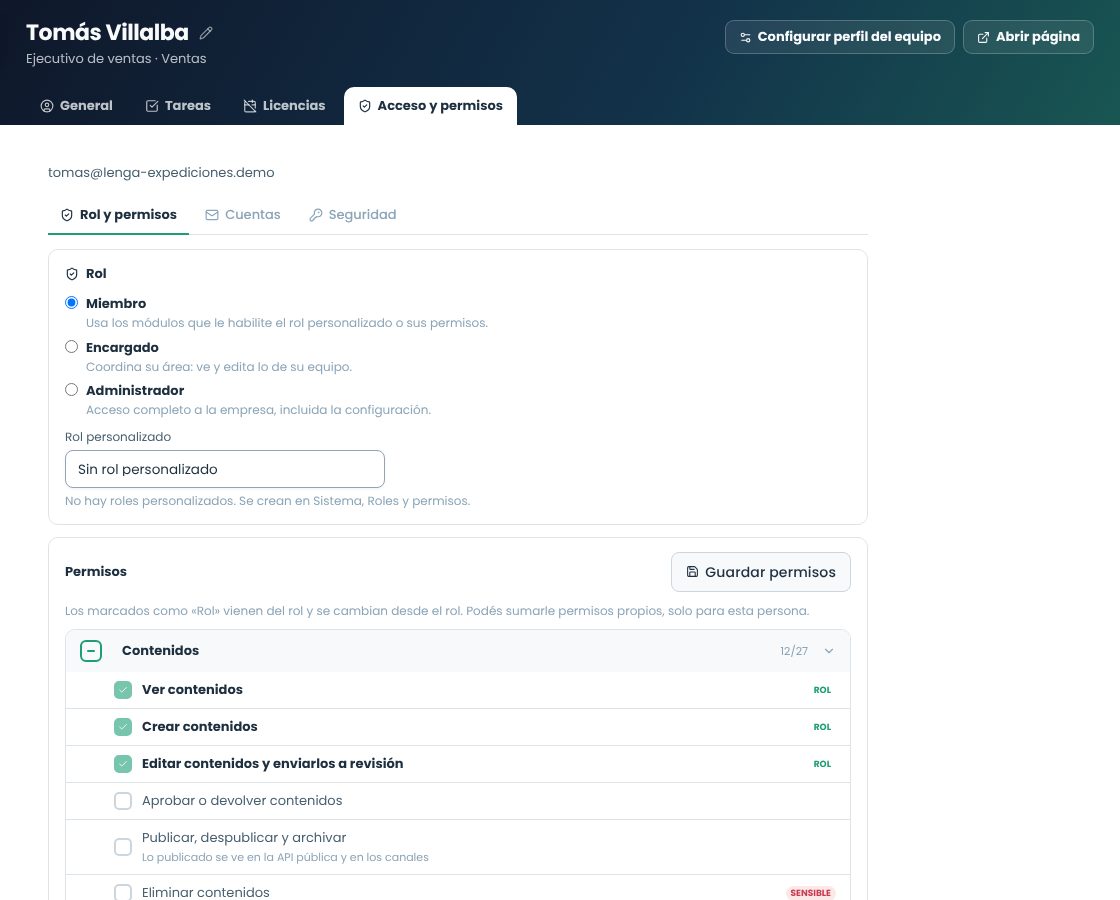
The role is changed in the Access and permissions tab of the person's profile (or of the guide's or driver's record, if they have a user), under Role and permissions. Below the role are all the permissions, by group: those that come with the role are marked Role and are changed from the role; you can also add individual permissions for that person only. See Access and permissions.
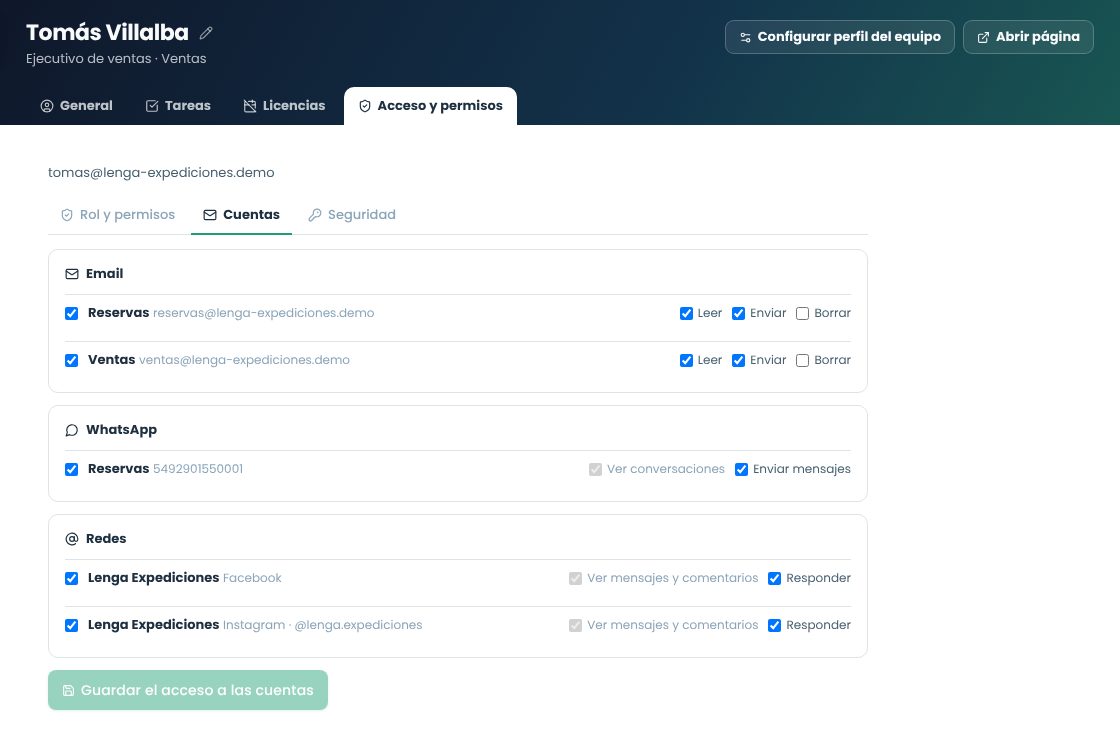
Permissions for email accounts, WhatsApp lines and Instagram and Facebook accounts are granted account by account, in the Accounts section of the same tab.
Best practices
Have at least two administrators, so you don't get locked out if one isn't available.
Use the manager role for whoever reviews prices before they're published: that way the approval is recorded with a name and date.
Don't share users. Every status change is recorded in the history with the user who made it.
Custom roles and per-user permissions
In addition to the four roles, an administrator can adjust permissions one by one in company menu › System › Roles and permissions:
System roles: Sync base roles brings in the base roles (Administrator, Manager, Member, Read only) with their default permissions and how many people have each one. Their names can't be changed. If you edit one, the change affects every user with that role (the screen warns you).
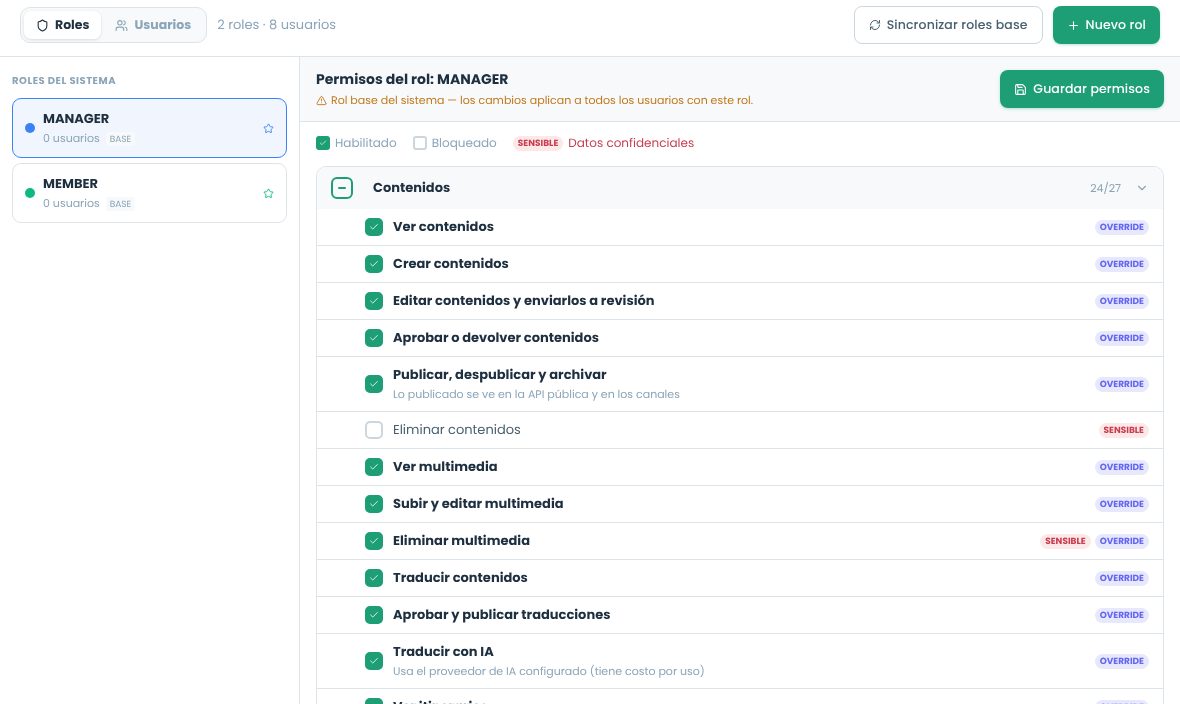
Custom roles: + New role with a name, description and color. When you select it you see the permission tree by module: checked means Enabled; unchecked, Blocked. Those marked SENSITIVE give access to confidential data. Save with Save permissions.
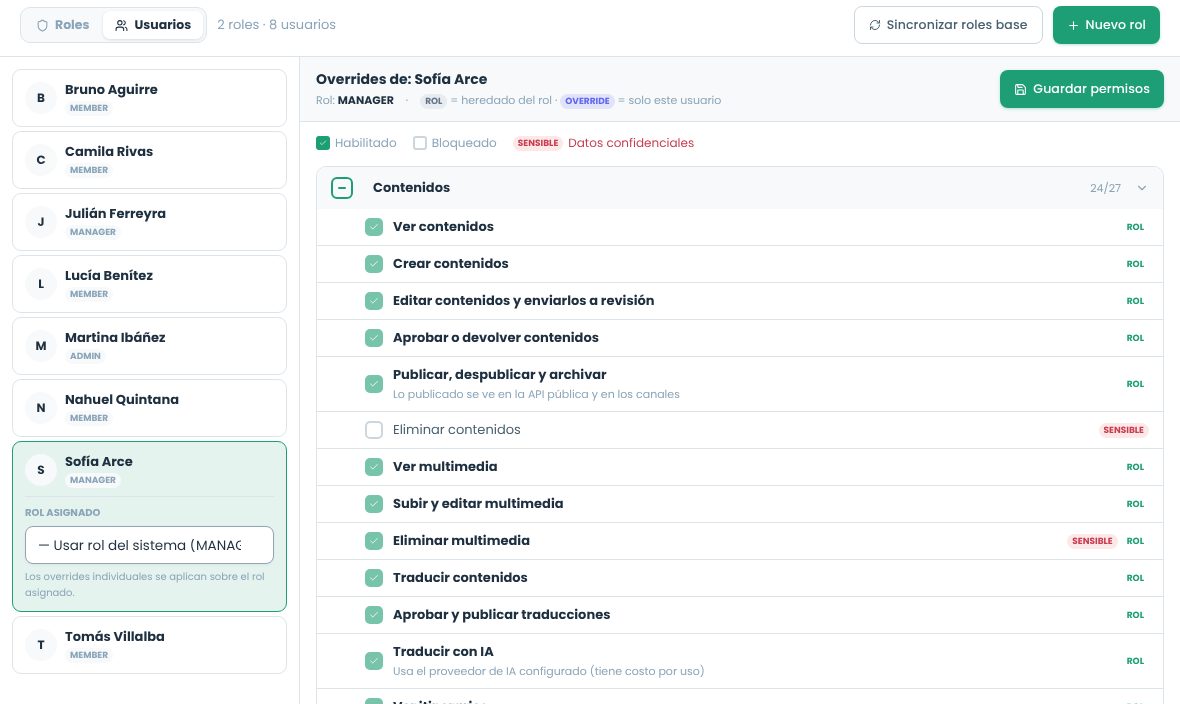
Per user: in the Users view you choose the assigned role (a custom role or the system role) and you can change permissions for that person only. Each permission shows whether it comes from the role (ROLE) or belongs to the user (OWN). Individual permissions are added to those of the role.
The role's permissions, by module.A person's permissions: what's inherited from the role and what's their own.
Changes apply after signing in againAfter you change someone's role or permissions, that person has to sign out and sign in again.
Company and tax data
Everything that defines your company is on a single screen, Company, with three tabs. You get there from the company menu. Only an administrator can change this data.
Company data
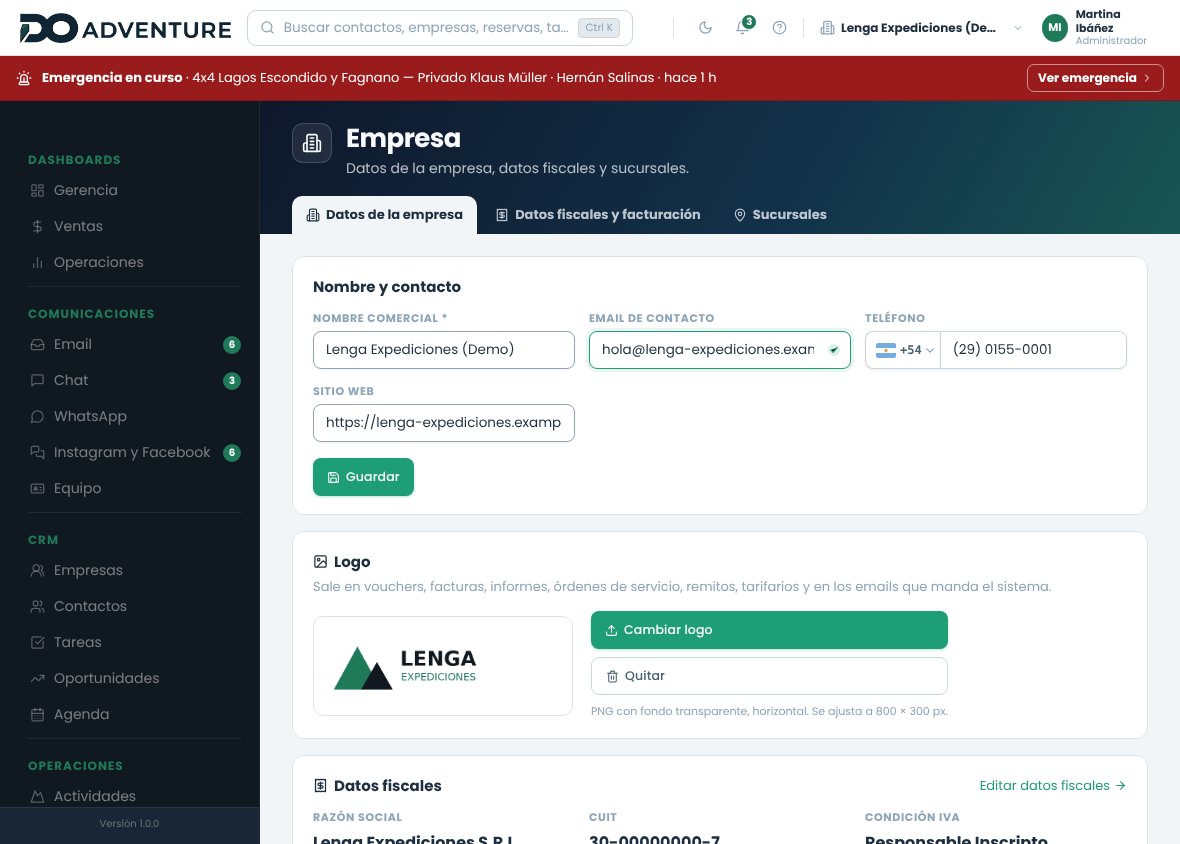
The trade name (the one shown in the top bar) and the contact details. Below, a summary of the tax data (edited in the next tab) and the Country and currency block: the country of operation, the company currency (used to consolidate dashboards and reports), the reference currency, the time zone and the applicable taxes.
Company data. The tax summary takes you to the tab where it's edited.
Logo
In the Logo block you upload the company logo (PNG, JPG or WebP). It's automatically resized to keep the file small, without cropping; ideally it should be horizontal with a transparent background. Change replaces it and Remove goes back to showing the company name.
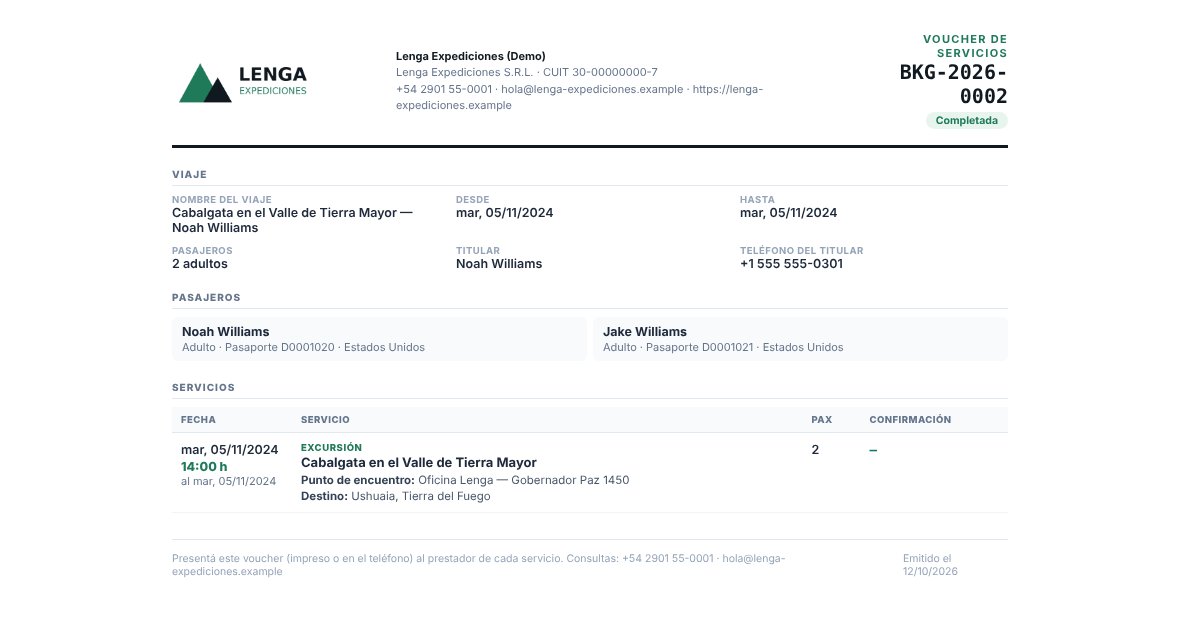
The logo appears on every document: invoices, vouchers, reports, delivery notes, service orders, the customer rate sheet and the emails the system sends (supplier confirmations, payment receipts). Without a logo, the company name is shown.
Data for operational documents
Below the contact details, Data for operational documents stores up to six lines of free text: the travel agency license number (E.V.T.), park or navigation permits, the operator's legal name. They appear in the header of the service order.
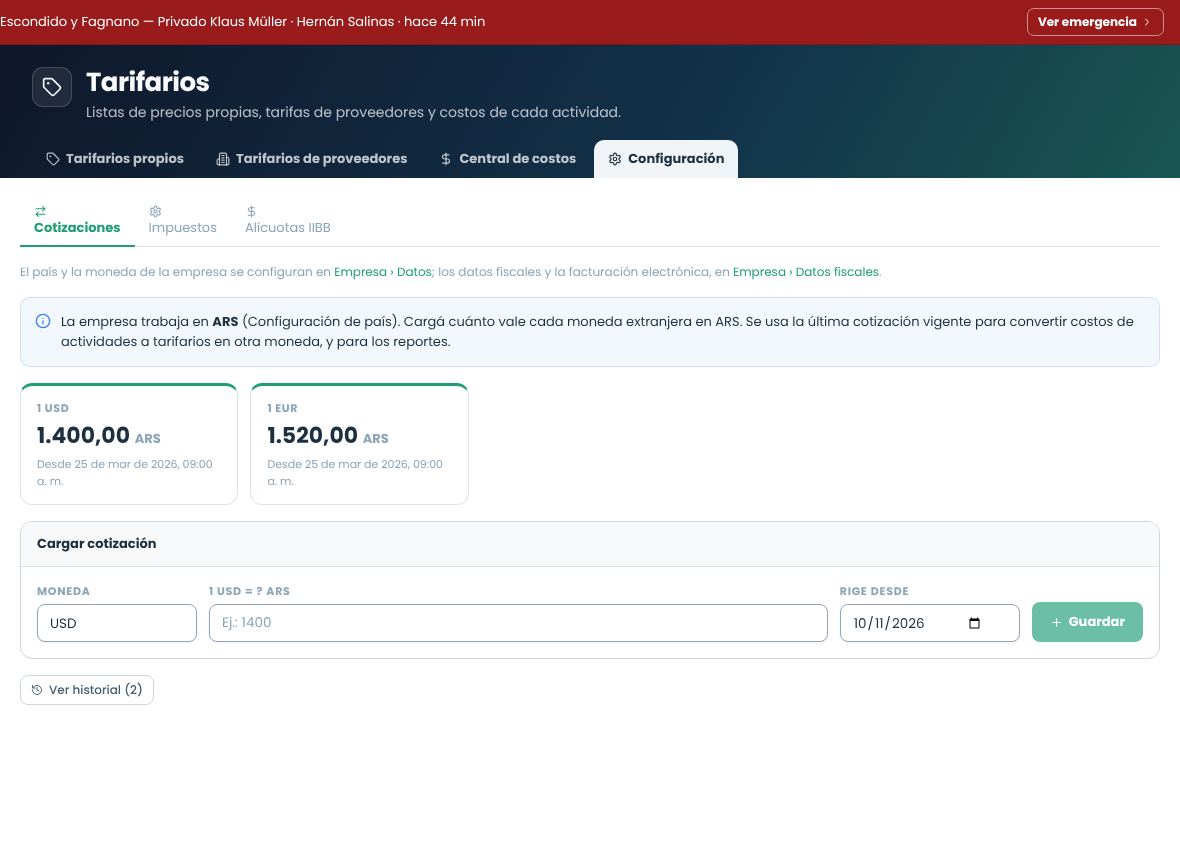
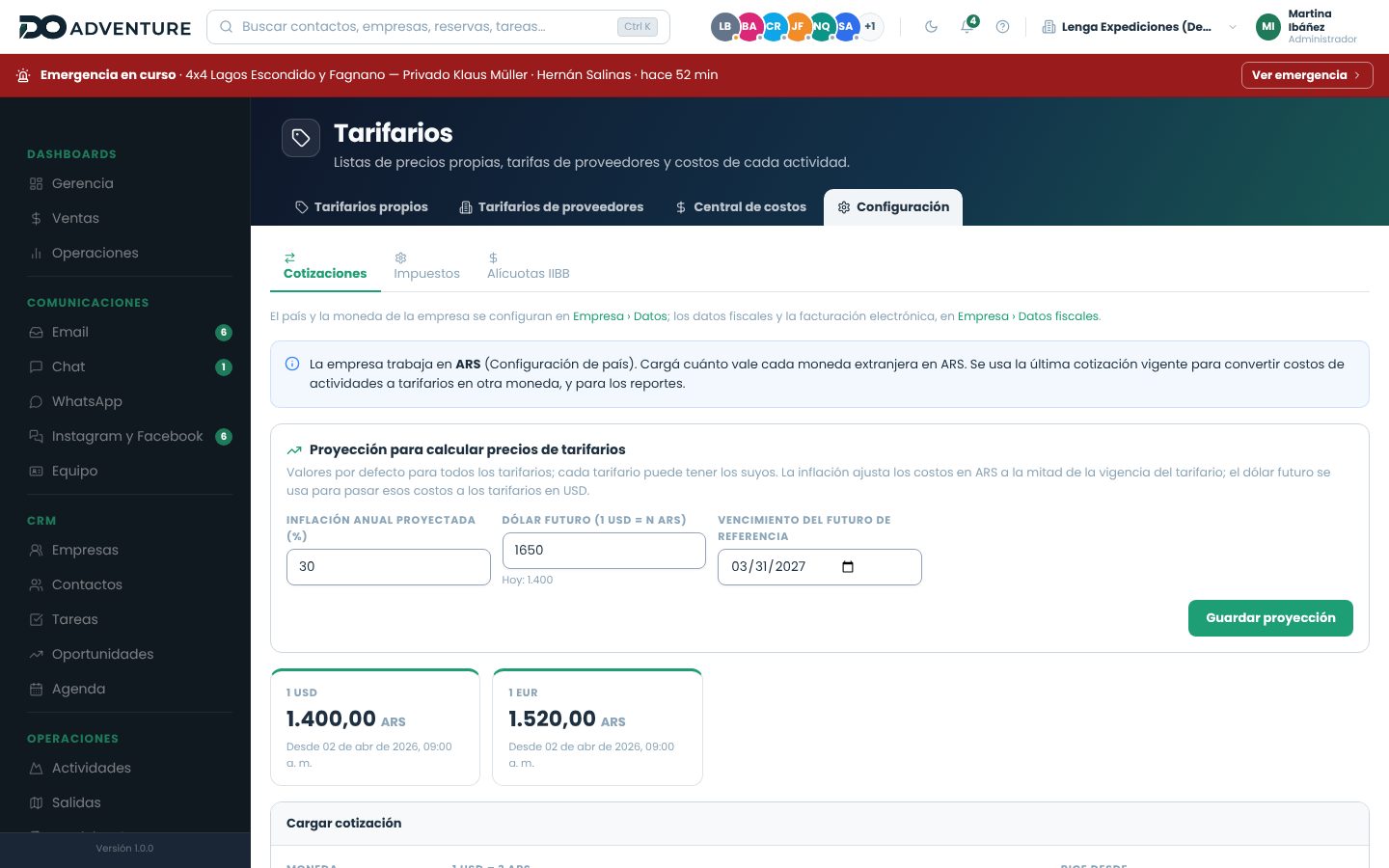
Rates for other currencies are entered in Exchange rates.
Tax data
The Tax data and invoicing tab is the only place where you enter the data that appears on invoices. It's organized by legal entity: the company that issues invoices. The main entity is your company's; if you invoice in another country, you add another one.
When you open an entity you fill in:
Legal name and trade name.
CUIT (the check digit is validated) and VAT (IVA) status: Responsable Inscripto, Monotributista or Exento.
Start of activities, tax address and Ingresos Brutos (IIBB) number.
Point of sale.Electronic invoicing will be available soon: for now, invoices are issued as general invoicing, without a CAE.
The legal entity record. The main entity's data is also used as the company data.
Why it matters
The legal entity's country determines which taxes are proposed by default, which document types you can issue and, once available, which tax authority electronic invoicing connects to. The VAT status determines whether you issue factura A and B or factura C.
Branches
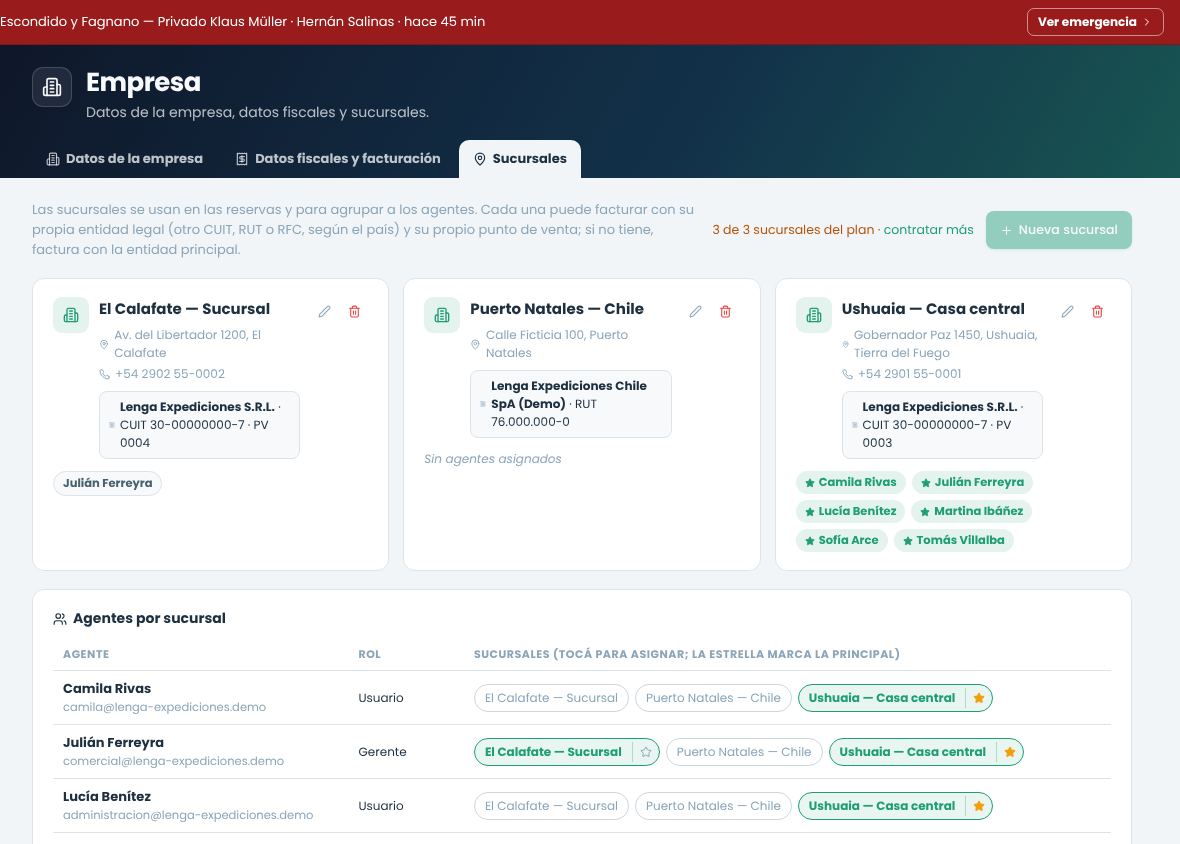
In Company › Branches you create branches (name, address, phone and email) and assign agents. An agent can work at one or more branches: in the Agents per branch table, tap each branch to add or remove it, and the star marks their main branch. Changes are saved as you tap.
The branch is used in bookings to know where the sale was made: when you choose a booking's branch, the agents who work there are offered. Deactivating a branch removes it from its agents (if it was their main branch, another of theirs becomes the main one); it doesn't delete bookings.
Branches with their legal entity and point of sale, and the agents at each one.
Invoicing for each branch
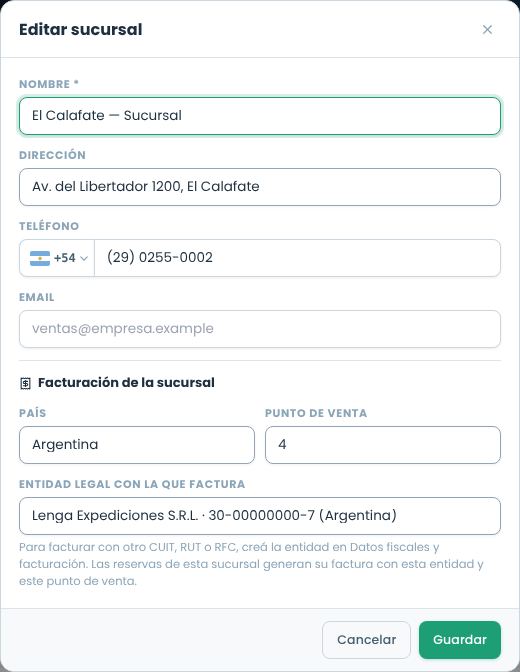
Each branch can invoice with its own legal entity and its own point of sale. This covers two cases: a branch in another country (for example, an agency in Chile that invoices with its RUT) or a branch in the same country that uses a different CUIT or point of sale. When editing the branch you choose:
Country. Only legal entities from that country are offered.
Point of sale (Argentina). It can't be repeated across branches of the same entity.
Legal entity it invoices with. If you don't choose one, it invoices with the main entity. Entities (another CUIT, RUT or RFC) are created in Tax data and invoicing.
The El Calafate branch invoices with the same CUIT and point of sale 4.
The branch's bookings generate their invoice with that entity and point of sale, and the invoice shows the branch and the point of sale.
Number of branches in your plan
The number of branches depends on your plan. Above the list you can see how many you use and how many the plan includes; once you reach the limit, you can't create more. An administrator can purchase additional branches in Modules and subscription (company menu), like additional users or email accounts. The prorated amount is charged until the next billing date (see Subscription).
Sample data
When you sign up from the website you can choose to start with sample data or empty. With sample data, the company is loaded in one or two minutes with a complete adventure tourism operation: customers and agencies, activities with their cost center, rate sheets, bookings, departures, invoices, treasury and reports with information. It's useful for exploring the whole system before entering your own data.
While it loads, and afterwards, a banner at the top tells you that you're viewing sample data.
The sample team is inactive: it doesn't take up users in your plan and can't sign in. The sample email and WhatsApp accounts are also deactivated; the sample Instagram and Facebook accounts never send to Meta.
You can enter your data alongside the sample data. Whenever you want, delete the sample data from Company › Company data › Sample data.
When you delete it, everything you entered yourself is kept. If you used something from the sample data in your own records (for example, a sample activity in one of your bookings), that record is kept and the system tells you how many remained.
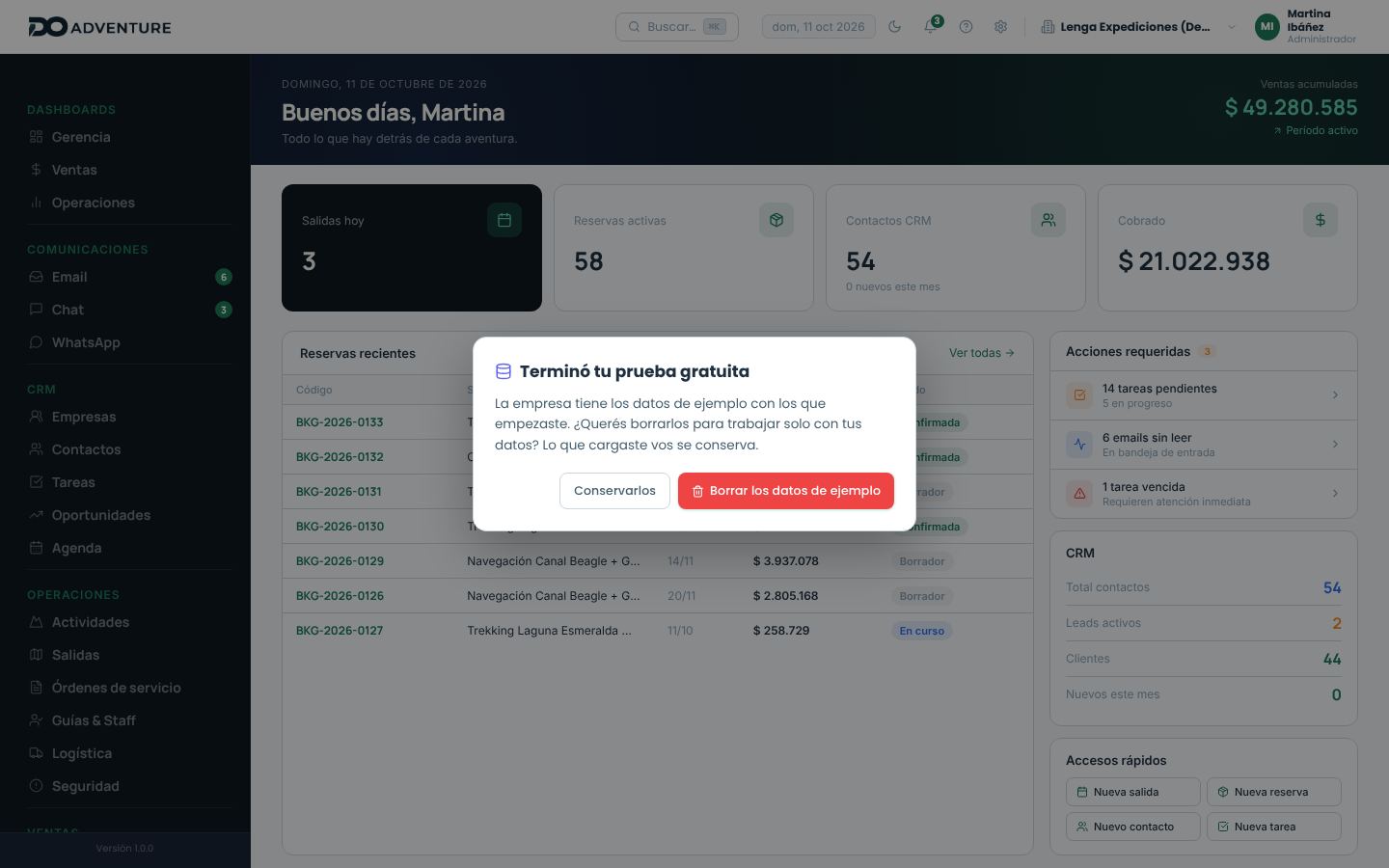
When the free trial ends, the administrator sees a notice asking whether to delete or keep the sample data.
The sample data banner. "View options" takes you to Company.When the trial ends, the administrator decides what to do with the sample data.In Company you can delete it at any time.
Suspended account and data deletion
If a payment becomes overdue, the account is suspended according to the collections policy and nobody can sign in until it's settled; the data stays intact and access returns once the payment is confirmed. If the account remains suspended, the company's data is deleted after 30 days. The suspension notice shows the exact deletion date. After that date the data can't be recovered.
Parameters
The lists of values offered when entering data are in Parameters, in the company menu, not in the company data:
Lodging amenities: WiFi, breakfast, parking… Each hotel checks its own in its record (see Suppliers › Lodging details).
Expense categories: the ones you choose when entering an expense in Accounts payable.
Product categories and units of measure: those for items in Logistics. They used to be in System; now they're here, alongside the other lists.
Add the values you use and remove the ones you don't. Removing a value doesn't delete it from records that already have it. Restore suggested list goes back to the initial list.
Parameters: each list in its own tab.
Tax-benefit zonesIf you operate in a VAT-exempt zone (for example, Tierra del Fuego in Argentina), adjust the rates in Taxes and cost rules so that final prices don't include a tax that doesn't apply.
Subscription, modules and invoices
From the company menu › Modules and subscription, an administrator can see the plan, add or remove modules and add-ons (users, email accounts, WhatsApp, branches) and check the invoices.
Your plan's billing date
Your plan is always charged on the same day, every month or every year. That date is the billing date: everything you add or remove is adjusted to it and never changes it.
Add a module or add-ons
It is enabled right away.
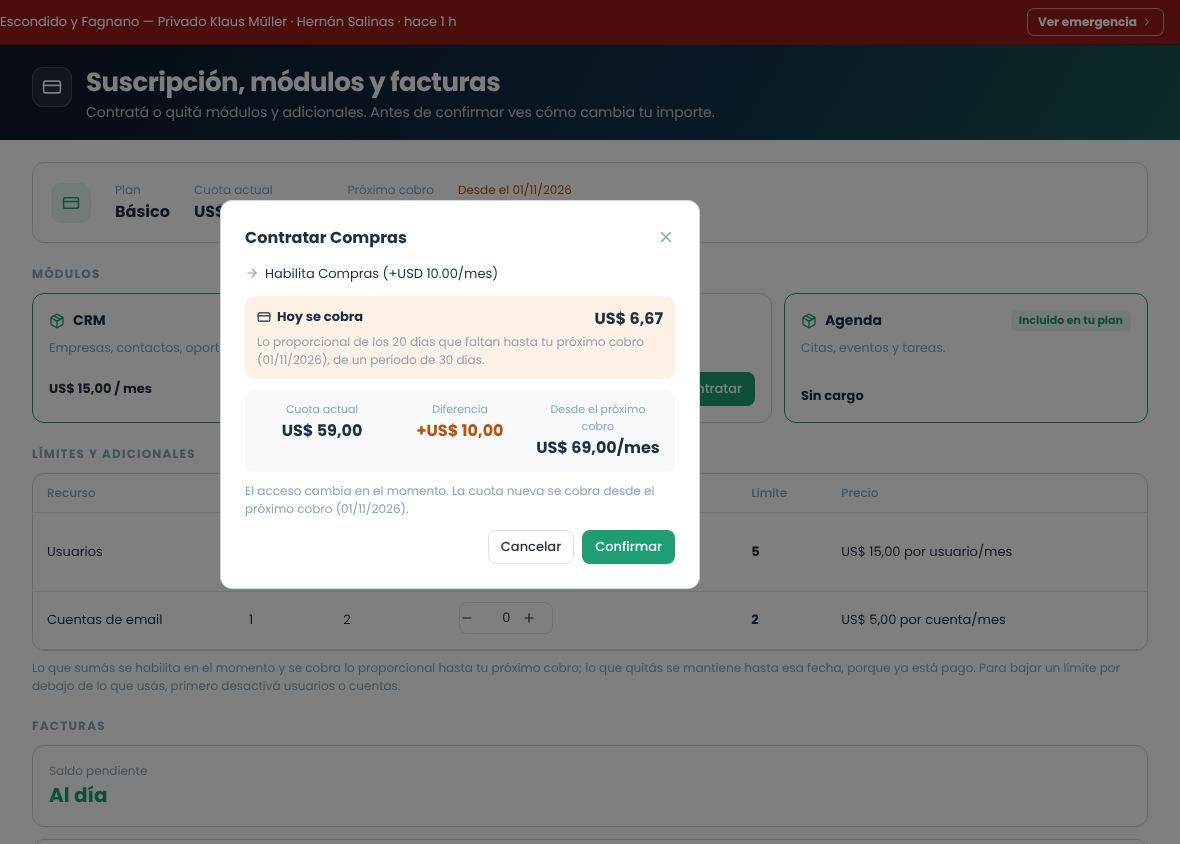
Today you are charged only the prorated amount for the days left until the billing date. For example, a USD 15 per month module added when 20 of 30 days are left costs USD 10 that day.
From the billing date on, it is part of the regular fee.
The annual plan works the same way, for the days left in the year. Modules and add-ons on the annual plan are charged at their monthly price times 12.
Before you confirm, you see how much is charged today, the current fee and the fee from the next charge on. If you have automatic debit, the prorated amount is charged to your card right away. If not, an invoice is issued and you pay it like the others.
Before confirming: what is charged today and what the fee will be.
Remove a module or add-ons
The removal takes effect on the billing date. Until then you keep using it, because it is already paid, and there is no refund. The module shows Until …. If you change your mind before the billing date, tap Keep: nothing is charged. To lower a limit below what you use, first deactivate users or accounts.
Switch to annual billing
Switching from monthly to annual, or the other way around, and moving to a cheaper plan start on the next billing date: you finish the period you already paid and the new option is charged on that date. A higher plan with the same frequency applies right away and the prorated amount is charged. These changes are made by the NOIA team: write to us.
Invoices
Your invoices are listed below: the ones for the fee and the prorated ones (marked as prorated), with their status and balance. If a card charge is declined, the invoice stays pending and you see a notice with the deadline to settle it.
Team users
Add, edit and remove the people who use DO Adventure in your company.
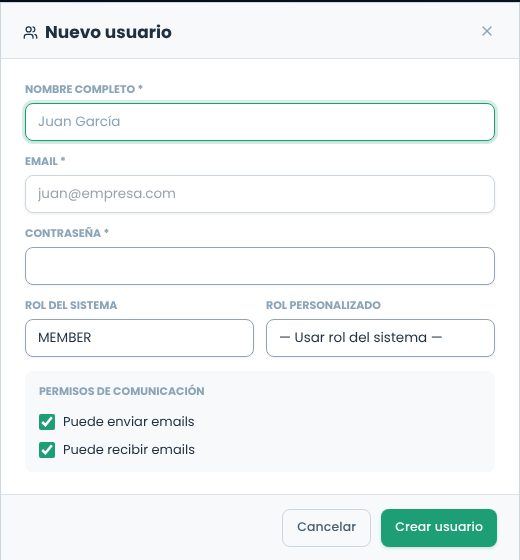
Add a user
Open the company menu › System › UsersOnly administrators see the System section.
Tap New userFill in the full name and email. The email is the one they will use to sign in and it can't be repeated.
Type the initial passwordThe administrator sets it. The system doesn't send an invitation email: give them the password through a secure channel and ask them to change it when they sign in.
Choose the roleThe system role and, if you want, a custom role. See Roles and permissions.
Communication permissionsWhether they can send and receive emails from the system.
Create userThey can sign in now.
Adding a user: the administrator types the password.
Role, permissions, accounts, password, blocking and deactivation: each user's Access button opens their Access and permissions. It's the same as the profile tab.
Plan limit: if you reached the number of users in your plan, the system doesn't let you create or reactivate users; you can increase it in Subscription.
An administrator can't assign the super administrator role or modify a super administrator.
Users and field staff
Guides and drivers are added in Team, not as panel users. If they also need to use the mobile app, you enable it with the switch on their record (see Field app access): you don't need to create their user by hand.
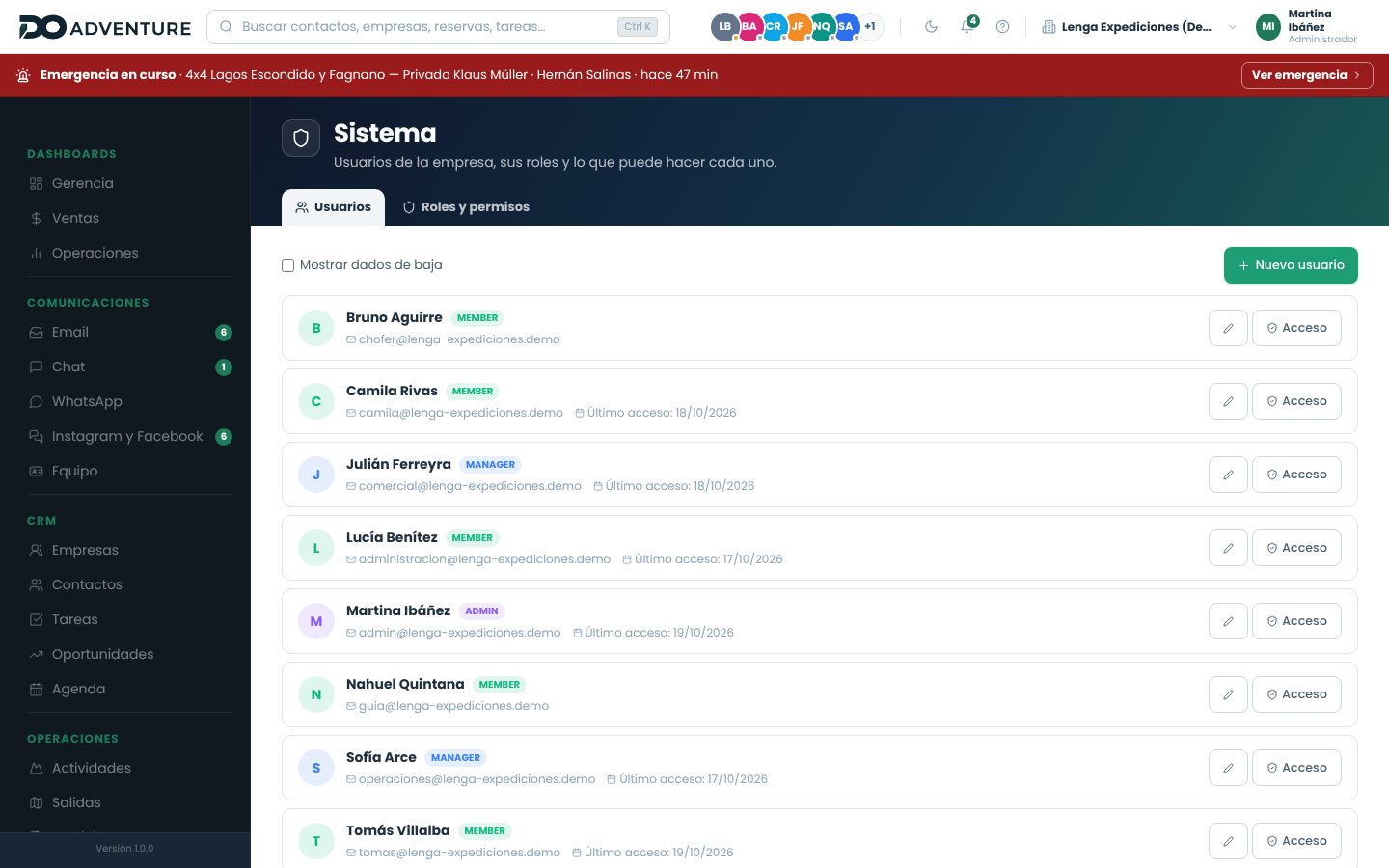
Users: with Show deactivated, the people who are no longer here also appear.
Access and permissions
Every person with a user (from the team, or a guide or driver with the app) has the Access and permissions tab in their profile or record. Only administrators see it. It has three sections:
Section
What you do
Role and permissions
The system role (Member, Manager, Administrator), the custom role and that person's own permissions, in addition to those of their role.
Accounts
Which email inboxes, WhatsApp lines and Instagram and Facebook accounts they can access, and what they can do in each one: in email, read, send and delete; in WhatsApp, send messages; in social media, reply. If the box isn't checked, they don't see that account.
Safety
Reset the password, block or unblock, and deactivate or reactivate.
Role and permissions: what comes from the role says Role; the rest is added only for this person.Accounts: access and permissions account by account.
Administrators see everythingAn administrator sees and uses every account, whether or not the box is checked. What you check applies if they stop being an administrator. Nobody can change their own role, block themselves or deactivate themselves, and an administrator can't manage a super administrator.
Reset the password
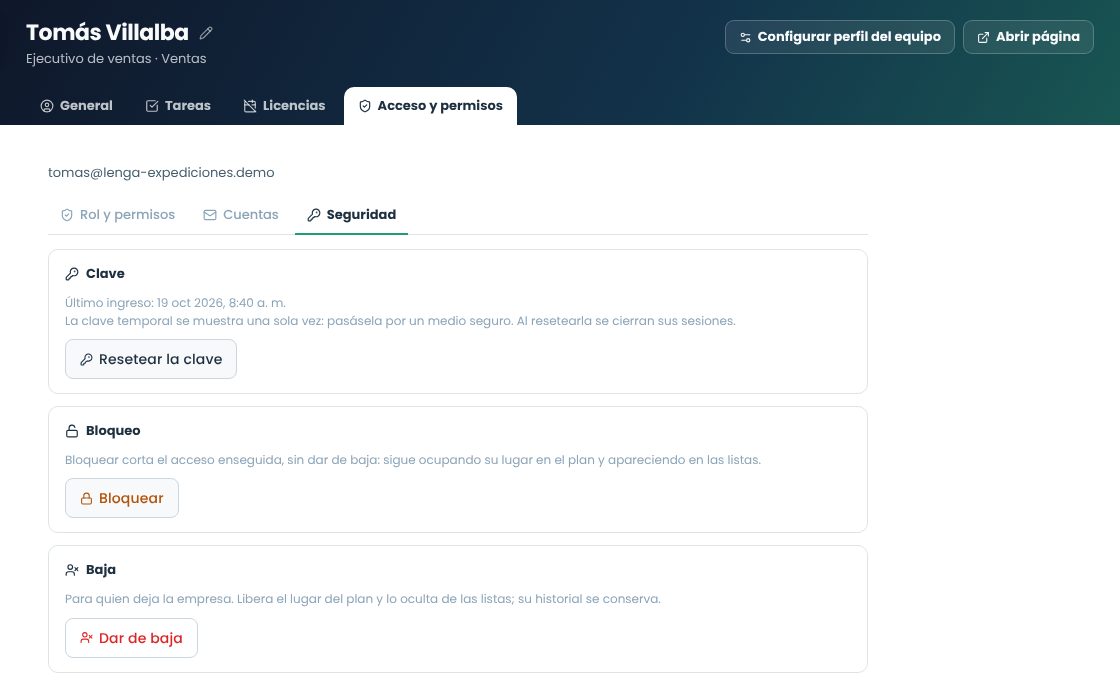
Reset password generates a temporary password that is shown only once, with a button to copy it: give it to the person through a secure channel. The previous password stops working and their open sessions on the web and in the app are closed.
Block
Block cuts off access immediately, with an optional reason: they can't sign in to the web or the app, and the sessions they had open are closed in less than a minute. They still take up their spot in the plan and appear in the lists, marked Blocked. It's useful, for example, if a phone is lost or something looks suspicious. Unblock lets them sign in again with their password.
Safety: password, blocking and deactivation.
Deactivate
Deactivate is for someone who leaves the company: they can't sign in, their spot in the plan is freed and they no longer appear in the lists (the team directory, the owner pickers and the user list). Nothing is deleted: what they entered and the history of who made each change are kept. To see them, check Show deactivated in System › Users, or Deactivated in the team directory. From their access tab you can Reactivate them, if the plan has room.
Block or deactivateBlocking is temporary and keeps the spot in the plan. Deactivating is for someone who left: it frees the spot and hides them.
Lesson3 minutes · Administration
Let a salesperson handle only their own accounts
Goal
A new salesperson sees and replies from the Sales inbox and the Bookings WhatsApp line, but not social media or the administration inbox.
Before you start
Be an administrator.
The accounts are already connected.
Open their accessIn Team, open their profile and the Access and permissions tab (or the Access button in System › Users).
Check the roleIn Role and permissions, Member. If they need something beyond their role, add that permission for them and Save permissions.
Choose the accountsIn Accounts, check the Sales inbox with Read and Send (without Delete) and the Bookings line with Send messages. Leave the rest unchecked.
SaveSave account access. The change applies the next time their screen loads.
ResultOnly those accounts appear in their email inbox and in WhatsApp, and they can reply from them. They don't see the others.
If something goes wrong
They see the conversation but can't write: they're missing Send messages on that line (or Send on the inbox).
They see every account: they're an administrator. Administrators see everything.
Lesson2 minutes · Administration
When someone leaves the company
Goal
Cut off their access without losing anything they entered, and free their spot in the plan.
Before you start
Be an administrator.
Reassign their workMove their open opportunities, tasks and conversations to someone else.
If they must stop signing in right nowIn Access and permissions › Safety, Block: their sessions close in less than a minute.
Deactivate themDeactivate and confirm. They no longer appear in the lists and their spot in the plan is freed.
If they were a guide or driverOn their record, turn off Active so they don't appear when assigning.
ResultThey can't sign in to the web or the app, their history stays intact and you can see them with the Deactivated filter.
If something goes wrong
They come back to the company: with the deactivated filter, open their access and Reactivate. If there's no room in the plan, increase the subscription.
The button doesn't appear: you can't deactivate yourself, and an administrator can't deactivate a super administrator.
Audit
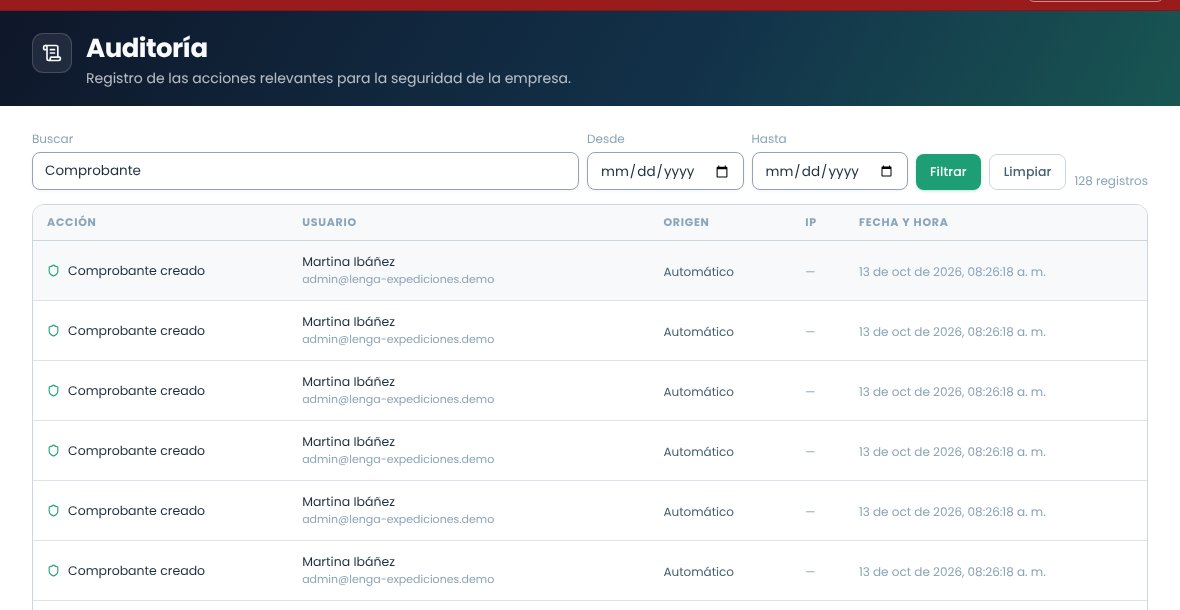
In System › Audit, administrators see the last 200 records of sensitive actions: what was done, by whom, from where (web system, field app or automatic) and when. At the top you can search by action, user or email and filter by date range with From, To and Filter.
Audit filtered by one action.
Profile and team directory
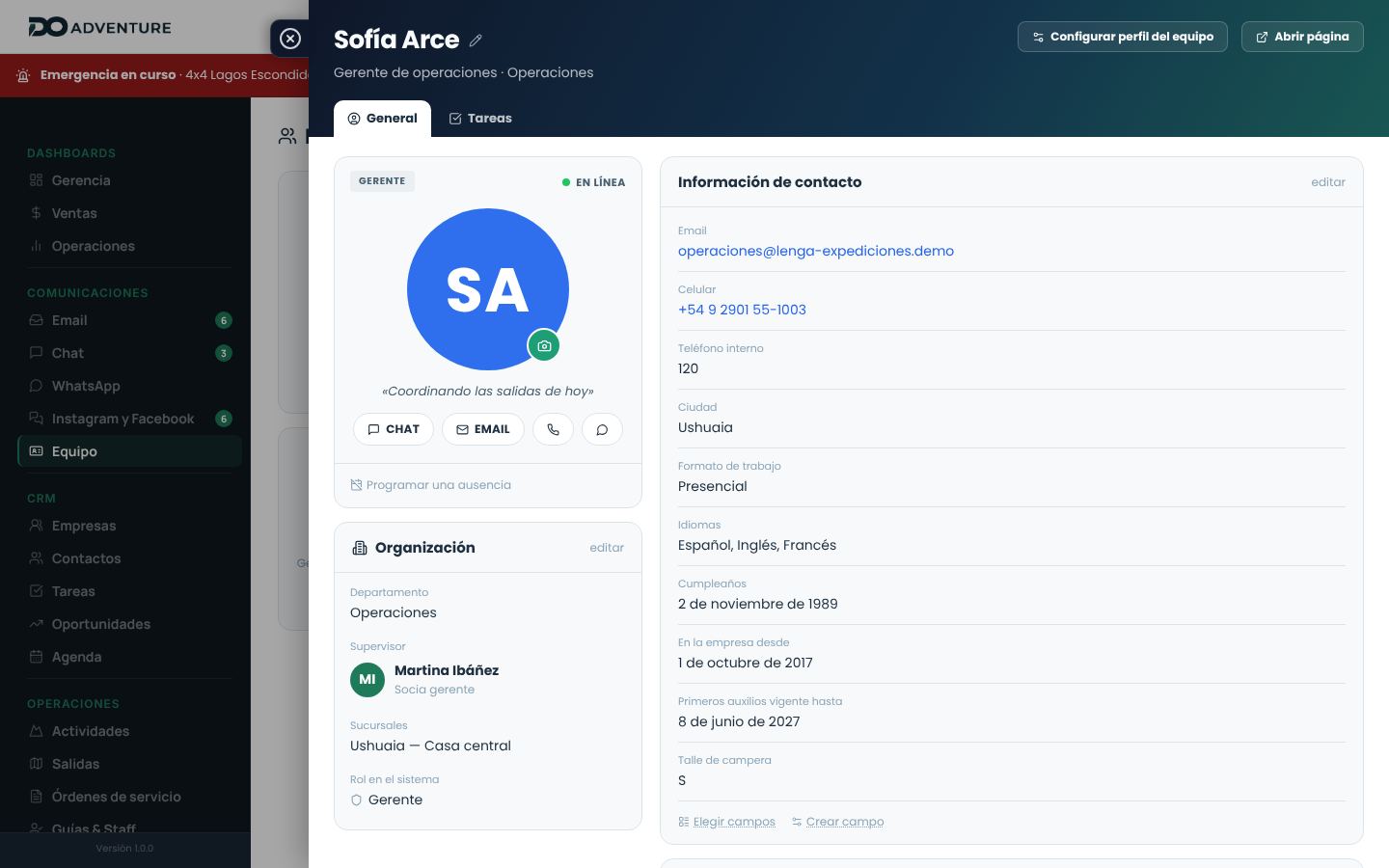
The profile is each person's business card within the company: photo, position, who they report to, how to reach them, whether they're online and what they're interested in.
View someone's profile
Team, in the side menu, lists every active person with their photo, position and status. You can filter by name, position, city, department or status.
On any screen, clicking a person's photo (in the chat, in the owners of a record, in the people assigned to a task) opens their profile in a side panel.
Your own profile is in the user menu, at the top right: My profile.
The profile opened from the team directory.
What it shows
Block
Content
Photo and status
System role, Online, Offline (with when they were last seen) or Away with the dates and reason. An optional short status (for example, “In the field until 6 p.m.”) and shortcuts to chat, write an email, call or open WhatsApp.
Organization
Department, supervisor, direct reports, branches and role.
Contact information
Email, mobile phone, extension, city, work arrangement, languages, birthday, start date, social media and the company's custom fields.
About me
A free-form introduction and interests, to find common ground within the team.
Personal details
HR data: ID document, address, emergency contact, health insurance. Only the person and whoever has the HR permission can see them; they are stored encrypted.
The Tasks tab shows the person's open tasks; each one opens in its panel. The Leave tab has their leave and absences (visible to the person, whoever edits the organization and whoever has the HR permission). Administrators also see Access and permissions.
Preferences
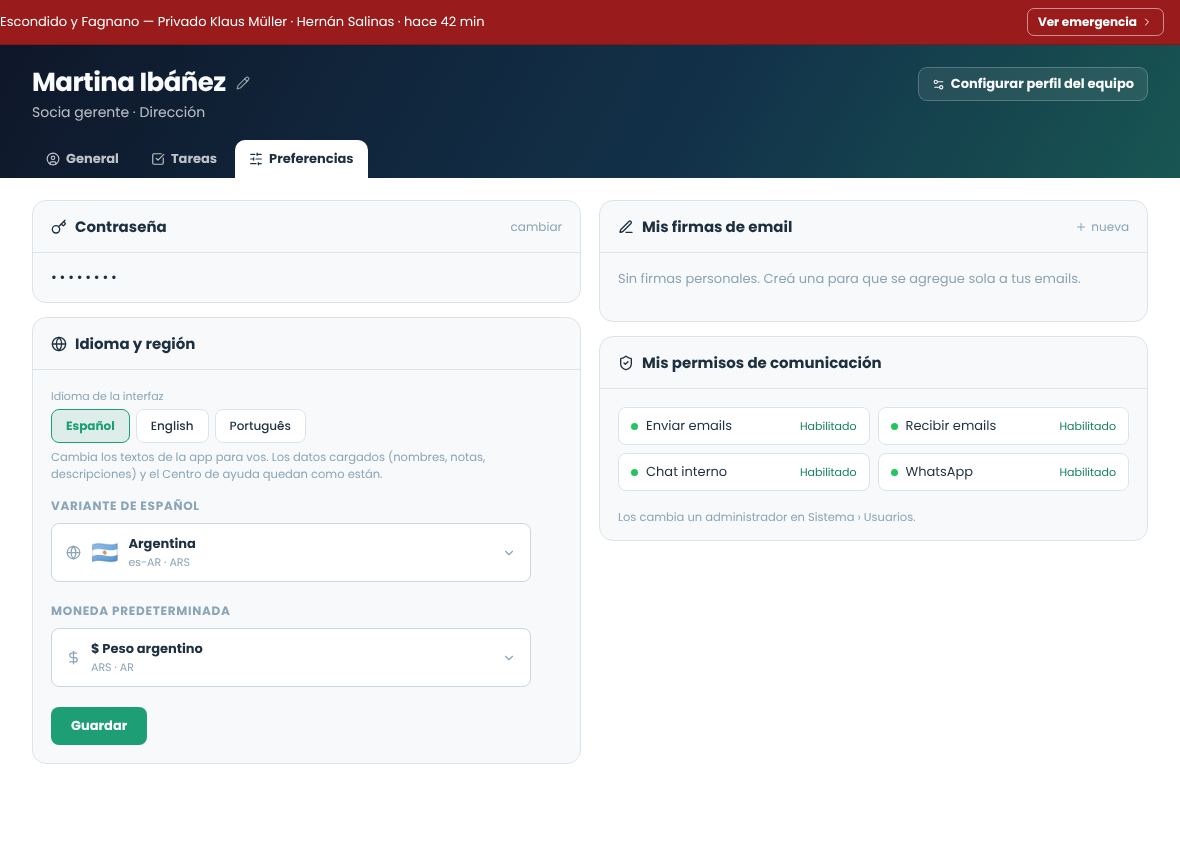
Your own profile has one more tab, Preferences (also in the user menu): change your password, your email signatures, the language and region, and the communication permissions an administrator gave you (send and receive emails, chat and WhatsApp).
Edit by panel
Each profile block has edit to the right of its title: its fields open in place, with Save and Cancel. You edit one block at a time. Company, contact, opportunity and booking records work the same way.
Preferences, inside My profile.
Update it
Each block has its own edit. Employees update their own photo, contact details, introduction, interests and personal details. Position, department, supervisor and start date are changed by whoever has permission to edit profiles (administrators always can). The birth year is shown only if the person chooses to.
Vacations and leave are scheduled in the Leave tab, with Schedule an absence: during those dates the profile and the directory show the person as Away with the type and reason. See Leave and absences.
Which fields are shown
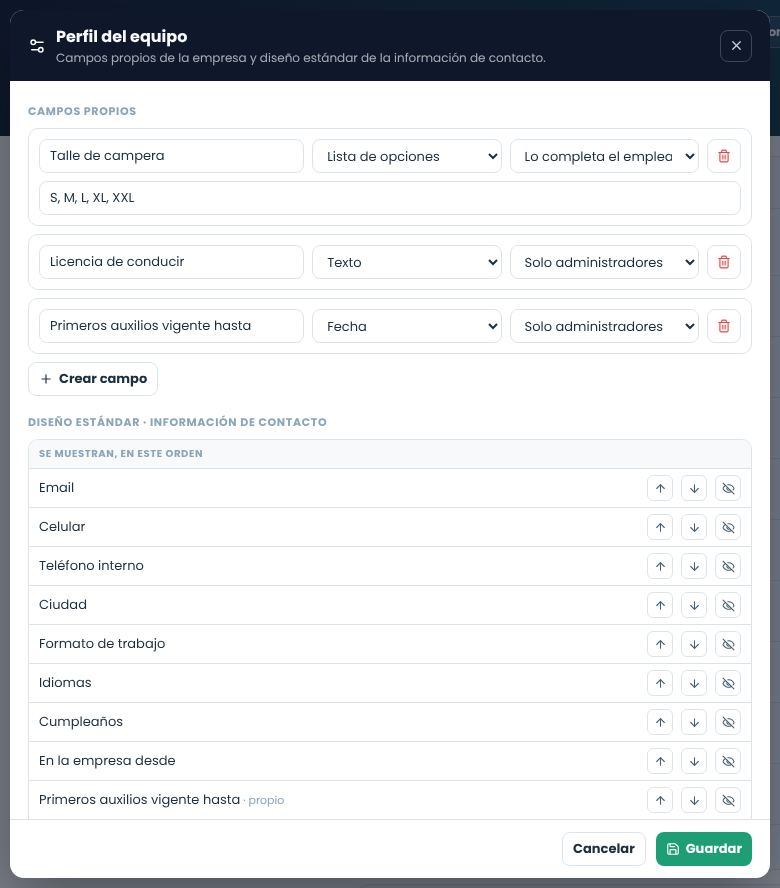
With Choose fields, below the contact information, each person decides which details to show and in what order, or goes back to the company's standard layout.
Whoever configures the team profile (Configure team profile) defines that standard layout, can prevent each person from changing it and creates custom fields: text, date, option list, link, phone or number. Each custom field is filled in by the employee or only by an administrator (for example, a certification's expiration date).
Custom fields and standard layout.
PermissionsIn Roles and permissions, the Team group has three permissions: edit other people's profiles, view and edit HR data, and configure the profile fields.
Email accounts
Connect one or more inboxes to send and receive email from DO Adventure. Messages stay linked to contacts, opportunities, tasks and bookings.
Where to set it up
In System › Email accounts. This section is for administrators only.
Add an account
The wizard has three steps:
CredentialsEnter the email address and password. The system tries to detect the incoming (IMAP) and outgoing (SMTP) servers on its own. It recognizes the most common providers (Gmail, Outlook, Yahoo, iCloud, Zoho and Argentine providers such as Fibertel, Arnet or Speedy) and, if you have your own domain, it looks up the configuration published by your server.
SettingsReview the detected servers. If they weren't detected, fill them in by hand with the details your hosting provider gave you. Here you also choose the account name, the color that identifies it in the inbox, whether it's the default account and how often it syncs.
VerifyThe system actually connects to both servers with your credentials. If something fails, it tells you which server and why, and you can go back to the previous step to fix it.
Gmail and Outlook with 2-step verificationIf your account has 2-step verification, your usual password doesn't work for IMAP connections. Create an app password in your Google or Microsoft account's security settings and use that one.
Typical values
Server
Port
Security
IMAP (incoming)
993
SSL/TLS
SMTP (outgoing)
587
STARTTLS
Alternative SMTP
465
SSL/TLS
Edit an account
Click the account's pencil. The password field appears empty: if you leave it that way, the saved password is kept. You can verify the connection again without re-entering it.
Default account
The account marked with the star is the one used for automatic emails (booking confirmations, requests to suppliers, payment notices). There can be only one per company.
Sync
With automatic sync turned on, the system fetches new messages every 5, 10, 15, 30 or 60 minutes, as you choose. Inbox, sent, spam, trash and archive are synced. Next to each account you see the date and time of the last sync.
Passwords are stored encrypted and are never shown on screen.
Electronic invoicing
Coming soon. In the meantime, DO Adventure issues general invoices.
Current status
The connection with tax authorities (ARCA in Argentina, and those of other countries) is turned off. Documents are issued with their number and the legal entity's tax details, but they aren't sent to the authority and don't carry an authorization code (CAE).
In Company › Tax data and invoicing, each legal entity shows the Coming soon notice, and in Modules and subscription the electronic invoicing modules for each country appear with the same label and can't be turned on.
What you can get ready
Enter the tax details of each legal entity now: legal name, CUIT, IVA status (VAT), tax address, Ingresos Brutos (IIBB), start of activities and point of sale. These are the ones that will be used when electronic invoicing becomes available.
Taxes and cost rules
The rules that are applied automatically every time the system calculates a sale price.
Where to set it up
In Rate sheets, on the Cost center tab (cost rules and taxes per service) and the Settings tab (country, taxes and Ingresos Brutos).
IVA (VAT) by service type
Each service type has its own rate. The initial values for Argentina are:
Service type
IVA
Transfers
10.5%
Excursions
10.5%
Guides, lodging, insurance, restaurants
21%
Communications
27%
When you change the country on the settings tab, that country's own taxes and rates are loaded.
Cost rules
These are the percentages applied by default to all new rates:
Margin. Applied on the direct cost.
Financial cost. What it costs you to collect in installments or to finance.
Processing. Fees from payment gateways and payment methods.
Administrative expenses. Your fixed overhead spread across each sale.
Sales commission. What you pay the salesperson or the channel.
These last four are calculated on the net price, not on the cost. The reason is in How the price is calculated.
Changing a rule doesn't change published pricesRules are applied when calculating new rates or recalculating a rate sheet. Rate sheets already published don't change on their own: that way, no price you already gave a customer or agency changes.
Team and vehicles
The field staff and the fleet you assign to each departure.
Field staff
Each team member has an operational role:
Role
Use
Guide
Leads the activity and is responsible for the group.
Assistant
Supports the guide with large groups or technical activities.
Coordinator
Supervises several departures or a multi-day program.
Driver
Drives a vehicle owned by the company.
Transport provider
External transport service with its own vehicle.
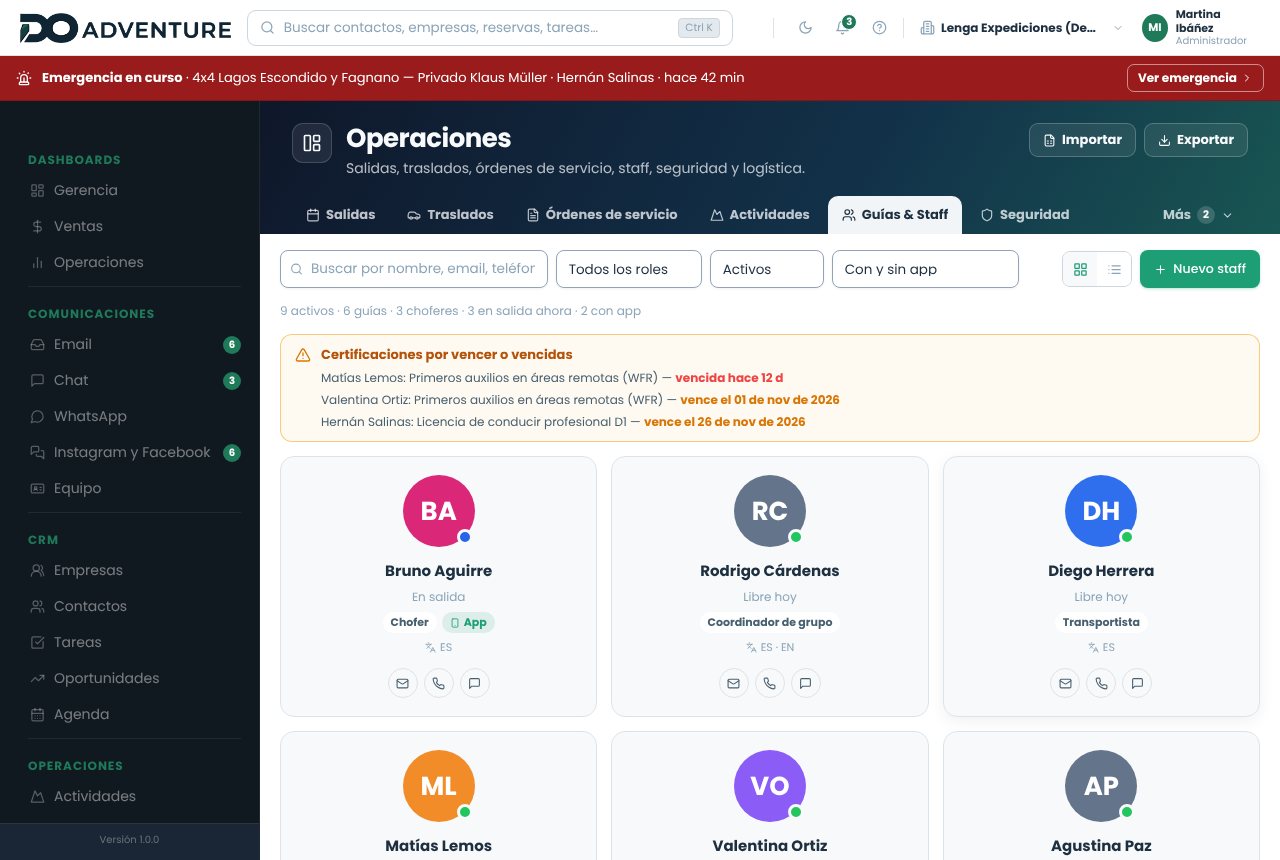
In Operations › Guides & Staff, the field team looks like the team directory: one card per person with their photo (or initials), today's status (free, with departures or on a departure now), the role, whether they have the app and whether they have certifications about to expire. The card's buttons write, call or open WhatsApp from the company's accounts. At the top you can search by name, email, phone or language and filter by role, status (active, free today, inactive) and app access. The button on the right switches to list view; both are paginated 24 at a time.
Guides and staff: the colored dot is today's status (green free, blue on a departure, orange with departures, gray inactive).
The record
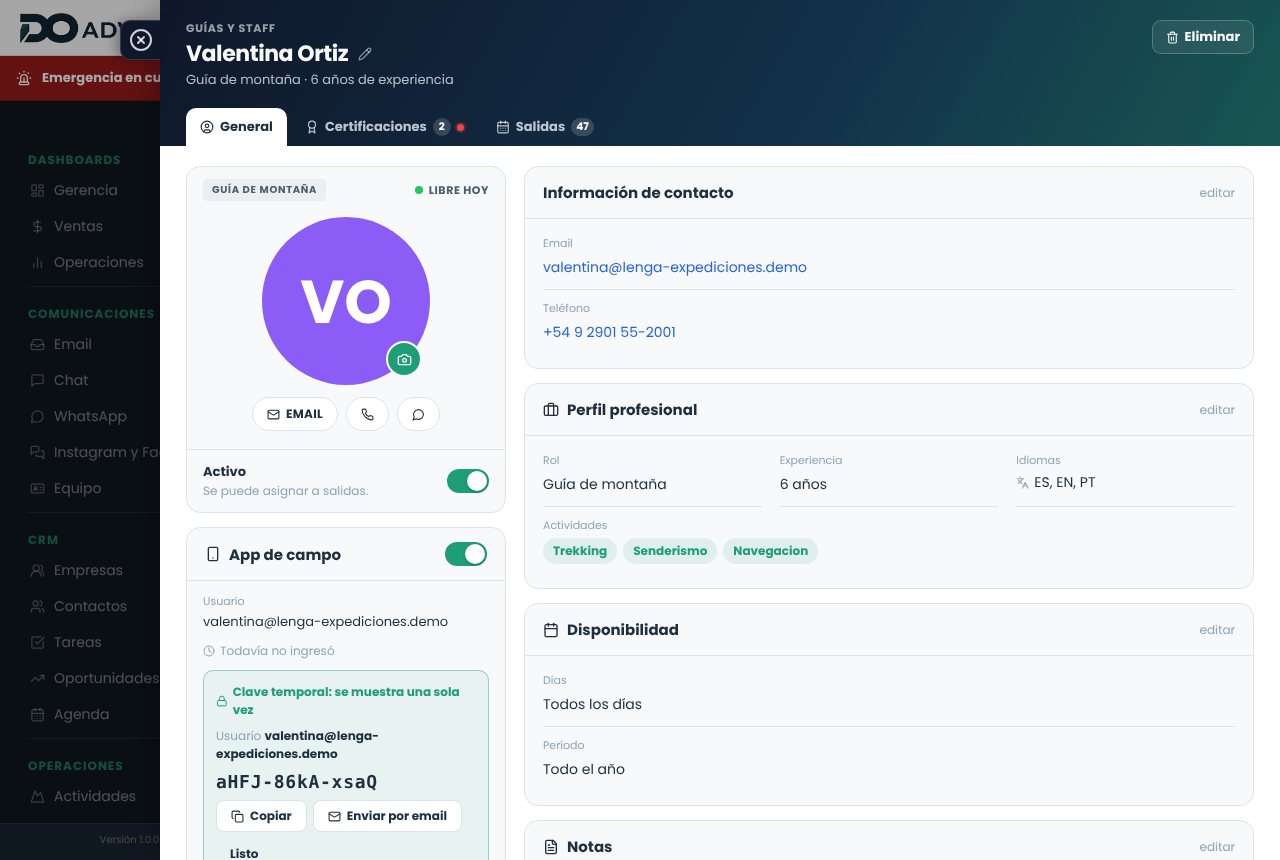
Clicking the card opens the record in the side panel, with the same format as a user's profile. Each block is edited in place with edit: contact information, professional profile (role, years of experience, languages and activities they can lead), the availability calendar, their leave and notes. The pencil next to the name changes it and the camera changes the photo. The Active switch removes the person from the assignment lists without deleting them.
The Certifications tab holds their qualifications (first aid, driver's licenses) with their expiration date and how many days in advance to send a reminder; expired or expiring ones are flagged on the card and in the notice at the top of the list. The Departures tab shows the scheduled, confirmed or in-progress departures they're assigned to. If the person has a user (for example, with the field app turned on), administrators also see Access and permissions: role, permissions, accounts, password, blocking and deactivation.
The record: on the left, the photo, status and field app; on the right, the blocks you edit in place.
Availability calendar
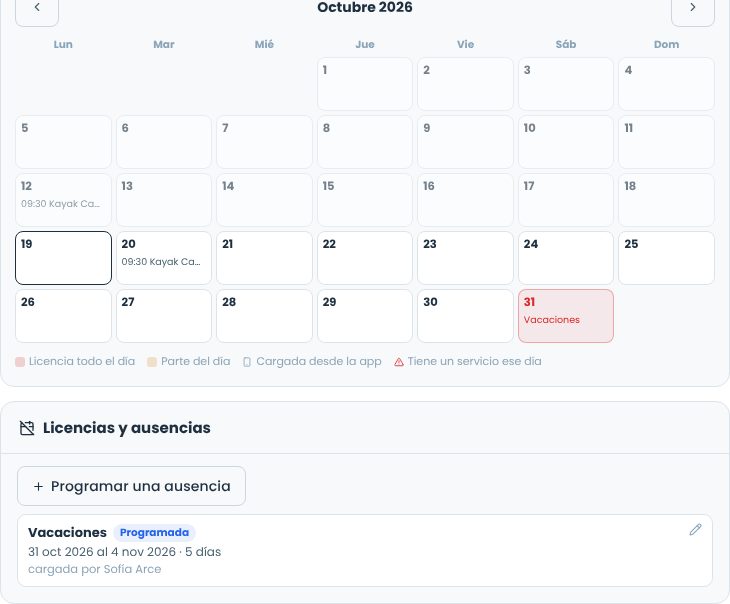
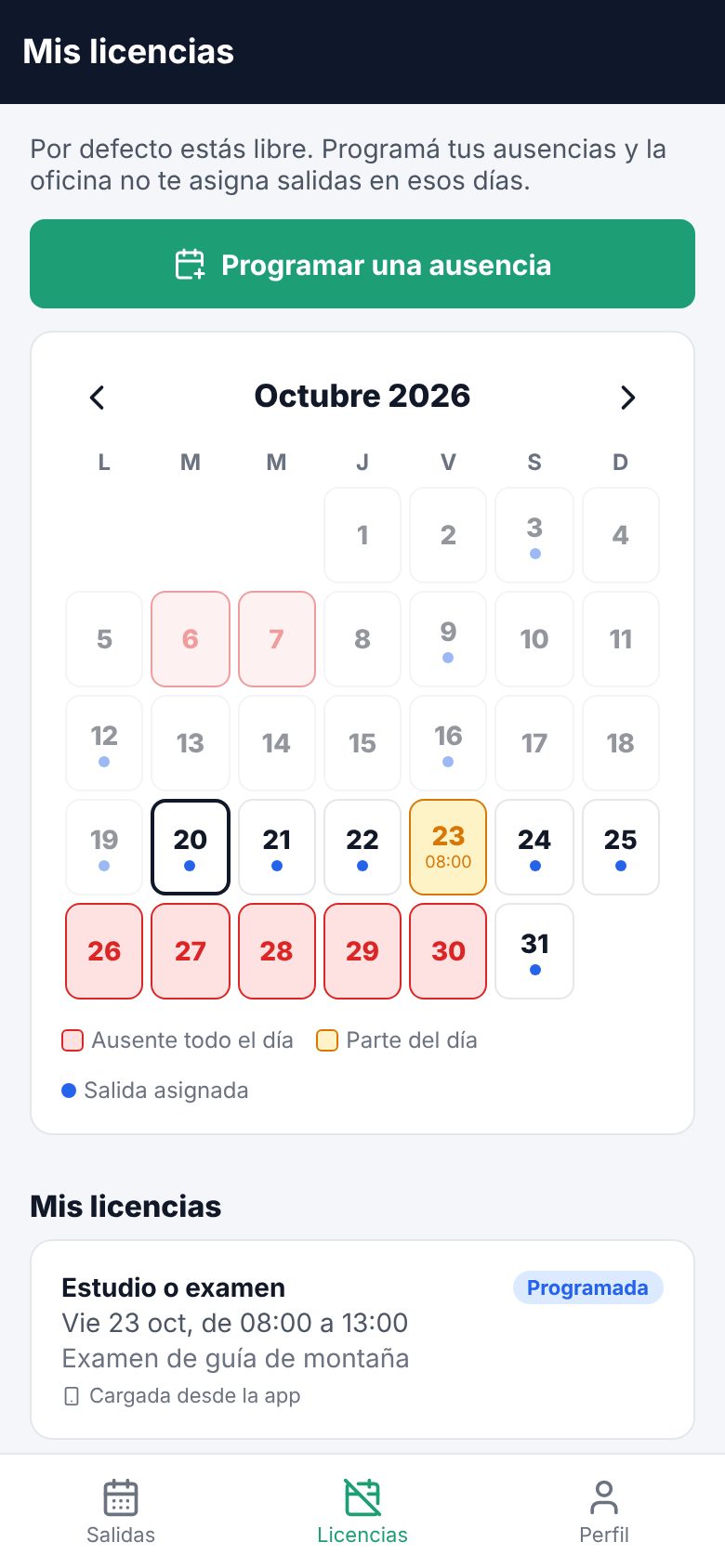
By default, everyone is free. Guides and drivers are company employees: when they can't work (vacation, an exam, an errand), you schedule leave or an absence for them. The calendar on the record shows the month with their leave (red for the whole day, amber for a time slot) and the departures they already have. Tapping a free day opens Schedule an absence with that day; tapping a day with leave opens it so you can edit or void it.
The calendar and, below, the person's leave history.
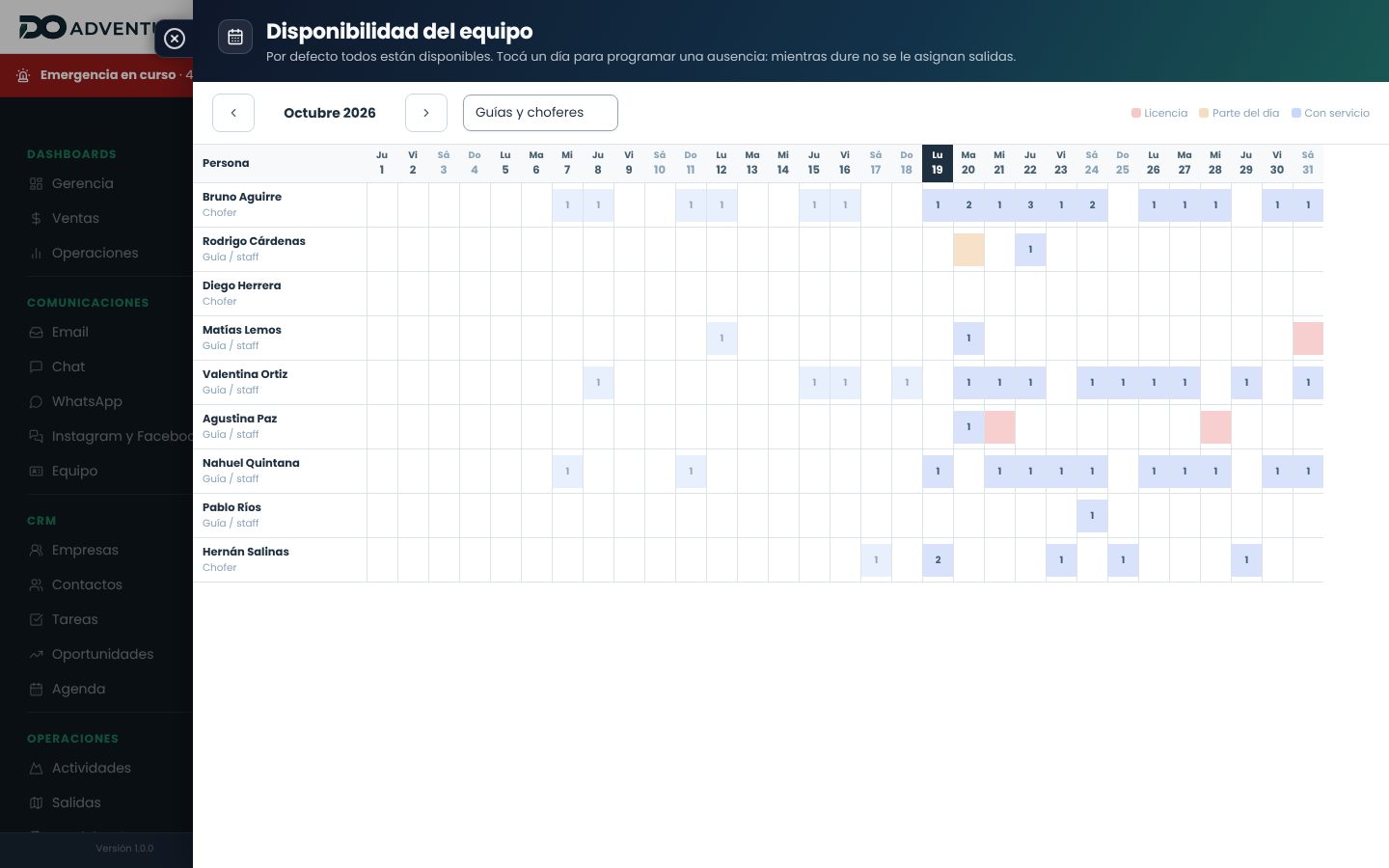
Team availability, above the Guides & Staff list, shows the whole team in a person-by-day grid, with the departures each one already has. You can filter by guides or drivers, and tapping a cell schedules or edits that day's leave.
Team availability: red leave, amber part of the day, blue with departures.
When assigning: anyone with leave that day (or in a time slot that overlaps the departure time) appears in red with the reason and can't be added to the departure or the transfer. If they were already assigned before the leave was scheduled, they appear in red and can be removed. See Guide, driver and vehicle availability.
Leave and absences
Leave works the same for all staff: the office team (in the Leave tab of their profile) and guides and drivers (on their record and from the field app). If a guide also has a system user, they see the same leave in both places.
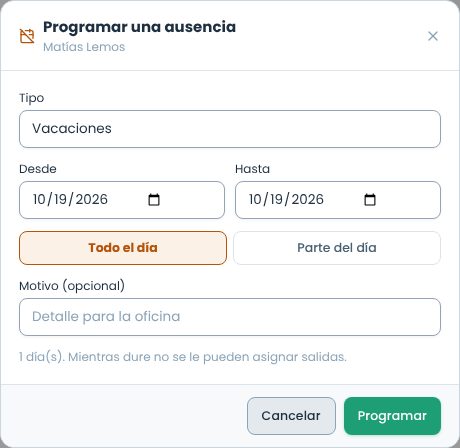
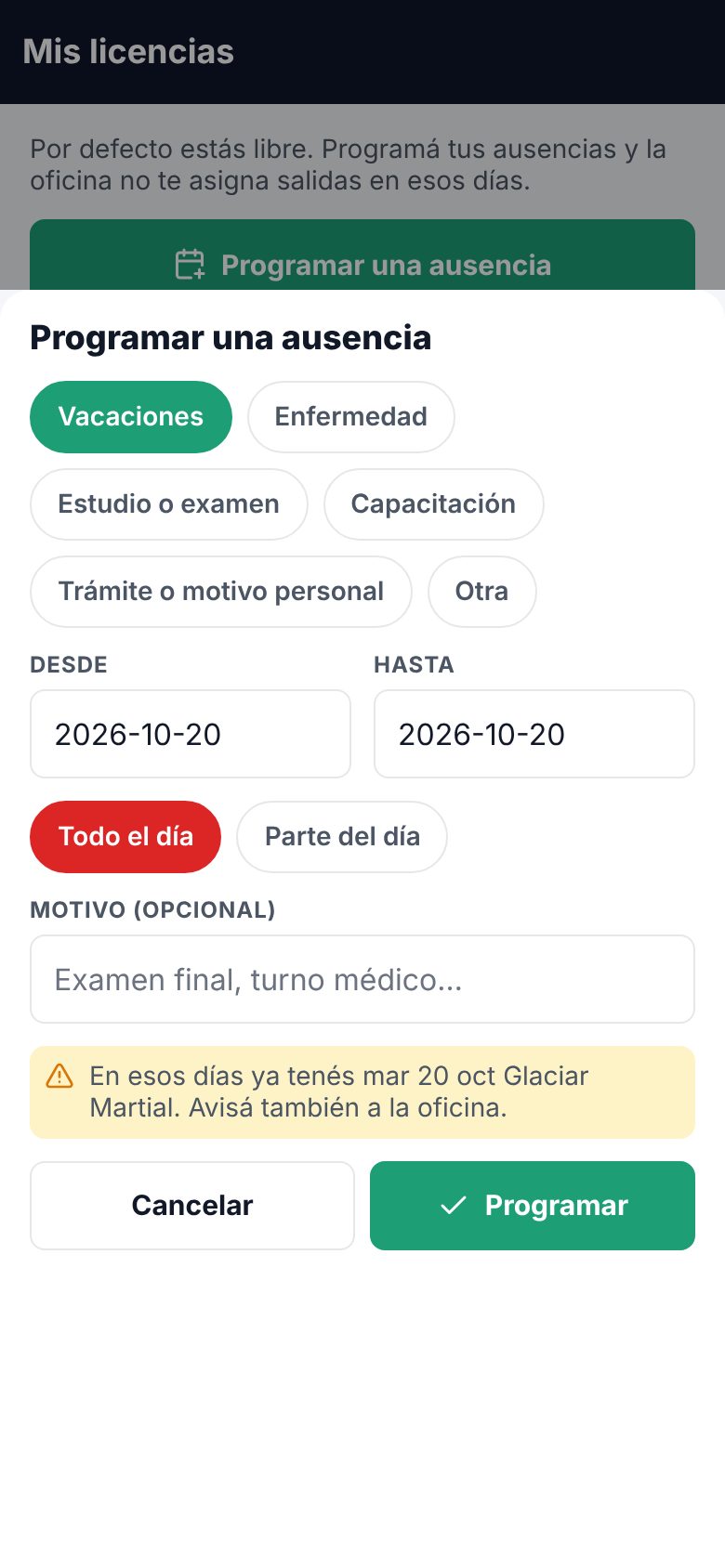
Type: vacation, illness, study or exam, training, errand or personal reason, or other.
Period: from and to (up to one year), the whole day or part of the day with a time slot, for example from 14:00 to 20:00. A time slot only conflicts with departures that overlap those hours.
Reason: optional, for the office.
Schedule an absence.
History: leave is never deleted. Each one is listed as Scheduled, In progress, Completed or Voided, with who entered it (or the phone icon if the person entered it from the app). Void asks for a reason and leaves it in the history crossed out; the person becomes available again on those days. Two active leaves for the same person can't overlap.
It can be scheduled by the person themselves, whoever edits the staff or the organization, and whoever has the HR permission. Everything is recorded in the audit.
Lesson4 minutes · Operations
Schedule a guide's vacation and plan the month
Goal
Make sure nobody is assigned to a departure on a day they can't work.
Before you start
Permission to edit staff (or be the person themselves, from the app).
Open the calendarIn Operations › Guides & Staff, Team availability, or the person's record.
Tap the first daySchedule an absence opens with that day as the start.
Fill in the leaveType Vacation, the return day in To, the whole day and, if you want, a reason. Schedule: the days turn red.
Check for conflictsA triangle marks the days when the person already had a departure assigned: replace them on that departure.
Assign with confidenceIn the resources panel of the departures on those days, the person appears in red and can't be selected.
ResultThe calendar shows who works each day, the leave stays in the person's history and the system doesn't let you assign anyone who is on leave.
If something goes wrong
I got the dates wrong: tap the leave (in the calendar or in the history) and fix it, or void it.
The guide entered an absence from the app: it shows with the phone icon. If it conflicts with a departure, coordinate with them.
A guide does two departures on the same day: schedule only the time slot they can't work (part of the day): departures outside those hours can still be assigned to them.
It won't let me save it: there's already another active leave on those days. Edit that one or void it first.
Field app access
The Field app block on the record has a switch. You don't choose another user: the app uses the email on the record.
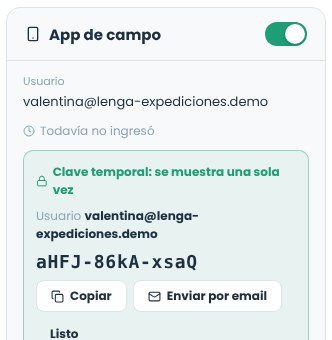
When you turn it on, if there's already a system user with that email, it's linked and they sign in to the app with their usual password. If not, a user with the User role and a temporary password is created; the password is shown only once: copy it or send it by email from the company account. The new user takes up a spot in the plan.
Reset password generates a new temporary password. The previous one stops working and the app session on their phone is closed. If the record uses a system user, the new password also works for the web.
When you turn it off, they can no longer sign in to the app. If the user was created for the app, it's also deactivated and frees its spot in the plan; if it was a system user, they can still sign in to the web.
Managers and administrators handle it, and every change is recorded in the audit. To change the email of someone with access, turn access off, change the email and turn it back on.
The temporary password is shown only once.
Vehicles and equipment
Vehicles are added in Fleet and equipment in Logistics. How they're assigned to each departure and what the system checks is in Resource assignment.
Each vehicle's history
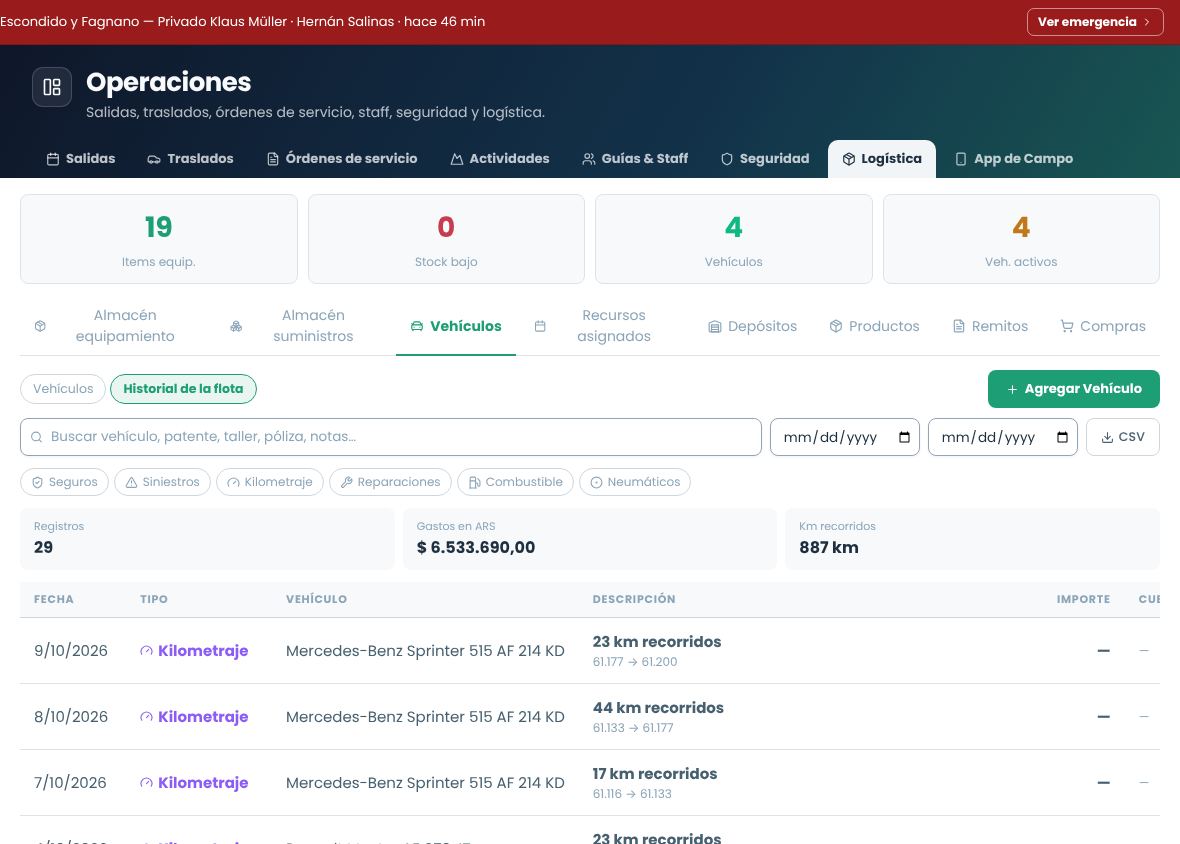
On the vehicle record you enter insurance, accidents, mileage, repairs, fuel and tires. Each entry can be edited or deleted. The History tab brings everything together in a single list with search, filters by type and date, spending totals by currency and CSV export. To see the whole fleet, in Logistics › Vehicles choose Fleet history; tapping a row opens the vehicle.
History of the whole fleet: mileage, fuel, repairs, insurance and accidents.
Expenses with accounting turned onIf the company uses the accounting module, each fleet expense (fuel, repair, tires, insurance or an accident with a cost) asks for the expense account. The system suggests the last one you used for that type of expense.
Activities
Your service catalog: each activity describes what is done, how it's operated and what resources it needs.
Create an activity
From Operations › Activities. Fill in:
Name and type. The type (trekking, kayaking, boat trip, transfer, etc.) sets the card image and the suggested tax rates.
Duration, difficulty and meeting point. These are copied to every departure you create from this activity.
Minimum and maximum capacity. The minimum helps you decide whether a departure is confirmed; the maximum limits bookings.
Required resources. How many guides per number of passengers, which vehicles and which equipment.
Image or icon
On the activity record, Image / icon lets you upload your own image (PNG, JPG or WebP, cropped to a square). If you don't upload one, the card uses the activity type's image.
Views
You can view the catalog as cards (with image, statistics and quick actions to view, edit and delete) or as a list, which is more useful for reviewing many activities at once.
Next step
An activity without costs can't be priced. After creating it, enter its cost center. If you measure environmental impact, the Carbon footprint tab calculates each departure's emissions and their offset.
Cost center for an activity
What it really costs you to operate each activity. It's the basis for all prices and for the profitability you see in the reports.
It's in the activity record, Cost center tab (Operations › Activities › Edit), and it also opens from Cost center › Activities. People with the View cost center permission can see it, and people with Edit cost center can edit it.
What goes in and what doesn't
Goes in the cost center
Doesn't go in (added in the rate sheet)
Guide and assistant fees Transportation and fuel Park and protected area entrance fees Equipment rental and wear Included meals Per-passenger insurance
The most common mistakeEntering the cost with a margin "cushion" built in. If you do, the rate sheet adds margin on top again and your prices end up too high, while the reports show a profitability that isn't real.
Each cost: a component or a manual price
Each item in the Costs tab has a concept, a category and its price, which comes from one of two places:
A component from the Cost center (diesel, the packed meal, the insurance, the guide's workday). You don't type the price: it's the component's current price and it updates on its own when it changes. Below the item you'll see Takes the price from the Cost center.
A manual price, with its purchase IVA (VAT) and whether the price already includes it. It doesn't change until you edit it.
Use components for everything that repeats across several activities: an increase is entered once and reaches all of them.
Calculation basis
Basis
How it's calculated
Examples
Per departure
A fixed amount per departure, split among the passengers.
Permit, toll, driver.
Per passenger
Multiplied by the number of passengers.
Entrance fee, lunch, insurance.
Per guide
Multiplied by the guides needed: one for every so many passengers, according to the activity's ratio (for example, 1 per 8). With 9 passengers that's 2 guides.
Guide fee.
Fixed monthly
Divided among the month's departures.
Maintenance, warehouse rent.
If the component is paid per workday, per passenger per day or per hour, the amount is also multiplied by the activity's duration (days or hours, in Settings). If it's paid per km, by the kilometers. Purchase IVA (VAT) is always deducted: the cost used in calculations is net.
Fuel
In Settings › Fuel you enter the kilometers per departure, the fuel type and the consumption per 100 km. With Take from the vehicle, the fuel and consumption of a vehicle from the fleet are copied. The price per liter comes from that fuel's component in the Cost center; if there isn't one yet, a manual price is used. The cost is km × consumption ÷ 100 × price per liter (net of IVA).
What it shows at the top
Cost per pax at the optimal capacity and departure cost (with the guides needed).
Fuel for each departure.
Profitability of the regular rate: with its current sale price and today's cost, compared with the activity's minimum margin (defined in Settings). If it falls below, it's flagged in red and the people who approve price adjustments are notified.
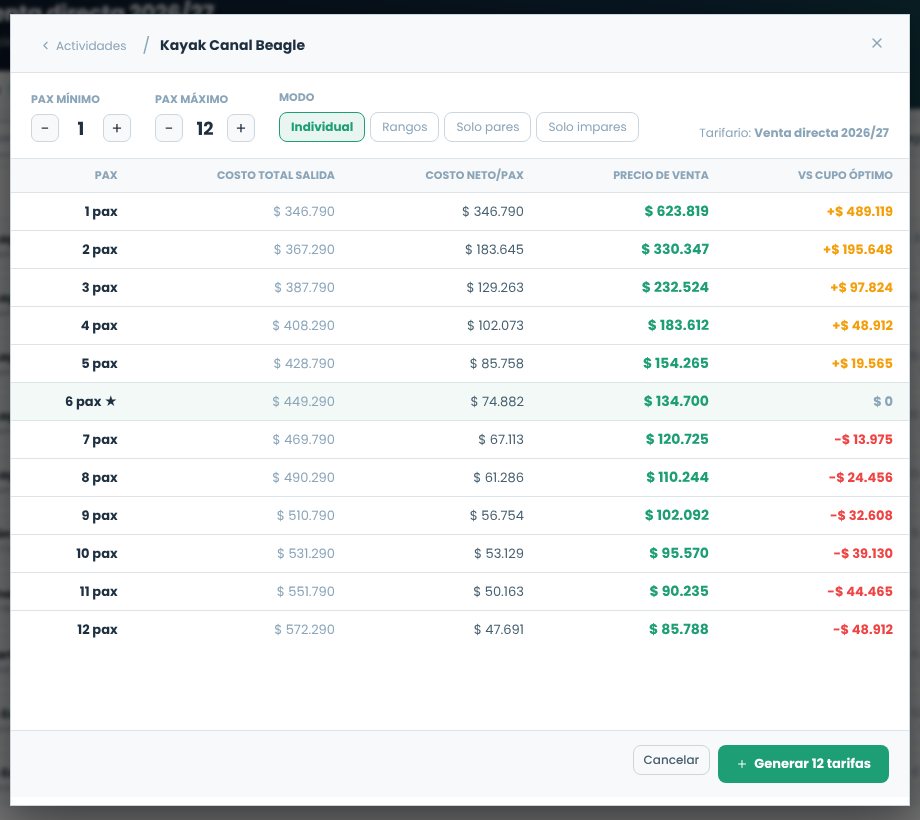
The Passenger simulator tab shows the departure cost and the cost per passenger with 1, 2, 3… passengers: it's useful for quoting a private departure.
When a cost changes
When you save the cost center (Save and recalculate), or when the price of a component it uses changes, the cost is recalculated on its own. The sale price isn't: each of the activity's own rates gets an adjustment proposal that is approved in Cost center › Price adjustments.
Cost center: components, indexes and price adjustments
The price of each cost in a single place. When it changes, the activities that use it are recalculated and the new sale prices wait for your approval.
It's in Operations › Cost center, with four tabs: Price adjustments, Activities, Components and Indexes. The tabs show a number for anything that needs attention.
Components
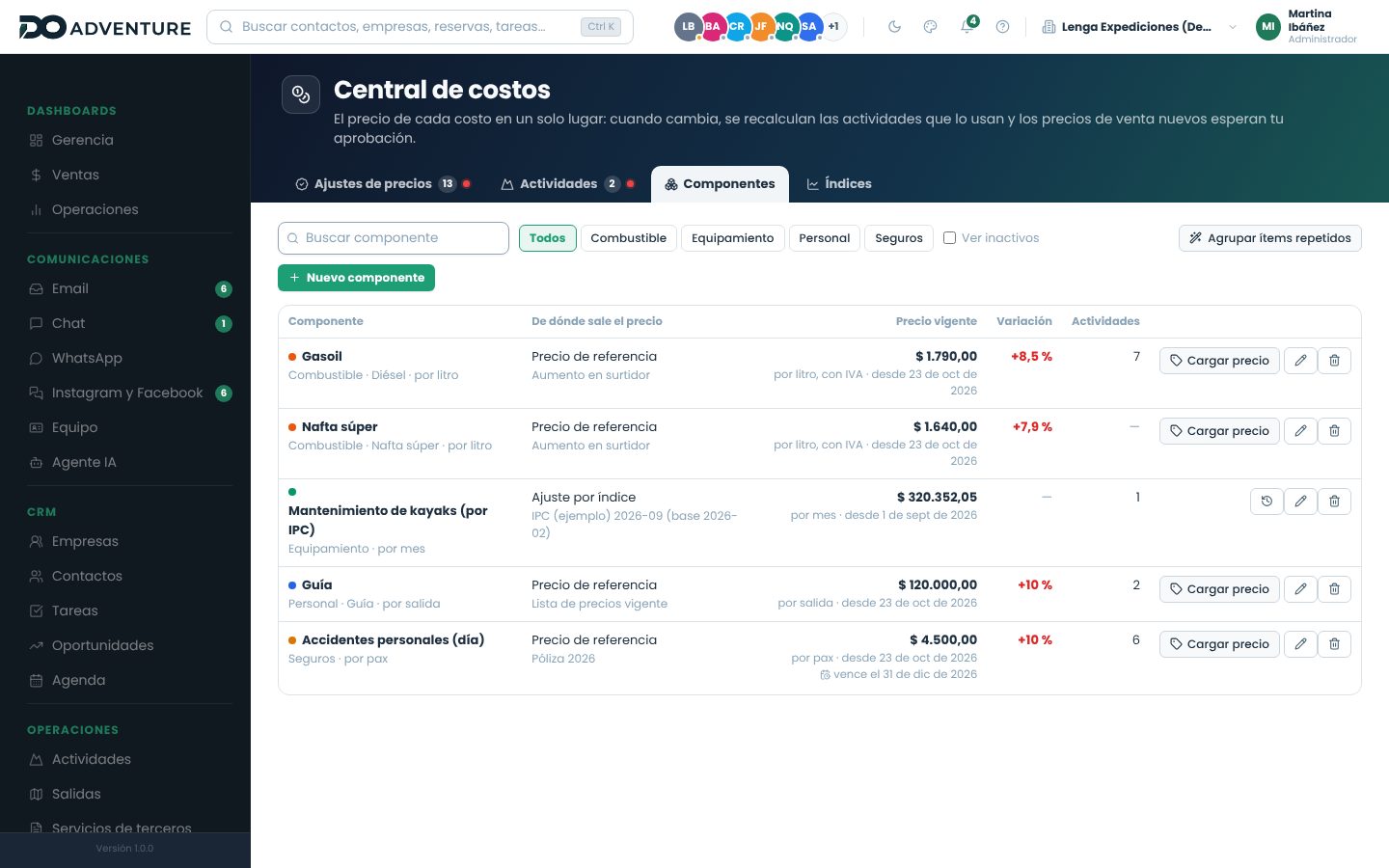
A component is a cost that repeats across several activities, with its price in a single place: diesel, the trail packed meal, personal accident insurance, a bilingual guide's workday. Each one has a category, is paid per unit (liter, passenger, passenger per day, workday, hour, departure, km or month), has a currency, its purchase IVA (VAT) and a price source:
Source
Where the price comes from
What it's for
Reference price
You enter it with a start date and, if it expires, an end date. Each price is kept in the history.
Fuel, insurance, fees, permits and anything that doesn't have a rate sheet.
Supplier rate
The cost of the current season of the chosen rate; without a season, its net cost.
Third-party meals, lodging, transfers and excursions.
Last purchase price
The price of the last purchase received for the logistics product.
Water, packed meals, supplies, passenger gear.
Index adjustment
The base month's price × the index value for the latest month ÷ the base month's value.
Costs that follow inflation or the dollar.
The table shows the current price, since when it applies, the change from the previous price, when it expires (in orange if 15 days or fewer are left) and how many activities use it. Add price opens the history with a chart of how it has evolved. A price with a future date starts applying on that day.
Fuel by type. One component per fuel (regular gasoline, premium gasoline, diesel, CNG, electric), with the price per liter. Each activity uses the one for its fuel.
Staff by role. Fees are entered as components in the Staff category with their role (guide, assistant, coordinator, driver) and are paid per workday, per departure or per hour: you can have "Guide per workday" and "Guide per hour" with different prices.
Unused, it's deleted; in use, it's deactivated. The items that used it keep their last price, as a manual price.
Each component with its source, its current price, the change and the activities that use it.
Group repeated items
If the cost centers already have concepts entered by hand in several activities (the same insurance in six activities, for example), Group repeated items lists them with the activities where they appear and the price range. You choose which ones to convert, correct the name, category, unit and price, and with Create the components are created and those items are linked. If the prices were different, all activities take the one you choose.
Indexes
CPI (IPC), fuel index, the dollar or any other you need. Administration enters them (Enter monthly indexes permission): they choose the month, type the value and click Enter value. You can see the monthly change and the change over the last 12 months. When a value is entered, the activities that use components adjusted by that index are recalculated. If the previous month's value is missing, the tab warns you.
Price adjustments
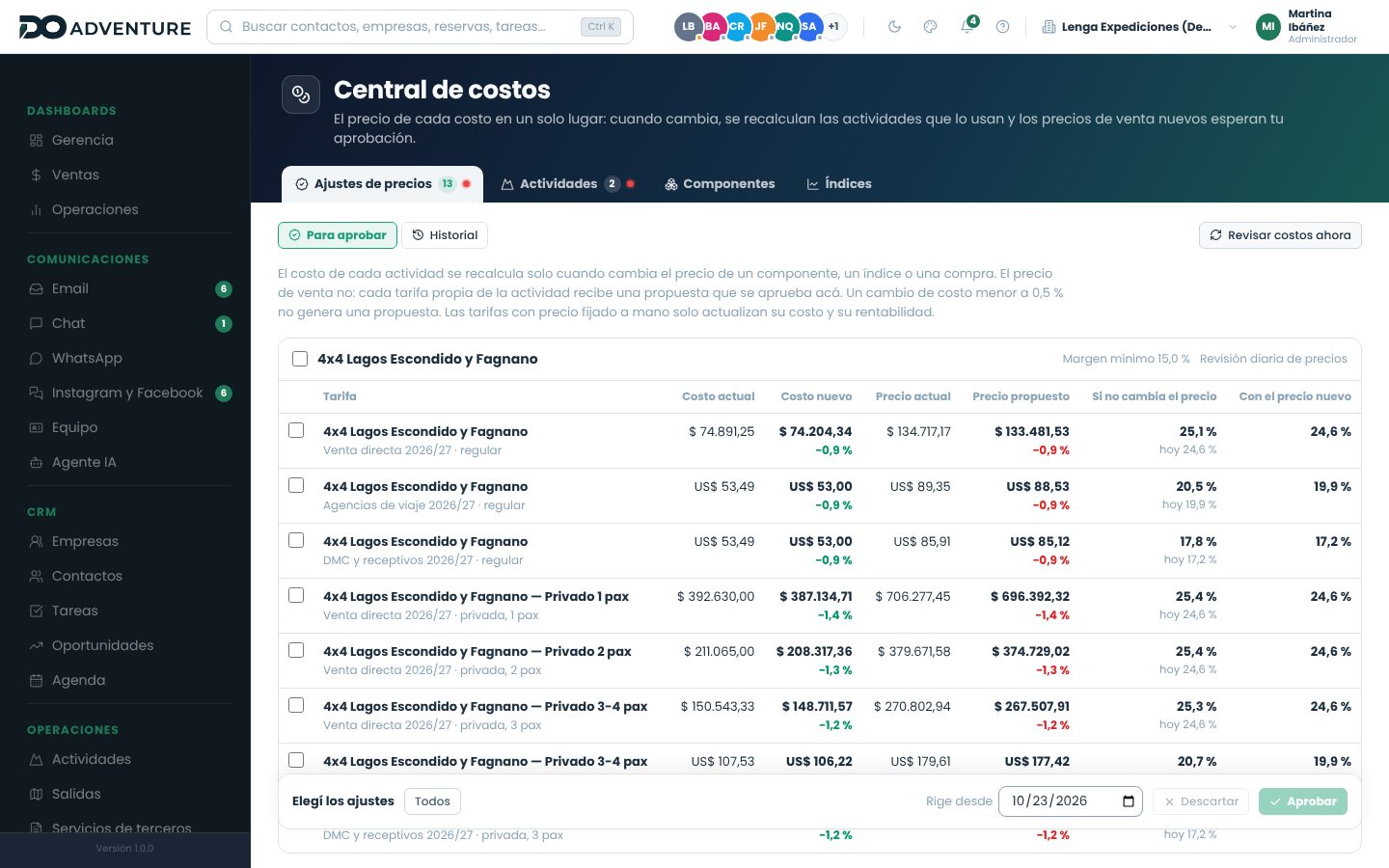
Each activity's cost is recalculated on its own when the price of a component, an index, a purchase or its cost center changes. The sale price doesn't change on its own: each of the activity's own rates gets a proposal with the new cost, the proposed price (with the rate sheet formula and its projection) and the profitability at three points: today, if the price doesn't change, and with the new price. A profitability below the activity's minimum margin is flagged in red.
Approve. You choose the proposals (one by one or a whole activity), the date in Valid from and Approve. With today's date the rate changes right away; with a future date, on that day. Bookings already made don't change.
Discard. The rate stays as it is. The same cost isn't proposed again; if the cost changes again, a new proposal appears.
Manual price. A rate with its price set by hand keeps its price: when you approve, only its cost and profitability change.
Small changes. A cost change smaller than 0.5% doesn't generate a proposal.
Review costs now recalculates all activities with today's prices. They're also reviewed automatically once a day: that's how dated prices that start applying, suppliers' new seasons and the month's indexes come in. History shows what was approved and discarded, by whom and when.
Diesel went up: each of the activity's rates has its proposed price and its profitability.
Activities and minimum margin
The Activities tab lists each activity with its cost per passenger, the departure cost, the profitability of its regular rate and its minimum margin, which you edit right there with the pencil. Each activity has its own: a high-demand activity might require 25% and a transfer, 10%. The ones below their minimum appear first, in red. When an activity falls below its minimum, it notifies the people who approve adjustments once (notification and email), and only notifies again if it recovers and falls again. The Management dashboard also shows it in Costs and margins.
Purchases
When a purchase is received, each product's price becomes its last price and the components with the Last purchase price source for that product take the new price. The activities that use them are recalculated.
Permissions
Permission
What it allows
View cost center
View the cost center, its components, indexes and adjustments.
Edit cost center
Edit each activity's cost center and its minimum margin, and request a review.
Edit components and reference prices
Create, edit and group components and enter their prices.
Enter monthly indexes
Create indexes and enter their values (Administration).
Approve sale price adjustments
Approve or discard proposals and receive low-margin alerts.
Lesson4 minutes · Prices
Enter a fuel price increase and approve the new prices
Goal
Get a diesel price increase to reach the cost of every activity that uses it and approve the corresponding sale prices.
Before you start
A diesel component and the activities with their fuel type (Settings › Fuel).
The permissions to edit components and approve adjustments.
Enter the priceIn Cost center › Components, click Add price on Diesel. Type the price per liter, the start date and a reference, and click Save price.
Check the impactThe message tells you how many activities were recalculated and how many price adjustments are waiting for approval.
Review the proposalsIn Price adjustments, each activity with its rates: cost and price, current and new, and the profitability. Anything below the minimum is in red.
ApproveChoose the proposals, the date in Valid from and Approve. Discard the ones you'd rather keep as they are.
ResultThe rates have the new cost and price from the chosen date, and the Activities tab shows the updated profitability.
If something goes wrong
No adjustment appears: the activity has no fuel type (Settings › Fuel), the change is smaller than 0.5% or the rate isn't linked to the activity.
The price didn't change on a rate: its price is set by hand; only its cost was updated.
I can't approve: you need the Approve sale price adjustments permission.
Carbon footprint
How much CO2 each departure of an activity emits, how much the departures of the last year emitted and how much it costs to offset it.
Where it is
On the activity record, Carbon footprint tab (Operations › Activities › Edit). The activity has to be saved. It's visible to anyone who can view activities and editable by anyone who can edit them.
Emission sources
Enter what each departure consumes. Each source is counted per departure (the vehicle runs the same with 2 or 8 passengers) or per passenger (packed meals, waste):
Source
What you enter
Calculation
Vehicle
Km per departure, consumption per 100 km and fuel
km × consumption ÷ 100 × factor
Engine / boat
Hours of use, consumption per hour and fuel
hours × consumption × factor
Fuel
Liters (or m³ of CNG)
quantity × factor
Electricity
kWh and your power grid's factor
kWh × factor
Other source
Direct kg of CO2 equivalent
what you enter
The reference combustion factors are the EPA's (kg of CO2 per unit): gasoline 2.35 per liter, diesel 2.69 per liter, LPG 1.51 per liter and CNG 1.95 per m³. You can replace them with your supplier's or your inventory's. Electricity has no default factor: it depends on the country and the year, so enter your grid's. A source with incomplete data is flagged and not added.
What it shows
Per departure: the amount for each departure with the reference passengers (by default, the optimal capacity from the cost center).
Per passenger: the above divided by those passengers.
Last 12 months: what the completed departures emitted, with the passengers who went on each one.
Offset per passenger: the cost of offsetting, with the price per ton of CO2e and the percentage you choose.
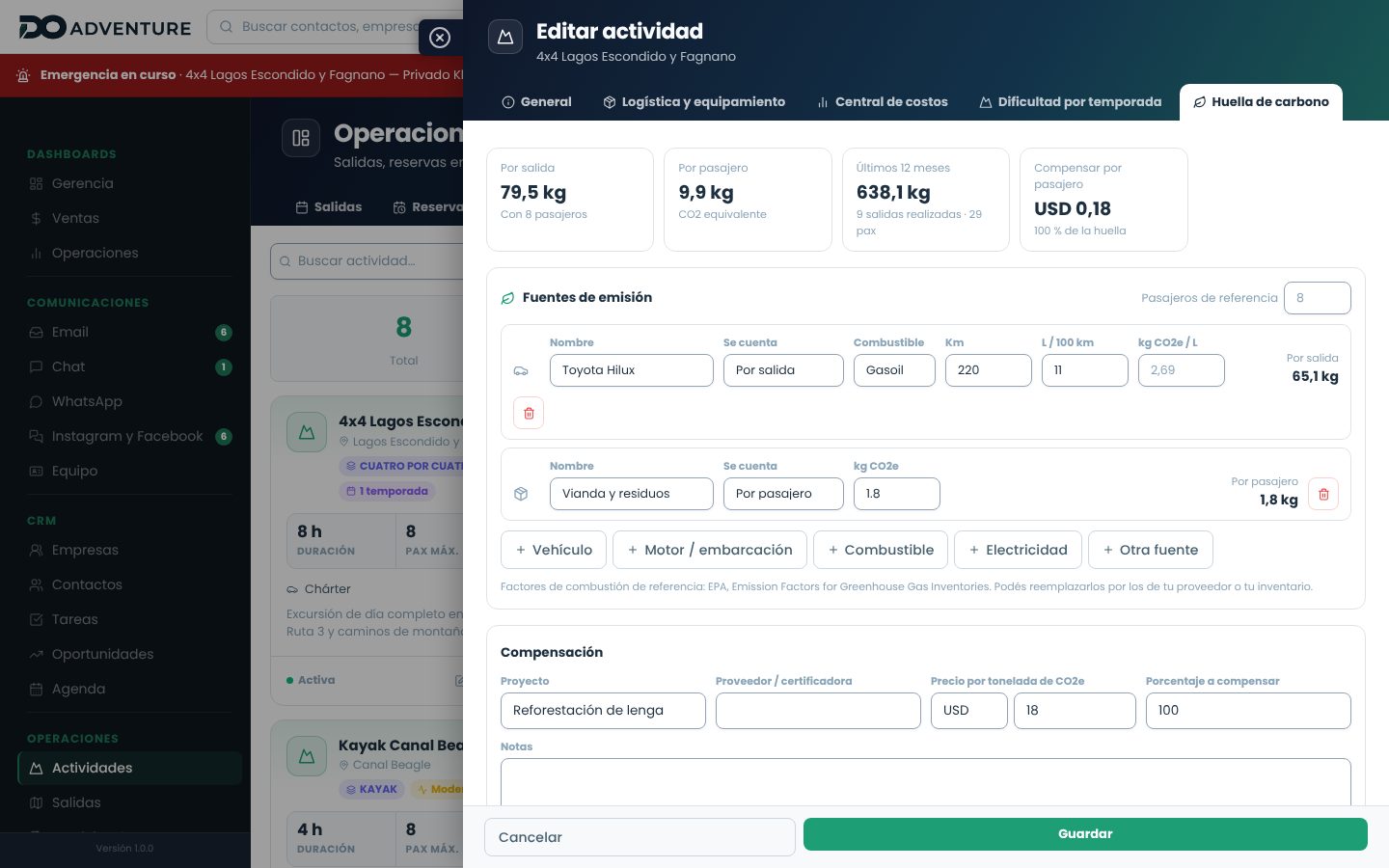
Carbon footprint of the 4x4 trip: the vehicle per departure and the packed meal per passenger.
Offset
Enter the project (for example, reforestation), the supplier or certifier, the price per ton of CO2e and what percentage of the footprint you offset. The system calculates the cost per passenger and per departure. To pass it on to the sale price, add it as a variable per-passenger cost in the cost center.
Lesson6 minutes · Products and pricing
Measure an excursion's footprint and offer it offset
Goal
Know how much each departure emits and how much it costs to offset it per passenger.
Before you start
The activity's vehicle and route (km per departure).
The vehicle's or engine's consumption.
If you offset, your supplier's price per ton.
Open the activityOperations › Activities › Edit, Carbon footprint tab.
Add the vehicleVehicle: name, per departure, fuel, km and liters per 100 km.
Add what goes per passengerOther source per passenger for packed meals or waste, with its kg of CO2e.
Check the reference passengersBy default, the optimal capacity. Change it if the typical departure carries a different number.
Enter the offsetProject, price per ton and percentage. At the top you see the cost per passenger.
SaveSave carbon footprint.
ResultThe activity has its footprint per departure and per passenger, what was emitted in the year and the cost of offsetting it.
If something goes wrong
It says “Missing data”: fill in that source's fields: for electricity, you need the grid factor.
The last 12 months show 0: only completed departures of that activity count.
Rate sheets
A rate sheet is a list of selling prices for a channel and a period. You can have one for direct sales, another for agencies and another for wholesalers, each with its own margins and currency.
From costs to the client: the full journey
CostsEnter the cost of each activity in the cost center and your suppliers' rates in Supplier rate sheets.
General rate sheetCreate one per channel (New list): public, agencies, DMC. Sync activities brings in all your activities with their calculated price.
Adjust pricesReview the rates table, edit margins, set manual prices and generate private rates by number of passengers.
Rate sheet rulesPrices for children, infants and seniors, and free spots for groups.
Approve and publishMove the rate sheet through the statuses until Published: only then is it used by bookings.
Client agreementsIf an agency has its own prices, create its client rate sheet.
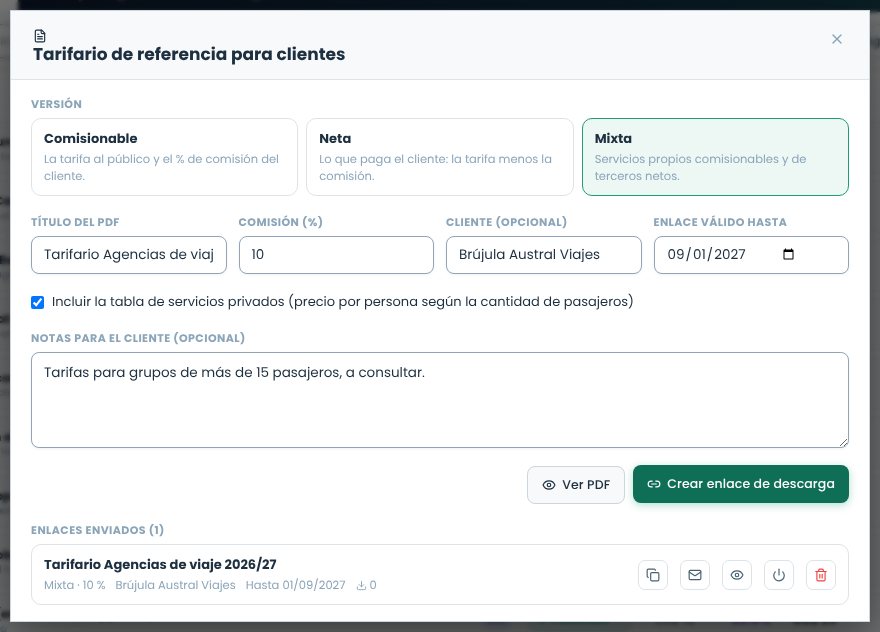
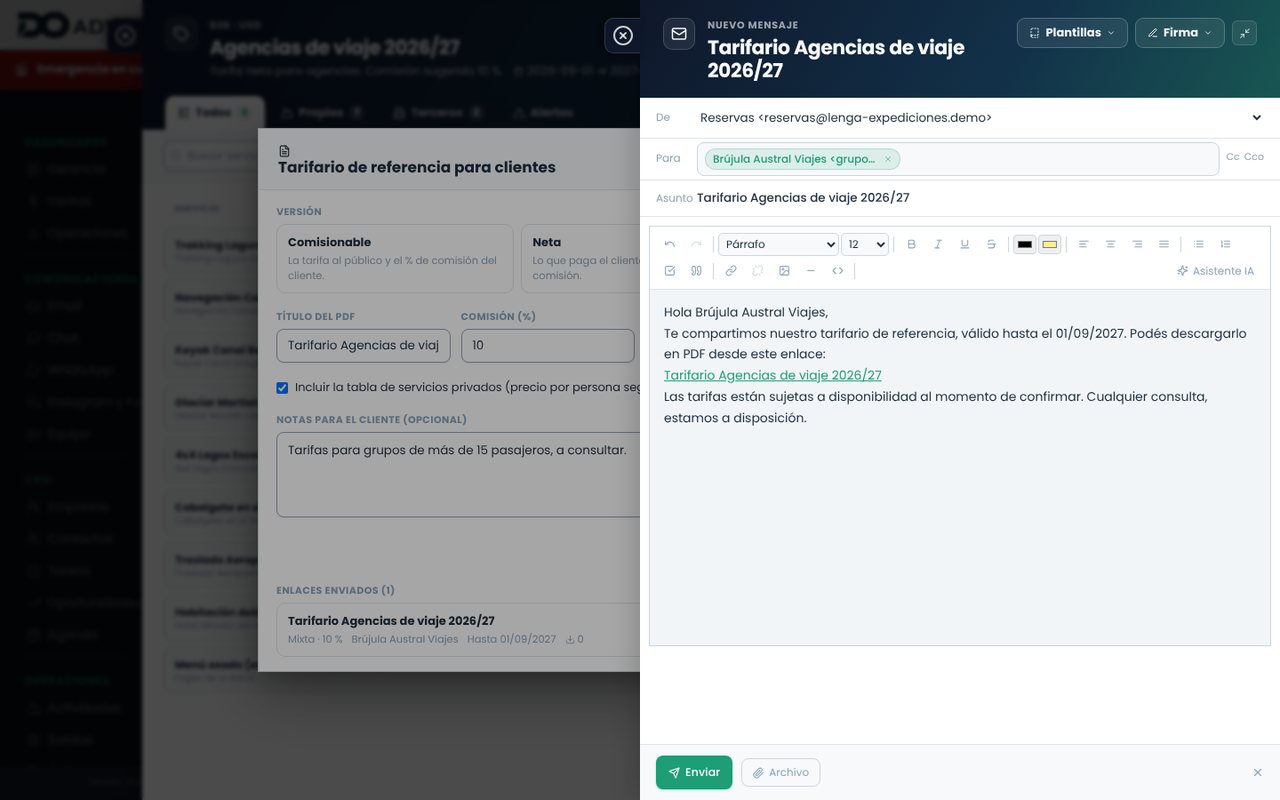
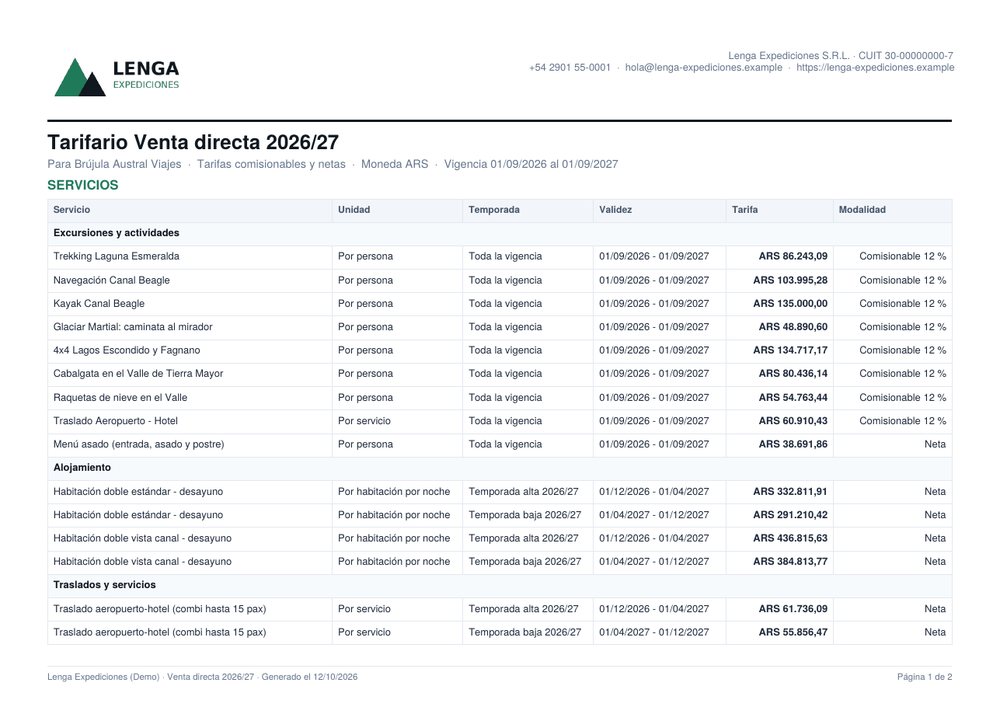
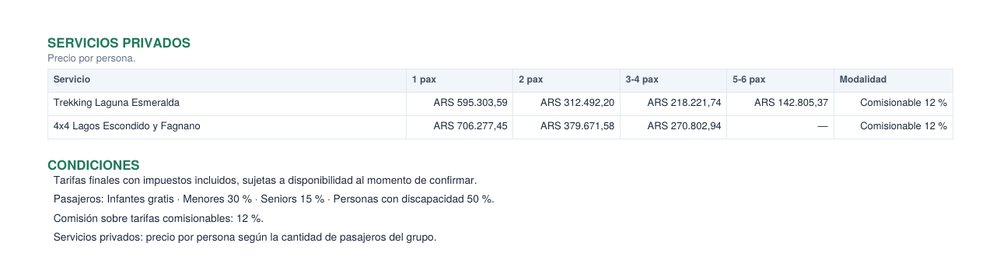
Send to the clientGenerate the rate sheet for clients as a PDF (net, commissionable or mixed) and send them the download link.
Rate sheet types
When you create it, you choose the type, which indicates who it's for: B2C sales to the public, B2B agencies, DMC inbound operators and wholesalers, among others. You also set the currency, the validity period and whether it's the default rate sheet for new bookings.
Statuses and approval
A rate sheet moves through statuses. Click the status label to see the transitions available for your role; each change asks for a reason and is logged.
Status
Meaning
Who changes it
Draft
Being prepared. Can be edited freely.
Any user
Pending approval
Ready for review.
Member or higher
Approved
Prices reviewed, not offered yet.
Manager or higher
Published
Active for quoting and booking.
Administrator
Paused
Temporarily suspended. Its rates are no longer offered.
Manager or higher
Canceled
Discontinued. Its rates are canceled.
Administrator
Search and filter
Above the list you have a search box (by name, client or currency), the list type and the statuses. By default all statuses are shown except expired ones (rate sheets whose validity period has ended): turn on Expired to see them. The list is paginated 12 at a time.
Rate sheet items
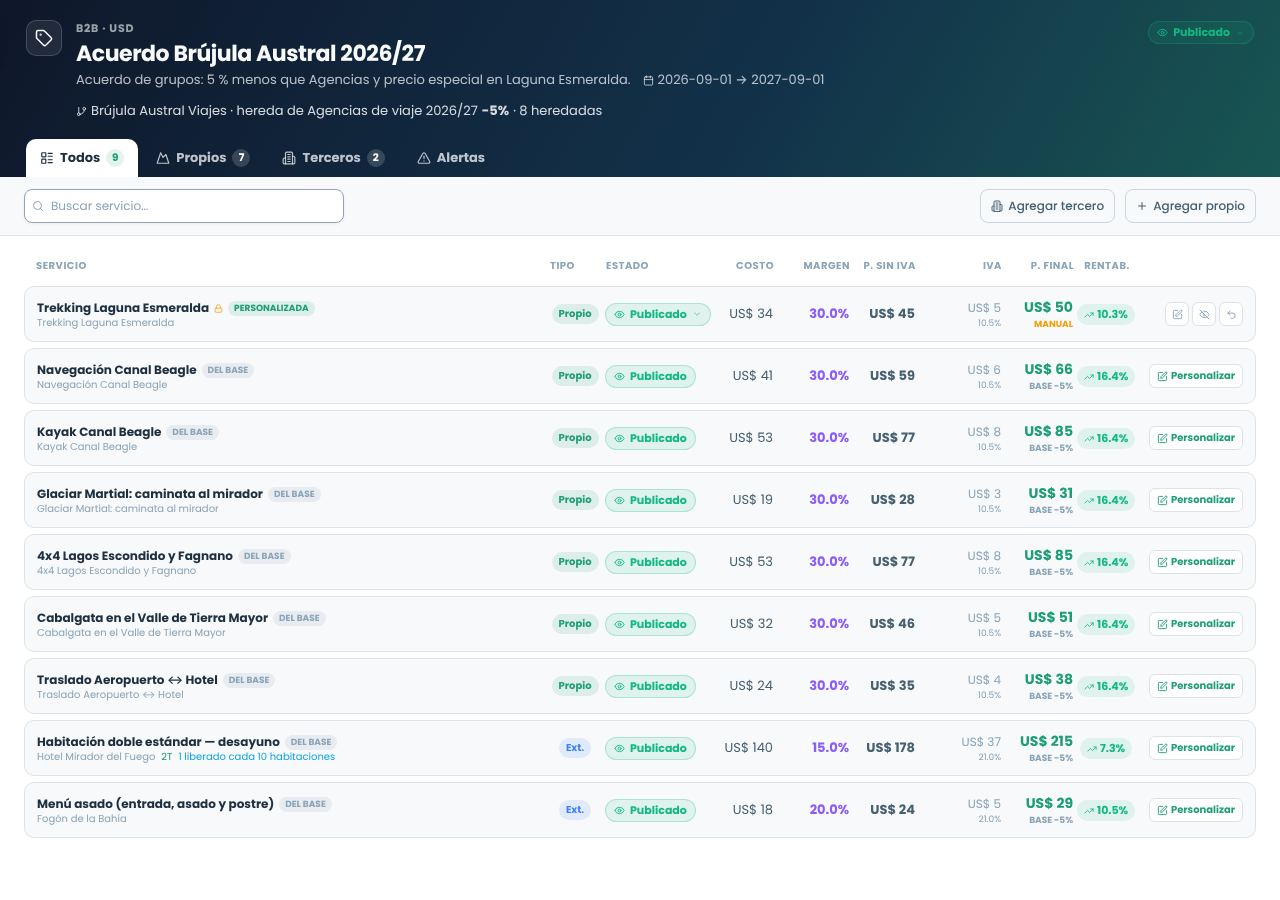
When you open a rate sheet you see the items table with these columns (with more than 10 items, the table is paginated):
Column
What it shows
Service and type
The activity or service and its category.
Cost
The net cost that comes from the cost center or the supplier.
Margin
The percentage applied to the cost.
Price excl. VAT
The net price, after margin and overhead costs.
VAT (IVA)
The rate according to the type of service.
Final price
What the client pays.
Profitability
What you actually keep, as a percentage. It's flagged as an alert if it's below the minimum.
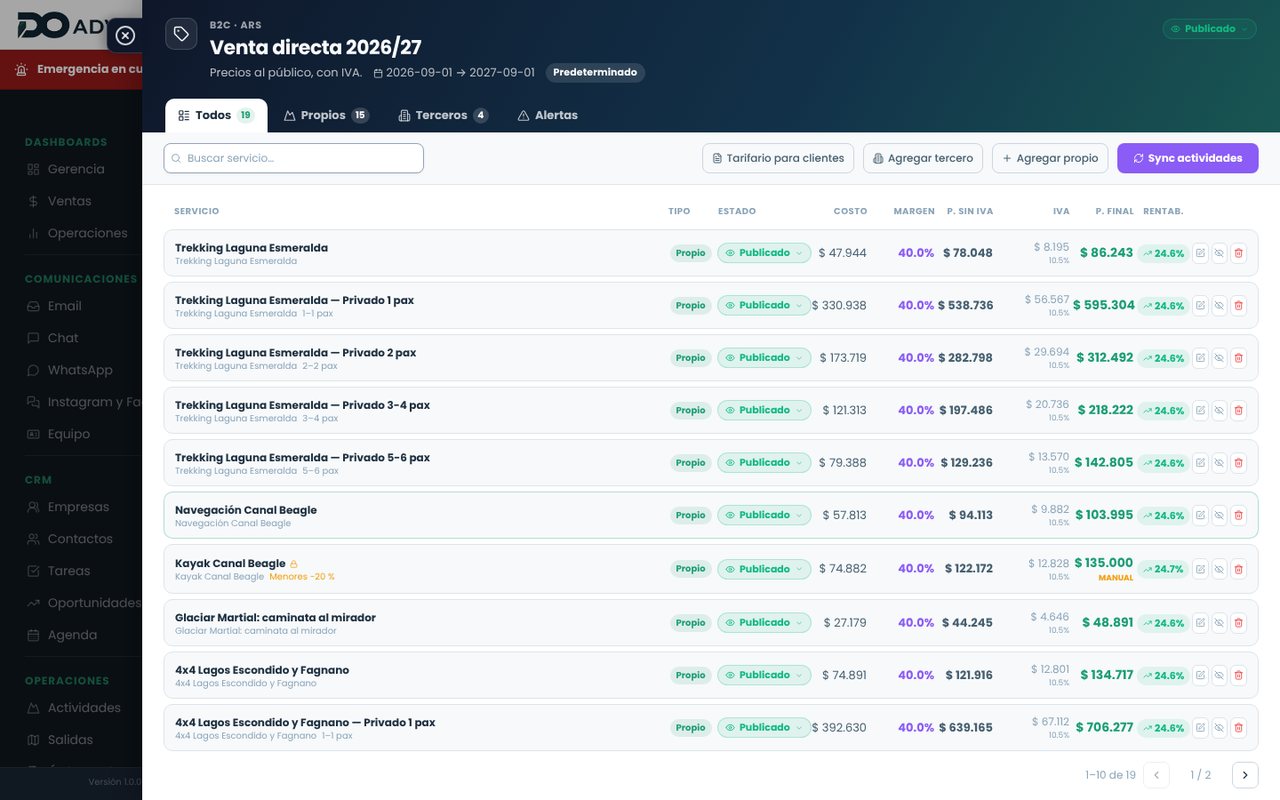
Direct sales 2026/27: the filters at the top (all, own, third-party, alerts) and the bar with Rate sheet for clients, Add third-party, Add own and Sync activities.
Each row has its status (changed from the label) and, on the right, edit, activate or deactivate, and delete. A deactivated rate isn't offered in bookings and doesn't appear in the rate sheet for clients. The padlock and the Manual label indicate a manual price.
Edit a rate
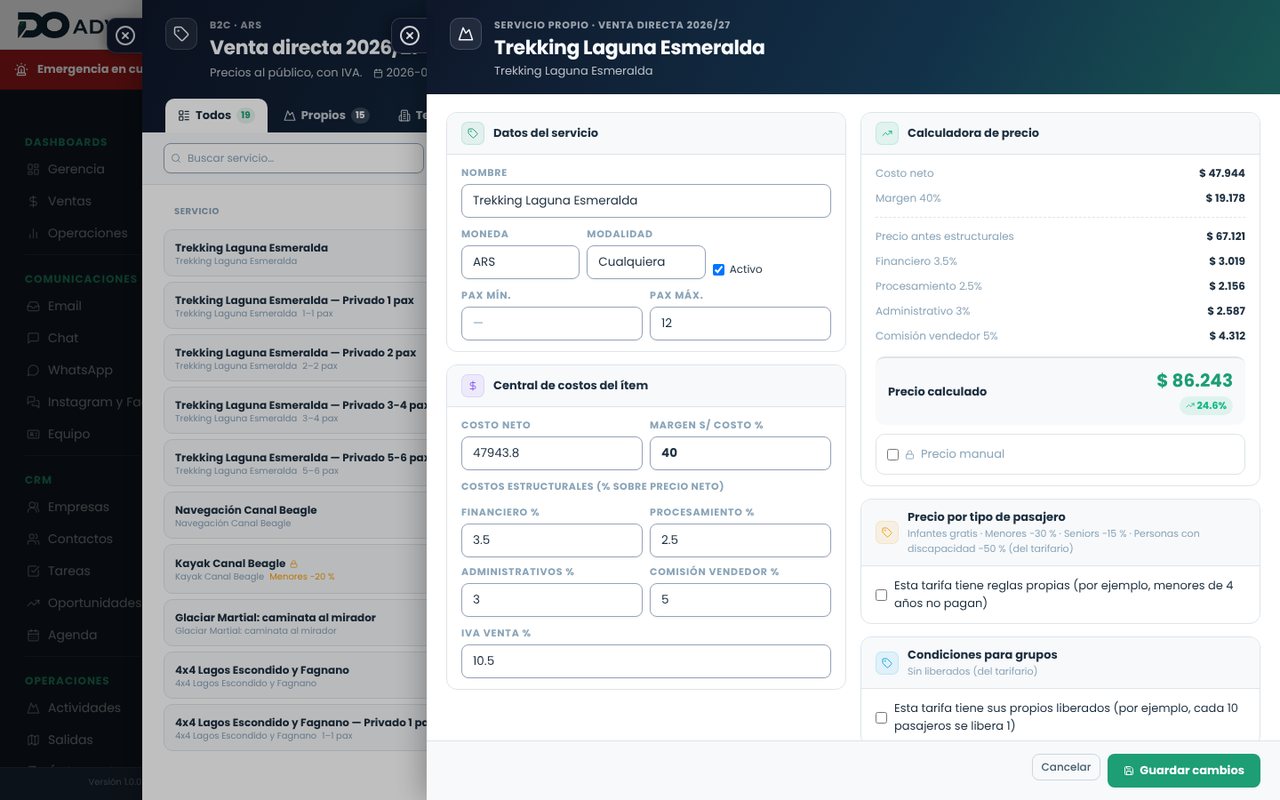
When you edit an item its panel opens: on the left, the service details (name, currency, pricing mode, minimum and maximum passengers) and the item's cost center (net cost, margin, overhead costs and VAT); on the right, the calculator, which shows step by step how the final price and profitability are reached, and recalculates as you type. Below, that rate's own passenger and free-spot rules. Third-party services also have their seasons (name, from, to, cost and price): these are what later appear in the rate sheet for clients with their validity.
The calculator: from a net cost of ARS 47,944 to a final price of ARS 86,243, with 24.6% profitability.
Manual price
If you need a round or commercial price different from the calculated one, an administrator can set it by hand. The item is marked as manual and profitability is recalculated with that price, so you can see right away whether it works for you.
General and client rate sheets
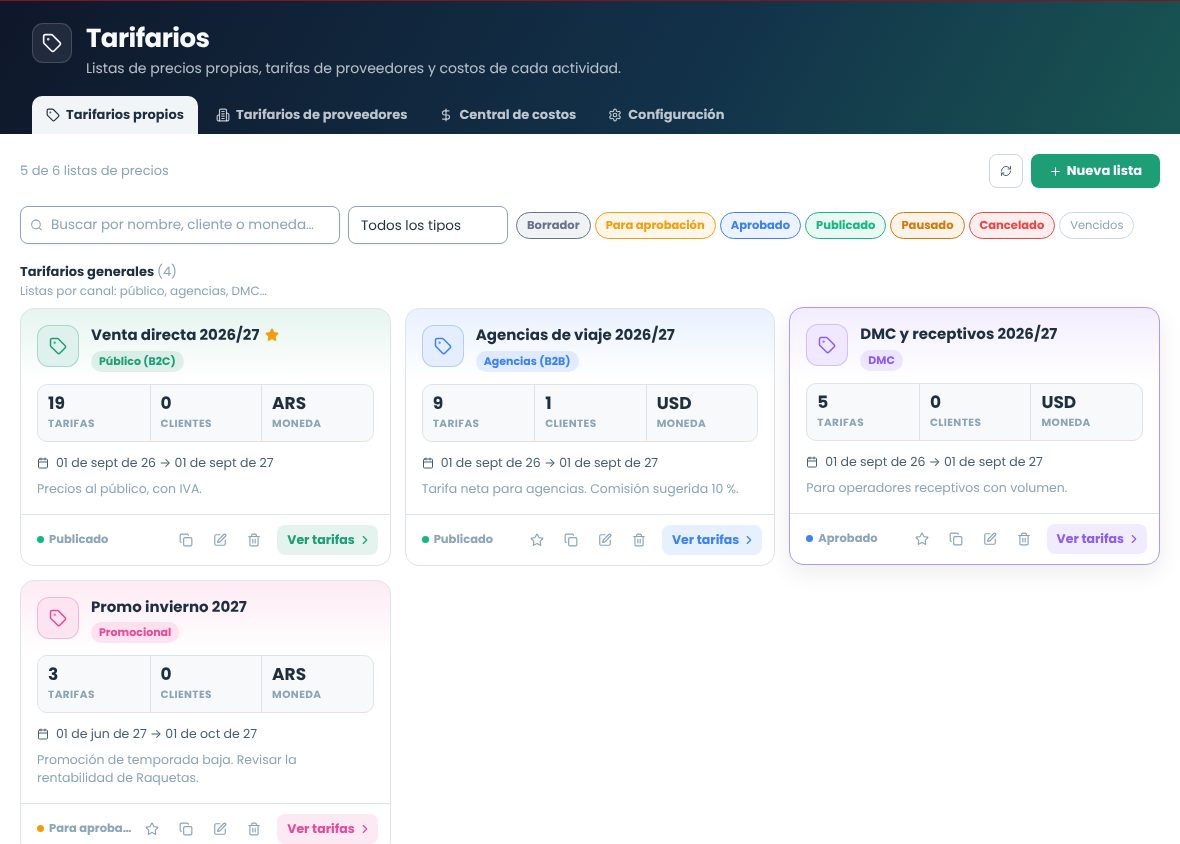
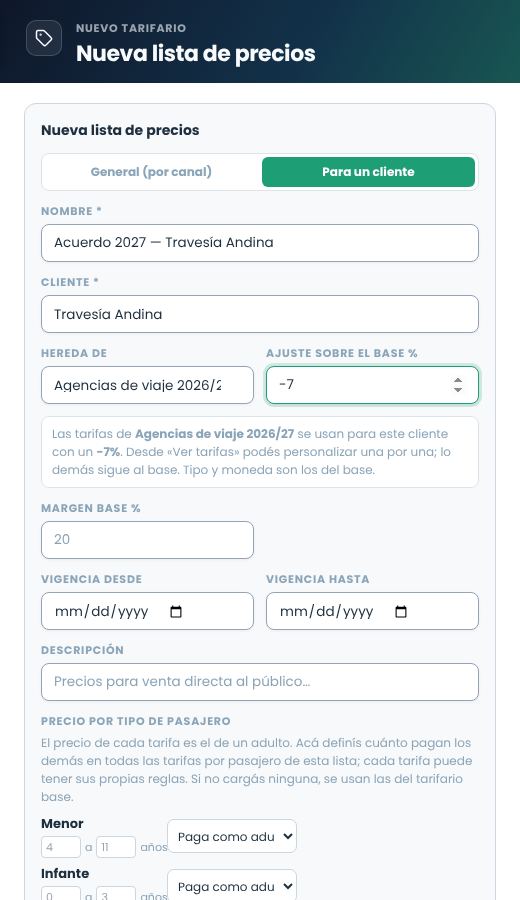
The rate sheets screen separates general rate sheets (one per channel: public, agencies, DMC…) from client rate sheets, which are prices agreed with a specific company. Each card shows the list type at the top; in the middle strip, the number of rates, how many clients inherit from it (or, for client rate sheets, how many rates inherit from the general one) and the currency; below, the validity period and, for client rate sheets, the client and which general rate sheet they inherit from with what adjustment. The footer shows the status (draft, published, expired…) and the actions: Set as default (star), New version, Edit and Delete. Clicking the card or View rates opens its rates. Each section is paginated 12 at a time.
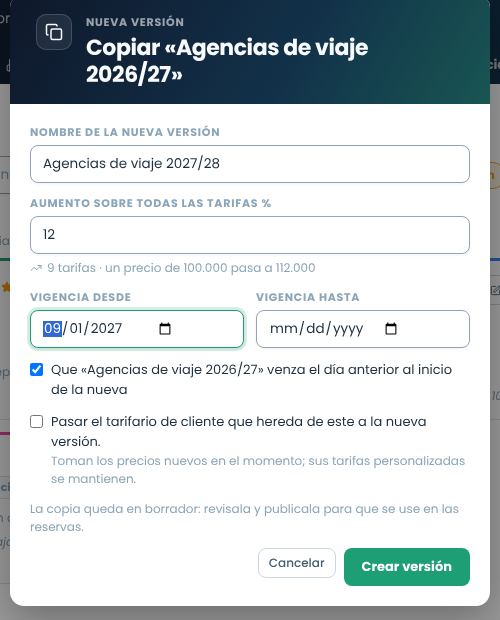
General rate sheets at the top and client rate sheets below. The copy button on each card creates a new version.
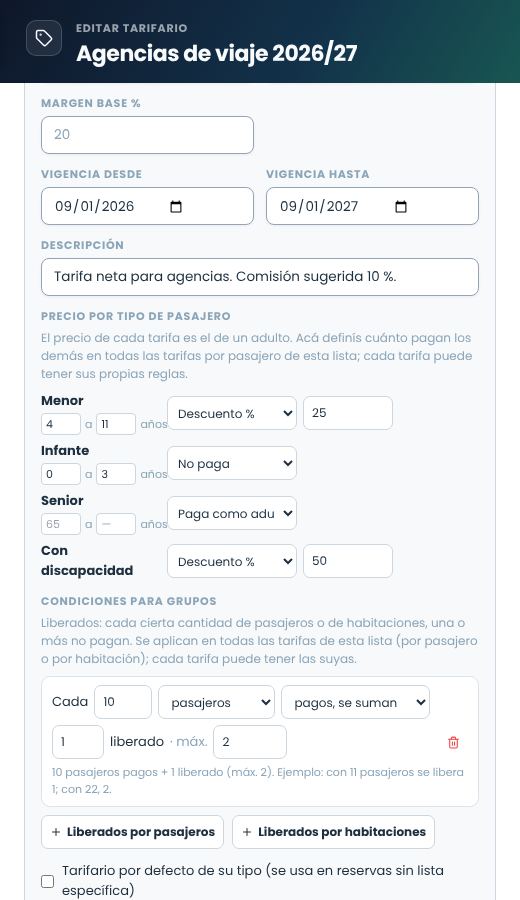
Price by passenger type
The price of each rate is the price for an adult. For children, infants, seniors and people with disabilities you define how much they pay:
Option
What it does
Example
Pays as adult
Same price as an adult.
—
Doesn't pay
Price 0.
Children under 4.
Discount %
A percentage less than the adult.
Seniors 15% less.
Fixed price
Its own amount, in the rate's currency.
Children USD 30.
The rules are entered in two places:
In the rate sheet (when creating or editing it, Price by passenger type section): they apply to all its per-passenger rates. For children, infants and seniors you can note the age range you use.
In a rate (when editing it, check This rate has its own rules): they replace the rate sheet's rules for that service only. For example, a boat trip where infants don't pay but the kayak charges everyone.
The rules only change the price of per-passenger rates. Per-service or per-night rates charge the same regardless of who travels. A client rate sheet without its own rules uses those of its base rate sheet.
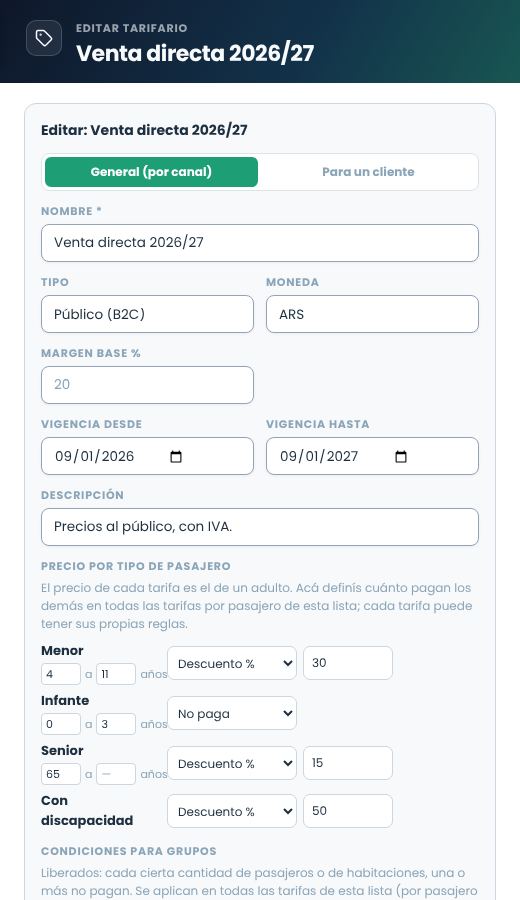
Rules of the Direct sales rate sheet: infants from 0 to 3 years don't pay; children, seniors and people with disabilities get a discount.
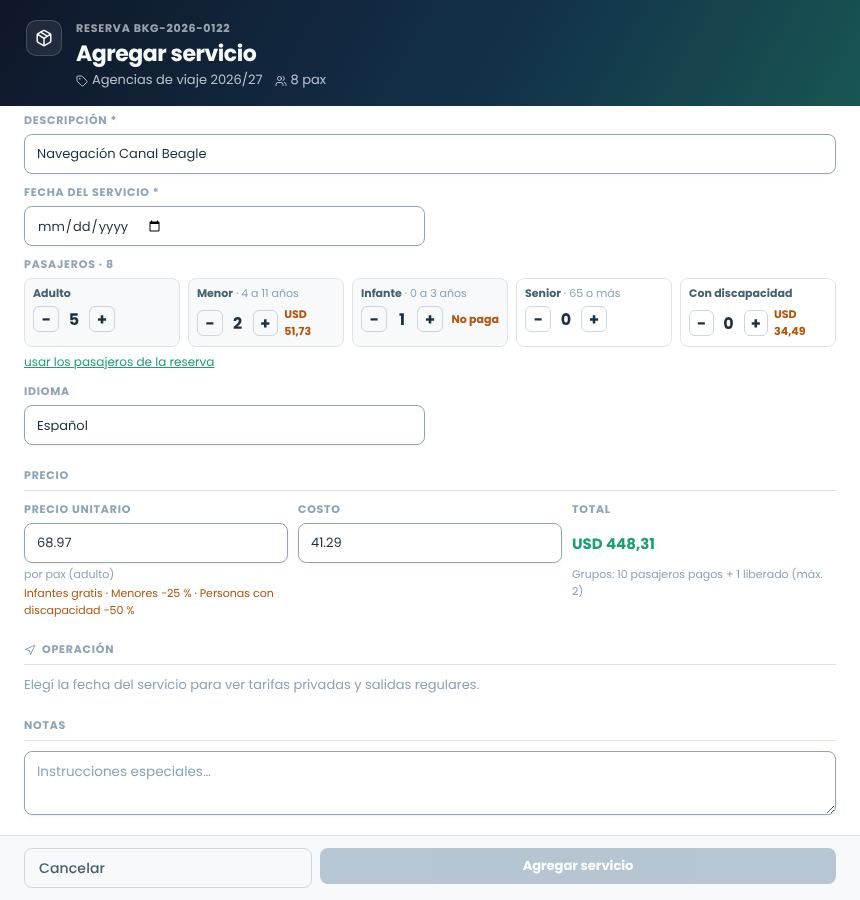
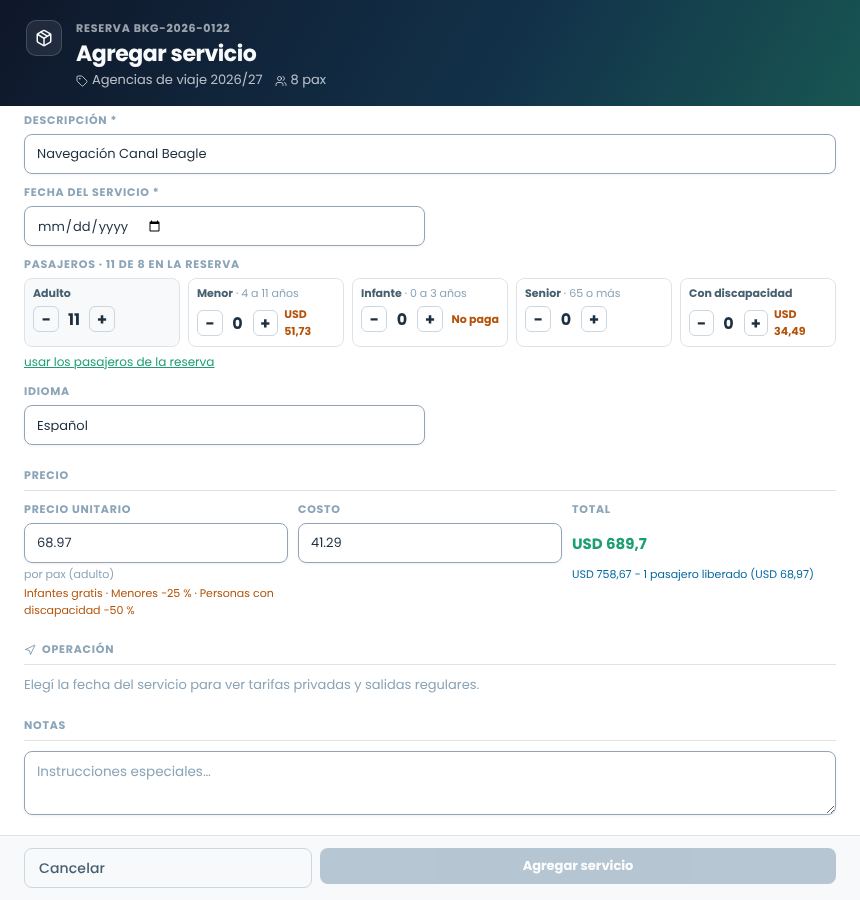
When you add a service to a booking you enter how many passengers of each type are going; the total is calculated with these rules (see Bookings).
Group conditions (free spots)
Many services give groups free spots: 1 free for every 10 passengers on an excursion, or 1 free for every 10 rooms at a hotel. A free spot doesn't pay: the price of one adult is deducted (or of one room for the nights of the stay).
Each condition has:
Field
What it indicates
Every
The quantity that earns the free spot (10).
Unit
Passengers (per-passenger rates) or rooms (per-room-per-night rates).
How it's counted
Paying, added on (10 + 1): with 11 passengers, 1 travels free; with 10, none. Out of the total (1 every 10): with 10 passengers in total, 1 of them doesn't pay.
Free spots
How many don't pay per block (usually 1).
Maximum
Cap on free spots per service. Empty means no cap.
Just like price by passenger type, conditions are entered in the rate sheet (they apply to all its rates) and a rate can have its own: for example, the hotel that gives free rooms even though the rate sheet gives free passengers. Only paying passengers count: an infant who doesn't pay doesn't count toward the free spot.
Agencies: 1 free for every 10 paying passengers, with a maximum of 2 per service.
In the booking, when you add the service, the total already deducts the free spots and the breakdown is shown (see Bookings).
Client rate sheets
When you agree on prices with a client (an agency, a DMC), create a rate sheet for them: New list › For a customer. There are two ways:
Inherits from a general rate sheet (recommended). You choose the base, for example Agencies, and optionally an adjustment: −5 means 5% less than the base on all rates. The client only stores the rates that change; everything else follows the base, so changes to the general rate sheet reach it automatically. Type and currency are those of the base.
Full. No base: you enter all of the client's rates.
New rate sheet for a client that inherits from Agencies at 7% less.
When you open it, inherited rates show the From base mark and the applied adjustment below the price. Customize copies the rate to the client so you can edit it like any other; it's marked Customized. To go back to the base price, use the undo button on that row.
Brújula Austral agreement: Laguna Esmeralda has its own price; the rest comes from Agencies at 5% less.
When the client rate sheet is published and valid, that client's bookings pick it up automatically when you choose the company. Otherwise, they use the general agencies rate sheet and the booking warns you. On the company's record (Financial tab) you can see its rate sheets.
Rate sheet for clients (PDF)
It's the document you send to agencies, operators and clients with your rates: a PDF with your logo, the rates with their season and validity, private services by number of passengers, and the conditions. No file is stored: the PDF is built every time someone opens it, with the prices at that moment.
Step by step
Open the rate sheetIn Rate sheets, tap the card and View rates. It can be a general one (Agencies) or a client one (Brújula Austral agreement).
Tap "Rate sheet for clients"In the bar, above the table.
Choose the versionCommissionable, net or mixed (see the table below).
Check the commissionThe rate sheet's commission is suggested (Agencies has 10%). Change it if the client has a different one.
Fill in the detailsPDF title, client (shown as "For …" below the title), the date until which the link is valid, whether to include the private services table, and notes for the client, which appear at the end of the conditions.
Review with "View PDF"It opens in another tab exactly as the client will see it. You can change options and view it again as many times as you like.
Create the link and send itCreate download link adds it to the list below. The envelope opens a ready-made email from the company's account, addressed to the chosen client; the copy button lets you send it by WhatsApp or another channel.
Mixed version for Brújula Austral Viajes with 10% commission. Below, the created link with its actions: copy, send by email, open, deactivate and delete.The email is sent from the company's account, with the link and the validity date. You can edit it before sending.
The three versions
Version
What it shows
When to use it
Commissionable
The public rate and, next to it, the commission % you give them.
Agencies that sell at your price and earn a commission.
Net
Only what the client pays: the rate minus the commission. It doesn't say how much the commission is.
Operators and DMCs that build their own packages and add their margin.
Mixed
Your own services (excursions, your own transfers) commissionable and third-party ones (hotels, food) net. A rate marked as commissionable in its commission model always appears as commissionable.
When you pay commission on your own services but third-party services already go at an agreed cost.
The same service in all three versions, with a 10% commission: Trekking Laguna Esmeralda appears as USD 57.21 commissionable 10% or USD 51.49 net (57.21 minus 5.72 commission). Amounts are calculated to the cent.
Commissionable: rate and commission.Net: only the net rate.Mixed: your own transfer is commissionable; the menu and the hotel, from third parties, are net.
What's in the PDF
Header with the company logo, the legal name, the CUIT (tax ID) and the contact details. Below, the title, the client, the version, the currency and the rate sheet's validity period.
Services grouped by category (excursions and activities, accommodation, transfers and services), with the unit (per person, per service, per room per night), the season and its validity. A rate with seasons appears once per season; without seasons, as "Entire validity period" with the rate sheet's dates.
Private services, in a separate table: one row per service and one column per number of passengers (1 pax, 2 pax, 3-4 pax, 5-6 pax), with the price per person. They come from the rates generated with the private rates generator.
Conditions: taxes included and subject to availability, the price for children, infants and seniors, group free spots, the commission and your notes.
Footer on every page with the company, the rate sheet, the generation date and the page number.
Only active rates with approved or published status are included. Rates that are draft, paused or deactivated don't appear. In a client rate sheet that inherits, the base rates appear with the client's adjustment applied.
First page: services with their season and validity, in the mixed version for Brújula Austral Viajes.Private services: the price per person goes down as the group grows. A dash means there's no rate for that size.
Download links
Each link keeps its configuration (version, commission, client, notes). For another version or commission, create another link: you can have several for the same rate sheet.
Since the PDF is generated when it's opened, if you change a price the client sees the new one the next time they download it. There's no need to resend it.
Links can only be created for approved or published rate sheets. If the rate sheet goes back to draft, is paused or canceled, the link shows "Rate sheet not available".
The link expires on the date indicated (by default, the end of the rate sheet's validity period). Once expired, deactivated or deleted, the client sees a notice to request an updated one.
In the list you can see how many times each link was downloaded. Deactivating it cuts it off and it can be reactivated; deleting it is permanent.
The link is publicAnyone who has it can download the PDF, without a user account. It doesn't include costs or margins, only what you see in the preview. If it was shared too widely, deactivate it and create a new one.
Update prices: one by one or a new version
There are two ways to update prices:
One by one, from View rates, editing each rate.
New version, for the next season or a general increase. On the rate sheet card, the copy button creates a copy of all the rates (with seasons and taxes) and adds the same percentage to them.
Name and increaseThe name is suggested automatically (2026/27 becomes 2027/28). The increase can be 0 to copy without changes, or negative to lower prices.
Validity periodEnter when it takes effect. If you check the option, the previous version expires the day before, so there's no overlap.
ClientsIf it's a general rate sheet with clients that inherit from it, you can move them to the new version. Note: they take the new prices immediately, even if the version starts later. Their customized rates are kept.
Review and publishThe copy stays in Draft: adjust whatever is needed one by one and publish it.
New version of Agencies with a 12% increase from September 1.
Copied rates keep a manual price and recalculated profitability. In a client rate sheet that inherits, the increase applies only to its own rates; inherited ones follow the base.
Currency exchange rates
In Rate sheets › Settings › Exchange rates (or from the company menu) you enter how much each foreign currency is worth in the company's currency, for example 1 USD = 1,400 ARS, and from what date it applies. The latest valid one is used to:
convert activity costs (which are entered in the company's currency) for rate sheets in another currency;
consolidate amounts in reports.
You can enter a future exchange rate: it stays scheduled until that date. The history is kept, and only a manager or administrator can enter or delete exchange rates.
Current exchange rates and entering a new one.
Projected inflation and dollar futures
Costs are entered at today's values, but a rate sheet is sold throughout its validity period. To keep the price from falling behind, the calculation can project the cost:
Projected annual inflation: brings costs in the company's currency forward to the midpoint of the validity period of the rate sheet, which is on average when the service is delivered. With no end date, one year is used.
Dollar futures: in a USD rate sheet for a company that works in pesos, peso costs are converted to dollars with the futures rate instead of today's rate.
Where they're entered:
The company's values, in Rate sheets › Settings › Exchange rates, next to today's exchange rates: annual inflation, dollar futures (1 USD = N of the company's currency) and the expiration of the futures contract you took as a reference.
Each rate sheet can have its own with the Projection button on its bar (for example, a winter promo with a different horizon). If left empty, it uses the company's values. The button shows the current adjustment on the cost.
The company's values, next to the exchange rates.Projection for a USD rate sheet: inflation raises the cost and dollar futures lower it.
What it applies to: your own services (their costs come from the cost center, in local currency) and third-party rates entered in the company's currency. A rate from a supplier that charges in dollars isn't adjusted. Neither is a manual price: it's kept as is.
The adjustment is included in the calculation when you create or edit a rate, when you sync activities and in the private rates generator. To recalculate the whole rate sheet after changing the values, use Save and recalculate prices. See the formula in How the price is calculated.
Lesson6 minutes · Products and pricing
Set prices with the season's inflation and dollar
Goal
Make a rate sheet's prices cover the costs at the time the service is delivered, not today's.
Before you start
Costs entered in the cost center.
The rate sheet's validity period (from and to).
Be a manager or administrator.
Enter the company's valuesIn Settings › Exchange rates, Projection for calculating rate sheet prices: the annual inflation you project and, if you sell in dollars, the dollar futures rate for the expiration you take as a reference.
Open the rate sheetOn the rate sheet's bar, Projection. Review the current adjustment: the breakdown explains how many months are projected and how much each factor weighs.
Adjust if neededIf this rate sheet has different expectations, enter its own values. If left empty, it uses the company's values.
RecalculateSave and recalculate prices. Rates without a manual price are updated.
Check profitabilityProfitability is measured against the projected cost.
ResultThe rate sheet has prices that account for inflation over its validity period and, if it's in dollars, the dollar futures rate.
If something goes wrong
The adjustment is negative: in a USD rate sheet this happens when the dollar futures rate rises more than inflation for the period: the cost in dollars goes down.
A rate didn't change: it has a manual price, or its cost is in a currency other than the company's.
Dollar futures doesn't appear: it's only used in USD rate sheets for a company that works in another currency.
Automatic changes
If you pause or cancel a rate sheet, all its rates move to the same status.
If you deactivate a supplier, its rates are canceled automatically.
If you assign a new supplier to a canceled rate, it goes back to draft so you can review it.
Lesson10 minutes · Sales
From draft to published rate sheet
Goal
Publish a new rate sheet with a manager's approval.
Before you start
Costs entered in the cost center.
A manager to approve and an administrator to publish.
Create the rate sheetName, client, type (public, agencies, DMC, wholesaler, net, promotional or internal), currency, base margin and validity period. It can inherit from another with a % adjustment.
Review the ratesEach item with its net cost, margin, overhead costs and VAT. Only an administrator can set a manual price.
Send for approvalAny role can move it to Pending approval.
ApproveA manager (or higher) approves it, or sends it back to draft.
PublishAn administrator publishes it: from then on it's used in bookings, proposals and the web catalog.
Fields
Field
What it's for
Type
Who it's sold to and how it's calculated.
Inherits from / adjustment %
To derive one rate sheet from another.
Base margin %
The default margin for the rates.
Validity period
From and until when it's valid.
Price by passenger type
Rules for children, infants, seniors.
Group conditions
Free spots and rooms.
ResultThe published rate sheet can be chosen in bookings, and its "from" price appears in the catalog if it's for the public.
If something goes wrong
You need to stop selling a rate: pause it (manager) with a reason; canceling is irreversible and only an administrator can do it.
Costs change: New version with a % increase: the copy stays in draft.
How the price is calculated
The formula the system uses, with an example. Understanding it helps you adjust margins without surprises.
The four steps
1. Base price     = cost × (1 + margin %)
2. Net price      = base price ÷ (1 − overhead costs %)
3. Final price    = net price × (1 + VAT %)
4. Profitability  = (net price − total cost) ÷ net price

   overhead costs = financial + processing + administration + sales commission
   total cost     = cost + net price × overhead costs %
If the rate sheet has projected inflation or dollar futures, before step 1 the cost is multiplied by that adjustment: projected cost = cost × (1 + inflation)^(months ÷ 12) × (today's exchange rate ÷ dollar futures). The second factor only applies to USD rate sheets.
Example
An excursion with a cost of 100,000, a 40% margin, overhead costs of 12% in total and 10.5% VAT (IVA):
Step
Calculation
Result
Base price
100,000 × 1.40
140,000
Net price
140,000 ÷ 0.88
159,091
Final price
159,091 × 1.105
175,795
Total cost
100,000 + 159,091 × 0.12
119,091
Profitability
(159,091 − 119,091) ÷ 159,091
25.1%
Why profitability is lower than the margin
The margin is applied to the cost; profitability is measured on the net price and deducts overhead costs. A 40% margin can end up as 25% profitability. If an item's profitability falls below the minimum you set, the column is shown as an alert.
Profitability is calculated without VATVAT isn't yours: you collect it and pay it to the tax authority. That's why profitability is measured on the net price and never on the final price.
Private rates generator
For private services, the price per person depends on the group size: fixed costs are split among fewer or more passengers. The generator creates all the rates at once.
Before you use it
The activity must have its cost center filled in, with fixed costs separated from per-passenger costs.
Generation modes
Mode
Generates
Example up to 8 pax
Individual
One rate for each number of passengers
1, 2, 3, 4, 5, 6, 7, 8
Ranges
One rate per range (of 2, 3 or 4 passengers)
1, 2–3, 4–5, 6–7, 8
Even
Single rate plus even numbers
1, 2, 4, 6, 8
Odd
Single rate plus odd numbers
1, 3, 5, 7
The rate for 1 passenger is always generated separately, because it's the one that absorbs the entire fixed cost.
How to use it
Open the rate sheetIn View rates, tap Add own.
Choose the activityFrom the list of activities with a cost center.
Choose passengers and modeMinimum and maximum passengers and the mode (individual, ranges, even or odd).
Review the previewFor each group size you see the total cost of the departure, the net cost per passenger, the selling price per person and the difference against the optimal capacity (the star).
GenerateThe rates are created as "Activity — Private N pax" within the rate sheet. Approve them so they appear in bookings and in the rate sheet for clients, where they're grouped in the private services table.
Kayak Canal Beagle from 1 to 12 passengers: with 1 pax the price per person is ARS 623,819; with 6 (the optimal capacity), ARS 134,700.
Prices use your rulesThe generator calculates by applying your company's cost rules. If you want different margins, adjust the rules before generating or edit each item afterward.
Suppliers
The companies that provide services to you: transportation, accommodation, restaurants, external guides, insurance.
Add a supplier
In Rate sheets › Supplier rate sheets, with the same card layout as your own rate sheets: supplier type, whether it's linked to the CRM, number of active rates, rating, destination, contact, email and phone. They're paginated 12 at a time and have a search box; a click opens the supplier's record with its rates. Each supplier
Suppliers, in cards like your own rate sheets
is linked to its CRM record (a company of the supplier type), so contact details and emails are kept in one place.
Supplier rates
Inside the supplier you enter its rates: what it charges you for each service, with currency, validity period, price unit (per service, per passenger or per night) and conditions. Those rates are the cost you then use in your sales rate sheets.
Rates have a search box and a status filter (Active, Inactive, Expired). Expired rates, the ones whose seasons have all ended, are hidden by default: turn on Expired to see them. With more than 10 rates, the list is paginated.
Accommodation details
If the supplier is an accommodation type, its record shows the Accommodation card: check-in and check-out times, category, child and cancellation policies, and amenities. Amenities are chosen by tapping each one from the list set up in Parameters › Amenities; the selected ones are highlighted. Save with Save lodging.
Selected amenities are highlighted. If one is no longer on the company's list, it's still shown so you can remove it.
Deactivate a supplier
When you deactivate it, all its rates are canceled and are no longer offered. If you later assign those services to another supplier, the rates go back to draft for review.
Content
The single place for the texts, photos and sales sheets of your experiences and destinations. They're written once, go through review and, when published, your website and your integrations read them through the API.
Optional moduleContent appears in the menu if your plan includes it and it's turned on. What you publish here doesn't change prices or availability: those still come from Rate sheets and Operations.
The workflow
Experience›Review›Published›Translations›Website and OTAs›Inquiries›Proposal›Booking
Content organizes the sales side of your product: you write the sheet for each experience and destination, someone with permission reviews it and, once published, it's read by your website (with the embeddable catalog or the API) and your integrations. Inquiries coming from the website go into the CRM; from there you build itineraries and proposals, and the accepted proposal becomes a booking. Analytics measures the whole journey.
Who changed what; languages, categories, tags and proposal appearance.
—
Overview
The first tab is the starting point of the day: active content, what's waiting for review, what's incomplete, what's published and pending translations; active channels, web inquiries from the last 30 days and integration listings; proposals created, sent and accepted, with the proposals to follow up (accepted but not converted, open, or with change requests). Below, the table by type and status, published experiences with no valid rate or no linked activity, media storage and API usage. Clicking any row opens the content.
One experience waiting for review, 15 pending translations and three proposals to follow up.
Content types
Type
What for
Experience
Something you sell: an excursion, activity or package. It has a fact sheet (duration, difficulty, capacity, minimum age), what's included, itinerary, safety, policies, FAQs and variants.
Destination
A place that groups experiences, with country, region, coordinates, best time to go, weather, how to get there and tips.
Article
A post or guide for the blog or the website.
Reusable block
A text used by several experiences, such as the cancellation policy. If you change it, it changes in all of them.
Experiences, destinations and media
How a sales sheet is created, what goes in each section, how it's reviewed and published, and how photos are handled.
Create an experience
New content asks for the type and a title, or, for experiences, From an activity: it brings in the name, description, duration, difficulty, capacity, minimum age and equipment from the Operations activity and keeps it linked. Experiences also shows the activities that don't have a sales sheet yet, so you can create one with a click.
An activity without a sales sheet (the transfer) and experiences in all their statuses, with their completeness.
Destinations
The Destinations tab shows each place with its cover, status and completeness, and how many experiences it has. An experience is linked to its destination from the editor's classification.
Five destinations: four published and one in draft.
Edit
The editor opens on the side, with one tab per section. On the right, the status and completeness: what's marked in red is required to approve and publish; what's gray is recommended. Each Save creates a new version.
An experience in review at 84%: on the right, what's still worth completing.
Titles: the internal one is seen only by the team; the commercial one, by clients. The slug is the last part of the URL.
Full description: with headings, bold, lists and links. When you save, scripts, styles and any pasted code are removed.
Lists (what's included, itinerary, questions): items are added with Enter and reordered with the arrows.
Policies: choose a reusable block or write your own. In the API the block only appears if it's published.
Media: the cover and gallery are chosen from the file library; the gallery order is the one that gets published.
Price: it isn't entered here. It shows the lowest selling price of the activity in published and valid B2C rate sheets.
Versions: each version can be viewed and, with the content in draft, restored (it's saved as a new version).
What's included, what's not, and the recommended equipment.The price comes from Rate sheets.
Review and publishing
DraftIt's created and edited.
In reviewWhoever wrote it sends it for review. If it needs corrections, it's sent back to draft with a note.
ApprovedA manager or administrator approves it. It has to be complete.
PublishedYour website and integrations can see it. Only someone who can publish can edit it, and it can't be saved if it ends up incomplete.
ArchivedIt's removed from the API without being deleted. It can be recovered as a draft.
If something required is missing, the system won't let you approve or publish and tells you what's missing.
The full description, the cover and the difficulty are missing.
Library
All content in one table, with search and filters by type, status, category and tag. By selecting several you can change the status, category or tags of all of them at once, or delete them; the result is reported for each one (for example, published items aren't deleted).
Experiences, destinations, articles and blocks with their status, completeness and category.
Categories and tags are managed in Settings; tags can also be created from the editor.
Media
Drag photos, PDFs or videos (MP4 or WebM) or tap Upload files. Images are resized automatically before uploading. You can also add YouTube or Vimeo videos by their link.
The demo illustrations, all in use.
Limits: images up to 12 MB, PDFs up to 20 MB and videos up to 60 MB. Total storage depends on the plan.
Files are accepted based on what they really are, not their extension: a file disguised as an image is rejected.
Fill in the alt text (it describes the image for search engines and screen readers) and the photographer's credits.
A file in use can't be deleted: the details show where it's used.
Outside the system, only files used by something published can be seen. When it's unpublished, they stop being visible within a few minutes.
When the account uses Cloudflare R2 (the storage bar shows it), images of published items are delivered through the Cloudflare network, faster from anywhere, and everything else through a link that expires after a few minutes and only for people with permission. The same applies to email attachments and WhatsApp files.
Lesson15 minutes · Content
Create and publish an experience
Goal
Give an Operations activity its sales sheet published on your website.
Before you start
The activity set up in Operations, with a valid public rate.
Photos of the experience.
To publish: permission to approve and publish (or someone who has it).
Create it from the activityIn Experiences, tap the activity in the box of activities without a sheet, or New content › From an activity. It brings in the name, description, duration, difficulty, capacity, minimum age and equipment.
Fill in GeneralCommercial title, slug, category, destination, tags and both descriptions (short for cards, full for the sheet).
Go through the tabsForm, Includes, Distance, Safety and policies, Questions, Media (cover and at least three images) and SEO. Save often: each save is a version.
Check completenessOn the right: red is required to approve; gray, recommended. Check in Price that the public rate shows up.
Send it for reviewWith Send for review. It moves to In review and adds to the Library counter.
Approve and publish itThe reviewer uses Approve (or Return to draft with a note) and then Publish.
What's missing before it can be approved.
Fields
Field
What it's for
Internal / commercial title
The internal one is seen by the team; the commercial one, by clients.
Slug
The last part of the URL. Lowercase letters, numbers and hyphens.
Category, destination and tags
They organize the catalog and its filters.
Short description
Up to 600 characters, for cards and listings.
Full description
With headings, lists and links; pasted code is cleaned out.
Policies
A reusable block (for example, standard cancellation) or your own.
Media
Cover and gallery, with alt text.
ResultThe experience is Published: it's visible in your channels' catalog, the API and the integrations that include it.
If something goes wrong
Approve is disabled: something required is missing; the list on the right says what.
It doesn't show on the website: check that the channel publishes it (All published or Selected) and that the language is translated.
I need to fix something published: edit it with publishing permission; if the change is big, unpublish it, fix it and publish it again.
Languages and translations
Each piece of content is published in the languages you choose; each translation has its own review and stays up to date with the original.
Languages and translations
In Settings you choose which languages you publish in (Spanish, English, Portuguese, French, German or Italian). Each piece of content is translated into each language separately, and each translation has its own review and approval.
English: 10 of 15 items published; Portuguese: 5 of 15.
The Languages tab shows each piece of content with its status in each language: not translated, draft, in review, published or outdated (the original changed after approval). One click opens the translation; you can also get there from the Languages tab in the content editor.
Original and translation side by side: not translated yet.
TranslateBy hand, field by field, or with Translate with AI. The AI translates what is missing or changed and leaves a draft.
Send for reviewThe translator sends it for review.
Approve and publishA manager or administrator approves it (or sends it back with a note). It has to be complete and up to date.
If the original changes later, the affected fields show "the original changed". You translate them again or, if the translation is still valid, mark them with The translation still applies. In the meantime, your site keeps showing the last approved version. Only what's missing or changed leaves only what is pending in view.
A draft with 2 of 7 fields translated.
Operational data (difficulty, capacity, coordinates, addresses) is not translated, and neither are the reusable blocks inside each experience: the block is translated once and applies to all of them.
Every save, AI translation and approval is kept as a version, with its author. You can view any version and load its texts again.
To stop showing a language without deleting the translation, use the withdraw button (the crossed-out eye).
AI translation
It is turned on in Settings › Languages and AI translation, by choosing the provider and the model. The available providers depend on how the system is installed. The AI keeps place names, numbers and formatting, but it never publishes: what it translates stays as a draft for a person to review. In the Languages tab you can select several items and translate them together into one language. There is a daily character limit per company.
Spanish, English and Portuguese; AI translation still turned off.Lesson10 minutes · Content
Translate an experience
Goal
Publish in English or Portuguese an experience that is already published in Spanish.
Before you start
The language enabled in Settings.
The experience published in the original language.
Open the translationIn Languages, find the content and tap the cell for the language (Not translated).
TranslateField by field to the right of the original, or with Translate with AI if it is turned on. The AI leaves a draft.
Review what is pendingOnly what's missing or changed leaves in view what is not translated yet.
Send for reviewWith Send for review.
ApproveA manager or administrator approves it with Approve or sends it back with a note.
Fields
Field
What it is for
Text fields
Title, descriptions, lists, questions, custom policies and SEO texts.
Not translated
Operational data (difficulty, capacity, coordinates) and reusable blocks: the block is translated once.
ResultThe site and the API return the experience in that language (with ?idioma=en or pt). If the original changes later, the translation becomes outdated and the site keeps showing the last approved one.
If something goes wrong
The language does not appear: enable it in Settings › Languages.
Translate with AI is not there: turn it on in Settings › Languages and AI translation.
Itinerary templates and proposals
Base trips, day by day, with price and margin calculated from Rate sheets; and the tailored proposal the customer receives, with its acceptance and its conversion into a booking.
The sales flow
What
What for
Linked to
Itinerary template
A reusable base trip (for example "Ushuaia esencial 4 días"): days, services, prices and margin.
Nothing: it is the starting point for proposals.
Proposal
What a customer receives: a copy of the template adjusted for them (their days and prices), with an introduction, terms, link, PDF and versions.
The CRM customer (opportunity, contact or company) and, once they accept it, the booking.
Booking
What was sold: passengers, services, payments and invoice. When you confirm it, the departures are created in Operations.
The proposal it came from (From proposal PR-… in its header).
CRM opportunity → proposal (from a template) → the customer accepts → booking → Operations and Invoicing. Bookings that do not go through a proposal are entered directly in Bookings.
Itinerary templates
In Content › Itinerary templates you build base trips day by day with activities, accommodation, meals, transfers, free time and recommendations. Price, cost and margin are calculated automatically from the rates in Rate sheets.
The list has two views: Templates (the bases for building proposals) and From proposals, with the days and prices of each proposal, its code, its status and the customer. Tapping one of these opens its proposal: they are edited from there.
The itinerary templates, with their days, passengers, total and margin.
CreateNew template from scratch or by copying another one. You can also duplicate it from the open template.
Build the daysTitle, destination, description, photos and documents for each day. Days and services are moved by dragging them (or with the arrows), and can be duplicated and removed.
Add servicesFrom the catalog (a rate from Rate sheets), from the library (an experience with its activity's rate) or custom.
Enter the passengersAdults, minors, infants, seniors and rooms: the total applies the rules by passenger type and the rate sheet's group comps, just like in a booking.
Review and mark as readyYou cannot mark it as ready if any service has no price.
The Costa family's itinerary: days with their services; on the right, passengers, rate sheet and totals with the margin.Searching the Rate sheets catalog.
Charging: per passenger, per service (group price), per passenger per night, per room per night, or free of charge. A service can be optional: it is shown with its price but does not add to the total.
Prices: they are locked in when you add the service. Update prices reads them again from Rate sheets, except the ones you changed by hand. In Prices from you choose the rate sheet they come from.
Totals: per currency (they are not converted), price per person and an adjustment (surcharge or discount) on the sale. With the "View prices and costs" permission you also see the cost and the margin (sale excluding VAT (IVA) minus cost), and an alert if something is sold below cost.
Versions: every save is kept as a version; any of them can be viewed and restored.
The customer view: no costs, suppliers or internal notes.
The Customer view shows the days as the customer will see them: without costs, without suppliers and without internal notes.
Sales proposals
In Content › Proposals you build the proposal for a customer from an itinerary template, send it with a private link and its PDF, and see when they open it and what they reply. Everything is kept in the CRM opportunity.
Seven proposals, one in each status: draft, viewed, changes requested, accepted, converted into a booking, declined and expired.
CreateNew proposal: you choose the itinerary template (or the days of another proposal) and the customer (an opportunity, a contact or a company from the CRM). A copy is made: whatever you change in the proposal does not affect the template.
AdjustTitle, introduction, terms and expiration date. Edit days and prices opens the proposal's days, with the same editor as templates. If they are useful for other customers, Save as template creates a new template. The Customer view shows how they will see it.
SendBy email (with the link and the PDF attached, from the company's email account) or by copying the link to send it via WhatsApp or another channel.
Follow upYou see when they opened it, whether they requested changes, and whether they accepted or declined it. When they accept it, Convert into booking creates the booking as a draft.
The customer requested changes: the request at the top, the notice that there are unsent changes, and the itinerary with its total and margin on the right.Send by email or copy the link.
What the customer sees
The link opens a page with your company's logo and color: the cover, the introduction, the trip day by day, the total price (and per person) and the terms. It looks good on a phone.
Each activity shows the card of its published experience from the Hub, whether you added it from the library or from Rate sheets (in that case, the one for the rate's activity), and the optional ones too. The card includes up to three photos, the summary, the difficulty, the minimum age and the meeting point, and See activity details expands the description, the route, what is and is not included, what to bring and the requirements. The texts appear in the itinerary's language if the translation is published. The PDF (the one downloaded from the link and the one attached to the email) includes the photos, the summary, the details, what is included and what to bring. If the service has its own photos in the itinerary (the service's Photos button), those are shown. Services that were sent without a card show it as soon as one is published; cards already sent do not change.
Accommodation shows the hotel details entered in Rate sheets: name, summary, check-in and check-out, address, amenities, what is and is not included, and See accommodation details. Hotel photos are added with the service's Photos button in the itinerary. The hotel name is the only supplier the customer sees.
From there they can accept (with their name, email and, if they want, ID document), request changes or decline, and download the PDF. They never see costs, suppliers or internal notes.
The activity card within the day, with the details expanded.The proposal as the customer sees it, with Accept, Request changes and Decline.The acceptance is recorded.
Versions, expiration and acceptance
Versions: each send freezes what the customer sees, including the activity cards: if you later change the experience in the Hub, the sent proposal does not change. If you change something afterwards, "There are changes the customer cannot see yet" appears and, when you resend, a new version is created. Earlier versions do not change and can be viewed and downloaded.
Expiration: once the date passes, the proposal becomes expired and the customer can no longer accept it. With Reopen you update it and resend it.
Acceptance: the name, email, ID document, date, IP and fingerprint of the accepted version are recorded. If the customer accepts by phone or in person, use Record response. The itinerary of an accepted proposal can no longer be modified.
Link:New link generates another one and the previous one stops working. Your own visits to the link do not count as views.
Booking:Convert into booking creates a draft booking with the customer, the passengers, the dates and the services with their price and cost, exactly as they were accepted. Optional services are not carried over.
From proposal to booking and to Operations
The customer acceptsThe proposal becomes Accepted and the salesperson is notified. If it has an opportunity, it is logged in its activity.
Convert into bookingRequires the "Create bookings" permission. It creates the booking as a Draft (code BKG-…, Proposal channel) with the contact as lead passenger, the passengers by type, the dates and one service for each priced item, from the accepted version. Each service carries its date, time, rate, supplier, cost and VAT (IVA), and the booking note says which proposal and version it comes from. The proposal becomes Converted into booking and shows the code; in the booking header, From proposal PR-… takes you back to the proposal.
Own servicesIf the service's rate is your own (or the supplier is the company), the service is marked as your own and linked to its activity in Operations; if it has no rate, the activity comes from the Hub experience. Activities carry the experience's meeting point.
Confirm the bookingWhile it is a draft, nothing is created in Operations. When you confirm it, each own service with an activity and a date generates its departure, just like a booking entered by hand (see Bookings). Anything that is not your own stays pending confirmation with the supplier.
Currencies are not mixedThe booking total is the one in the proposal's main currency. If there were services in another currency, they are still entered and listed in the internal notes.
Accepted by the customer: at the top, who accepted, when and the version's fingerprint; at the top right, Convert into booking.The tracking, with the acceptance record at the top.
Appearance
In Content › Settings › Proposals you choose the main color, the default validity, the introduction and terms each proposal starts with, the email signature and the footer. Changes apply to the next versions you send.
Your company's color and default texts.
Sending by emailYou need an email account set up in Email. If there is none, copy the link and mark the proposal as sent.
Lesson20 minutes · Content and Sales
From the customer's request to the booking
Goal
Answer an enquiry with a tailored proposal, send it, follow it up and convert it into a booking when the customer accepts it.
Before you start
The enquiry as an opportunity in the CRM.
Published rate sheets with the trip's services.
An email account set up (or send the link via WhatsApp).
Choose the templateIn Itinerary templates, review the base (for example "Ushuaia esencial 4 días") or create a new one.
Create the proposalIn Proposals › New proposal, choose the template and the customer's opportunity. The template is copied.
Adjust days and pricesWith Edit days and prices: passengers by type, catalog services, optional services and the adjustment on the sale. Check the margin.
Review the customer viewCustomer view shows the page without costs or internal notes.
SendBy email with the PDF attached, or copy the Link. It becomes Sent.
Follow the responseTracking shows every time it is opened. If they request changes, edit it and Resend: version 2 is created.
ConvertWhen they accept it, Convert into booking creates the draft booking with passengers, dates and services. When you confirm it, Operations generates the departures for your own activities.
Fields
Field
What it is for
Customer
Opportunity, contact or company from the CRM; the tracking is kept in the opportunity.
Introduction
The first thing the customer reads.
Terms
What is included, payment method, cancellation.
Valid until
After that date it expires and cannot be accepted.
Passengers
Adults, minors, infants, seniors and rooms: the total applies the rate sheet's rules.
Adjustment on the sale
Surcharge or discount in %.
ResultThe draft booking has the services with their price and cost exactly as they were accepted, and the opportunity records the whole journey.
If something goes wrong
I cannot mark the template as ready: there is a service without a price: check that the rate sheet has a rate for that date.
The customer cannot accept: the proposal expired: Reopen, update the date and resend.
They accepted by phone: use Record response.
Your website: channels, API and webhooks
How your published content is shown on your site: with the embeddable catalog, with the API for a custom site, and with webhooks to hear about every change.
Publishing channels
In Content › Channels each channel is one of your websites. You choose what it shows, in which languages and currency, whether it shows prices and how people contact you. Then you connect it to the site with the embeddable catalog or with the API.
A channel's settings.
What it publishes: experiences, destinations or both. Everything published (new items appear automatically) or Selected (you build the list, order it and feature the ones that go first).
Languages and currency: the languages are the ones enabled in Settings; anything not translated is shown in the original language. The "from" price comes from the public rates in the channel's currency.
Call to action: an enquiry form (it goes into the CRM), a link to your site (with {slug} and {idioma}) or none.
Domains: the catalog can only be shown on the sites you enter here.
Paused: that channel's catalog and API stop showing content.
Review before publishing
The What it publishes tab checks each piece of content. It tells you whether it is shown or not and why (for example, because it is not published) and flags what is worth completing: translations, rates in the channel's currency and optional card details. With Preview you see the catalog as it looks on your site, in each language.
What is shown and what is worth completing.
Connect your site
Embeddable catalogIn Connect the site, copy the code and paste it into your page. It shows the experiences with their price and the enquiry button, and adapts to phones.
APIFor a custom site, create in API a credential tied to the channel: it only sees what the channel publishes. With the "Send enquiries" permission, your site can also send enquiries.
The catalog code and the channel's API.The catalog on your site, with the enquiry form.
Each enquiry is kept in the channel's Enquiries tab and in the CRM, as a contact (or the existing one with that email or phone) and an open opportunity with source WEB. Since the details are typed by the person making the enquiry, they are shown as "unverified". If someone resubmits the form by mistake, the enquiry is not duplicated.
API for your website
In Content › API an administrator creates a credential for each site or system that will read your content. You choose what it can see:
Permission
What it adds
contenidos:leer
Published experiences, destinations and media.
tarifas:leer
The "from" selling price. Never costs or margins.
disponibilidad:leer
Upcoming departures with available spots.
The key is shown only once: copy it and store it in your site's configuration. If it is lost or leaked, revoke it and create another one. Each credential has a limit of calls per minute and shows its usage over the last 30 days.
The booking site's credential, with its permissions, limit and usage over the last 30 days.
The API only returns what is publishedDrafts, content in review, unused files and internal data (costs, customers, users) never go out through the API.
For whoever develops the site: the full specification is in OpenAPI specification (OpenAPI 3.1). Calls use the Authorization: Bearer header with the key. With ?idioma=en (or the relevant language) you receive the translated and approved texts; anything not translated comes in the original language.
Webhooks
A webhook notifies your site or another system when something changes: a piece of content is published, modified or withdrawn, a translation is published, a channel changes or an enquiry comes in. It is useful, for example, so your site can refresh its cache instantly. They are set up in Content › API and require being an administrator.
Each webhook with its deliveries and how to verify the signature.
Secret: it is shown only once when you create it. Your system uses it to verify the signature of each delivery. If you lose it, generate a new one.
Test: sends a test event and shows you the response.
Retries: if your system does not respond correctly, it retries automatically for almost two days. The Deliveries log shows each attempt with the response and lets you retry by hand.
Automatic pause: if five events in a row cannot be delivered, the webhook is paused and a notice appears in the Overview. Reactivate it when your system responds again.
Single channel only: you can tie it to a channel to receive only what that channel shows.
The delivery log.
SecurityWebhooks only go to public https addresses: they cannot point to the server's internal network. Events carry the minimum (which content changed and its link), never costs or personal data.
Lesson10 minutes · Content
Publish the catalog on your site
Goal
Show your experiences on your site with their price and an enquiry form that goes into the CRM.
Before you start
Published experiences.
Access to paste code into your site (or to the person who manages it).
Create the channelIn Channels › New channel: name, what it publishes, languages, currency, "from" price and call to action.
Enter the domainIn Site domains, your website's address (for example https://www.misitio.com). Without this, the catalog is not shown.
Review what it publishesThe What it publishes tab tells you what is shown and what is worth completing. Preview shows it in each language.
Copy the codeIn Connect the site, copy the code and paste it into your page.
Test an enquiryFrom your site, send an enquiry: it appears in the channel's Enquiries tab and as a WEB opportunity in the CRM.
Fields
Field
What it is for
What it publishes
Experiences, destinations or both; everything published or an ordered selection.
Languages and default language
Anything not translated is shown in the original.
Currency and prices
The "from" price from the public rates in that currency.
Call to action
Enquiry form, link to your site or none.
Color, theme and columns
How the catalog looks.
Domains
Where it can be shown.
ResultThe catalog appears on your site, counts visits and clicks for analytics, and every enquiry goes into the CRM.
If something goes wrong
The catalog does not appear: check the domain and that the channel is Active.
An experience is not shown: the What it publishes tab tells you why (not published, not translated, no rate in the currency).
Integrations
Distribute your experiences through online agencies and on your own site (WooCommerce, Shopify, PrestaShop or WordPress) from a single source, with their rate, availability and policies.
OTA integrations
In Content › Integrations you distribute your catalog through online agencies and on your own site from a single source. Online travel agencies (OTAs) are in one group and stores and CMS in another (see Stores and CMS). Each integration has its own settings and publishes the experiences you choose, with a channel identifier for each one.
Online travel agencies connect through RezdyWith a single connection, Rezdy (RezdyConnect) takes your experiences to its network of resellers and OTAs. Rezdy reads the products, prices and availability, and sends the bookings: they come in confirmed, with the agreed commission and the passengers on the departure manifest. To test the flow without connecting anything there is the OTA Simulator, marked as a test on every screen.
Connecting Rezdy
Ask Rezdy to enable RezdyConnect. Rezdy certifies the connection in its test environment before you sell.
Create the Rezdy (RezdyConnect) integration in your Rezdy account's currency. Choose the experiences and publish them.
In the Bookings tab set the commission, cancellation window and lead time, mark which experiences are for sale and generate the channel key.
In Rezdy enter the channel address and the key as the apiKey. Each product is mapped by its internal code: the identifier shown on its listing.
Enter in the integration the Rezdy API key that Rezdy gives you when activating RezdyConnect, and choose the environment (test while it certifies). With it DO Adventure notifies Rezdy of every product, price or availability change.
The price options in Rezdy are Adult, Child, Infant, Senior and Disabled, with the public rate for each passenger type. Rezdy holds last at least 60 minutes, and times use the Rezdy profile's time zone, which must be your company's.
Your integrations and the connectors.
Settings for each channel
The integration's languages, rate and availability.
Languages: the ones enabled in the company that the channel accepts. Anything not translated is not sent in that language.
Rate: the "from" price from the public rates, in the currency you choose, with an adjustment in % (for example, to cover the channel's commission). Costs and margins are never sent.
Availability: departures with available spots over the number of upcoming days you set.
Policies and terms: the channel's cancellation policy is used when the experience does not have its own; the terms (confirmation, commission, payments) are sent with each product.
Automatic sync: when a published experience or a translation changes, it is updated automatically on the channel; prices and availability are refreshed every 6 hours.
Mappings: in the Mappings tab you assign a channel category to each Hub category.
Publish, update and withdraw
Add contentIn Listings, choose the published experiences you want to distribute. They start out unpublished.
ReviewEach one shows whether it meets the engine's rules and the channel's (mapped category, rate in the currency, cancellation policy, photos, text length) and what is missing.
PublishWith Publish (or by selecting several) it is sent to the channel and its identifier is stored. If something changes in the Hub later, it shows "needs updating" until you update it (or it updates automatically with automatic sync).
WithdrawWith Withdraw it is no longer for sale on the channel. If you unpublish the experience in the Hub, it is withdrawn automatically from all channels.
What is published on the channel and what is missing to publish the rest.With the eye icon you see exactly what the channel received.
Bookings from the channel
Activity OTAs do not keep a copy of the catalog: they ask DO Adventure whether there are spots, hold the inventory while the traveler pays, and then confirm or cancel. The integration's Bookings tab is where you set all of that up.
Commercial terms, channel access and products for sale.
Commercial termsEnter what you negotiated with the OTA: commission (%), how long a hold lasts, how many hours in advance a booking can be made, and up to how many hours before the departure it can be canceled. Optionally, a cap on spots per departure for the whole channel.
Channel keyWith Generate key you get the secret key that you give the OTA along with the channel URL. It is shown only once: if it is lost, it is rotated and the previous one stops working.
What is soldMark which published experiences are sold through the channel and, if you want, a cap on spots per departure for each one. They have to be linked to an activity in Operations, because its departures are what is sold.
Enable salesWith the key generated, check Enable sales through this channel and save. Until then the channel cannot hold or book.
Shared inventory: the channel sees the same available spots as direct sales, minus the active holds from all channels. If you set a cap, the channel does not sell more than that number per departure. Two channels never sell the same spot.
Holds: if the OTA does not confirm in time, the hold expires automatically and the spot is released.
Price: the activity's public rate, by passenger type, with the channel adjustment. The commission is deducted from the gross amount and the net amount is stored.
Confirmation: creates the booking in Bookings as confirmed, with the OTA channel, and adds the passengers to the departure manifest. It is logged in the audit trail.
Modification: within the same window as cancellation, the OTA can move the booking to another departure of the same experience or change the passengers, if there are spots. The price is recalculated with the current rate and the commission is the one agreed in the booking.
Cancellation by the channel: within the agreed window, the OTA cancels and the spots are released. Outside the window it is rejected and is resolved from Bookings.
Cancellation from Bookings: if the company cancels or deletes a booking that came from a channel, only its passengers are removed from the departure (which goes ahead for the others) and the channel is notified. The notification is kept in Tasks; if it fails, it is retried from there. A canceled channel booking cannot be reactivated: the channel has to book again.
What the channel changes: the departure, date and passengers of a channel booking cannot be edited from Bookings; notes and internal data can.
Availability notifications: every hold, confirmation or cancellation sends the new inventory to the channels that sell that activity.
Channel bookings: the table shows each hold and booking with its status, the gross amount, the commission and the net amount, and the link to the booking. At the top, the total per currency.
SimulatorIn the test integration, the simulator makes exactly the requests an OTA would make (check, hold, confirm, modify and cancel) and shows the request and the response. The bookings it creates are real in your account: cancel them from the simulator itself when you finish testing.
Settlements with the channel
The channel charges the traveler and pays the company the amount net of its commission. The integration's Settlements tab is the running account with that channel, by currency:
Completed but unsettled, settled and receivable, collected, and still to be completed.
Completed but unsettled: confirmed bookings whose departures have already taken place and are not in any settlement yet.
Settled and receivable and Collected: the sum of the settlements issued and of the payments recorded.
To be completed: confirmed bookings with a departure from today on. They are settled once they take place.
Issue the settlementWith New settlement you choose the currency and the departure date it goes up to. Before issuing it you see how many bookings are included and the gross amount, commission and net amount.
Reconcile them with the channelWith the arrow you see the bookings in each settlement and with the download icon, the CSV. With the magnifying glass icon you upload the OTA's payment report (CSV, the one each channel sends) and choose which column has the booking reference and which has the amount, whether it is net or gross, and whether decimals use a comma or a period. That choice is saved for future reports from that channel.
Review the differencesThe reconciliation shows how many bookings match and lists those that differ in amount, those missing from the report and those that are only in the report (with a note: whether they are in another settlement, unsettled, canceled or not from that channel). The latest result is kept in the settlement.
Record the paymentWith Charge you enter the date, the amount received, the payment reference and the treasury account it went into (in the same currency). The amount goes into that account as income, and each settled booking gets two payments: the net amount the channel paid and the commission it withheld, so the booking is fully paid. If the amount collected differs from the net amount, you have to give the reason (for example, bank fees): it is kept in the notes and the difference stays visible. Recording or reversing the payment also requires the booking payments permission.
If you made a mistakeWith the undo icon the payment is reversed: an expense for the same amount is recorded in the same account (transactions are not deleted), the payments are removed from the bookings and the settlement goes back to receivable.
Or void itA receivable settlement can be voided with a reason: its bookings go back to pending. A collected one cannot be voided: reverse the payment first.
The result of reconciling with the OTA's report.
A settled booking is lockedWhile it is in an active settlement, the booking cannot be canceled or modified, either by the channel or from Bookings. If needed, void the settlement first. The payments recorded by the collection are not deleted from Bookings: the payment is reversed from the settlement.
Tickets and redemption
When a booking is confirmed, each passenger receives a ticket with a code (for example, ABP38-NYF8Y) that the channel prints on its voucher. The ticket is redeemed:
With check-in: when the guide marks the passenger as present on the manifest (from Operations or from the guide app), their ticket is redeemed.
With the code: in the integration's Bookings tab, under Ticket redemption, you search for the code and redeem it; the passenger is checked in. It is redeemed on the day of the departure, not before.
If the OTA's connector receives redemption notifications, it is notified 15 minutes later (it is kept in Tasks): if the check-in was marked by mistake and is undone before then, the ticket is valid again and nothing is sent. Tickets for a canceled departure are not redeemed. A booking with redeemed tickets has already been used: it cannot be canceled or modified, either by the channel or from Bookings. If it is modified before that, the previous tickets are no longer valid and new ones are issued. In the channel's booking list you see each booking's tickets and how many were redeemed.
Redemption by code and tickets for each booking.
Tasks and log
Every delivery is kept in Tasks. If the channel does not respond, it retries automatically after 1, 5 and 30 minutes; if it rejects the delivery (for example, an invalid credential), the task becomes Failed with the reason and you can retry it once you fix it. Record keeps every result. With Test connection you check the channel's credentials.
The sync tasks.
Stores and CMS
If you sell on your own site, connect it in the Stores and CMS group. DO Adventure sends it the content, the price and the departures with their available spots through each platform's API (no plugin needs to be installed) and the store takes payment: each paid order comes in as a booking, with the payment recorded.
Try it with a test store firstThe four connectors are built according to each platform's official documentation and were tested against simulated stores, not against a real store. Before using them with customers, connect a test or development store and place an order end to end.
The store and CMS connectors.
Platform
What is published
Orders
What you need
WooCommerce
One variable product per experience, with one variation per departure: price and available spots as stock.
By webhook (order created and updated), signed.
The store address and a REST API key with read and write access.
Shopify
A product with the "Departure" option and one variant per departure, with its price and stock.
By webhook (paid, canceled and refund), signed.
A store app (client ID and secret) with permissions for products, inventory, locations and orders.
PrestaShop
A product with one combination per departure and its stock.
Checked every minute (PrestaShop does not send order notifications).
The Webservice key, the store's time zone, and which order statuses count as canceled and as refunded.
WordPress (no store)
A page or post per experience (or destination) with the description, photos, the "from" price, upcoming departures and the cancellation policy.
Does not sell.
A user with an application password.
Create the integrationIn Stores and CMS, Create integration on the platform you use.
Enter the credentialsIn Settings › Connection, with the store address in https://. Choose the store's currency and test the connection.
PublishIn Listings add the experiences (they have to be linked to an activity with departures and have a public rate) and publish them.
Receive ordersIn the Orders tab, Register webhooks in the store (WooCommerce and Shopify). In PrestaShop you do not need to: orders are checked automatically.
Optional: treasuryChoose the account the store pays into: each paid line adds an income entry and each refund, an expense in the same account.
How orders arrive, the collections account and the orders received.
Paid order: DO Adventure reads the order again from the store (it never takes what the notification says) and creates a confirmed booking for each departure, with the customer as lead passenger, the amount the store charged and its payment. The booking appears in Bookings with the Web channel and adds the passengers to the manifest.
Overbooking: if the store sold a spot that was no longer available (for example, it was sold on another channel before the stock was updated), the booking is made anyway because the customer already paid, and the order is marked Overbooked for you to resolve.
Canceled or refunded in the store: its bookings are canceled (with no time limit, because the store already decided), the spots are released and the refund is recorded. If a line was removed, that booking is canceled; if part was refunded, the order is flagged for review.
Awaiting payment (in WooCommerce, "On hold", for example a bank transfer): the store has already taken the seats, so the booking is created with a balance due and the order shows Booked, payment pending. When you mark it Processing or Completed in the store, the payment is recorded.
Payment pending (unpaid cart): nothing is booked, but the buyer is added to the CRM with an open opportunity.
In the CRM: each order is an opportunity with the buyer as contact (matched by email or phone). It moves with the order: open while payment is due, won when paid (the contact becomes a customer) and lost if cancelled or refunded. Its bookings are linked.
Repeated orders: the same order never creates two bookings; if something failed, fix it and tap Reprocess.
Stock: every booking from a channel updates the spots in the store right away; direct sales and other changes to departures are reflected within 15 minutes (automatic sync is turned on by default).
Paused integration: incoming orders are saved and processed when you reactivate it.
Security: WooCommerce and Shopify notifications are only accepted with a valid signature; the store address has to be https:// and cannot point to a private network. Credentials are stored encrypted.
PermissionsAnyone with access to Content can view integrations. Configuring them (credentials, mappings, what is distributed, sales terms and settlements) and publishing, updating or withdrawing requires the Integrations permissions (by default, administrators and managers). Credentials are stored encrypted and are not shown again.
Lesson10 minutes · Content
Prepare distribution with the simulator
Goal
Get your experiences ready for an OTA: mapped categories, rate, policies and a test publication.
Before you start
Published experiences.
Integrations permissions (administrators and managers by default).
Create the test integrationIn Integrations › New test integration.
ConfigureLanguages, currency, rate adjustment, availability and cancellation policy. Test connection checks the credentials.
Map the categoriesIn Mappings, a channel category for each of your categories.
Add and reviewIn Listings, add the experiences and see what each one is missing.
PublishWith Publish. With the eye icon you see exactly what the channel received.
Follow the tasksTasks and Record show every delivery and the failed ones with their reason.
ResultThe experiences get their simulator identifier and update automatically when they change. When there is a real connector, the setup is already done.
If something goes wrong
A failed task: read the reason, fix it and retry.
Needs updating: the experience changed: update it or wait for automatic sync.
Content analytics
What's happening with your catalog, your inquiries and your proposals, and what to improve first.
Analytics
In Content › Analytics you see what's happening with your catalog: how many times it loaded on your site, which experiences people clicked, how many inquiries came in and how many ended in a sale, how your proposals are doing and whether syncing with your channels is working. You choose the period (7, 30 or 90 days, 12 months or custom dates) and each number is compared with the previous period.
Indicators for the period and catalog status.
Visits and clicks: a visit is each load of the embeddable catalog; a click is a press of a card's button (inquire or see more). The preview from the app doesn't count. Only numbers are stored: no IP addresses or personal data.
Inquiries and conversion: inquiries from the catalog and the API, the visit → inquiry conversion, and how many ended in a won opportunity in the CRM.
Proposals: the funnel (sent in the period, how many of them the client opened, accepted), the acceptance rate, the average response time, the accepted amount (the total of the version the client accepted) and the bookings created from proposals.
Integrations: successful and failed syncs per channel. Bookings per channel appear once a connector imports them; for now they show "no data".
Content with the most interest: the experiences with the most inquiries, clicks and API reads, with their completeness, so you know what to improve first.
Catalog visits and clicks, inquiries and proposals per day, web channels and proposal funnel.Syncs per integration and the content with the most interest.
Charts have a Table view with the same numbers. The Content on the dashboards panels on the Management and Sales dashboards show the same for the last 30 days.
PermissionsAnalytics and amounts are visible to administrators and managers (permission "View content analytics"). On the Sales dashboard, anyone without that permission sees the counts without amounts.
Lesson5 minutes · Content
Review analytics every week
Goal
Spot which experiences attract interest, where conversion drops and which proposals need follow-up.
Before you start
Permission "View content analytics".
At least one channel with traffic.
Choose the period30 days for follow-up; 12 months to see seasonality. Each number is compared with the previous period.
Check conversionIf visits go up and inquiries don't, review the call to action and the channel's prices.
Review the proposal funnelMany opened but not accepted: review price and terms. Accepted but not converted: convert them into bookings.
Choose what to improveIn Content with the most interest, the ones with the most clicks and low completeness are the first to complete.
Check integrationsFailed syncs: open the integration and review its jobs.
ResultA short list of actions: content to complete, proposals to follow up and channels to review.
Companies and contacts
The base of clients, agencies, suppliers and partners you work with.
Companies
Each company has an industry, a location with a map, tax details and its associated contacts. Its record has tabs for Contacts, Tasks, Opportunities, Bookings and History. Tasks, opportunities and bookings include those of the company and those of its contacts. Each record opens in its side panel without leaving the company record, and from the tabs you create tasks and opportunities already linked to the company.
Data is edited panel by panel, as in the profile: Identification, Contact details and Notes (General tab), Address (Location) and Commercial terms (Financial) each have their own edit. You need the permission to edit companies.
History brings together in a timeline the emails, WhatsApp messages, logged calls and meetings, tasks, opportunities and bookings, and changes to the record. You can filter by type.
The company record: the indicators take you to each tab.History: all activity of the company and its contacts, with a filter by type.
Account team
Companies and contacts are assigned to the sales team in General › Account team with Assign. Each account can have several:
Owners: manage the account.
Supervisors: oversee the owners' work.
Watchers: follow the account without being in charge.
Whoever is added gets a notification. You need the permission to edit companies or contacts.
Contacts
Each contact has a type:
Type
For
Client
Passengers and direct clients.
Supplier
People at the companies that provide services to you.
Partner
Agencies, operators and business allies.
Other
Any other relationship.
The contact record shows personal and contact details on the left, and on the right their bookings, open tasks and opportunities, and the account team. At the top right are the shortcuts to call, message on WhatsApp or email, and the button to delete the contact. Personal details, contact details, notes and address are edited panel by panel, with edit on each one. As with companies, it has tabs for Tasks, Opportunities, Bookings and History.
The contact record, with the shortcuts to get in touch at the top right.
Communication and history
In the contact record, the Communication tab shows sent and received emails, grouped by conversation, and WhatsApp messages. From there you can reply or write a new one without going to the inbox. The History tab brings together all of the contact's activity in chronological order.
Automatic linkingWhen an email arrives from an address that's already saved as a contact, it's automatically linked to that contact and their company.
Opportunities
Tracking each potential sale, from the first inquiry until it's won or lost.
The board
In CRM › Opportunities opportunities are shown in columns by stage. The default stages are Prospect, Contacted, Quoted, Negotiation, Won and Lost, and you change them in Pipeline, where each stage can be marked as won or lost. At the top you see how many are open, the pipeline amount and the amount won. Each card shows the amount, the contact, the probability and the estimated close date; drag it to change its stage.
The opportunity's outcome (open, won or lost) follows its stage: moving it to a won stage makes it won, and to a lost stage, lost. Each stage change is recorded in the activity.
Web inquiries, quotes and negotiations on the board.
Inside an opportunity
A click opens the panel with the stage at the top (tap it to change it), the deal (amount, probability, estimated close date, source), the contact and company, the description and the activity: team notes and everything that happened, such as proposals sent and opened by the client.
The activity automatically records when the proposal is sent and opened.
Probability: calculated automatically from the stage (100% in the won stage, 0% in the lost stage).
Mark lost: the button in the panel (or dragging the card to the lost column) asks for the loss reason: price, dates or availability, chose another operator, no response from the client, canceled the trip, or other, plus an optional detail. The reason is shown in the panel and in the activity. To reopen it, choose another stage.
Source: direct, email, referral, web or WhatsApp. Inquiries from your site come in automatically with source Web and marked "unverified".
The loss reason stays on the opportunity and in its activity.
From opportunity to booking
For custom trips, build a proposal linked to the opportunity: when the client accepts it, Convert into booking creates the booking. If you don't use proposals, create the booking from Bookings with the same client.
Lesson6 minutes · Sales
Follow an inquiry through to the sale
Goal
Make sure every inquiry has its opportunity, its next step and its outcome.
Before you start
The contact saved (web inquiries create it automatically).
Create the opportunityNew opportunity: title, stage, estimated amount, currency, expected close date, source, contact and company.
Log each touchpointIn the activity, one note per call or message. Linked emails stay on the record.
Schedule the next stepA task with a due date for the owner.
Move it forwardBy dragging the card or tapping the stage in the panel.
Close itBy moving it to Won and converting the sale into a booking, or with Mark lost and the reason.
Fields
Field
What it's for
Title
How the team recognizes it, for example "Familia Costa — winter".
Stage
Where the sale stands.
Amount and currency
The estimated value; it adds to the pipeline.
Expected close
When the decision is expected.
Source
Where the inquiry came from.
Contact and company
Who you're selling to.
ResultThe board shows the real state of sales and each opportunity has its complete history.
Tasks
The team's to-dos, linked to companies, contacts, bookings or departures.
Three views
View
Useful for
Kanban
Seeing what's pending, in progress or done, and moving it by dragging.
List
Sorting and filtering many tasks by date, owner or priority.
Gantt
Planning projects with dates and dependencies, for example getting ready for a season.
Each card shows priority, owner and due date; overdue ones in red.
The task
The statuses are Pending, In progress, In review, Done and Canceled: In review lets another person check the work before closing it. The types are Task, Call, Email, Meeting, Reminder, Follow-up, Issue and Approval.
The task panel has the status at the top and tabs: Data, Dates, Checklist, Dependencies, Comments and Alerts (email notice, in-app notification or both).
A task linked to a company, a contact and a booking.
Working in the Gantt
Move dates: drag the task's bar.
Open the task: click without dragging.
Dependencies: if a task depends on another, the system calculates the critical path and highlights it. A delay in those tasks delays the whole project.
A task's emails
The Emails tab inside the task shows the messages linked to it, useful when the task is waiting for or sending a reply.
Lesson4 minutes · Sales
Assign a task with a due date and an alert
Goal
Make sure a to-do has an owner, a date and an alert, and is linked to what it belongs to.
Before you start
The team members set up as users.
New taskIn CRM › Tasks, New task, or from a contact's or booking's record.
Title and priorityLow, Normal, High or Urgent.
Link itCompany, contact, booking or departure: the task appears on their records.
Assign itAssignees (do it), supervisors (review it) and watchers (stay informed).
Dates and alertIn Dates, start and due date; in Alerts, when and how to notify.
Fields
Field
What it's for
Title
What needs to be done, in one line.
Priority
Sorts the board.
Description
The details, with formatting.
Company, contact, booking, departure
The links.
Parent task
For subtasks of a project.
Assignees, supervisors, watchers
Who does it, who reviews it, who stays informed.
Checklist
Steps you can tick off inside the task.
ResultThe task appears on the board, in the calendar of whoever it's assigned to and on the linked records; if it's overdue, it's marked in red.
Calendar
Events, meetings, calls, tasks, bookings and departures in an hourly, monthly or list calendar. And a link so a client or supplier can pick a free time slot.
Views
Day and Week: hourly grid. Each item takes up its real length; anything that lasts all day (or several days) goes in the top strip. The red line marks the current time.
Month: up to three items per day and +N more; tap the day number to see it by the hour.
List: what's coming up in the next 30 days, day by day.
On the left: the mini calendar (days with something on them have a dot), the To confirm requests, My calendar or General (only with the permission to view the general calendar) and what to show. On a phone, all of that opens with the settings button in the header and the calendar starts on the day view.
The month: a multi-day task and a meeting requested through a link.
Create
In the grid, tap a time slot (creates one hour) or drag to choose the range; you can also use New. A panel opens with:
Field
What it's for
What it is
Event, Meeting, Call, Task or Reminder.
Title *
What's shown in the calendar.
When *
Date, start and end time, with quick durations (15 minutes to 3 hours). All day and Spans several days. When you move the start, the end shifts to keep the same duration.
Where
Address, phone number (call) or video call link, which you can open from there.
With whom
A CRM contact (with permission to view contacts).
Related task
Links the event to an open task; the task opens from the details.
In the calendar of
To schedule for another team member (with permission to edit events and view the general calendar). They get a notification.
Notes and color
Agenda, details for the call; the color it's drawn in.
If you close the panel with unsaved changes, it asks for confirmation.
A meeting with a contact, link and notes.
Tasks
With Task there are two options:
Link an existing one: search for it by title or code. A block is added to the calendar to work on it and the task stays as it is. With Move the task to this time, on the other hand, the task itself moves to that start and due date (only your own open tasks, with permission to edit tasks); Undo appears at the top to go back to the previous dates.
Create a new one: continues in the usual task form (the CRM one), with the chosen title, start and due date, and assigned to you.
Link a task and move it to that time slot.Create a new one: the same form as in the CRM.
Open a record
Clicking an item opens its panel without leaving the calendar:
Task: the same editing panel as in the CRM.
Booking: its record with lead passenger, services, payments and balance. To edit it, Open in Bookings.
Departure: the Operations resources and manifest panel.
Event: its details, to edit or delete it: contact, linked task (opens with one click), whose calendar it's on and, if it came through a link, the guest's details.
Share your availability
To set up a meeting or call with a client or supplier without back-and-forth messages: Share creates a link where the other person sees only your free time slots (never titles or details) and picks one. Each link has its own limits:
Field
What it's for
For
The other person's name, email and WhatsApp, to send them the link (optional).
What's being scheduled *
The title the guest sees.
Type and duration
Meeting, call or video call; from 15 minutes to 2 hours.
Where
Address, phone number or link. A video call link is only sent with the confirmation.
Days and hours
Which days and in which time ranges (up to three), in the company's time zone.
From and to
The link's period (up to 120 days).
Minimum notice
It doesn't offer time slots sooner than that.
Buffer between events
Free time before and after what you already have.
Can be used
Once, up to 3 or 10 times, or unlimited.
Free time slots come from your calendar: events, meetings and calls, meeting or call tasks with a set time, and departures where you're the guide. From each link: Email (opens the editor with the message and the link), WhatsApp (opens the chat with the message; without a phone number, it copies it), View as guest, Pause and delete.
A link ready to send.What the guest sees: if they're in another time zone, their time too.
Confirm a request
When the guest picks a time slot and leaves their name and an email or phone number, the slot is held as pending (striped) and you get a notification. Open it and tap Confirm (they get an email with the event for their calendar) or I can't, with an optional message, which frees the slot and offers them another one if the link is still open. Afterwards you can also let them know on WhatsApp.
The guest requests the time slot.Confirmed: it stays in the calendar with the guest's details.
No email accountIf the company doesn't have an email account set up, emails to the guest aren't sent: the screen warns you and it's best to message them on WhatsApp.
Lesson3 minutes · Sales
Schedule a call with a supplier
Goal
Let the supplier pick the call time from the slots you set.
Before you start
Permission to share the calendar.
ShareIn the calendar, Share and New link.
LimitsTheir name and WhatsApp, what's being scheduled, Call, 30 minutes, the days and hours, and Once.
SendCreate link and WhatsApp.
ConfirmWhen they pick a slot, open the request in To confirm and tap Confirm.
ResultThe call is confirmed in your calendar and the link is used up.
Bookings
A booking brings together the lead passenger, the passengers, the contracted services and the payments.
The bookings board
Bookings are shown in columns by status: Draft, Confirmed, In progress, Completed and Canceled. Each card shows the code, the total, the lead passenger, the company, the passengers, the dates, how much has been collected and the salesperson. Drag a card to another column to change its status; canceling asks for confirmation. With the search box you filter by code, lead passenger or company.
Bookings board. Each card's bar shows the percentage collected and the balance.
Clicking a card opens the booking details full screen. To find another one, use Back to bookings.
The General tab brings together the trip (name, channel and dates), the lead passenger, the number of passengers, the client and team (company, branch, salesperson and supervisor) and the notes. Each panel is edited in place with edit. Whatever changes prices (rate sheet, currency, discounts and collaborators) is in full edit, inside the Client and team panel.
General tab: each panel is edited in place.Booking details: services on the left and the financial summary on the right.
Create a booking
Lead passengerChoose an existing contact or add a new one.
ServicesAdd the items: activities on existing departures, transfers, accommodation or other services. The price comes from the default rate sheet or the one you choose.
PassengersEnter each person's details. Health details and emergency contacts are important for operations and safety.
ConfirmationWhen you confirm, departure spots are deducted, the operation is generated (see below) and you can send the confirmation email to the lead passenger.
Do you often sell the same trip?Build it once as a booking template: after that, the booking only needs the date, the passengers and the lead passenger.
When the operation is generated
While the booking is in Draft it's still being quoted: no departures are created, no equipment is reserved and transfers don't show up as pending in Operations. When you move it to Confirmed, each in-house service with an activity and date is confirmed and generates its private departure with the passengers, with the equipment reserved. If the service was added to a scheduled departure (shared with other bookings), only its passengers are added to the manifest and they take up spots in the capacity. If the booking is later canceled, its private departures are canceled; from a scheduled departure only its passengers are removed and the departure goes ahead for everyone else.
Passengers by type in each service
When you add a service you enter how many adults, children, infants, seniors and people with disabilities are going. What's entered in the booking is suggested and you can adjust it per service. If the rate has rules by passenger type, each type shows how much it pays (for example, Doesn't pay for infants) and the total is calculated automatically.
Boat trip for 5 adults, 2 children (25% off) and 1 infant (free) with the Agencies rate sheet.
Passenger nationality and flag
The nationality of the lead passenger and of each passenger is chosen from the list of countries, which shows each country's flag and can be searched by typing the name. Once set, the flag in a circle appears next to the passenger's name on the booking card, the header, the General and Passengers tabs, the departure manifest, the emergency panel and the field app. If the nationality was typed by hand (for example "argentino" or "USA"), it's recognized too.
Groups: free spots and rooms
If the rate has group conditions, the total automatically deducts the free spots and the breakdown is shown below: subtotal, how many go free and how much is deducted. For rates per room per night you also enter the number of rooms, which is what counts toward free rooms.
Boat trip for 11 adults with the Agencies rate sheet: 10 pay and 1 travels free.
Transfers
If the booking includes transfers (airport, hotel), the system turns them into operational transfer departures with the item's details: time, origin, destination and passengers. For flights, you can enter the flight number and the system looks up the updated schedule.
Payments
Record each payment (deposit, balance, installments) with method and date. The outstanding balance updates automatically and the booking appears in accounts receivable until it's paid off. When you record a payment you can send the client a payment received notice.
To collect online, Generate payment link creates a Mercado Pago or Stripe link for the balance, a deposit or an installment; when the client pays, the payment is added automatically. See Online payments.
Draft invoice and current account
When you confirm a booking, its draft invoice is generated automatically, with the current services, the VAT (IVA) of each one and the booking discount, and the entry is recorded in the client's current account (the company or the lead passenger). The invoice uses the legal entity and point of sale of the booking's branch.
If the services change while the invoice is still a draft, it's rebuilt automatically.
If the booking is canceled, the draft and its current account entry are deleted.
If the invoice has already been issued, it isn't touched: the system warns you that a credit note is needed.
The booking's documents are shown at the bottom of the Services tab; tap one to open it in Invoicing, review it and issue it.
Draft invoice generated when the booking was confirmed.The draft appears in the company's current account. Balances are totaled by currency.
PermissionsConfirming a booking requires the "Confirm bookings" permission and canceling it, "Cancel bookings".
Voucher
The voucher is the passenger's document: the trip details, the passengers and each service with date, time, meeting point, route, accommodation, language, guide, vehicle, instructions and the supplier's confirmation number. It doesn't show prices or payments. The booking notes appear as information for the passenger; internal notes don't. It carries the company logo and can be printed or saved as a PDF.
Voucher: only what the passenger needs to travel.
Communication
The booking's Email and WhatsApp tabs show only the messages for that booking, not the client's whole history.
Operation
The Operation tab shows the booking's departures and transfers. For an in-house service with an assigned activity, + Generate departure in Operations creates the private departure with the booking's passengers (see Departures).
Lesson12 minutes · Sales
Enter and confirm a booking
Goal
Record a sold trip, collect the deposit and leave it ready to operate and invoice.
Before you start
The channel's published rate sheet.
The details of the lead passenger and the passengers.
New bookingIn Bookings, New booking: choose Individual (B2C) or Company / agency (B2B) and the rate sheet.
General detailsTrip name, sales channel, dates, branch, agent and supervisor. It stays in Draft.
Lead passenger and passengersThe lead passenger (and whether they're also traveling) and each passenger with their health details and emergency contact.
ServicesAdd each service with its date and the passengers by type; the price comes from the rate sheet.
Collect the depositIn Payments, Record payment or Generate payment link.
ConfirmMove the booking to Confirmed: the draft invoice and the current account entry are generated.
OperationGenerate the departures for in-house services and review the transfers.
New file.
Fields
Field
What it's for
Client type
Individual or company/agency: defines which rate sheets are used for the quote.
Rate sheet
Where the prices come from. If it isn't published, the system warns you.
Trip name *
How the booking is identified.
Sales channel
Direct, agency, web…
Status
Draft when created.
Start and end dates
Of the trip.
Branch, agent, supervisor
Who sells and supervises; the branch defines the invoicing entity.
ResultThe confirmed booking appears on the board, in accounts receivable and, with its departures, in Operations.
If something goes wrong
I can't confirm: you need the "Confirm bookings" permission.
The invoice was already issued and I changed services: issue a credit or debit note from Invoicing.
Booking templates
The trips you sell often, built once day by day. With a template, entering the booking is just choosing the date, the passengers and the lead passenger.
Where they are
In Sales › Booking templates. They use the same day-by-day editor as the itinerary templates in Content: each day with its title, description and services from the rate sheets (activities, accommodation, meals, transfers) or custom ones, with time, price and cost. On the right you enter passengers by type, rooms, the rate sheet the prices come from and an adjustment on the sale price; at the bottom, the totals and the margin.
Booking templates.The same editor as itinerary templates, with the Create booking button.
They're separate from the ones in Content: a booking template doesn't appear in Content or in proposals, and vice versa. When you create a new one you can start from scratch, from another booking template or, if you have access to Content, from an itinerary template.
Create the booking
With Create booking (on the card or in the editor) you choose:
The date of day 1: each service lands on its day's date and you can see when the trip ends.
The passengers by type and the rooms: prices are recalculated with each rate's rules.
The lead passenger: first name, last name, email and phone number.
A booking is created in Draft with one item per service with a price (optional services, free time and recommendations aren't carried over), each with its date, time, rate, supplier, cost and VAT, and it opens in Bookings. In-house services stay linked to their activity: when the booking is confirmed, Operations generates their departures as with any booking.
Create the booking from the template.
PermissionsView and use booking templates and Create and edit booking templates, in the Bookings group. By default managers have both and users can use them. To create the booking you also need "Create bookings". Costs and margin are visible with "View prices and costs".
Lesson8 minutes · Sales
Build a template and sell the trip in a minute
Goal
Have your best-selling trips ready to book without entering service by service.
Before you start
The published rate sheets with the trip's rates.
Permission to create and edit booking templates.
Create the templateSales › Booking templates › New template. Give it a name like "Ushuaia essentials 6 days" and choose whether to start from scratch or from another template.
Choose the rate sheetOn the right, Prices from: the rate sheet the catalog services come from.
Build the daysFor each day, title, description and Add service: choose the rate from the catalog and adjust the time.
Check the totalEnter sample passengers and look at the total and the margin. Save and mark the template as ready.
SellCreate booking: date of day 1, passengers and lead passenger. The draft booking opens.
Complete the bookingPassengers, CRM client, payments and confirmation, as with any booking.
ResultA draft booking with all services on their dates, ready to complete and confirm.
If something goes wrong
The Create booking button doesn't appear: you need the "Create bookings" permission and the template must not be archived.
A service wasn't carried over to the booking: optional services, free time, recommendations and services with no price or cost aren't added.
Prices changed in the rate sheet: in the editor, Update prices reads them again.
How Operations works
Operations turns what you sold into services that run smoothly: each departure with its people, its vehicles, its equipment and its safety information. This page explains the full cycle and where to see each part.
The activity defines how it operatesIn Activities you enter the guide-to-passenger ratio, whether it requires a driver, and the logistics: the equipment, supplies and vehicles each departure takes. Everything the system checks later comes from here.
The departure is createdIt's created manually from Departures or the calendar, generated from a regular departure, or created from a booking with an in-house service (see Departures).
Passengers arriveConfirmed bookings fill the manifest. If a booking changes its number of passengers, the departure is flagged with a changes from Bookings notice.
Resources are assignedGuides, drivers, vehicles, equipment and supplies (see Resource assignment). The system calculates what's needed and what's available.
Alerts are resolvedAs long as something is missing, the departure shows a red triangle on the board, the list, the calendar, the Operations dashboard and the field app.
The team operates from the appThe guide starts the departure, does check-in, records incidents and finishes it (see Mobile app).
Wrap-upSupply consumption, mileage and fuel are recorded, and confirmed suppliers generate their accounts payable.
Creates departures and transfers, assigns resources, requests third-party services, issues service orders, moves stock and handles emergencies.
Bookings
Generate and update the private departures for their in-house services and transfers, load passengers, and cancel the departure if the service is cancelled. On a regular departure they only add and remove their own passengers: they never cancel it or change its capacity.
The guide or driver
Starts and finishes the departure, does check-in, records incidents, mileage and fuel, and sends the emergency alert.
The supplier
Confirms or rejects services and orders from a link, without a user account.
A departure's status isn't changed manuallyThe office has no button to move a departure to In progress or Completed: the team does it from the field app when they start and finish it. That way the status reflects what happened in the field. See Statuses.
Departures
A departure is a specific occurrence of an activity: date, time, capacity, passengers, team and resources. This page explains how departures are created, how they're displayed and what each status means.
Where each departure comes from
Origin
How it's created
Initial status
Tag
One-off
With New departure or from the calendar (by tapping a free day in the activity's row).
Scheduled
—
Regular
You define a template in Regular and create each date from the calendar: tap the dotted cell and then Create departure.
Scheduled
REG
Private from a booking
When the booking is confirmed: each in-house service with an activity and a date becomes confirmed and generates its departure. While the booking is in draft (being quoted), nothing is created; or manually, from the booking's Operation tab with + Generate departure in Operations. It brings in the booking's passengers.
Confirmed
PRIV
Transfer
From the Transfers tab, based on a booking's transfer.
Depends on the transfer
—
Regular dates aren't created automaticallyThe calendar shows the future dates of each regular departure with a dotted border, but they're only a preview: until you create it with Create departure, the departure doesn't exist, has no resources and doesn't appear on the board.
Calendar: the month's departures
The Departures Calendar tab shows the month in a grid, with the same layout as team availability: one row per activity and one column per day. Each cell shows how many departures there are that day; today is highlighted in the header and past days look lighter.
Blue: there are departures. Red with a triangle: at least one is missing something it needs to run (guide, driver, vehicle, equipment or consumables). Dotted: a regular departure that hasn't been created yet.
Hovering with the mouse (or with keyboard focus) shows the details: service, time and status, passengers with their flag, guides, vehicle and driver, and what's missing.
A click opens the departure's panel. If the cell has several, or an uncreated regular one, the details stay pinned so you can choose which one to open or tap Create departure.
A click on a free day from today onward opens New departure with that activity and that date.
Departures calendar: activity by day.
Statuses
Status
Meaning
How it gets there
Scheduled
It's on the schedule, not yet guaranteed.
When it's created manually or from a regular departure.
Confirmed
It will run.
The office confirms it, or it's created this way when the booking that generates it is confirmed.
In progress
The group has already left.
The guide taps Start departure in the field app, or the office marks it in progress.
Completed
It's over.
The guide taps Finish departure in the app, or the office marks it completed.
Postponed
It will run on another date that isn't set yet.
The office postpones it. Later it's rescheduled (goes back to Scheduled) or cancelled.
Cancelled
It won't run.
The office cancels it, or when the booking or the service that created it is cancelled.
Completed, cancelled and postponed departures stop calculating shortages: the equipment has already been returned or isn't being used.
Changing the status from the office
In the departure's panel, the status at the top is a button: tapping it shows only the changes allowed from the current status.
The status menu of a scheduled departure. Below, the notice about the guide, driver and vehicle already on another departure that day, and the seats versus passengers.
From
Can move to
Scheduled
Confirmed, In progress, Postponed, Cancelled
Confirmed
Scheduled, In progress, Postponed, Cancelled
In progress
Completed, Cancelled
Completed
In progress (to reopen it)
Postponed
Scheduled (reschedule), Cancelled
Cancelled
Scheduled (reactivate, with the cancel permission)
PermissionsChanging the status requires "Edit departures", and cancelling requires "Cancel departures". Cancelling asks for confirmation: if the departure comes from a booking, the booking's service is also cancelled.
Board, list and calendar
At the top there's a counter per status. The All statuses selector filters both views.
Kanban: one column per status. Each card shows the activity, date, meeting point, occupancy (enrolled over capacity) and, if something is missing, the red box with the details. The card's buttons open the manifest, the resources, editing and deletion. With Columns you choose which statuses to see.
List: the same departures in rows (including postponed ones), with the changes from Bookings notice at the top.
Calendar: year, month, week or day. The day view shows the timeline with each departure and its guides.
Departures board. The first card in Scheduled is missing equipment and the one in In progress has no guide.Calendar by month. A red circle on a departure indicates shortages.Day view: each departure with its time, capacity, guides and status. "Navegación Canal Beagle — salida regular" hasn't been created for this day yet.
The departure panel
When you open a departure you see its header (activity, date, time, meeting point and passengers) and three tabs:
Resources and team: what's missing, guides, drivers, outsourced guides, vehicles, equipment and supplies. See Resource assignment.
Manifest and medical forms: passengers with their ID document, contact, emergency contact, and whether their medical form has been filled in. A red dot on the tab warns of missing forms.
Third-party services: transport, guides or other services requested from suppliers. See Third-party services.
Manifest: the two passengers don't have a medical form yet.Lesson5 minutes · Operations
Create a one-off departure
Goal
Schedule a departure of an activity for a date, with the resources you already know are going.
Before you start
The activity set up, with its logistics.
Permission to create departures.
Open the formIn Operations › Departures tap New departure, or in the calendar tap + Add on the day and choose One-off departure.
Choose the activityThe name is suggested automatically from the activity and the date, and the capacity is taken from the activity. You can change both.
Fill in the date and timeDate, start time and, if applicable, end time and pickup window.
Choose available resourcesThe guides, drivers and vehicles for that date appear below. Those already on another departure that day show a lock and the name of the other departure, and can't be selected.
SaveThe system reserves the equipment from the activity's logistics for the capacity, as far as that day's stock allows. If something falls short, it shows it before closing.
Nahuel Quintana, Bruno Aguirre and Hernán Salinas are already on other departures that day: they appear locked.
Fields
Field
What it's for
Activity *
Defines the logistics, the guide ratio and whether a driver is required. It can't be left empty.
Departure name *
How it appears on the board, the calendar and the app.
Date * and Start time *
When it leaves. Resource availability is calculated for that day.
Departure type
Regular (open to several bookings) or Private (one group).
End time
For the day's timeline.
Pickup window
The time range for picking up passengers, for example 08:00 to 08:30.
Max. capacity
The capacity. As long as nobody is enrolled, equipment is calculated for this number.
Meeting / pickup point
The team sees it in the app and the passenger in their communications.
Available resources
In-house guides, drivers and vehicles that are free that day.
ResultThe departure appears in the Scheduled column and on the calendar. If something is missing, it already shows the red triangle.
If something goes wrong
"Insufficient stock" appears when saving: the departure was still created. Restock or transfer stock between warehouses, then complete the assignment from the departure's panel.
A guide doesn't appear: check that their profile is active in Guides & Staff and that their role isn't driver.
Lesson8 minutes · Operations
Schedule a regular departure and create its dates
Goal
Have an activity that always runs on the same days and create each date when you need it.
Before you start
The activity set up.
The days of the week and the fixed time.
Create the templateIn Departures › Regular tap New regular departure. Choose the activity, days of the week, time, capacity, meeting point and validity period (from, and optionally until).
Look at the dates on the calendarThey appear with a dotted border on the matching days. They aren't departures yet.
Create the dateTap the dotted date: the regular departure's panel opens. Check the date and tap Create departure for this date.
Check the shortagesThe new departure is Scheduled, with equipment and supplies reserved according to the logistics, as far as stock allows. Complete guides and vehicle from its panel.
Regular departures show how many created dates are short on equipment.Creating a date for the regular departure.
ResultEach created date is an independent departure: you can change its guide or capacity without affecting the others.
If something goes wrong
The day doesn't match the template's days: the panel warns you; you can still create it as an exception.
A departure from that template already exists that day: the system doesn't duplicate it; open the existing one from the calendar.
Resource assignment
How the system calculates what each departure needs, how guides, drivers, vehicles, equipment and supplies are assigned, and what it checks in each case.
The Resources and team panel
It opens when you tap a departure or the resources button on its card. From top to bottom:
What's missing, in a red box, using the same rule as the board and the app.
Guides and Drivers & Transport: you select them by tapping the name. At the top right you see the activity's ratio (for example 1:7 pax/guide).
Outsourced guides: external guides with a name and details, without a profile in the system.
Vehicles: you check your in-house vehicles and enter a quantity and a note (for example the internal number).
Equipment and supplies: the departure's logistics table.
Changes to people and vehicles are saved with Save resources; changes to equipment and supplies, row by row.
Departure in progress without a guide: the notice appears at the very top.
Guides: the activity's ratio
A departure needs at least one guide and, in addition, one for every so many passengers according to the activity's Guide ratio (if it isn't set, 1 per 8). Enrolled passengers are counted.
Ratio
Passengers
Guides needed
Notice if there's 1
1 per 8
5
1
—
1 per 8
12
2
1 guide missing (1 per 8 passengers)
1 per 4
10
3
2 guides missing (1 per 4 passengers)
If the activity has Requires a certified guide turned off, this isn't checked. People assigned with the driver or transport role don't count as guides.
Vehicle and driver
A vehicle is needed if the activity has Requires driver checked or if its logistics include a mandatory (not optional) vehicle.
A driver is needed in those same cases, and also when you assign an in-house vehicle even if the activity doesn't require one: someone has to drive it.
An outsourced vehicle comes with its own driver: if all of the departure's vehicles are outsourced, no driver is required.
Capacity: the panel shows how many seats the selected vehicles add up to versus the passengers (for example "12 seats for 14 pax", in red if it falls short). If all the vehicles are in-house, have their capacity set and fall short, the departure adds the shortage Vehicles have N seats for M passengers. With an outsourced vehicle or without capacity set, this isn't checked.
Availability of guides, drivers and vehicles
Leave: anyone on leave that day (or during a time slot that overlaps with the departure) can't be assigned anywhere: they appear in red with the reason and the system rejects the assignment. Leave is scheduled in Guides & Staff or from the app.
In addition, the occupancy check (being on another departure the same day) depends on where you assign:
Where
What it checks
New departure / Edit departure form
Shows only active resources and locks, with a padlock and the name of the other departure, anyone already assigned to another departure the same day. The check is by day, not by time.
Resources and team panel
It doesn't lock, but it warns you: anyone already on another departure that day appears with an amber dotted border and the name of the other departure ("on …"), and if you select them, the Assigned to another departure the same day notice appears at the top.
Transfer panel
Marks each guide, driver and vehicle as Free, Busy (already assigned that day) or In progress. Busy ones can't be selected.
Same day, two departuresIf a guide does two short departures on the same day, the form won't let you select them for the second one. Assign them from that departure's Resources and team panel: the conflict notice is expected, and you check the times yourself.
Equipment and supplies: how much is needed
What's needed comes from the activity's logistics (the activity's Logistics and equipment tab). Each line linked to a warehouse product has a quantity and a rule:
Rule
Calculation
Example with 12 passengers
Per pax
quantity × passengers
1 life jacket per pax → 12
1 per N pax
quantity × passengers ÷ N, rounded up
1 radio per 8 pax → 2
Fixed
the quantity, regardless of group size
1 first aid kit → 1
Passengers: enrolled passengers are used; if there aren't any yet, the departure's capacity. In the panel you can recalculate with another number in Calculate for … pax, and go back with use enrolled.
Optional items: lines marked as optional don't generate shortages.
Vehicles in the logistics: they aren't counted as equipment; they're checked under Vehicle and driver.
The activity's logistics: quantity, rule (fixed, per pax, per guide) and whether it's optional.
How much is available
A product's availability for a departure is its total stock across all warehouses minus what's committed to other departures:
Equipment (used and returned): what's assigned to other departures on the same day is deducted, plus anything handed out and not yet returned, whatever its date.
Supplies (consumed): what's reserved and not consumed by departures on that day or earlier is deducted. Later departures don't take stock away from this one.
Expired units don't count as available.
With that, each row in the table shows one of these statuses:
Status
Meaning
What to do
Missing N
Even if you assign everything available, it's not enough.
Buy, receive a delivery note or transfer stock from another warehouse.
Assign N
There's stock, but it isn't assigned to the departure yet.
Adjust the quantity and save, or tap Assign everything needed.
Complete
Everything needed is assigned.
Nothing.
Consumed
Supply already consumed.
Nothing.
Poles: there's no free stock that day (Missing 12). VHF radio: there's stock, 1 still needs to be assigned.
Assign, release and consume
Assign a row: with the − and + buttons (it won't let you go over what's available) and Save.
Assign everything needed: reserves in a single action what's pending for each product, as far as stock allows.
Remove: the row's trash can releases the assignment, if nothing has been consumed yet.
Record consumption: for supplies. You choose which warehouse each one comes from (you can split it across warehouses) and the system deducts the batches that expire first; it never consumes expired units.
Release what wasn't consumed: if some of what was reserved is left over, from the same consumption panel you return the rest to available stock.
Automatic assignmentWhen a departure is created (manually or from a regular departure), the system already reserves the logistics equipment for the capacity, as far as that day's stock allows. Whatever falls short remains as a shortage. In Logistics › Assigned resources, the Sync assignments button goes through all future departures and creates any equipment assignments that don't exist, only when there's stock to cover the full quantity.
Lesson10 minutes · Operations
Get a departure ready to go
Goal
Make sure the departure has no shortages: guides, driver, vehicle, equipment and supplies.
Before you start
The departure created, with its passengers.
Stock loaded in the warehouses.
Open the departureFrom the board, the list, the calendar or the Operations dashboard. At the top you'll see the red box with what's missing.
Assign the guidesTap the names until the ratio is covered. First check that they aren't on another departure that day.
Assign driver and vehicleIf the activity requires it or if you'll use an in-house vehicle. If transport comes from a supplier, request it in Third-party services.
Save resourcesWith Save resources. The guide, driver and vehicle notices disappear.
Complete the equipmentScroll down to Equipment and supplies. If there are rows in orange, tap Assign everything needed.
Resolve what falls shortRows in red need stock: transfer it from another warehouse with a delivery note, or buy it. When the stock comes in, go back to the departure and assign it.
Supplies complete: ready to record consumption on return.
ResultThe departure no longer shows the red triangle on the board, the calendar, the Operations dashboard or the field app.
If something goes wrong
The + button won't go up: you've already assigned everything available; the rest is a stock shortage.
A guide is still missing: drivers don't count as guides; check the role in the profile.
Available is lower than stock: hover over the number: it shows the total stock and what's committed to other departures.
Lesson4 minutes · Operations
Record supply consumption
Goal
Deduct from stock what was used on the departure (water, packed meals, blankets) and release what was left over.
Before you start
Supplies assigned to the departure.
Know how much was used and which warehouse it came from.
Open Record consumptionIn the departure's panel, Supplies section.
Choose the warehouse for each supplyEach line shows what's reserved and what's pending. If it came from two warehouses, tap Take part from another warehouse.
Adjust the quantityIf less than what was reserved was used, enter the amount used.
ConfirmWith Confirm consumption. If there's some left over, tap release what wasn't consumed.
Consumption is recorded by warehouse.
Fields
Field
What it's for
Warehouse
Where it's deducted from. Shows how many unexpired units it has.
Quantity
The amount used. It can't exceed what the selected warehouse has.
ResultStock goes down in the selected warehouse, starting with the batch that expires first, and the row changes to Consumed.
If something goes wrong
"Has no unexpired units": the warehouse only has expired units. Write them off in Products and consume from another warehouse.
Operations alerts
Everything the system warns you about in Operations: what triggers it, where it appears and how it's resolved. No alert can be dismissed manually except where noted: they go away when the cause is fixed.
Departure alerts
Alert
Triggered when
Where it appears
How it's resolved
No guide assigned / N guides missing
There's no guide, or fewer than the activity's ratio.
Card, list, calendar, Operations dashboard, field app and departure panel.
By assigning guides.
No vehicle assigned
The activity requires a driver or includes a mandatory vehicle, and the departure has no vehicle.
Same places.
By assigning an in-house or outsourced vehicle.
Not enough seats
The assigned in-house vehicles add up to fewer seats than passengers.
Same places.
By adding or changing vehicles.
No driver assigned
A vehicle is needed, or there's an in-house vehicle, and nobody has the driver or transport role.
Same places.
By assigning a driver, or using only outsourced vehicles.
Missing equipment
A mandatory logistics product is unassigned or there isn't enough stock.
Same places, with the details for each product.
By assigning, or restocking.
Missing consumables
Same, for supplies.
Same places.
Same.
Changes from Bookings
A booking changed the number of passengers on its private departure.
At the top of the Departures List view.
Check the resources and tap Acknowledge.
Insufficient stock on creation
When saving a new departure, some product fell short.
Dialog when saving.
See Missing equipment.
Completed, cancelled and postponed departures don't generate these alerts.
Safety alerts
Alert
Triggered when
Where it appears
How it's resolved
Emergency in progress
A guide or driver tapped the emergency button in the app.
Red banner at the top of every screen, a record that opens automatically, a sound alert and the browser tab. It refreshes every 15 seconds.
By taking it on and closing it with The situation is resolved. See Emergencies.
Unresolved incidents
There are open incidents.
Red banner in Safety and in the safety alerts on the Operations dashboard.
By marking them resolved with the final actions.
Certifications expiring or expired
A staff certification expires within its notice period, or has already expired.
Notice at the top of Guides & Staff and on the person's card.
By uploading the renewed certification to their profile.
Logistics, fleet and supplier alerts
Alert
Triggered when
Where it appears
How it's resolved
Low stock
A product is below its minimum.
Logistics counter, storage locations and warehouses.
By buying or receiving a delivery note.
Batch expired / expiring
A batch with stock has expired or expires within the product's notice period.
At the top of Logistics › Products.
By using it up sooner or writing it off.
Insurance expired, service overdue, open claims
Based on the vehicle's data.
Vehicle card in Logistics › Vehicles (status "Active · check").
By entering the insurance or the service, or closing the claim in the vehicle's record. See Fleet.
Km to service in orange
1,000 km or less remain until the next service.
Vehicle card.
By doing the service and updating the next one.
Transfer without driver
A transfer today has no driver or supplier.
Safety alerts on the Operations dashboard.
By assigning a driver or supplier to the transfer.
Booking transfers without an operation
A booking has a transfer for the date and doesn't have an operation yet.
When the supplier responds, or by recording their response.
Operations dashboard
The start-of-day screen for coordinators: what's going out today, what's missing, who's in the field and what alerts there are.
It's in Dashboards › Operations (or in Start for people who have that dashboard as their default).
Operations dashboard: today's departures, safety alerts and what's coming tomorrow.
What it shows
Indicators: today's departures and transfers, today's passengers, pending tasks and tomorrow's departures.
Today's departures: with filters (all, private, regular) and a transfers tab. The Upcoming services button opens the month's departures in a panel, in the same grid as the Departures calendar: hovering over a cell shows the service, the passengers and the assigned resources, and a click opens the departure. Each row shows time, service, passengers, guides, vehicle and driver, status and what's missing (hover over the triangle to see the details). A departure with an open emergency is marked in red. A click opens its panel without leaving the dashboard.
Safety alerts: open emergencies, unclosed incidents, today's departures with shortages and transfers without a driver. Each alert opens what needs to be resolved. Below, shortcuts to the protocols.
Bookings in progress: below today's departures, the bookings that are underway today. A click opens the booking's timeline with access to each service's resources. See Bookings in progress.
Tomorrow: the next day's departures, so you can prepare in advance.
Operational tasks: pending, in progress and overdue; each number takes you to the filtered list.
Guides, drivers and vehicles: who and what is assigned today, on which departure, whether it's in progress and whether it's reporting GPS, with direct calling and messaging.
Operational tracking: the map with the location sent from the app by departures in progress.
Upcoming services, from the Operations dashboard.
Today's departures and bookings in progress together take up the height of the right-hand column (alerts, tomorrow and tasks). Each panel has a fixed height and its list scrolls inside, so the dashboard doesn't stretch when there are many.
Today's departures and bookings in progress, with the right-hand column.Today's staff and vehicles.
Weather and flightsThe weather and flights panels use external services. If the company hasn't configured them, they appear empty or with a notice.
Bookings in progress and service orders
The bookings your customers are experiencing today, service by service, and the service order the guide or transport provider takes on each departure.
What a booking in progress is
A confirmed or in-progress booking whose period (from the first to the last service) includes today, according to your branch's time zone. For example, a 6-day trip that started the day before yesterday is on day 3 of 6.
Dashboards › Sales, so salespeople can follow their customers while they travel.
Operations › Bookings in progress, with the day of the trip and the next service for each one.
Next to each booking, "Up to date" or how many of today's services have no resources.
The booking timeline
A click on a booking opens its timeline: the lead passenger's details, the number of passengers, the agency or channel, each passenger with their nationality flag and, day by day, each service with its time, the place or flight, the supplier and the status of its resources. Each service type has its own color (transfer blue, excursion green, lodging purple, food and dining orange).
Order of the days: today always comes first, highlighted (even if it has no services); then the upcoming days and, at the end, under Completed days, the ones that have passed, in gray and without actions.
Status
Meaning
Button
Assigned resources
In-house service with its departure or transfer and people or a vehicle assigned.
View resources
No resources
It has a departure but nobody assigned.
Assign resources
No departure
In-house service that doesn't have a departure created yet.
Schedule departure
Third-party service
Provided by a supplier (lodging, meals…).
—
Assign resources opens the same resources panel as the departure or transfer: you assign guides, drivers, vehicles and equipment and, when you close it, you return to the timeline with the updated status. Today is marked with Today.
Booking timeline: each service with its resources and its service order.
Service order (PDF)
It's the document the guide or transport provider carries: who provides the service and with what, at what time and whom they're taking. It's issued from the departure or the transfer:
Full: with all the departure's bookings. The Service order button in the header of the departure's panel, or Order on the departure's card.
For one booking: only that booking's passengers. From the departure's manifest (Booking service order, next to the code) or from the booking's timeline.
It includes:
The company's logo and details, plus the details for operational documents (file number, permits) that you enter in Company › Data.
Guide, transport provider, driver, vehicle, permit (license plate) and meeting point.
Date, time (the pickup time if there is one), service (regular, private or transfer) and the departure's notes.
One row per booking: lead passenger and code, number of passengers, hotel or meeting point, and agency. With no agency, it's a direct sale.
A blank notes box and the signature of the person in charge.
Full service order for a regular departure.
Not to be confused with supplier requestsThe PDF service order is for your own team or the transport provider. Formal requests to a supplier, with confirmation by link and an account payable, are in Third-party services.
Lesson5 minutes · Operations
Review today's bookings and hand out service orders
Goal
Make sure all of today's services have their resources and that every guide or transport provider has their service order.
Before you start
The bookings confirmed and their departures generated.
Permission to view bookings and assign resources to departures.
Open the panelOn the Operations dashboard or in Operations › Bookings in progress. Check each booking's label: "Up to date" or how many of today's services have no resources.
Open the bookingA click opens the timeline. Today is marked with Today.
Complete the resourcesFor each service without resources, Assign resources. Assign a guide, driver and vehicle and close the panel.
Schedule what's missingIf an in-house service says "No departure", use Schedule departure.
Issue the orderWith Service order you download the PDF for that booking on the departure. For the transport provider of a regular departure, issue the full order from the departure.
ResultToday's services have resources and each person in charge has their service order with the passengers they're taking.
If something goes wrong
A booking doesn't appear: it has to be confirmed or in progress, and its period has to include today. Check its services' dates.
The order comes out without an agency: the agency comes from the booking's client company. Add it to the booking.
You can't assign someone: they may not be available that day: check their availability calendar.
Transfers
Passenger movements between the airport, the hotel and the meeting point. They come from the transfer services in bookings and are run like a short departure with a driver and a vehicle.
The Transfers tab
It shows the transfers for a date (today by default), with a status filter. Each row has the name, the booking and the lead passenger, the route, the time, the passengers, the flight and the vehicle. The padlock means it is private.
At the top, in orange, you see the booking transfers without an operation: transfer services from confirmed (or in-progress) bookings for that date that don't have a driver or vehicle yet. Draft bookings don't appear: they are still being quoted. The Create operation button opens the panel with the booking details already filled in.
For a transfer without a booking (an internal movement, a passenger who isn't in the system), + New transfer opens the panel with a form: date, departure and arrival time, origin, destination, passengers, flight and an optional name (if you leave it empty, it is built from the origin and the destination). It is created as Scheduled, and then you assign a driver and a vehicle, or a supplier.
The day's arrival transfer, linked to its booking.
The transfer panel
Info: origin, destination, time, passengers, flight, booking, lead passenger and the vehicle specified in the booking. Below it, the Operational status: Scheduled, Confirmed, In progress, Completed, Cancelled or Postponed.
Resources: guide, driver and vehicle, one of each. Each option says whether it is Free, Busy that day or In progress; busy ones can't be selected.
Supplier: if the transfer is outsourced, check This transfer is outsourced and pick the supplier from the catalog or type its name and the driver's name. You also create the service order from here.
Transfer info and its operational status.Resources: each person and vehicle shows whether it is free that day.
Lesson5 minutes · Operations
Run a booking's transfer
Goal
Get a booking's arrival transfer a driver and a vehicle, in-house or outsourced.
Before you start
The booking with a dated transfer service.
Drivers with the Driver or Carrier role.
Pick the dateIn Operations › Transfers, the date of the service.
Tap Create operationIn the orange box of transfers without an operation.
Review the InfoTime, flight, passengers and route come from the booking.
Assign resources or a supplierIn Resources, a free driver and vehicle; or in Supplier, the external carrier.
SaveThe transfer shows up in the list and on the Operations dashboard. When the driver does it, move the operational status to In progress and Completed if they don't do it from the app.
ResultThe transfer has its operation and disappears from the orange box.
If something goes wrong
It doesn't appear in the orange box: check that the booking's service is a transfer, is confirmed and has the selected date.
There are no drivers: assign the Driver or Carrier role in the staff profile.
Third-party services and confirmation
When a departure needs transportation, an external guide or another contracted service, you request it from the supplier and they confirm it from a link, without a user account.
How it works
It is in the Third-party services tab of the departure panel. The list shows only the suppliers for the activity's destination.
An external guide requested and awaiting a response.
Request statuses
Status
Meaning
Not sent
Entered, not sent yet.
Sent
The supplier received the email with the link (valid for 7 days) and hasn't responded.
Confirmed
The supplier accepted. If they proposed a different price, that becomes the agreed price.
Rejected
The supplier can't do it. Find another one.
Expired
The 7 days passed without a response. Resend it or call the supplier.
Lesson6 minutes · Operations
Request a service from a supplier
Goal
Hire transportation or an external guide for a departure and get their confirmation in writing.
Before you start
The supplier set up, with an email.
If it has a rate sheet, even better: the price is taken from there.
Add the serviceIn the departure, Third-party services tab, tap Add service.
Fill in the requestType, supplier, rate, quantity, specifications, price, discount and hiring terms.
Send itThe supplier gets an email with a link to a page with the date, time, meeting point, passengers, price and terms.
Wait for the responseThe supplier confirms, rejects or confirms with a different price, and can leave a note (for example, the license plate). The status updates automatically.
Fields
Field
What it's for
Service type
Transportation, guide or other.
Supplier
Search by name, city or email. Without an email, the link can't be sent.
Rate
From the supplier's rate sheet; it suggests the price.
Quantity and specifications
For example, 2 vehicles with 15 seats or a bilingual guide.
Agreed price and discount
What the supplier sees. If they propose a different price when confirming, it is replaced.
Hiring terms
Payment method, what's included, requirements.
ResultThe service is Confirmed with the supplier's note. To create an account payable, issue a service order.
If something goes wrong
Expired: resend the request to generate a new link.
The supplier doesn't appear: the list is filtered by the activity's destination; check the supplier's destination.
Don't consider the departure covered while requests are pendingA sent or rejected service doesn't guarantee the logistics. Wait for the confirmation or find another supplier.
Third-party services: supplier orders
The formal order to a supplier (transfer, lodging, catering, external guide…) linked to a departure. It belongs to Operations: it isn't created or shown from the booking. The supplier confirms it from a link and, once confirmed, the account payable is created.
Where they are
In Operations › Third-party services (formerly "Service orders") you see all of them, with filters by type, status and dates. You can also create and view them from a departure (third-party services), from a transfer and, in the supplier's profile in CRM, under Current account.
Third-party services: the company's supplier orders.
Create an order
Choose the service type and the supplier; if the supplier has a rate sheet, you can take the price from there. If you didn't open it from a departure, find it in Departure. Fill in the date, passengers, units, price, discount and VAT (IVA): the total is calculated to the cent. The instructions are sent to the supplier.
New service order.
From draft to completed
DraftIt can be edited or deleted.
SentWith Approve and send to supplier, they get an email with a link valid for 7 days. If they don't have an email or the company has no email account set up, the system shows you the link so you can copy it and send it via WhatsApp.
Confirmed or rejectedThe supplier responds from the link, with a comment. If they answered you by phone, record it with Confirmed or Rejected. A rejected order can be corrected and sent again.
CompletedWhen the service has been provided.
Order sent to the supplier.
Once confirmed, the account payable to the supplier is created in Treasury › Accounts payable, due 15 days after the service. If the order is cancelled (always with a reason), that account is voided; if it already has payments, the payments must be voided first.
Who can do whatThe Service orders permissions separate viewing, creating drafts, approving and sending, and cancelling. By default, users view and prepare drafts; managers can also approve and cancel.
Lesson6 minutes · Operations
Issue a service order and record the response
Goal
Formalize a service with a supplier, get their confirmation and have the account payable created.
Before you start
The supplier set up, ideally with an email and a rate sheet.
Permission to approve orders, or someone who has it.
Create the draftFrom Third-party services › New order, a departure or a transfer.
Fill in the type, supplier and linkLinking it to the departure or booking makes the order appear in them.
Enter quantities and pricePassengers, units, unit price, discount and VAT (IVA). Write the instructions for the supplier.
Approve and sendWith Approve and send to supplier. It becomes Sent and the notice of pending orders appears.
Record the responseIf the supplier responds from the link, it updates automatically. If they tell you by phone, use Confirmed or Rejected.
Close itWhen the service has been provided, Mark completed.
ResultThe confirmed order created the account payable, due 15 days after the service.
If something goes wrong
The supplier has no email: copy the link the system shows and send it via WhatsApp.
You don't see Approve: you need the permission to approve orders.
You need to cancel a confirmed order that has payments: first void the payments on the account payable.
Logistics: storage and products
The inventory of equipment and supplies: how much there is, in which warehouse, how much is committed to departures and what is expiring.
The Logistics sections
Section
What it's for
Equipment storage
What gets used and comes back (backpacks, kayaks, radios), added up across all warehouses: total, minimum, in use and available.
Supplies storage
What gets consumed (water, packed meals, emergency blankets): total, minimum, reserved, available and expiring.
The catalog of items, with lots, expiration dates and write-offs.
Delivery notes and Purchases
Stock movements and purchase orders.
At the very top, four counters: equipment items, products with low stock, vehicles and active vehicles.
Storage
Storage views are consolidated: each product with its total, its minimum, what is in use or reserved, the available amount and the breakdown by warehouse. The counters at the top filter the table (out of stock, below minimum, expiring). You can search by name, code, brand or model and filter by category and warehouse.
Equipment storage: 24 trekking poles in use, 10 available.Supplies storage: what is reserved for upcoming departures is no longer available.
Assigned resources
The list of everything assigned to departures: item, category, departure, date, assigned, needed, whether something is missing and status (reserved, confirmed, handed over, returned). You can filter by date. When the gear goes out, Hand over marks it as handed over to the guide or the vehicle; when it comes back, Return marks it as returned to the warehouse. You can do the same from the equipment table in the departure panel. From here, Sync assignments goes through upcoming departures and creates any missing equipment assignments when there is stock for the full quantity (see Assign, release and consume).
Resources assigned to today's departures.
Products
In Operations › Logistics › Products you see all items with their code, storage (equipment or consumables), category, warehouse, stock, minimum and expiration date. Those below the minimum appear in the low stock alert. The code (EQ-0001, CO-0001) is assigned automatically when the item is created.
Logistics products. The storage views show the same items grouped.
Categories and units of measure
Each item has a category (for example Safety, Camping, Food) and a unit of measure (unit, pair, kit, kg). The full lists are managed in Parameters (company menu). If, when adding a product, the category or unit doesn't exist, create it right there with the + button next to the field: type the name, confirm with the check mark and it is selected. Categories belong to each storage.
New category created while adding the product.
Lots and expiration dates
The same product can have several lots, each with its number and expiration date, in one or more warehouses. Lots come in when you receive a delivery note or a purchase (enter the lot and expiration date on each line) or with the product's initial stock. The layers button on each row opens the product's lots.
Cereal bar lots: one expired and two current.
First to expire, first out. When consuming on a departure, the system deducts from the lot that expires soonest.
Expired stock isn't consumed. Expired units are excluded from what is available for departures.
Alerts. At the top of the list you see expired lots with stock (in red) and those expiring within the product's warning days (in orange). Tap one to open it.
Write off
When gear breaks, wears out or gets lost, or a consumable expires, it is written off: it isn't deleted. With the write-off button you choose the warehouse, lot, quantity and reason (breakage, wear, expiration, loss or other) and write an explanation, which is required. The write-off deducts the stock and is recorded in the Write-off history with the date, user, lot and reason. If the product runs out of stock, its status changes to Removed.
Write-off of an expired lot, prepared from the alert.
Deleting is for administrators onlyOnly an administrator can delete a product, and only if it never had movements (delivery notes or departures). For everything else, use a write-off so the history is kept.
Lesson6 minutes · Logistics
Add a product and link it to an activity
Goal
Have a new piece of equipment or supply checked automatically on every departure of an activity.
Before you start
At least one warehouse created.
The activity that uses it.
Create the productIn Logistics › Products, New item. Choose the storage (equipment if it comes back, consumables if it gets used up), category, unit and minimum.
Enter the initial stockPer warehouse, with lot and expiration date if applicable. After that, stock only changes with delivery notes, purchases, consumption and write-offs.
Link it to the activityIn the activity, Logistics and equipment tab, Search warehouse, choose the product, the quantity and the rule (fixed, per pax or per guide). Mark it as optional if it isn't essential.
Save the activityFrom now on, each departure calculates how much of that product it needs.
ResultThe activity's departures show the product in their equipment or supplies table and warn you if it is missing.
If something goes wrong
The departure doesn't ask for it: check that the logistics line is linked to the warehouse ("Linked to warehouse") and that it isn't optional.
Warehouses, delivery notes and purchases
Where the stock physically is and how it comes in, goes out and moves. Every stock change is backed by a delivery note, a purchase, a consumption or a write-off.
Warehouses
Each warehouse is a physical place (office, boat base, shed). The card shows how many items, equipment and consumables it holds, the address, the person in charge and how many items have low stock. You create one with New warehouse: name (required), address, person in charge, phone, email and notes.
Two active warehouses, each with its items below minimum.
Delivery notes
The delivery note is the document for each movement. Stock moves when it is received, not when it is created.
Type
What it does to stock
Income
Adds to the destination warehouse, with lot and expiration date.
Outflow
Deducts from the warehouse.
Transfer
Deducts from the origin warehouse and adds to the destination, keeping the lots.
Return
Adds to the warehouse, for example gear coming back from a supplier.
Adjustment
Deducts from the warehouse to correct inventory differences.
DraftIt is entered and can be edited.
IssuedWith Issue delivery note. It is pending receipt.
ReceivedThe person receiving it enters their name and confirms. At that moment the stock moves, only once.
Delivery notes: type, warehouse or route, linked departure, date, items and status.Income delivery note created by an approved purchase.
Purchases
The purchase order to a supplier of equipment or supplies. With Upload invoice, the system reads the supplier's invoice and proposes the purchase with its lines for you to review.
DraftSupplier, receiving warehouse, dates, currency, invoice and lines with quantity, price and VAT (IVA).
ApprovedWhen you approve it, the draft income delivery note is created with the same lines.
ReceivedWith Mark received, that delivery note is received and the stock enters the warehouse.
Purchases: the pending amount adds up what is approved but not received.Lesson7 minutes · Logistics
Buy and receive goods
Goal
Restock supplies and have the stock enter the right warehouse with its lot and expiration date.
Before you start
The supplier set up.
The products created.
Create the purchaseIn Logistics › Purchases, New PO or Upload invoice.
Fill in the linesProduct, quantity, unit price and VAT (IVA). The total is calculated to the cent.
Approve itThe draft income delivery note is generated.
When the goods arriveOpen the purchase and tap Mark received. Enter the lot and expiration date on the delivery note if applicable.
Approved purchase, with its income delivery note awaiting receipt.
Fields
Field
What it's for
Supplier
Who you buy from.
Receiving warehouse
Where the stock goes in.
PO date and Estimated delivery
When it was ordered and when it arrives.
Invoice no. and date
The supplier's invoice.
Currency
Of the purchase.
Lines
Product, quantity, unit price and VAT (IVA).
ResultStock goes up in the warehouse and departures missing that product can get it assigned.
Lesson4 minutes · Logistics
Move stock between warehouses
Goal
Take gear from one warehouse to another to cover a departure.
Before you start
Unexpired stock in the origin warehouse.
New delivery noteIn Logistics › Delivery notes, type Transfer.
Origin and destinationChoose both warehouses and, if it is for a departure, link it.
ItemsProducts and quantities.
Issue and receiveWhen it is received, the stock moves, keeping lots and expiration dates.
ResultThe stock appears in the destination warehouse.
If something goes wrong
"Has no unexpired units": the origin only has expired units; write them off first.
Fleet
Your own vehicles: their details, insurance, service, claims, mileage and expenses.
The cards
In Logistics › Vehicles, each vehicle shows its type, license plate, seats, mileage and the kilometers left until the next service (in orange when 1,000 or fewer remain). Below that, the current insurance, the next service and open claims. If insurance has expired, service is overdue or there are open claims, the status changes to Active · check.
The Hilux SR has an open claim: it shows "Active · check".
The vehicle profile
Tab
What you enter
Data
Make, model, type, year, license plate, seats, color, VIN, current km, km and date of the next service, fuel and consumption per 100 km (used by an activity's cost center), active and notes.
History
Everything entered in a single list with search, filters, totals and export.
Insurance
Company, policy and validity period. The current one is shown on the card.
Claims
Each claim with its status; claims that aren't closed trigger an alert.
Mileage
Readings, including those the driver enters from the app.
An inactive vehicle isn't offeredDeactivate it while it is in the shop: it stops appearing for assignment to departures without losing its history.
Mobile app for guides and drivers
The field team's tool: their departures, the passengers, the checklist, the vehicle and the emergency button. It works without signal and sends everything when the connection is back. The office sees in the system the same information entered from the phone.
Access
The app is used by guides and drivers who have a profile in Operations › Guides & Staff. To give someone access:
Enter their email in the profileIn Guides & Staff, open their profile and fill in the email under Contact information: it is their app username.
Turn on the field appWith the switch in the Field app block. If they didn't have a user, one is created with a temporary password that you copy or email to them (see Field app access).
Assign them to departuresFrom the departure, in Resources, as a guide or driver. They only see the departures they are assigned to.
Have them install the app and sign inWith the email and password. It's best to do it the first time with a connection.
If they forget the password, tap Reset password in the profile: a new one is generated and the previous session on the phone is closed. If a user signs in to the app without a linked profile, the app tells them and asks them to request it from the office.
Sign in and see my departures
The main screen shows the departures from yesterday, today and the next seven days. The one in progress appears first and highlighted. A red triangle marks departures that are missing something (guide, driver, vehicle, equipment or consumables): it is the same warning the office sees on the dashboard.
Sign inSame username and password as the system.
My departuresThe one in progress highlighted and location sharing on. The triangle marks missing items.
No signalIt shows the last downloaded copy and how many actions are waiting to be sent.
A departure day, step by step
Before leaving, with signalOpen the app so it downloads the day's departures. Review the details: meeting point, time, passengers, vehicle and what's missing.
Start the departureAt the meeting point, tap Start departure. It changes to In progress in the system and the phone starts sending its location to the operations map every minute.
Passenger check-inMark each one present or absent. The app flags who has medical information to review and who hasn't signed the waiver.
During the activityCheck off the checklist, record incidents and, if you are a driver, the kilometers and fuel.
FinishTap End departure and leave notes for the office. They are saved in the departure's notes with your name and the time, and location sharing stops.
Before leavingA driver and packed meals are missing: the same warning the office sees.
Scroll inside the phoneFull detailsChecklist, team with calling, vehicle, equipment and consumables, incidents and protocols.
In progressThe location goes to the operations map. You finish it from here.
FinishThe notes are saved in the departure's notes.
Passengers
Check-in takes one tap per passenger. The profile shows allergies and medication highlighted and the emergency contact with direct calling. Personal and medical data can be viewed but not edited from the app: it is corrected from the system, in the booking. Next to the name you see the flag of their nationality.
Check-inPresent or absent, with each passenger's flag; it flags medical information and unsigned waivers.
Passenger profileNationality with its flag, allergies and medication highlighted, emergency contact.
Incidents and vehicle
An incident has a type, severity, what happened, what was done and the location. Serious or critical ones alert the office immediately (see Safety). From the vehicle you enter the departure and arrival kilometers, which update the fleet mileage, and fuel fill-ups (liters, price per liter, station).
Report incidentSerious or critical alerts the office.
VehicleDeparture and arrival km and fuel fill-ups.
Emergency
The red button is on every departure screen. When it is sent, the office sees the alert instantly in the system's red bar, with the location, the passengers and the departure's team. From the phone you keep sending updates and see the notes from whoever took it at the office, with calling to the office and to 911. Without signal, the alert is saved and retried automatically.
Send the alertAn optional message and a button.
Follow-upWho took it, their notes and the guide's updates.
ProfileGuide details, the office phone and rejected submissions with the reason.
Working offline
Before leaving, open the app with a connection so it downloads the departures. In the field you can record things without signal: they are saved on the phone and sent automatically when there is a connection. If a submission is repeated, the system detects it and doesn't duplicate it. If the system rejects an action (for example, the departure had already been ended from the office), you see it in the Profile with the reason.
My time off
The Leave tab shows the month's calendar with your time off and assigned departures (blue dots), and the history below. By default you are available: with Schedule an absence, or by tapping a day, you enter the type (vacation, exam, errand…), from and to, all day or a time slot, and an optional reason. Tap a scheduled absence to correct or cancel it; cancelled and completed ones stay in the history. The office sees it instantly in your profile and doesn't assign you departures during that period. Without signal, the change is saved and sent automatically when the connection is back.
My time offRed, all day; amber, a time slot. The blue dots are assigned departures.
Schedule an absenceType, dates, all day or a time slot and a reason. If there are departures on those days, it warns you.
If you already have a departure on those daysThe app warns you. Scheduling the absence doesn't remove you from the departure: let the office know so they can replace you.
What you do from the app
Record
Details
Departure
Start it (it changes to In progress and starts sending the location) and end it with notes that are saved in the departure's notes.
Passengers
Present or absent at the meeting point. You can see the medical record, the emergency contact and the signed waiver.
Checklist
The departure's checklist items, with who checked them and when.
Equipment
What is assigned (gear and consumables) and what is missing, with the same alert the office sees.
Mileage
The vehicle's starting and ending reading; it updates the fleet mileage.
Fuel
Liters, price per liter, fuel type, station and mileage.
Location
GPS position during the departure in progress, visible on the operations map.
Incidents
Type, severity, what happened and what was done. Serious or critical ones alert the office. See Safety.
Emergency button
Alerts the office instantly with the location; then updates are sent and the office's notes are shown.
Time off
Your scheduled absences (days or time slots) and their history. The office doesn't assign you departures during those times.
Passenger privacyOnly attendance is recorded from the app. Personal and medical data can be viewed but is edited only from the panel.
Safety: incidents and accidents
The record of what happens in the field, so you can act in time, comply with insurers and authorities and learn from every event.
Incidents
Any out-of-the-ordinary situation: a passenger with a minor injury, a route change due to weather, damaged gear. The guide records it from the app with type, severity, description, affected passengers, actions taken, photos and a voice note if they can't type. The GPS location at that moment is saved.
Open incidents appear in the safety alerts on the operations dashboard until someone closes them with the final actions. One click opens their profile.
In Operations › Safety you can also enter them from the panel: date and time, departure, type, severity, location, weather, affected people, witnesses, equipment used, who it was reported to, description and actions. Each incident can be edited, marked as resolved, reopened or deleted, and the list can be filtered by text, status and severity. A serious or critical incident adds a line to the departure's notes.
Incidents with their details and actions.
Emergencies
When a guide or driver presses the emergency button in the app, the office sees it instantly on any screen: the emergency profile opens automatically, an alert sounds and a red strip stays at the top while it remains open. The browser tab also shows it, even when it is in the background.
The profile brings together everything you need to act without looking elsewhere:
Last location on the map, with the route it has been reporting, the accuracy and the time. You can copy the coordinates or open them in Google Maps.
The departure: activity, date, schedule, status and meeting point (or route, if it is a transfer).
Guides, drivers and vehicles assigned, with their phone numbers to call with one tap.
Passengers on the manifest, with their emergency contact, blood type, allergies, medication and coverage.
Updates: what the guide enters from the app (text and location), in order. It refreshes automatically every 10 seconds.
Take itWith Take the emergency, the guide sees in the app that the office is already handling it and who.
CoordinateThe notes you write reach the guide in the app.
Close itWith The situation is resolved, you describe how it was resolved. It is saved as a closed critical incident in the incident list, with the full timeline.
The emergency profile: location, the guide's updates and the departure's whole team.
Who sees itEmergencies are visible to users with the permission to view incidents; closing them requires the permission to edit incidents. For a guide or driver to use the button, their profile must be linked to their user.
Protocols
In the Protocols tab you build step-by-step safety procedures: you create, edit, reorder the steps, archive those no longer in use (they can be reactivated) or delete them. Each protocol has a category (general, emergency, evacuation, first aid, adverse weather, missing person, navigation) and can be linked to an activity. Emergency protocols appear as shortcuts on the Operations dashboard.
Your own protocols, filtered by category.
Signed waivers
The waivers that passengers sign can be seen in each departure's manifest and, in the app, in the passenger profile. The Safety Waivers tab is a reminder of this.
Traffic accidents
For drivers there is a specific form that gathers what insurers and the police ask for: injured people, whether emergency services, an ambulance or the police were called, police report number, claim number, insurance company, property damage, third parties involved, witnesses and photos.
The emergency comes firstRecording the event never replaces calling emergency services. The app saves everything offline, so it can be completed after handling the situation.
Lesson5 minutes · Safety
Record an incident from the office
Goal
Document an event you were told about by phone, with everything the insurer and the authorities ask for.
Before you start
Permission to edit incidents.
The information the guide gave: what happened, to whom, where and what was done.
Open the formIn Operations › Safety, Record incident.
Date, time and departureLinking the departure makes the incident appear in it and on its dashboard.
Type and severitySeverity sets the urgency: serious or critical ones add a line to the departure's notes.
Describe itWhat happened, in what context and the current condition of the person affected. Then, the actions taken in the field.
SaveIt stays Pending until you mark it as resolved with the final actions.
Record an incident.
Fields
Field
What it's for
Date * and approximate time
When it happened.
Linked departure
Optional; it associates the incident with the departure and its team.
Type * and severity *
What it was (accident, illness, equipment failure…) and how serious.
Location and weather conditions
Where and in what weather; insurers ask for it.
Affected people and witnesses
How many and who.
Description *
The account of the event.
Actions taken in the field
First aid, protocol followed, communications.
Safety equipment used
First aid kit, stretcher, radio.
Reported to
Coordinator, 911, park rangers.
ResultThe incident appears in the list and in the dashboard's safety alerts until it is resolved.
Lesson3-minute read · Safety
Handle an emergency
Goal
Coordinate from the office an emergency a guide sent from the app.
Before you start
Permission to view incidents (to receive it) and edit them (to close it).
Read the activity's emergency protocol.
Open the profileIt opens automatically; if you closed it, use View emergency in the red strip.
Call emergency services if neededWith the location from the profile (copy it or open it in Google Maps).
Take itWith Take the emergency: the guide sees in the app who is handling it.
CoordinateWrite notes: they reach the guide. Their updates appear in the profile automatically.
Close itWith The situation is resolved and an account of how it was resolved.
ResultThe red strip disappears and a closed critical incident remains with the full timeline.
Quality and guest experience
Surveys sent to every passenger when the departure ends, in their language, with responses tied to the departure, the activity and the team. Use them to learn what worked, catch what went wrong in time and check with data whether a change paid off.
Add-on moduleQuality is purchased separately in your subscription and requires Operations, because it works on departures, their passengers and their team. The side menu gets a Quality section, and departures and activities get a Quality tab.
How it works
Departure completed→Survey scheduled→Email in their language→Response→Metrics and alerts→Corrective action
When a departure is completed, a survey is scheduled for each passenger with a valid email. It goes out the configured number of hours after the departure ends, and always within the allowed time window, in the company's local time.
Each passenger gets their own link, which expires after 90 days. The survey is answered on a phone, step by step, without creating an account.
Up to three reminders if they haven't responded. They are canceled automatically when the passenger responds or asks not to receive any more surveys.
No one is surveyed twice for the same departure (unless you change it in the settings), and no surveys go to anyone who was canceled, didn't show up, has no email or unsubscribed.
Only departures that end after you activate the module are surveyed. Earlier ones are left out; if you want to survey a past departure, send it manually from its detail page.
The dashboard: each metric shows how many responses back it (n).
Each passenger's language
The survey and emails go out in Spanish, English or Portuguese based on the passenger's country of residence: Spanish-speaking countries in Spanish, Brazil and other Portuguese-speaking countries in Portuguese, and everyone else in English. If the departure doesn't have the passenger's country of residence, the system uses, in this order, the country of their CRM contact, the country entered in the booking and their nationality. If none of these exist, it uses the default language from the settings.
On each departure's detail page you can see the language chosen for each passenger and where it came from. The passenger can change it within the survey, and when you resend a survey manually you can also pick a different language.
Enter the country of residenceWhen you add passengers to a departure, the booking's country is carried over as the country of residence. Check it in groups with passengers from different countries: it's what determines the language.
What a passenger who lives in Brazil sees.
Surveys
Quality › Surveys holds the company's surveys. The first time you open it, two are created from the system templates:
Template
Purpose
Overall experience evaluation
Short, 2 to 3 minutes: satisfaction, expectations, recommendation, highlights, guide, transportation, organization and safety. It is published and used for all activities.
Detailed product and service evaluation
5 to 7 minutes: itinerary, timing, logistics, price, equipment, pain points and improvements. It stays as a draft so you can review it and choose which activities to use it for.
When an activity has more than one published survey, the one that names it in its scope is used; if none names it, the one that applies to all activities is used.
Surveys with their sends and responses.
Edit and publish
Edit opens the editor. On the left are the sections and questions; on the right, the settings (recipients, hours after the end, scale, whether responses are identified or anonymous and which activities it applies to) and validation.
Question types: rating scale, recommendation from 0 to 10, single or multiple choice, yes or no, expectations met, ranking, short or long text, team evaluation and incident.
Conditional questions: a question can be shown only based on another answer (for example, incident details only if the passenger didn't feel safe) or only if the departure has transportation, a guide or a salesperson.
Three languages: each text is entered in Spanish, English and Portuguese; the dots next to each field show which languages are missing. Translate what's missing uses AI to fill in empty English and Portuguese texts for you to review.
Preview shows the survey as the passenger sees it, in each language.
Publish creates a new version that no longer changes. Each response keeps the version it answered, so changing the questions doesn't alter earlier results. Versions holds the history. While there are errors (an untranslated text, a question without options), you can't publish.
Duplicate creates a draft copy; Archive takes it out of use and cancels its scheduled sends.
The editor: questions, languages, settings and validation.
Sends and responses
Quality › Sends and responses › Sends lists every survey sent or pending with its status: Scheduled, Sent, Responded, Bounced (the address doesn't exist; it isn't retried), Error (failed three times) or Canceled. From there you can resend it (in another language if needed) or cancel it.
The Responses view shows what passengers answered, with filters by activity, language, responses with an alert, responses with a comment and low-satisfaction responses. Click one to open the full response with the team evaluations.
A full response, with the survey version that was answered.
Evaluated departures
Rated departures lists departures with a survey. Its detail page (also in the Quality tab of each departure in Operations) shows how many responded, satisfaction, recommendation, alerts, that departure's team with their score and each passenger with their language and survey status.
To send manually, select the passengers, choose the survey and click Send to selected. Use it for a departure that wasn't surveyed automatically or for a passenger whose email was missing.
A departure's quality, passenger by passenger.
Products and activities
Products and activities compares activities over the selected period. Opening one shows its history: month-by-month satisfaction, quality by component, areas that need attention, what passengers liked most, comparisons by guide, schedule and season, and the implemented changes marked on the timeline with before-and-after results.
An activity with the change that was made and its result.
Before and after is not cause and effectThe system compares the months before and after each change; it doesn't claim the change was the cause. Always check how many responses there are on each side.
Team evaluation
Team holds the rankings of guides, drivers and salespeople. Each passenger rates the person in the role they played on that departure, from 1 to 5.
Minimum evaluations: the consolidated ranking starts at 10 evaluations (you can change it in the settings). With fewer, the person appears under Provisional averages, outside the ranking.
Adjusted average: the order comes from (evaluations × average + minimum × overall average) ÷ (evaluations + minimum). This way, a few excellent evaluations don't automatically beat many very good ones.
Click a person to open their breakdown by criterion and their latest evaluations.
The guide ranking for the last year.
It reflects passengers' perceptionThe ranking shows what passengers think; it isn't a full performance review. Viewing these evaluations requires its own permission.
Alerts and issues
A response triggers an alert immediately, without waiting for any analysis:
Alert
When
Priority
Safety
The passenger didn't feel safe or reports a safety or health incident.
Always urgent
Dissatisfaction
Overall satisfaction at or below the threshold in the settings (or, otherwise, recommendation at or below its own threshold).
High (medium if it's only due to the recommendation)
Team
A team member rated below the threshold.
Medium
Complaint
Another incident reported by the passenger, or an alert logged manually (for example, a Google review).
Based on the urgency the passenger indicated
Urgent and high alerts arrive as a notification and by email to the people you chose in the settings (or, if you didn't choose anyone, to those who can manage alerts); safety alerts also go to those who see Operations incidents. In Issues and improvements each alert has an owner, priority and status, and from it you can create a CRM task, a safety incident or a corrective action. Close it with Resolve, explaining what was done, or with Discard.
An alert: where it came from, who's handling it and how it's closed.
Corrective actions
Pending→In progress→Implemented→Verified
A corrective action records what will change, who is responsible, the deadline and the activity. When you click Mark as implemented, the change date is saved and marked in the activity's history. After some time, Verify result shows the responses before and after (up to 90 days on each side) and you choose the result: Improved, No change, Worsened or Not enough data. Verifying it closes the alert that originated it.
Open alerts and corrective actions.
Reports
Reports exports to Excel, for the selected period and filters, the summary with each metric and its sample size, the monthly trend, quality by component, by activity and by departure, the responses and the team rankings. Individual responses and rankings are only included if you have those permissions, and every export is logged in the audit trail.
Settings
Option
What it defines
Automatic sending
Whether surveys go out on their own. When off, they're only sent manually from each departure.
Completed departures only
When on, departures marked as completed are surveyed. When off, departures past their end time are surveyed too.
One survey per departure
Prevents a passenger from receiving two surveys for the same departure.
When it's sent
Hours after the departure ends, the time window (for example, 9 to 21) and up to three reminders.
Default language
The one used when no country is entered.
Alerts
The thresholds for satisfaction, recommendation and team evaluation, and who gets notified.
Team rankings
The minimum number of evaluations to enter the consolidated ranking.
The module settings.
Permissions and privacy
Permission
Allows
Default
View quality metrics
Dashboard, evaluated departures, activities and aggregate reports.
Manager and member
View individual responses
Each response with its comments and, if identified, who gave it.
Manager
View team evaluations and rankings
The Team tab and each person's scores.
Manager
Create and publish surveys
The editor and versions.
Manager
Send and resend surveys
Manual sends, resends and cancellations.
Manager
Manage alerts and corrective actions
Issues and improvements.
Manager
Configure the quality module
The settings.
Administrators only
A survey that is anonymous to those analyzing results hides the passenger's name and email in responses and reports. The system still stores which send it belongs to, to prevent duplicate responses and to unsubscribe anyone who asks, so passengers aren't promised absolute anonymity. Each passenger can ask not to receive more surveys from the survey link or the email.
Lesson10 minutes · Quality
Get surveys up and running
Goal
Have each passenger receive the survey in their language on the evening of their departure, and have alerts reach the right person.
Before you start
The Quality module purchased.
Be an administrator (for the settings).
A company email account connected: surveys are sent from the default one.
Open the moduleOpen Quality in the side menu. The first time, the two standard surveys and the settings are created, and from then on departures that end are surveyed.
Review the overall surveyIn Surveys, click Edit on the overall evaluation. Adjust the texts if you want, check the Preview in each language and, if you changed anything, click Publish.
Choose when it goes outIn Settings › When it's sent, set the hours after the departure ends (for example, 6), the time window and the reminders (for example, at 48 and 96 hours).
Define who gets notifiedIn Alerts, review the thresholds and, under Who gets notified, add the operations person who handles complaints. Click Save settings.
Check passengers' languagesOpen the next departure in Operations and its Quality tab: each passenger shows the language they'll receive and where it comes from. If someone has no country, enter their country of residence.
Wait for the first departureWhen the departure is marked as completed, its surveys appear as Scheduled in Sends and responses with the send time.
ResultSurveys go out automatically in each passenger's language, responses add up in the dashboard and anything serious reaches the person you chose right away.
Troubleshooting
A finished departure didn't schedule surveys: check that it's marked as completed (or turn off Completed departures only) and that it ended after the module was activated. You can always send it manually from its detail page.
A passenger doesn't appear in the list to survey: the departure's detail page shows the reason (no email, canceled, no-show, unsubscribed or already surveyed).
The send ended up in Error: the email account failed three times. Check the account and use Resend.
They got it in another language: the country of residence wasn't entered or was a different one. Correct it for future surveys and resend choosing the language.
Lesson5 minutes · Quality
From a complaint to a measured improvement
Goal
Handle a dissatisfaction alert, turn it into a concrete change and later check whether it worked.
Before you start
The Manage alerts and corrective actions permission.
An open alert.
Open the alertIn Quality › Issues and improvements, tap the alert. Read the response that triggered it with View response and review the departure and the activity.
Assign an ownerChoose the Owner and the priority. If someone needs to call the passenger, Create task in the CRM creates the task with the contact linked.
Decide on the changeCorrective action: write what will change (for example, “Send the packing list 48 h in advance”), the owner, the deadline and the activity, then click Create action.
Mark when it was implementedOnce the change is in effect, click Mark as implemented with the date. It's marked in the activity's history.
Verify the resultAfter a few weeks, click Verify result: look at the responses before and after, choose the result and click Save verification.
ResultThe alert is closed with the action that was taken, and the activity's history shows the change and what happened afterward.
Troubleshooting
The verification says “Not enough data”: there are few responses on one side. Wait for more departures before verifying.
You don't see the button to create the action: you're missing the permission to manage alerts.
It was a safety issue: in addition to the action, log the incident from the alert so it's recorded in Safety.
Email inbox
All the company's email accounts in a single inbox, connected to the CRM and bookings.
Folders
Inbox, unread, starred, sent, spam, trash and archive. If you have several accounts connected, each message shows the color of the account it arrived at, and you can filter by account.
Which mailboxes you seeEach person sees the mailboxes an administrator assigned to them, and in each one they can read, send or delete according to their permissions. This is configured in Access and permissions › Accounts. Administrators see all of them.
Link an email
From any message you can link it to a contact, a company, an opportunity, a task or a booking. From then on it appears in that record's history. Options that are already linked are shown disabled.
Write and reply
The editor opens in a side panel. You can add CC and BCC recipients, format the text and attach files. Replies keep the conversation grouped as a thread. You can also write from a contact's, an opportunity's or a booking's record, and the email is linked automatically.
Any email button or link in the system (CRM cards and records, bookings, calendar, team, deposits) opens this same editor with the company account, not your computer's email program.
Protection
Incoming messages are scanned for spam and phishing, and attachments with dangerous extensions (executables, scripts, double extensions) are flagged so they aren't opened by mistake.
Team chat
Internal messages between people at the company, without leaving the system.
The Operations group coordinating the day.
Start a conversation: with the + button in the list. Choose one person for a direct chat (if it already exists, it opens) or several people and a name for a group. You can also do it from a person's profile, with the chat button.
Search: the search box at the top filters conversations by name.
Write: Enter sends and Shift + Enter adds a line break. New messages appear automatically.
Groups: they show their number of members; the people button in the header shows who they are.
Unread: conversations with new messages have a dot, and the number in the side menu counts how many you have unread.
With two or more people, a named group is created.
To talk with customersThe chat is internal. With customers, use Email or WhatsApp, which are linked to the CRM.
WhatsApp
The company's WhatsApp inbox, with each conversation linked to the contact, their opportunities and their bookings.
Connect the account
In WhatsApp, Connect WhatsApp asks for a name for the account (for example, Bookings or Support) and shows a QR code: on the company phone, open WhatsApp › menu › Linked devices › Link a device and scan it. If the company's WhatsApp service isn't available, the screen tells you: ask your administrator to check it. Each connected account is a tab at the top; with + Add account you add another.
Conversations with their status and owner. Without the account connected you can see them, but you can't write.
Which lines you seeOnly an administrator connects, renames or removes lines. Each person sees the conversations of the lines assigned to them and writes from them if they have permission to send. This is configured in Access and permissions › Accounts.
The inbox
Filters: All, Unread, Mine and Unassigned, and by status.
Conversation statuses: New, Open, Waiting on customer, Waiting internal, Qualified, Quote, Booking, Confirmed, Post-trip, Closed and Archived. They help you know where each customer stands.
Assignment: Take assigns it to you; the selector assigns it to someone else.
CRM panel: if the number isn't saved, you create the contact right there; if it is, you see their opportunities, bookings and tasks, and create a new one from the conversation.
Open the chat from other screens
The Open chat button and any WhatsApp button or link in the system (CRM cards and records, team profiles) open the company inbox on the conversation with that number. It doesn't open the personal WhatsApp on your phone or WhatsApp Web.
Log messages manually
In the WhatsApp tab of a contact or a booking you can log messages sent and received outside the connected account. They appear as bubbles, in order, along with the rest of the history.
Instagram and Facebook
Reply to Instagram and Facebook direct messages and comments from a single inbox, and link them to CRM contacts.
Which accounts you seeEach person sees the messages and comments of the accounts assigned to them and replies from them if they have permission. This is configured in Access and permissions › Accounts. Administrators see all of them.
Connect the accounts
Connecting takes a minute and needs no help from support, using a guided window.
Open the connectionIn the inbox, click Connect accounts; or in the company menu › Instagram and Facebook, click Connect with Facebook.
Continue with FacebookA Facebook window opens, without leaving DO Adventure. Log in with a user who manages the company's page, choose the page (and its Instagram account) and accept the permissions.
DoneThe window closes on its own and the accounts are connected: messages and comments start arriving and, within a few minutes, recent ones appear.
If something is missing, the same window explains it: a page without a linked Instagram professional account (with the steps to link it), permissions that weren't accepted (with a button to grant them again) or accounts already used by another company. If the browser blocks pop-ups, the connection continues in the same tab.
The guided connection.
Sync fetches recent items again; Disconnect stops receiving messages and keeps the history. If the connection expires or the permissions are revoked, the account shows Error and the inbox warns you: connect it again.
The company accounts and the status of the connection with Meta.
Requires the Meta appThe connection works once the platform administrator has configured the Meta app on the server. Until then, the screen says so and the button stays disabled.
Direct messages
The Messages tab lists conversations, with unread ones first and a counter in the side menu. You can filter by network, by Open, Closed, Unread or Mine, and search by person or text. In each conversation you can assign it to someone on the team, close or reopen it, and reply (Enter sends; Shift + Enter adds a line break).
An Instagram conversation linked to its CRM contact.
Reply window
Meta limits when a business can message a person. Above the reply box you can see until when you can reply:
Up to 24 hours after the person's last message: normal reply.
Between 24 hours and 7 days: the reply is sent as human agent support.
After 7 days: you can't reply until the person writes again.
If Meta rejects a send, the message stays in the conversation marked Not sent, with the reason.
Comments
The Comments tab groups comments by post. By default it shows Unanswered ones; you can also see answered, resolved or all comments. On each comment:
Reply posts the reply under the account's name. With Reply by private message, the person gets it as a direct message (one per comment) and the conversation continues in Messages.
Hide removes it from public view; the person who wrote it can still see it. Show publishes it again.
Resolve marks it as handled without replying, for example a compliment. Reopen returns it to pending.
Pending comments, grouped by post.
Link to the CRM
To the right of the conversation is the linked contact. On Instagram, linking is automatic when a contact has that username saved. If not, you can use Link to a contact and choose it, or Create contact as a lead with Instagram or Facebook as the source. Once linked, each message is also recorded in the contact's communication history.
Permissions and sample accounts
There are four permissions: view the inbox, reply, moderate comments (hide and resolve) and configure the accounts. By default, salespeople view and reply; managers also moderate, and configuration is left to administrators.
Sample accountsWith the sample data, a fictitious Facebook account and Instagram account are loaded. Replies stay in the history as Not sent and never reach Meta. You can remove them from the settings.
AI Agent
A sales agent that serves your customers over WhatsApp, email, Instagram, Facebook and web inquiries using the company's real data: it replies, keeps the CRM organized, quotes with your current rates and hands off to you whatever needs a person.
It's a moduleYou purchase it from Subscription, modules and invoices. It includes a monthly allowance of conversations; if you run short, you add packs of 100.
What it does
Replies in the customer's language, with the tone and rules you gave it, adapted to each channel (short on WhatsApp, with a greeting and signature in email).
Looks up real data: activities, the current price from the published rate sheet and upcoming departures with available spots. It doesn't make up prices, availability or policies: if a piece of data is missing, it says so and leaves a task.
Keeps the CRM organized: it looks up the contact before creating it (by email or phone, without duplicates), opens or updates the opportunity with what the customer said, adds notes and creates tasks. It only links on its own the contact that matches what the channel guarantees (the email sender or the WhatsApp number); if someone writes another person's email or phone number, a team member decides.
Quotes: it builds versioned quotes (v1, v2…) calculated by the system with the public rate that applies to the date and the number of passengers (published, current rate sheet, season included). If more than one rate could apply, or there's something it can't calculate (for example, the price for minors), it marks it as pending.
Requests bookings: with the lead traveler's details, it leaves a draft booking for a person to review. It never confirms bookings or marks payments as received.
Hands off: complaints, refunds, disputes, safety matters or when the customer asks for a person. It notifies the people you chose, leaves a task with a summary and stops replying in that conversation.
Working modes
Mode
Replies to the customer
Contacts, opportunities, notes and tasks
Quotes
Bookings
Drafts only
Approved by a person
Approved by a person
Approved by a person
Approved by a person
Replies
Sent automatically
Approved by a person
Approved by a person
Approved by a person
Manages
Sent automatically
Done on its own
Done on its own
Approved by a person
Looking up data and handing off always happen immediately. Replies to web inquiries always stay as drafts. It's best to start in Drafts only, review a number of replies and raise the autonomy once you trust what it does.
Set it up
Try it in the simulatorIn AI Agent › Simulator you write as if you were a customer. It uses your real data but doesn't message anyone, doesn't use up allowance, and whatever it would write to the CRM is simulated.
Choose mode and channelsIn Settings: the mode, the channels it serves, the name it introduces itself with, the tone, the default language and how many seconds it waits before replying (if the customer sends several messages in a row, it replies once).
Write your rulesIn Company instructions: deposit and cancellation policies, what not to offer, business hours. They take priority over style, never over honesty: they can't make it invent data or confirm bookings.
Choose who it hands off toThe people you select receive the notifications and tasks. If no one is selected, it notifies administrators and managers.
Turn it onWith the Agent on switch it starts handling messages that arrive from that moment on.
Settings: on switch, mode and channels.The simulator: each reply shows what it looked up or would have done.
Inbox and approvals
The Inbox shows by default what's waiting for a person: proposed replies and actions to approve (the number appears on the tab and you get a notification). In each conversation you see the channel's messages and, on the side, what the agent did with its result, the linked contact and opportunity, and the quotes.
Proposed reply: you can edit it and click Send, or Discard. If the channel doesn't allow sending from the system, you copy and paste it.
To approve: each action says what will happen (for example, “Create contact Ana Pérez · [email protected]”). Approve applies it right away with your permissions (for example, creating a contact requires the create contacts permission); Reject discards it.
Pause the agent removes it from that conversation; Let the agent take it back puts it back, for example after resolving a handoff.
A web inquiry in draft mode: the reply and the actions wait for a person.
Rules for each channel
Channel
How it replies
WhatsApp (line connected with QR)
Replies in the same conversation.
WhatsApp (official Meta API)
Leaves the reply as a draft to copy. Outside the 24 hours since the customer's last message, WhatsApp only allows templates.
Email
Replies from the same mailbox, as a reply to the customer's last email. It doesn't reply to automated senders (no-reply, notifications) or to what the spam filter flagged.
Instagram and Facebook
Replies within 24 hours of the last message. After that, the reply is left for a person to send.
Web inquiries
Always leaves the reply as a draft: the email was entered by the person who inquired and isn't verified, so a person sends it (by email, to the inquiry's address).
Allowance and usage
A conversation uses allowance the first time the agent handles it in the month, no matter how many messages it has. This month's usage shows how many have been used, how many are left, extra packs and consumption. If the allowance runs out, the agent stops handling new conversations until the next month or until you add a pack; the ones it already handled that month continue.
Monthly usage.
Permissions and log
There are three permissions: view conversations, approve replies and actions, and configure (includes the simulator). Each person sees only the conversations of the lines, mailboxes and accounts they have access to, and to send a reply they must be able to send from that account. Approving a booking also requires the create bookings permission.
Everything is logged: each reply (proposed, sent or discarded, and who approved it), each action with what it requested and what the system returned, and settings changes. What the agent creates in the CRM appears signed as AI Agent.
What the customer writes isn't instructionsMessages, documents and attachments are treated as untrusted data: the agent doesn't change roles, doesn't reveal internal information (costs, margins, suppliers, other customers) and doesn't access another company's data even if asked.
Invoicing
Invoices, credit notes, debit notes and receipts. Electronic authorization with the tax authority (CAE) will be available soon.
Invoicing is included at no cost in every subscription. What you contract separately is Electronic invoicing, filing with each country's tax authority: it is an extra per point of sale.
The documents
In Finance › Invoicing there is one tab per document type. At the top you see what was issued, collected and outstanding in each currency. You can search the list by number, customer or booking and filter it by status.
The draft invoices generated by confirmed bookings.
Statuses
Status
Meaning
Draft
Can be edited or deleted. It already has a reserved number.
Issued
Final: it can no longer be edited.
Partial / Paid
With payments recorded for part or all of the total.
Overdue
The due date passed without full payment.
Voided
Voided with a reason.
The system picks the invoice letter based on your company's and the customer's VAT (IVA) status:
Your company
Customer
Letter
Responsable inscripto (VAT-registered)
Responsable inscripto
A
Responsable inscripto
Monotributista, exempt, final consumer or no CUIT
B
Monotributista or exempt
Any
C
Send by email
On an issued document, Send by email opens a form with the customer's email already filled in: you can add recipients (comma-separated, up to 10), CC, a subject and a message. It is sent with the document's PDF attached and is logged in the audit trail. You need an email account set up; if there isn't one, download the PDF and send it another way. Drafts and voided documents can't be sent.
Electronic invoicing: coming soonFor now invoicing is general: documents are not sent to the tax authority and don't carry a CAE. The Electronic invoice card in Invoicing says so.
Void
An issued document is never deleted: it is voided with a reason (managers and administrators). A paid invoice can't be voided: you issue a credit note instead. Everything is recorded in the audit log.
Lesson6 minutes · Finance
Issue an invoice and record the payment
Goal
Issue the invoice for a booking and record the payment.
Before you start
The company's tax details entered.
The customer's tax address and VAT status.
Open the draftConfirmed bookings already have a draft invoice: open it from Invoicing or from the booking's Services tab. For any other document, use New document.
Check the detailsCustomer, CUIT, VAT status, tax address, items and due date.
Issue itIssue document. The tax address is required.
Record the paymentRecord payment with amount, method and date. The status changes to Partial or Paid.
Share itView PDF to download it and send it to the customer.
New document: the letter is suggested automatically.
Fields
Field
What it's for
Document type
Invoice, credit note, debit note or receipt.
Issuing entity
Which legal name issues the invoice.
Customer, legal name, CUIT
Who is being invoiced.
VAT status *
Determines the letter.
Tax address *
Required to issue.
Linked booking
So it shows up in the booking and its account statement.
Issue date *, due date and currency
The document's dates and currency.
ResultThe issued invoice appears in the customer's account statement and in accounts receivable until it is paid.
If something goes wrong
It won't let me issue it: the customer's tax address is missing.
I made a mistake on an issued invoice: void it with a reason, or issue a credit note if it already has payments.
Collections and accounts receivable
Recording customer payments and tracking what you are still owed.
Record a collection
From Accounts receivable, from the invoice or from the booking. Enter the amount (the balance is suggested), the date, the payment method and the treasury account where the money came in: only accounts in the same currency as the invoice are offered. You can collect in installments. When you confirm, the income is recorded in the account and both its balance and the invoice's balance are updated. Collections can be recorded by a manager or an administrator.
Accounts receivable
They are in Treasury › Accounts receivable, next to accounts payable (there is also a shortcut in the side menu, under Finance). You see, by currency, how much is receivable, how much is overdue and how much falls due in the next 7 days, the aging of balances and the list of invoices with their due dates. Days overdue are calculated against today's date.
Accounts receivable in Treasury. “Collect” opens the collection form.
Payment gateways
You can enable your own gateways (Mercado Pago, Stripe, PayPal, among others) from the settings. Collections that come in through them are recorded with their fee, which is part of the processing costs in the cost rules.
Treasury
The accounts that hold the company's money and their transactions.
Accounts
Create one account for each place where you hold funds: bank accounts, digital wallets, cash boxes. Each one has its own currency. The summary shows each account's balance and the consolidated total. The accounts for online payments gateways are created automatically when you connect them.
Transactions
Recorded collections generate income automatically. Collections are recorded from Accounts receivable and supplier payments from Accounts payable. For any other one-off income or outflow, use the Income and Outflow buttons: the account balance is updated right away. Transactions can be entered by a manager or an administrator.
Accounts payable
The Accounts payable tab, next to Accounts receivable, gathers everything the company owes to third parties, with its due date:
Source
How it gets there
Due date
Purchase
Automatically, when a logistics purchase order is approved or received.
Invoice date (or order date) plus the supplier's payment terms; 30 days if it has none.
Third-party service
Automatically, when a service for a departure is confirmed with an agreed price.
15 days after the departure.
Expense
Manually, with New payable expense (rent, insurance, utilities, taxes…). Categories are configured in Parameters.
Whatever you enter.
At the top you see, by currency, how much is payable, how much is overdue and how much falls due in the next 7 days, plus the aging of the debt (current, 1 to 30, 31 to 60, 61 to 90 and more than 90 days overdue).
Overdue items are marked in red with the number of days overdue.
To pay, tap Pay and choose the treasury account (it must be in the same currency), the amount and the date. You can pay in installments: the item stays partial until the total is paid. Each payment creates the outflow in the chosen account and reduces its balance. An item with no payments can be voided.
Only accounts in the same currency as the debt are offered.
Supplier payment days
If the company pays on fixed days, set it up in Set payment days (the Supplier payment policy block, above the list). A manager or administrator chooses:
The days the company pays: for example, Mondays only. With no days selected, payments can be made any day.
The term from the invoice date: for example, 15 days. At 0 there is no term.
Combined: “15 days, Mondays only” pays each invoice on the first Monday that falls 15 or more days after its date.
Invoice dated
Policy
Paid on
Thursday the 1st
Mondays only
Monday the 5th
Thursday the 1st
15 days, Mondays only
Monday the 19th (the 16th is not a Monday)
Saturday the 17th
15 days, Mondays only
Monday the 2nd of the following month
With the policy active:
The list adds the Next payment column: “Today” or the next date on which that invoice can be paid.
The Payable today filter shows only the invoices the policy allows you to pay today: it's the list for making the day's payments.
The system won't record a payment on a date that doesn't meet the condition. If you open Pay on an invoice that isn't due yet, the window tells you why and suggests the next payment day.
The active policy, above the list.Payment days and term from the invoice.Lesson4 minutes · Finance
Pay suppliers on Mondays only, 15 days after the invoice
Goal
Make supplier payments on a single day of the week and never before the agreed term.
Before you start
You must be a manager or administrator.
Accounts payable with the correct invoice date.
Open the policyIn Treasury › Accounts payable, Set payment days.
Turn it onCheck Limit payments to a policy.
Choose the day and the termSelect Mon and enter 15 as the term. The summary below reads: “15 days from the invoice date, paying on Mondays only”.
SaveSave policy. The list adds the Next payment column.
Every MondayFilter by Payable today and pay those invoices with Pay.
ResultOnly payments that meet the policy can be recorded, and each invoice shows when it will be paid.
If something goes wrong
An urgent payment outside the policy: a manager can turn off the policy, record the payment and turn it back on. It is logged in the audit trail.
An invoice shows as payable too early: check its invoice date: the term is counted from there, not from the due date.
Reconciliation
Compare the system's transactions with the bank statement and mark them as reconciled. Whatever remains unreconciled is what you need to review: an unrecorded payment, a bank fee or a data entry error.
Accounting
Chart of accounts, journal entries, books and financial statements for each fiscal year.
The tabs
Tab
What for
Dashboard
Posting accounts, entries, pending drafts, open fiscal years and the latest entries.
Entries
Creating, confirming and voiding entries.
Chart of accounts
Accounts by level, type and nature.
Fiscal years
Opening, closing and reopening fiscal years.
General journal and general ledger
Confirmed entries, in order and by account.
Trial balance, Income statement, Balance sheet
The financial statements, calculated from confirmed entries.
The fiscal year dashboard.
Chart of accounts
If there are no accounts, Load standard chart loads a base chart. Each account has a code (it can't be changed later), a level (heading, group, sub-account or posting), a name, a type, a debit or credit nature and whether it is a posting account: only posting accounts accept transactions. An account with transactions can't be deleted.
The chart of accounts by level.
Journal entries
Draft: can be edited, confirmed or deleted.
Confirmed: goes into the books and statements. It can only be voided.
Voided: when you void a confirmed entry, a confirmed reversing entry is recorded automatically, with debits and credits swapped and a reference to the original. Both stay in the books and offset each other. The fiscal year must be open.
Draft entries ready to review and confirm.The general journal.
Fiscal years
+ New fiscal year opens a form with a name, start and end (the end must be after the start). An open fiscal year accepts entries. To close it there must be no draft entries; if needed, it can be reopened.
Permissions
Permission
Allows
Default
View accounting
Entries, books and financial statements.
Manager and administrator
Enter entries
Create and edit draft entries.
Manager and administrator
Confirm and void
Confirm entries and void them with their reversing entry.
Manager and administrator
Configure
Chart of accounts and fiscal years.
Administrator
Anyone without “View accounting” sees a notice to request it from an administrator. Adjust them in Roles and permissions.
Fleet expensesWith accounting active, each vehicle expense asks for its expense account (see History of each vehicle). That information organizes the expenses; entries are entered in Accounting.
Lesson5 minutes · Finance
Enter and confirm a journal entry
Goal
Record a balanced accounting transaction.
Before you start
An open fiscal year.
The posting accounts you are going to use.
New entryIn Entries, New entry.
HeaderFiscal year, type (opening, journal, adjustment, closing, reopening), date, description and reference document.
Line itemsOne line per account with a debit or credit; + Add line adds more. You need at least two.
SaveThe button is enabled when the entry is balanced. It is saved as a draft.
ConfirmFrom the list: it goes into the books.
Fields
Field
What it's for
Fiscal year *
Open ones only.
Type
Opening, journal, adjustment, closing or reopening.
Date * and description *
When and what.
Reference / document
The supporting document.
Line items
Account, debit, credit and detail.
ResultThe confirmed entry appears in the General journal, the Ledger and the financial statements.
If something goes wrong
Save isn't enabled: debits and credits don't add up to the same amount.
I can't close the fiscal year: confirm or delete the drafts.
Online payments
Collect bookings with Mercado Pago or Stripe payment links. The customer pays on the gateway's site and the payment is applied automatically to the booking and to Treasury, with the fee deducted.
How it works
You connect the gatewayOnce, with your Mercado Pago or Stripe account credentials. An account is created in Treasury for each currency.
You generate a payment linkFrom the booking (for the balance, a deposit or an installment) or standalone, for an activity or a product.
You send itBy email or WhatsApp from the company's accounts, or by copying the link.
The customer paysThey open the link, see your logo, the description and the amount, enter their name and email and pay on Mercado Pago or Stripe. DO Adventure never sees or stores card details.
It's recorded automaticallyThe gateway sends a notification and the system re-checks the payment with its API before applying it: it adds the payment to the booking, records the income and the fee in the gateway's Treasury account, sends the receipt to the customer and notifies you in the bell.
Connect a gateway
In Online payments › Gateways, an administrator taps Connect gateway and fills in:
Field
Mercado Pago
Stripe
Main credential
Access token (Your integrations › your application › Credentials)
Secret key (Developers › API keys)
Webhook secret
Webhooks secret key
Endpoint signing secret (whsec_…)
Public key (optional)
Public key
Publishable key
You choose the environment (test or production), the country and the currencies it collects. Before saving, the credentials are tested against the gateway's API: if they don't work, nothing is saved. They are stored encrypted and afterwards are only shown masked (sk_test_…9fQ2).
Connecting Mercado Pago in test mode, collecting in pesos.
When you connect, the notification URL (webhook) is shown: copy it and add it in the gateway's dashboard (in Mercado Pago, the Payments event; in Stripe, the Checkout events, charge.refunded, charge.dispute.created and charge.dispute.closed). Without a webhook, payments are still confirmed when the customer returns from checkout; with it, they are confirmed even if the customer closes the window.
Each card shows the connection status, the balance of its Treasury accounts, how many payments it has processed and the fees. The star marks the account suggested by default for links. From Set up you can change the name and the credentials (empty fields keep what was saved); the power button deactivates it.
Mercado Pago and Stripe connected, with the balance of their Treasury account.
Start in test modeWith test credentials nothing is actually charged and the payment page says so. When everything works, connect the production account.
Payment links
From a booking's Payments tab, Generate payment link suggests the outstanding balance; change it to collect a deposit or an installment. A booking's link is in the booking's currency and can't exceed what is still owed. You also choose which account collects it and how long it is valid.
A US$ 300 deposit on a balance of US$ 1,236.56.
Once created, send it with Send by email (opens the system's composer with the message and the link) or WhatsApp (copies the message and opens the conversation with the lead passenger from the company account: paste it and send it).
The link ready to send.
In Online payments › Payment links you can also create standalone links. A single-payment link closes once it is paid; a reusable one can be paid by several people (an activity, a product). Each link shows how many times it was opened and how much was collected; you can copy it, send it by email, void it or reactivate it.
In the booking, links appear below the payments with their status: awaiting payment, paid, expired or voided.
The booking's total, paid and outstanding amounts, the online payment and the links.
What the customer sees
The payment page shows your logo, the description, the details, the amount and the validity period. The customer enters their name and email and taps Pay: the Mercado Pago or Stripe checkout opens. When they finish, they return to a page that confirms the payment (or says it is being processed or wasn't completed) and they receive the receipt by email from the company account.
Payment pageName, email and the button to pay.
The confirmation after returning from checkout.
Transactions and refunds
Online payments › Transactions lists every payment attempt: collected, pending, declined, expired and refunded, with filters by status, account and dates, and search by description, payer or transaction. At the top, the amount collected by currency with its fees and refunds.
A payment with a partial refund, a declined one and a refunded one.
One click opens the details: amount, fee and net, the gateway transaction, payer, booking, the notifications the gateway sent and the refunds. Re-check with gateway queries the status again. A manager or administrator can Refund the full amount or part of it: the refund is requested from the gateway, deducted from the Treasury account and recorded as a negative payment on the booking. The fee the gateway charged is not recovered.
A Mercado Pago payment with a partial refund.
A booking's online payments can't be deleted manually: they are refunded from here, so Treasury and the gateway stay in sync.
If a refund is made from the gateway's dashboard, the system records it automatically when the notification arrives.
If a refund the gateway had accepted later fails (this happens in Stripe with some payment methods), it is reversed automatically: the money goes back to the Treasury account and the booking, and the refund is marked as declined so you can request it again.
If the gateway reports an amount or currency different from the link's, the payment is not applied and is held for review with the details.
Chargebacks are recorded automatically: see Chargebacks.
Request the deposit or the balance
In the booking's Payments tab, Request deposit by email (or Request balance by email once the deposit is covered) opens the composer with the account statement (total, paid, outstanding) and the link to pay. WhatsApp copies the message with the link and opens the conversation with the lead passenger.
If the booking has a deposit set and it hasn't been covered yet, the deposit is requested; otherwise, the balance.
The active link for the same amount is reused. If the amount changed, a new one is created (valid for 7 days) and the previous one is voided, so there are never two live links that could lead to overpaying.
When a payment is recorded (manually or online) and something is still outstanding, the receipt the customer gets includes a Pay balance (or Pay deposit) button.
Without an active gateway in the booking's currency there is no button: the system tells you why.
The email with the account statement and the link to pay the deposit
Collect from your website
Any active link can be embedded on your site: in Online payments › Payment links, the Embed on your website button (it also appears when you create a link) gives you the code to copy. There are three options:
Option
What appears on your site
Button
A button with the text and color you choose. Tapping it opens the payment in a window on top of your page.
Embedded form
The payment form inside your page, at exactly the right height.
Link
The payment page address, for a button or text you already have.
The button code, ready to paste on your site
Mercado Pago and Stripe can't be displayed inside another site, so the payment is completed in a separate window; when it's done, the form on your page shows the result automatically. Card details never pass through your site. For a product or activity that sells many times, use a reusable link.
A site with the button and the embedded form
For whoever builds the siteThe script is /checkout.js on your DO Adventure installation. Besides the <do-adventure-checkout> element, it can be opened from code with DOAdventureCheckout.open({ link }). When it finishes, the doadventure:pago event fires with the status (PENDIENTE, COBRADO or FALLIDO: pending, collected or failed); it's a browser notification: before delivering anything, confirm the payment in Online payments.
Summary
Online payments › Summary is the dashboard for the period: this month, last month, the last 30 or 90 days, the year or the dates you choose. Everything is shown by currency (pesos and dollars are never added together); if you collect in more than one, choose it at the top right.
The month's summary, with a day's details when you hover over the chart
Metric
What it shows
Collected
What came in during the period (gross), the number of payments and the average ticket.
Gateway fees
What Mercado Pago or Stripe charged, and what percentage of the amount collected it represents.
Refunds
What was refunded in the period.
Net
Collected minus fees and refunds.
Checkout conversion
Of the customers who opened checkout, how many paid and how many were declined.
Links to collect
The links active today and the total of the single-payment ones.
Open chargebacks
Only appears if there are unresolved disputes.
Below are the payments per day (or per month if the period is long), the amount collected by each gateway account and by channel (booking, standalone link, website…). Alerts appear at the top if there are payments to review, discrepancies with the gateway or chargebacks: one click takes you to the tab where they are resolved.
Reconciliation with the gateway
In Online payments › Reconciliation, each gateway account shows, by currency, three balances that must match:
On the books: the balance of the gateway's account in Treasury.
Expected from payments: collected − fees − refunds − open chargebacks − paid out to the bank. If it differs from the books, the difference is transactions entered manually in that Treasury account.
Reported by the gateway: what the gateway says it holds (available, pending and in transit to the bank). Stripe reports it; Mercado Pago doesn't expose its balance in the API, so with Mercado Pago the comparison is against the expected balance.
The three balances match; “How the expected balance is calculated” opens the details
Reconcile payment by payment
Reconcile payments (or Reconcile all) re-checks each payment with the gateway's API and compares amount, currency, status, amount refunded and fee. If it matches, it is marked reconciled with the date; if not, it is marked with discrepancies along with the details of what doesn't match. It also checks initiated payments that never got a response, in case they were collected without the notification arriving, and records refunds or chargebacks made in the gateway. Up to 100 payments are checked at a time: if there are more, the notice says so.
Recorded payouts and payments by reconciliation status
If the difference is the fee (the gateway reported it later or corrected it), Adjust fee records the difference in Treasury and reconciles again. Any payment can also be reconciled from its details, with Reconcile.
Payouts to the bank
When the gateway deposits into your bank, tap Record payout in the corresponding currency: choose the bank account (in the same currency), the amount, the credit date and the gateway's reference. In Treasury it is recorded as a transfer from the gateway's account to the bank's: it is not new income and doesn't change the amount collected.
Recording what the gateway transferred to the bank
With Stripe, payouts that have already reached the bank appear automatically below the account, with amount, date and reference: Log opens the full window. Those in transit are shown in the reported balance.
With Mercado Pago they are entered manually using the withdrawal receipt.
You can't pay out more than the gateway account has on the books, or record the same reference twice.
If you made a mistake, the trash icon in the Payouts to the bank list voids it and restores the balances (if the transfer is already reconciled in Treasury, you have to unreconcile it first).
Chargebacks
When the cardholder disputes the payment, the gateway withdraws the money and opens a dispute. When it receives the notification (and re-checks the payment with the API), the system:
Deducts itRecords an outflow for whatever remained collected in the gateway's account and a negative payment on the booking, so the outstanding balance shows up again.
Flags itThe payment is marked Chargeback with the notification in its details, and the summary shows open chargebacks.
You respond to the disputeIn the Mercado Pago or Stripe dashboard, with the booking's documentation.
If you winWith Stripe it is recorded automatically when the dispute-closed notification arrives. With Mercado Pago, tap Dispute won in the payment details: the amount goes back into Treasury and the booking.
A payment with an open chargeback
Stripe inquiriesStripe sometimes notifies a bank inquiry before the dispute. That inquiry doesn't withdraw money, so it isn't recorded as a chargeback.
If a refund is made in the gateway while the dispute is open, it is deducted from the chargeback: the money doesn't go out twice.
In Treasury
Each gateway has its own account per currency (for example Mercado Pago ARS or Stripe USD, with “(test)” if it's a test account). Each payment records the gross income and, separately, the fee as an outflow; each refund, an outflow. That way the account balance is what you hold in the gateway. Chargebacks are an outflow and, if the dispute is won, an income. What the gateway transfers to the bank is recorded as a payout: a transfer between the two accounts.
Security
Card details are entered only on Mercado Pago or Stripe.
Credentials are stored encrypted and are never shown in full. The server needs the PAGOS_ENCRYPTION_KEY variable.
Each gateway notification is verified with its signature and recorded only once; the payment is also re-checked with the API before being applied.
Connecting gateways is done by an administrator. Refunding, recording or voiding payouts, bulk reconciling, adjusting fees and marking disputes as won, by a manager or administrator. Everything is logged in the audit trail.
Dashboards and metrics
Three dashboards with what each area needs to see at the start of the day. Each row opens in a side panel, without leaving the dashboard.
Dashboard
For
Shows
Management
Leadership
Recent bookings, actions that need attention, sales by month (with the actual change versus the previous month), upcoming departures, CRM summary, sales and cost history, and quick links. In the history, 12 mo. shows 13 months (for example, from October last year to October this year) so you can compare each month with the same month a year earlier; the totals at the top add up only the last 12.
Sales
Sales team
Active bookings, pipeline, unread emails, tasks, opportunities and recent activity.
Operations
Field coordination
The day's departures and transfers, safety alerts, tomorrow's departures, tasks, guides, drivers and vehicles in use, weather, flights and map. Upcoming services opens the month grid (see Departures calendar).
Management dashboard.Sales dashboard.
Open without leaving the dashboard
Clicking a booking, task, opportunity, email, departure or transfer opens its side panel, the same one as in its module: you can edit, reply or assign resources and return to the dashboard by closing the panel (or pressing Escape).
A booking opened from the management dashboard.
Required actions takes you to the list already filtered: pending tasks, overdue tasks or unread emails.
Quick links opens the creation form directly: new departure, booking, contact or task.
Unread emails: the email is read in the panel with its full thread; Reply opens the editor and Open in inbox shows it in the inbox.
Bookings in progress
The Sales and Operations dashboards have the Bookings in progress panel: the bookings the customer is experiencing today, with the day of the trip. The list scrolls inside the panel and a click opens the booking's timeline with its services and resources. See Bookings in progress.
Operations dashboard
Everything comes from the day's actual departures, not from bookings. It is explained in detail in Operations dashboard.
Content on the dashboards
If the company has the Content module, the Management and Sales dashboards add a panel with the last 30 days:
Management: web inquiries (with the change versus the previous 30 days), visit-to-inquiry conversion, won inquiries, proposals accepted out of those sent, accepted amount and bookings generated from proposals.
Sales: what is waiting for a sales action: proposals awaiting the customer's response (sent, opened or with requested changes), accepted proposals that aren't bookings yet and the latest web inquiries with the status of their opportunity.
Amounts are only visible with the Content analytics permission. The panel's link goes to Analytics or to the proposals.
Content panel on the management dashboard.Content panel on the sales dashboard.
Reports
Period-based analysis of sales, profitability, operations, safety and forecasting, ready to export.
How they're organized
In Reports, the menu on the left groups reports by family: Sales, Operations, Profitability, Safety, Finance, Forecast and My reports. The ones marked with a star are the featured reports. My reports holds the Report Builder and the reports you saved or that were shared with you.
The home page: featured reports, the rest by family, and your reports.
Using a report
Every report has the same layout: you choose the period (with dates or the 30-day, 90-day, 6-month and 12-month shortcuts) and, if the report has views, how to group (by month, by activity, by guide…). The main indicators appear at the top, followed by a chart and the table with its totals row. Click a column header to sort. At the bottom, How it's calculated explains where each number comes from.
Sales by month. The browser link saves the report, the period and the view, so you can share it.
Above the chart, View as changes the chart type: bars, columns, lines, area, pie or table only. Your choice is saved for that report in your browser and also in the link. Pie is disabled when it doesn't make sense: with several series, with percentages or with negative values.
Bookings created in the period (excluding drafts): amount, passengers, average ticket, cancellation % and booking lead time. By month, activity, channel, salesperson or agency.
Conversion funnel
Opportunities by pipeline stage and how many reached each one; by source or salesperson: open, won, lost, close rate and sales cycle.
Customers and agencies
Ranking by sales, ticket, first and last purchase, repeat purchases and balance receivable. Companies and agencies, individuals or by country; concentration of the top five.
Passengers by customer
Passengers each customer moved by travel date, with main nationality, average age, minors and people over 60, compared with the same period of the previous year. Views by customer, by nationality and by age.
Invoicing by customer
What was invoiced to each customer (invoices and debit notes, minus credit notes) compared with the previous year, by customer or month by month.
Activities by customer
Ranking of the most purchased activities, with the position they held the previous year and whether they're up, down or new. Overall ranking or detail by customer.
Quotes
Every booking starts as a quote: issued, accepted, open and expired (drafts whose travel date has passed), with the conversion rate.
Operations
Operational productivity
By guide: departures, days, hours, passengers, occupancy and incidents. By fleet: departures, hours, estimated km, occupancy and next service.
Departure occupancy
Capacity versus sign-ups by activity, month or day of the week; full departures and departures below the minimum capacity set in the cost center.
Logistics compliance
By departure: equipment required, assigned, handed out and returned, equipment not returned, supplies consumed and checklist.
Profitability
By departure
Revenue excluding VAT (IVA) for each departure compared with its standard cost from the cost center at current prices: fixed and fuel, guides based on the passengers, variable per actual passenger and allocation of monthly costs.
By activity
The same by activity, with margin per passenger and break-even pax: how many passengers per departure are needed to cover the fixed cost.
By customer and channel
Margin on what was sold: revenue excluding VAT − purchase cost of each item − commissions (for example, OTA commissions). By channel, agency or rate sheet.
Safety
Safety and incidents
Incidents by type, severity, activity or guide, resolved and pending, referrals, resolution time and rate per 1,000 passengers.
Certifications and expirations
Guide licenses and courses, fleet insurance and services, equipment maintenance and expiration: what has expired and what expires up to the chosen date.
Finance
Collections
Invoiced versus collected, balance by customer with aging and days to collect.
Cash flow
Actual income and expenses by month and the projection with pending collections and payments by due date, with the projected balance.
Supplier payments
Debt, overdue, payments in the period and days to pay by supplier, category or source.
Forecast
Forecast
By future month: capacity occupancy, confirmed sales, balance receivable, draft quotes and open opportunities weighted by their probability.
Seasonality
Passengers, sales or departures by travel month, year over year, and which months are high season.
Profitability by departure: the red bars are departures that didn't cover their cost.
For the numbers to add upBooking items must be linked to their departure, and each activity must have its cost in the cost center. Departures with no cost entered are flagged in the notes and don't add to the margin.
Customer reports and year-over-year comparison
Passengers by customer, Invoicing by customer and Activities by customer compare the chosen period with the same dates of the previous year: each row shows the value for the period, the previous year's value, the difference and the percentage change. The indicators at the top also show how much it changed.
Customer: the booking's company or agency; if there is none, the contact; if there is none either, the lead passenger. For invoices, the company or contact on the tax profile or on the invoiced booking.
Customer filter: the Customer selector shows only that customer in every view (for example, their passengers by nationality or their invoicing month by month). The Excel, CSV and PDF buttons export what you see, with the customer's name.
Excel by customer: a single file with an All customers sheet and one sheet per customer, each with its indicators and the table for the chosen view. Use it to send each agency its summary. It includes up to 150 customers, from highest to lowest volume.
Nationality and age come from the booking's passenger list (or from the lead passenger if there is no list). Age is the age at the time of travel. Anything not entered is counted as No data: the more complete the passenger list, the more accurate the report.
Passengers by nationality: period versus previous year. With a customer selected, you only see theirs.Activity ranking: period versus previous year.Lesson3 minutes · Sales
Send an agency its yearly summary
Goal
An Excel file with the agency's passengers, invoicing and activities, compared with the previous year.
Before you start
Reports permission.
Open Passengers by customerIn Reports › Sales. Choose the period with From and To, or 12 months.
Choose the agencyIn Customer. Check the By nationality and By age views.
ExportExcel downloads what you see, with the agency's name in the file.
Repeat in Invoicing and ActivitiesThe customer filter works the same way in all three reports.
For all agencies at onceWith no filter, Excel by client builds one file with one sheet per customer.
ResultEach agency has its summary with what it moved this year and how much it changed compared with the previous one.
If something goes wrong
Lots of "No data" for nationality or age: data is missing from the bookings' passenger lists. Fill it in on the booking or ask the agency for it.
The agency doesn't appear in the list: it has no bookings or invoices in the period or in the same period of the previous year.
Invoicing doesn't match sales: invoicing counts documents issued in the period; sales count bookings. A booking can be invoiced in a different month.
Report Builder: your own reports
In My reports › New report you build a custom report, with no formulas:
Choose the dataBookings, services sold, departures, opportunities, treasury transactions, accounts payable or incidents.
Choose the periodAnd, when there's more than one possible date, which one defines the period (for example, sale date or travel date).
GroupBy a field (month, channel, activity, supplier…) and, if you want, by a second level.
Select the measuresUp to six: quantities, amounts, margins, occupancy…
Filter and sortFor example, only the OTA channel, or the 10 services with the highest margin.
The result updates automatically and looks like any other report, with indicators, chart, table, totals and export. Give it a name and save it: it goes into My reports. If you check Share with the company, everyone with access to reports can see it; only you can edit it, and others can save it as a new one.
Report Builder: what to analyze on the left, the result on the right.
Chart types
In Chart you choose how the result is drawn. The type is saved with the report.
Type
Use it for
Bars
Rankings: activities, salespeople or customers sorted by a measure.
Columns
Comparing periods or ranges (month, quarter, lead time, group size).
Lines and Area
Seeing how things change over time. With a second level, one line per value (for example, one per channel).
Stacked columns
Seeing the total for each period and what it's made of (for example, bookings by month and channel). Requires a second level.
Pie
Seeing how a total is split (for example, bookings by channel). Shows the 7 largest slices and groups the rest into "Other".
Pivot table
The first field in rows and the second in columns, with totals. Each cell is shaded darker the higher the value. Requires a second level.
Table only
No chart.
With two levels, charts use the first selected measure and one series for each value of the second field. Up to 7 series; the rest are added into "Other".
A single axis. If you select measures with different units (quantities and amounts), the chart shows the ones in the same unit as the first; the table shows all of them.
Averages and percentages (average ticket, margin %, occupancy) can't be added up, so they aren't offered in pie or stacked column charts.
Hover over the chart to see the details of each point.
Stacked columns: bookings by month and channel.Pivot table: departures by activity and day of the week.Pie: how bookings are split across channels.
Fields to group by
In addition to the fields of each data type (channel, salesperson, activity, supplier…), all of them have month, quarter and year, and most have day of the week. There are also range fields, which sort themselves:
Bookings: customer type (individual, agency, partner, company), group size, booking lead time (days between the sale and the trip) and payment status.
Services sold: salesperson, branch, currency and own or third-party.
Departures: activity type, time slot (morning, afternoon, evening) and occupancy level.
Opportunities: probability by range. Accounts payable: overdue or current, and currency.
Export
With Excel you download a file with two sheets: the data (with totals) and a summary with the period, the indicators and the notes. CSV downloads the table separated by semicolons, which Excel set to Spanish opens directly. PDF opens a version to print or save as PDF from the print dialog.
In customer reports, Excel by client downloads a file with one sheet per customer (see Customer reports).
Viewing reports requires the View reports and statistics permission (administrators and managers have it).
Troubleshooting
The most common errors and how to fix them.
The email account won't verify
"Incorrect credentials". Check the username and password. In Gmail and Outlook with two-step verification, use an app password.
"Port rejected". Try SMTP on 587 with STARTTLS or on 465 with SSL.
"The server closed the connection". The security type doesn't match the port. IMAP on 993 requires SSL to be enabled.
"Host not found". The server name is misspelled or doesn't exist. Ask your hosting provider for the exact details.
"Enter the password to verify". You're creating a new account without a password. For existing accounts, if you leave the field empty, the saved one is used.
Emails don't show up in the inbox
Check the last sync date in System › Email accounts. If it's old, verify the account. If you changed your email password, update it here too.
An email doesn't appear on the contact's record
Only emails that come from an address saved on the contact are linked automatically. If they wrote to you from another address, link it manually from the inbox or add that address to the contact.
I can't change the status of a rate sheet
Transitions depend on your role. If your role allows the action and you don't see it, sign out and sign back in so your permissions are updated.
A rate is missing from the customer rate sheet
Only active rates that are approved or published are included. In View rates, check that the rate isn't in draft, paused or disabled (the crossed-out eye). Private rates appear in their own table only if you checked Include the private services table.
The customer can't open the rate sheet link
In the list of links, check whether it says Expired or Disabled, and that the rate sheet is still approved or published. If everything is fine, copy the link again: sometimes email cuts it off.
Profitability shows an alert
The net price doesn't cover the cost plus overhead with the minimum you set. Check that the cost doesn't already include a margin, raise the margin, or check whether the channel commissions are correct. See How the price is calculated.
An invoice is stuck in contingency
The tax authority didn't respond. The system retries it automatically. If several hours go by, test the connection from the tax settings: if it fails, check that the certificate hasn't expired and that the point of sale is the right type.
A booking doesn't reduce capacity
Capacity is reduced when the booking is confirmed, not when it's saved as a draft. Also check that the item is linked to the departure and not just to the activity.
The mobile app doesn't show today's departures
The person must be assigned to the departure, and the app must have synced with a connection at least once that day. Open it while you have signal before heading out into the field.
I can't sign in
Use Forgot your password?. If the email doesn't arrive, check your spam folder. If your user was deactivated, ask an administrator to reactivate it.
Glossary
The terms the system uses, in one line each.
Term
Definition
Activity
A service in your catalog, as a product. It has no date.
Comp (free place)
A place in a group that doesn't pay: for example, 1 per 10 passengers or 1 per 10 rooms. It's set in the rate sheet's group conditions.
Departure
An activity on a specific date and time, with capacity and assigned equipment.
Recurring departure
A template for departures on fixed days of the week. Each date is created from the calendar.
Transfer
An operational transport departure created from a booking item.
Shortage
What a departure is missing in order to run: guides according to the ratio, driver, vehicle, equipment or supplies. It's marked with a red triangle.
Guide ratio
One guide for every so many passengers. It's set on the activity.
Activity logistics
The equipment, supplies and vehicles each departure of an activity takes, with its rule (fixed, per pax, per guide).
Equipment / supply
What is used and comes back (kayak, radio) and what is consumed (water, packed meal).
Available
Stock left for a departure after subtracting what's committed to other departures and what has expired.
Warehouse
The physical place where the stock is kept.
Delivery note
The document for a stock movement: receipt, issue, transfer, return or adjustment.
Batch / FEFO
A group of units with the same expiration date. What expires first is used first.
Service order
A formal request to a supplier that, once confirmed, creates the account payable.
Completeness
The percentage of a Content record with its required and recommended fields filled in.
Channel
A website where your published content is shown.
OTA integration
A connection to distribute your experiences through an online travel agency.
Itinerary template
A base trip by day, with services and prices, for building proposals.
Proposal
A custom trip (a copy of a template) sent to the customer with a private link to accept, request changes or decline.
Custom permission
A permission changed for a single user only, in addition to their role.
Leave
Scheduled absence of a team member, guide or driver (vacation, exam, errand…), for one or several days or for a time slot. It isn't deleted: it's voided and stays in the history.
Block
Cut off a user's access immediately, without deactivating them. They still take up their seat in the plan.
Deactivate
Disable a user who left the company: they can't sign in, their seat in the plan is freed and they're hidden from lists. They can be reactivated.
Account access
Which email inboxes, WhatsApp lines and social media accounts a person sees, and what they can do in each one.
Cost center
The actual operating cost of an activity, without margin or overhead.
Rate sheet
A list of selling prices for a channel, a currency and a period.
Rate
An item in the rate sheet: the price of a service.
Overhead
Financing cost, processing, administration and salesperson commission, calculated on the net price.
Net price
Selling price excluding taxes.
Profitability
What's left after all costs, as a percentage of the net price.
Price unit
How a service is charged: per service, per passenger or per night.
Legal entity
The registered business that issues invoices, with its country and tax ID.
Contingency
A document that couldn't be authorized because the tax authority didn't respond. It's retried automatically.
Pickup
The place and time where a passenger is picked up.
Counteroffer
A price different from the one requested, with which a supplier confirms a service.
B2C / B2B / DMC
Sales to the public, to agencies, and to inbound operators or wholesalers.
Booking in progress
A confirmed or ongoing booking whose period includes today: the customer is traveling.
Service order
A PDF for a departure for the guide or the transport provider: resources, service and passengers by booking.
Third-party services
Formal requests to suppliers, with confirmation by link and an account payable.
Availability calendar
The days or time slots when a guide or driver can't work. Free by default.
Payment policy
The days of the week when the company pays, and the term from the supplier's invoice.
Carbon footprint
The CO2 equivalent a departure emits, per departure and per passenger.
Projected inflation
The expected annual inflation used to project costs to the rate sheet's validity period.
Future dollar rate
The expected dollar exchange rate for the validity period, used to convert costs in pesos to rate sheets in USD.
Booking template
A trip built day by day that becomes a booking when you choose the date, passengers and lead passenger.